I am new to django-1.6. When I run the django server with DEBUG = True, it’s running perfectly. But when I change DEBUG to False in the settings file, then the server stopped and it gives the following error on the command prompt:
CommandError: You must set settings.ALLOWED_HOSTS if DEBUG is False.
After I changed ALLOWED_HOSTS to ["http://127.0.0.1:8000",], in the browser I get the error:
Bad Request (400)
Is it possible to run Django without debug mode?
Answers:
Thank you for visiting the Q&A section on Magenaut. Please note that all the answers may not help you solve the issue immediately. So please treat them as advisements. If you found the post helpful (or not), leave a comment & I’ll get back to you as soon as possible.
Method 1
The ALLOWED_HOSTS list should contain fully qualified host names, not urls. Leave out the port and the protocol. If you are using 127.0.0.1, I would add localhost to the list too:
ALLOWED_HOSTS = ['127.0.0.1', 'localhost']
You could also use * to match any host:
ALLOWED_HOSTS = ['*']
Quoting the documentation:
Values in this list can be fully qualified names (e.g.
'www.example.com'), in which case they will be matched against the request’sHostheader exactly (case-insensitive, not including port). A value beginning with a period can be used as a subdomain wildcard:'.example.com'will matchexample.com,www.example.com, and any other subdomain ofexample.com. A value of'*'will match anything; in this case you are responsible to provide your own validation of theHostheader (perhaps in a middleware; if so this middleware must be listed first inMIDDLEWARE_CLASSES).
Bold emphasis mine.
The status 400 response you get is due to a SuspiciousOperation exception being raised when your host header doesn’t match any values in that list.
Method 2
I had the same problem and none of the answers resolved my problem. For resolving situations like this, it’s best to enable logging by adding the following config to settings.py temporarily.
LOGGING = {
   'version': 1,
   'disable_existing_loggers': False,
   'handlers': {
      'file': {
         'level': 'DEBUG',
         'class': 'logging.FileHandler',
         'filename': '/tmp/debug.log',
      },
   },
   'loggers': {
      'django': {
         'handlers': ['file'],
         'level': 'DEBUG',
         'propagate': True,
      },
   },
}
When you see the issue, it’s easier to handle than by blind debugging.
My issue was:
Invalid HTTP_HOST header: ‘pt_web:8000’. The domain name provided is not valid according to RFC 1034/1035.
I resolved it by adding proxy_set_header Host $host; to the Nginx config file and enabling port forwarding with USE_X_FORWARDED_PORT = True in the settings.py (it’s because in my case I was listening to requests on Nginx port 8080 and passing to guni on port 8000).
Method 3
For me, I got this error by not setting USE_X_FORWARDED_HOST to true. From the docs:
This should only be enabled if a proxy which sets this header is in use.
My hosting service wrote explicitly in their documentation that this setting must be used, and I get this 400 error if I forget it.
Method 4
I had the same problem and I fixed it by setting ALLOWED_HOSTS = ['*'] and to solve the problem with the static images you have to change the virtual paths in the environment configuration like this:
Virtual Path
Directory
/static/ /opt/python/current/app/yourpj/static/
/media/ /opt/python/current/app/Nuevo/media/
I hope it helps you.
PD: sorry for my bad english.
Method 5
in the settings.py of your project, check line 28, where is the Allows Host
settings.py
ALLOWED_HOSTS = ['IP', 'servidor', ]
you must put the IP and the server you use, level local or web
settings.py
ALLOWED_HOSTS = ['127.0.0.1', 'localhost', 'www.ejemplo.com']
or
ALLOWED_HOSTS = ['*']
Method 6
With DEBUG = False in you settings file, you also need ALLOWED_HOST list set up.
Try including ALLOWED_HOST = ['127.0.0.1', 'localhost', 'www.yourdomain.com']
Otherwise you might receive a Bad Request(400) error from django.
Method 7
For me as I have already xampp on 127.0.0.1 and django on 127.0.1.1
and i kept trying adding hosts
ALLOWED_HOSTS = ['127.0.0.1', 'localhost', 'www.yourdomain.com', '*', '127.0.1.1']
and i got the same error or (400) bad request
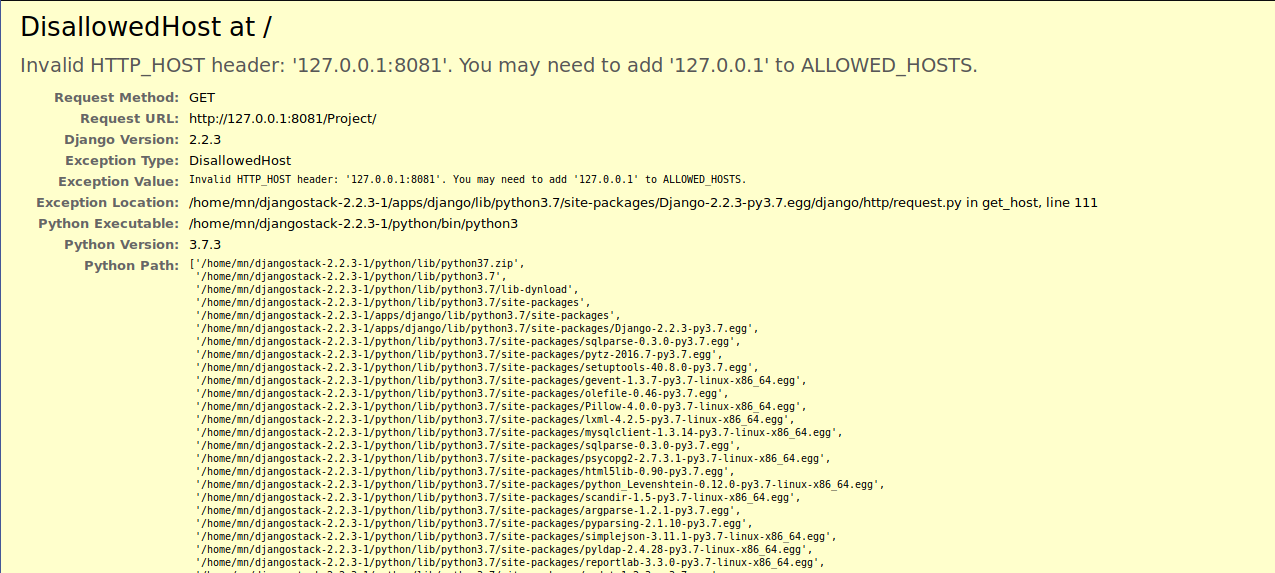
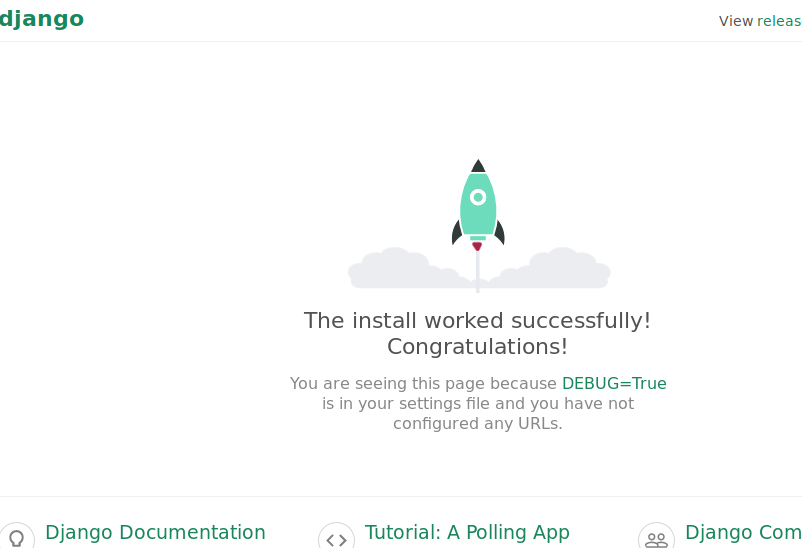
so I change the url to 127.0.1.1:(the used port)/project
and voila !
you have to check what is your virtual network address, for me as i use bitnami django stack 2.2.3-1 on Linux i can check which port django is using.
if you have an error ( 400 bad request ) then i guess django on different virtual network ..
good luck
Method 8
I had to stop the apache server first.
(f.e. sudo systemctl stop httpd.service / sudo systemctl disable httpd.service).
That solved my problem besides editing the ‘settings.py‘ file
to ALLOWED_HOSTS = ['se.rv.er.ip', 'www.example.com']
Method 9
try manage.py collectstatic.
I was missing a static file after an update, hence the bad request.
Method 10
Try to run your server with the --insecure flag, just like this:
python manage.py runserver --insecure
All methods was sourced from stackoverflow.com or stackexchange.com, is licensed under cc by-sa 2.5, cc by-sa 3.0 and cc by-sa 4.0