I’ve been working through the Tkinter chapters in Programming Python and encountered a problem where the foreground and background colours of a button will not change. I am working on a Mac OS X 10.6 system with Python 2.6.1. The colours of a label will change, but not the colours of a button. For example:
from Tkinter import *

Label(None, text='label', fg='green', bg='black').pack()
Button(None, text='button', fg='green', bg='black').pack()

mainloop()
On my Mac system the colours of the label change, but the colours of the button do not. On a Windows system with Python 2.6.1 the colours of both the label and button change.
Anyone know what is going wrong?
I’ve checked Interface Builder and it appears that there is no option to change the foreground or background colour of a button in that tool. There is the ability to edit the foreground and background colours of a label.
The Mac OS X rendering system (Quartz?) may just not support (easily) changing the fg and bg of a button.
Answers:
Thank you for visiting the Q&A section on Magenaut. Please note that all the answers may not help you solve the issue immediately. So please treat them as advisements. If you found the post helpful (or not), leave a comment & I’ll get back to you as soon as possible.
Method 1
There is a solution for changing the background of buttons on Mac.
Use:
highlightbackground=color
For example:
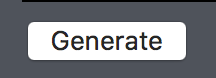
submit = Button(root, text="Generate", highlightbackground='#3E4149')
This results in the following, a nice button that fits in with the background:
Method 2
I think the answer is that the buttons on the mac simply don’t support changing the background and foreground colors. As you’ve seen, this isn’t unique to Tk.
Method 3
You can do it with tkmacosx library from PyPI.
Installation:
-
For Python 2, use
pip install tkmacosx. -
For Python 3, use
pip3 install tkmacosx.
This is how you use tkmacosx:
from tkinter import *
from tkmacosx import Button

root = Tk()

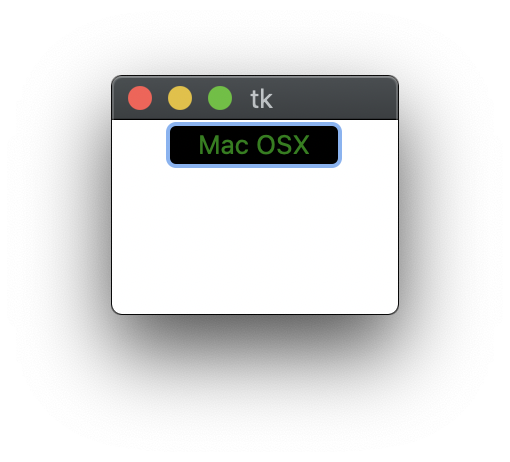
B1 = Button(root, text='Mac OSX', bg='black',fg='green', borderless=1)
B1.pack()

root.mainloop()
It works fine on Mac OS X.
Method 4
For anyone else who happens upon this question as I did, the solution is to use the ttk module, which is available by default on OS X 10.7. Unfortunately, setting the background color still doesn’t work out of the box, but text color does.
It requires a small change to the code:
Original:
from Tkinter import *

Label(None, text='label', fg='green', bg='black').pack()
Button(None, text='button', fg='green', bg='black').pack()

mainloop()
With ttk:
import tkinter as tk
from tkinter import ttk

root = tk.Tk()

# background="..." doesn't work...
ttk.Style().configure('green/black.TLabel', foreground='green', background='black')
ttk.Style().configure('green/black.TButton', foreground='green', background='black')

label = ttk.Label(root, text='I am a ttk.Label with text!', style='green/black.TLabel')
label.pack()

button = ttk.Button(root, text='Click Me!', style='green/black.TButton')
button.pack()

root.mainloop()
Method 5
Its quite annoying that after years this is still a problem.
Anyways, as others have mentioned, highlightbackground (the border color) can be used in place of background on a Mac. If you increase the size of the border to be huge (the size of the button or greater), you will get a nice, solid background color. This will give your button the appearance of a label.
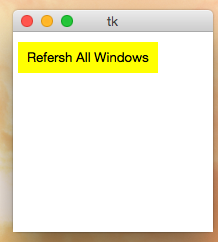
This works if you are using place, but not if you are using something like grid. With grid, increasing the border size increases the button size automatically, unfortunately.
However, if you must use grid, you can always hack it….create your colorless grid button. Next use place to parent a background color button on top of it. This will be the button with the ‘command’ on it or the button you bind events to.
If you want your code to be OS independent, you can either add an ‘if OS == “Mac”‘ statement or even add a custom function that modifies the button if its on a Mac but leaves it alone on Windows or Linux. Here’s the former:
from tkinter import *
import platform


if platform.system() == "Darwin":   ### if its a Mac
    B = Button(text="Refersh All Windows", highlightbackground="Yellow", fg="Black", highlightthickness=30)
else:  ### if its Windows or Linux
    B = Button(text="Refresh All Windows", bg="Yellow", fg="Black")

B.place(x=5, y=10, width=140, height=30)

mainloop()
Method 6
This worked for me:
    self.gnuplot_bt = Button(
        self.run_but_container, text="Plot with Gnuplot", font="Helvetica", command=self.gnuplot,
        highlightbackground ="#8EF0F7", pady=2, relief=FLAT
    )
Method 7
I was looking as to why this doesn’t work as well. I found a quick way to try and fix it is to have a label and then bind a click with the label. Then have the label change colors for a short time to mimic clicking. Here is an example.
def buttonPress(*args):
    searchB.config(state = "active")
    searchB.update()
    time.sleep(0.2)
    searchB.config(state = "normal")
    ## Whatever command you want

    searchB = Label(main, text = "Search", bg = "#fecc14", fg = "Black", activebackground = "Red", highlightbackground="Black")
    searchB.bind("<Button-1>", startSearch)
    searchB.pack()
Method 8
Confirm following code can change the background of tkinter Button on Mac OS X.
self.btn_open = tk.Button(self.toolbar,
                          text = "Open",
                          command=self.open,
                          highlightbackground = "gray")
But it cannot change bg of ttk.Button.
Method 9
Not sure if anyone is still viewing this thread, but I have created a simple solution to this problem by creating my own Button class. It is available on GitHub.
All methods was sourced from stackoverflow.com or stackexchange.com, is licensed under cc by-sa 2.5, cc by-sa 3.0 and cc by-sa 4.0