I started using pygame and I want to do simple game. One of the elements which I need is countdown timer.
How can I do the countdown time (eg 10 seconds) in PyGame?
Answers:
Thank you for visiting the Q&A section on Magenaut. Please note that all the answers may not help you solve the issue immediately. So please treat them as advisements. If you found the post helpful (or not), leave a comment & I’ll get back to you as soon as possible.
Method 1
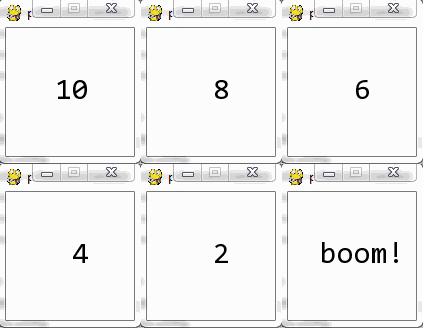
Another easy way is to simply use pygame’s event system.
Here’s a simple example:
import pygame
pygame.init()
screen = pygame.display.set_mode((128, 128))
clock = pygame.time.Clock()

counter, text = 10, '10'.rjust(3)
pygame.time.set_timer(pygame.USEREVENT, 1000)
font = pygame.font.SysFont('Consolas', 30)

run = True
while run:
    for e in pygame.event.get():
        if e.type == pygame.USEREVENT:
            counter -= 1
            text = str(counter).rjust(3) if counter > 0 else 'boom!'
        if e.type == pygame.QUIT:
            run = False

    screen.fill((255, 255, 255))
    screen.blit(font.render(text, True, (0, 0, 0)), (32, 48))
    pygame.display.flip()
    clock.tick(60)
Method 2
On this page you will find what you are looking for http://www.pygame.org/docs/ref/time.html#pygame.time.get_ticks
You download ticks once before beginning the countdown (which can be a trigger in the game – the key event, whatever).
For example:
start_ticks=pygame.time.get_ticks() #starter tick
while mainloop: # mainloop
    seconds=(pygame.time.get_ticks()-start_ticks)/1000 #calculate how many seconds
    if seconds>10: # if more than 10 seconds close the game
        break
    print (seconds) #print how many seconds
Method 3
pygame.time.Clock.tick returns the time in milliseconds since the last clock.tick call (delta time, dt), so you can use it to increase or decrease a timer variable.
import pygame as pg


def main():
    pg.init()
    screen = pg.display.set_mode((640, 480))
    font = pg.font.Font(None, 40)
    gray = pg.Color('gray19')
    blue = pg.Color('dodgerblue')
    # The clock is used to limit the frame rate
    # and returns the time since last tick.
    clock = pg.time.Clock()
    timer = 10  # Decrease this to count down.
    dt = 0  # Delta time (time since last tick).

    done = False
    while not done:
        for event in pg.event.get():
            if event.type == pg.QUIT:
                done = True

        timer -= dt
        if timer <= 0:
            timer = 10  # Reset it to 10 or do something else.

        screen.fill(gray)
        txt = font.render(str(round(timer, 2)), True, blue)
        screen.blit(txt, (70, 70))
        pg.display.flip()
        dt = clock.tick(30) / 1000  # / 1000 to convert to seconds.


if __name__ == '__main__':
    main()
    pg.quit()
Method 4
In pygame exists a timer event. Use pygame.time.set_timer() to repeatedly create an USEREVENT. e.g.:
timer_interval = 500 # 0.5 seconds
timer_event = pygame.USEREVENT + 1
pygame.time.set_timer(timer_event , timer_interval)
Note, in pygame customer events can be defined. Each event needs a unique id. The ids for the user events have to be between pygame.USEREVENT (24) and pygame.NUMEVENTS (32). In this case pygame.USEREVENT+1 is the event id for the timer event.
To disable the timer for an event, set the milliseconds argument to 0.
Receive the event in the event loop:
running = True
while running:

    for event in pygame.event.get():
        if event.type == pygame.QUIT:
            running = False

         elif event.type == timer_event:
             # [...]
The timer event can be stopped by passing 0 to the time parameter.
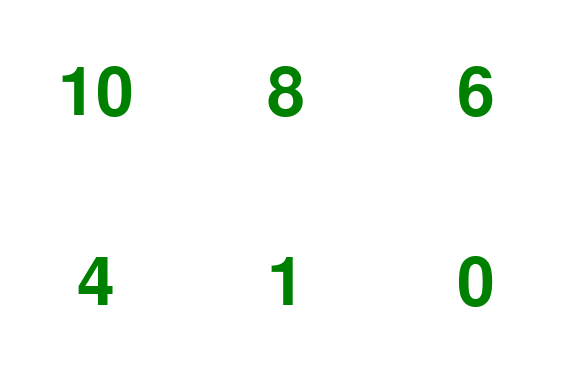
See the example:
import pygame

pygame.init()
window = pygame.display.set_mode((200, 200))
clock = pygame.time.Clock()
font = pygame.font.SysFont(None, 100)
counter = 10
text = font.render(str(counter), True, (0, 128, 0))

timer_event = pygame.USEREVENT+1
pygame.time.set_timer(timer_event, 1000)

run = True
while run:
    clock.tick(60)
    for event in pygame.event.get():
        if event.type == pygame.QUIT:
            run = False
        elif event.type == timer_event:
            counter -= 1
            text = font.render(str(counter), True, (0, 128, 0))
            if counter == 0:
                pygame.time.set_timer(timer_event, 0)

    window.fill((255, 255, 255))
    text_rect = text.get_rect(center = window.get_rect().center)
    window.blit(text, text_rect)
    pygame.display.flip()
Method 5
There are several ways you can do this- here’s one. Python doesn’t have a mechanism for interrupts as far as I know.
import time, datetime

timer_stop = datetime.datetime.utcnow() +datetime.timedelta(seconds=10)
while True:
    if datetime.datetime.utcnow() > timer_stop:
        print "timer complete"
        break
Method 6
There are many ways to do this and it is one of them
import pygame,time, sys
from pygame.locals import*
pygame.init()
screen_size = (400,400)
screen = pygame.display.set_mode(screen_size)
pygame.display.set_caption("timer")
time_left = 90 #duration of the timer in seconds
crashed  = False
font = pygame.font.SysFont("Somic Sans MS", 30)
color = (255, 255, 255)

while not crashed:
    for event in pygame.event.get():
        if event.type == QUIT:
            crashed = True
    total_mins = time_left//60 # minutes left
    total_sec = time_left-(60*(total_mins)) #seconds left
    time_left -= 1
    if time_left > -1:
        text = font.render(("Time left: "+str(total_mins)+":"+str(total_sec)), True, color)
        screen.blit(text, (200, 200))
        pygame.display.flip()
        screen.fill((20,20,20))
        time.sleep(1)#making the time interval of the loop 1sec
    else:
        text = font.render("Time Over!!", True, color)
        screen.blit(text, (200, 200))
        pygame.display.flip()
        screen.fill((20,20,20))


pygame.quit()
sys.exit()
Method 7
This is actually quite simple. Thank Pygame for creating a simple library!
import pygame
x=0
while x < 10:
    x+=1
    pygame.time.delay(1000)
That’s all there is to it! Have fun with pygame!
All methods was sourced from stackoverflow.com or stackexchange.com, is licensed under cc by-sa 2.5, cc by-sa 3.0 and cc by-sa 4.0