Protected Sub Page_Load(ByVal sender As Object, ByVal e As System.EventArgs) Handles Me.Load

    Dim con As New SqlConnection
    Dim img As New Image
    con.ConnectionString = ("Initial Catalog=test; Data Source=LAPTOP-DJ6MPGR2ROOT123;User ID=SA;Password=root;Integrated Security=False;MultipleActiveResultSets=True")
    con.Open()
    Dim cmd As New SqlCommand("select  image from Images ", con)
    cmd.Connection = con
    Dim dr As SqlDataReader = cmd.ExecuteReader()
    If (dr.HasRows) Then
        While (dr.Read)
            Dim bytes As Byte() = DirectCast(dr("image"), Byte())
            Image1.ImageUrl = Convert.ToBase64String(bytes)
        End While
    End If

    con.Close()
End Sub
Answers:
Thank you for visiting the Q&A section on Magenaut. Please note that all the answers may not help you solve the issue immediately. So please treat them as advisements. If you found the post helpful (or not), leave a comment & I’ll get back to you as soon as possible.
Method 1
The following will show how to both upload an image to a SQL Server database as well as how to retrieve and image from the database and display it on an ASP.NET web page.
Create a table in the database:
Create Table Images(Id int IDENTITY(1, 1) Not null,
Image varbinary(max),
Constraint PK_Images_Id PRIMARY KEY(Id));
The SQL Server ‘sa’ user really shouldn’t be used to access the database as this creates a security issue. Instead create a user for your application.
Create a Database User
- Open Microsoft SQL Server Management Studio
- Expand Security
- Right-click Logins
- Select New Login
- Select SQL Server authentication
- Login name: <desired login name> (ex: appUser)
- Enter your desired password
- Uncheck “User must change password at next login”
- Select the desired default database (ex: testDR)
- Click OK
Add User to Database
- Open Microsoft SQL Server Management Studio
- Expand Databases
- Expand <desired database> (ex: testDR)
- Expand Security
- Right-click Users
- Select New User…
- Enter desired user name (ex: appUser)
- For “Login name”, Click
... - Click Browse
- Select desired user (ex: appUser)
- Click OK
- Click OK
- Leave “Default schema”, blank.
- Click OK
Grant User Permissions on Table
- Open Microsoft SQL Server Management Studio
- Expand Databases
- Expand <desired database> (ex: testDR)
- Expand Tables
- Right-click <desired table> (ex: dbo.Images)
- Select Properties
- Under “Select a page”, click Permissions
- Click Search
- Click Browse
- Check desired user (ex: appUser)
- Click OK
- Click OK
- Under Grant, check the following: Delete, Insert, Select, Update
- Click OK
Note: “With Grant” allows the user to grant the permissions to another user.
VS 2019:
Create a new project
- Open Visual Studio
- Click Continue without code
- Click File
- Select New
- Select Project
-
Select the following:

- Click Next
-
Select the following:
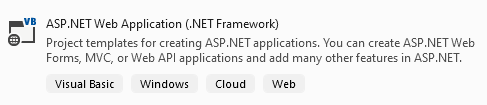
- Click Next
- Enter desired project name
- Click Create
-
Select the following:

- Under Advanced, uncheck Configure for HTTPS
- Click Create
Open Solution Explorer
- In VS menu, click View
- Select Solution Explorer
Add WebForm (name: default.aspx)
- In Solution Explorer, right-click <project name>
- Select Add
- Select New Item…
- Select Web Form (name: default.aspx)
- Click Add
Add WebForm (name: DisplayImage.aspx)
- In Solution Explorer, right-click <project name>
- Select Add
- Select New Item…
- Select Web Form (name: DisplayImage.aspx)
- Click Add
Add connection string to Web.config
- In Solution Explorer, double-click Web.config
In code below, modify the code within <connectionStrings>...</connectionStrings> for your environment (ie: server, database name, user name, password).
Web.config
<?xml version="1.0" encoding="utf-8"?>
<!--
For more information on how to configure your ASP.NET application, please visit
https://go.microsoft.com/fwlink/?LinkId=169433
-->
<configuration>
<connectionStrings>
<add name="testDRConnection" connectionString="Server=.SQLExpress;Database=testDR;User Id=appUser;Password=myAppPassword;" />
</connectionStrings>
<system.web>
<compilation debug="true" strict="false" explicit="true" targetFramework="4.8" />
<httpRuntime targetFramework="4.8" />
</system.web>
<system.codedom>
<compilers>
<compiler language="c#;cs;csharp" extension=".cs" type="Microsoft.CodeDom.Providers.DotNetCompilerPlatform.CSharpCodeProvider, Microsoft.CodeDom.Providers.DotNetCompilerPlatform, Version=2.0.1.0, Culture=neutral, PublicKeyToken=31bf3856ad364e35" warningLevel="4" compilerOptions="/langversion:default /nowarn:1659;1699;1701" />
<compiler language="vb;vbs;visualbasic;vbscript" extension=".vb" type="Microsoft.CodeDom.Providers.DotNetCompilerPlatform.VBCodeProvider, Microsoft.CodeDom.Providers.DotNetCompilerPlatform, Version=2.0.1.0, Culture=neutral, PublicKeyToken=31bf3856ad364e35" warningLevel="4" compilerOptions="/langversion:default /nowarn:41008 /define:_MYTYPE="Web" /optionInfer+" />
</compilers>
</system.codedom>
</configuration>
In “default.aspx” we’ll add the ability to upload a file to the database. When the upload is complete, we’ll use “Display.aspx” to display the last uploaded image.
In Solution Explorer, double-click default.aspx.
default.aspx
<%@ Page Language="vb" AutoEventWireup="false" CodeBehind="default.aspx.vb" Inherits="DatabaseGetImage.UploadImage" %>

<!DOCTYPE html>

<html xmlns="http://www.w3.org/1999/xhtml">
<head runat="server">
    <title></title>
</head>
<body>
    <form id="frmDefault" runat="server">
        <div>
            <asp:Label ID="LabelFileUpload" for="FileUpload1" runat="server" Text="Label">Upload a File</asp:Label>
            <p />

            <asp:FileUpload ID="FileUpload1" runat="server" />
            <asp:Button ID="ButtonUploadFile" runat="server" Text="Upload" OnClick="ButtonUploadFile_Click" />
            <p />

            <asp:Label ID="LblMsg" runat="server" Text=""></asp:Label>
        </div>
    </form>
</body>
</html>
Below is the code that uploads an image to the database.
In Solution Explorer, right-click default.aspx. Select View Code
default.aspx.vb
Imports System.Configuration
Imports System.Data.SqlClient
Public Class UploadImage
    Inherits System.Web.UI.Page

    'Private _connectionStr As String = "Server=.SQLExpress;Database=testDR;User Id=appAdmin;Password=appPass;"

    Protected Sub Page_Load(ByVal sender As Object, ByVal e As System.EventArgs) Handles Me.Load

    End Sub

    Protected Function UploadImage(imageBytes As Byte()) As Integer
        Dim rowsAffected As Integer = 0
        Dim connectionStr As String = ConfigurationManager.ConnectionStrings("testDRConnection").ConnectionString
        Dim sqlText As String = "INSERT INTO Images(Image) VALUES(@img);"

        Using con As SqlConnection = New SqlConnection(connectionStr)
            'open
            con.Open()

            Using cmd As SqlCommand = New SqlCommand(sqlText, con)
                'size = -1 is needed to exceed 8000 bytes; it maps to varbinary(max)
                cmd.Parameters.Add("@img", SqlDbType.VarBinary, -1).Value = imageBytes

                'execute
                rowsAffected = cmd.ExecuteNonQuery()
            End Using
        End Using

        Return rowsAffected
    End Function

    Protected Sub ButtonUploadFile_Click(sender As Object, e As EventArgs)
        If FileUpload1.HasFile() Then
            LblMsg.Text = "Filename: " & FileUpload1.FileName & " File bytes: " & FileUpload1.FileBytes.Length

            'upload image to database
            Dim rowsAffected As Integer = UploadImage(DirectCast(FileUpload1.FileBytes, Byte()))

            Response.Redirect("DisplayImage.aspx")
        End If
    End Sub
End Class
Next, we’ll modify “DisplayImage.aspx” so that it will display an image.
In Solution Explorer, double-click DisplayImage.aspx
DisplayImage.aspx
<%@ Page Language="vb" AutoEventWireup="false" CodeBehind="DisplayImage.aspx.vb" Inherits="DatabaseGetImage.displayImage" %>

<!DOCTYPE html>

<html xmlns="http://www.w3.org/1999/xhtml">
<head runat="server">
    <title></title>
</head>
<body>
<div>
    <asp:Image ID="Image1" runat="server" ></asp:Image>
    <p />

    <asp:Label ID="LblMsg" runat="server" Text=""></asp:Label>
    </div>
</body>
</html>
The code below retrieves an image from the database and displays it.
In Solution Explorer, right-click DisplayImage.aspx. Select View Code
DisplayImage.aspx.vb
Imports System.Configuration
Imports System.Data.SqlClient
Public Class displayImage
    Inherits System.Web.UI.Page

    'Private _connectionStr As String = "Server=.SQLExpress;Database=testDR;User Id=appAdmin;Password=appPass;"

    Protected Sub Page_Load(ByVal sender As Object, ByVal e As System.EventArgs) Handles Me.Load
        Dim imagesBytes As Byte() = GetImage(id:=1) 'get image with id = 1

        If imagesBytes IsNot Nothing Then
            'LblMsg.Text = "Base64 String: " & Convert.ToBase64String(imagesBytes)

            Image1.ImageUrl = "data:image/jpeg;base64," & Convert.ToBase64String(imagesBytes)
        End If
    End Sub

    Protected Function GetImage(id As Integer) As Byte()
        Dim imageBytes As Byte() = Nothing
        Dim connectionStr As String = ConfigurationManager.ConnectionStrings("testDRConnection").ConnectionString
        Dim sqlText As String = "SELECT * from Images where Id = (SELECT max(Id) from Images)"

        Try
            Using con As SqlConnection = New SqlConnection(connectionStr)
                con.Open() 'open

                Using cmd As SqlCommand = New SqlCommand(sqlText, con)
                    cmd.Parameters.Add("@id", SqlDbType.Int).Value = id

                    Using dr As SqlDataReader = cmd.ExecuteReader()
                        If dr.HasRows Then
                            While dr.Read()
                                imageBytes = DirectCast(dr("image"), Byte())
                            End While
                        End If
                    End Using
                End Using
            End Using
        Catch ex As SqlException
            'ToDo: add desired code
            LblMsg.Text = "Error: " & ex.Message
            'Throw
        Catch ex As Exception
            'ToDo: add desired code
            LblMsg.Text = "Error: " & ex.Message
            'Throw
        End Try

        Return imageBytes
    End Function

End Class
Resources:
- Store Connection String in Web.config
- SQL Server Connection Strings
- How to display Base64 images in HTML
All methods was sourced from stackoverflow.com or stackexchange.com, is licensed under cc by-sa 2.5, cc by-sa 3.0 and cc by-sa 4.0