I used to use asp.net mvc4 and in IIS my website’s physical path would point my solution directory, and every time I update my code, I just re-build my solution and then I can use “Attach to process” (w3wp) to start debugging.
In asp.net core, when I publish my website to file system, I can run my website using IIS with no-managed code. But when I point my IIS Website to my solution code of website, it shows 502 error.
Answers:
Thank you for visiting the Q&A section on Magenaut. Please note that all the answers may not help you solve the issue immediately. So please treat them as advisements. If you found the post helpful (or not), leave a comment & I’ll get back to you as soon as possible.
Method 1
You don’t need to run .Net Core in IIS to get easy debugging etc like we used to do as you described.
With .Net Core you can just open a command line at your project root and type “dotnet run”
DotNet Run uses environment variables to drive what it does. So if you want your site to run on a specific URL or port you Type:
SET ASPNETCORE_URLS=http://example.com
Or if you just want it to run on a different port
SET ASPNETCORE_URLS=http://localhost:8080
Then to set the Environment
SET ASPNETCORE_ENVIRONMENT=Development
Once all your environment variables are set, you type
dotnet run
Now to debug it, you attach to cmd.exe with dotnet run in it’s Title. You’ll be able to debug your code that way.
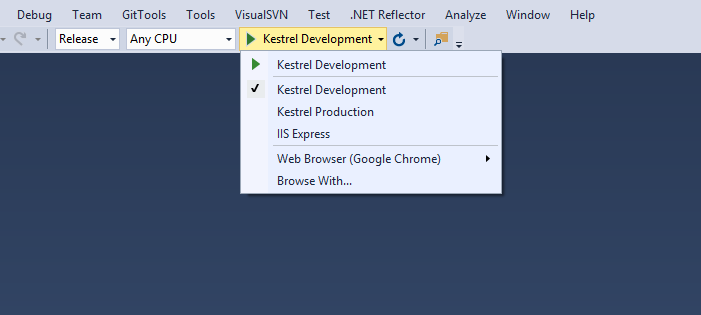
Now, if you are using Visual Studio There is a file called “launchSettings.JSON” under Properties in your project. You can configure profiles here and I have my default profiles set to Kestrel Development and then Kestrel Production, with IIS dead last so that I don’t F5 run in IIS Express.
My LaunchSettings.json looks like this:
{
  "iisSettings": {
    "windowsAuthentication": false,
    "anonymousAuthentication": true,
    "iisExpress": {
      "applicationUrl": "http://localhost:56545/",
      "sslPort": 0
    }
  },
  "profiles": {
    "Kestrel Development": {
      "executablePath": "dotnet run",
      "commandName": "Project",
      "commandLineArgs": "dotnet run",
      "environmentVariables": {
        "ASPNETCORE_ENVIRONMENT": "Development",
        "ASPNETCORE_URLS": "http://localhost:8080"
      }
    },
    "Kestrel Production": {
      "commandLineArgs": "dotnet run",
      "commandName": "Project",
      "environmentVariables": {
        "ASPNETCORE_URLS": "http://localhost:8080",
        "ASPNETCORE_ENVIRONMENT": "Production"
      },
      "executablePath": "dotnet"
    },
    "IIS Express": {
      "commandName": "IISExpress",
      "launchBrowser": true,
      "environmentVariables": {
        "ASPNETCORE_ENVIRONMENT": "Development"
      }
    }
  }
}
The first Profile is what F5 uses when you press it. So when I press F5 Visual Studio launches dotnet run for me and set’s the Environment and URLS as specified by the environmentVariables section of my profile in launchSettings.JSON.
Now because I have multiple Profiles I get a drop down next to the run button so I can select Kestrel Production if I want to run in Production mode locally.
Method 2
Follow these steps to be able to achieve what you want.
-
In launchSettings.json, add a property named
iisunderiisSettings, like so:"iis": { "applicationUrl": "http://my.aspnetcoreapp.com" } -
Under the
profilessection, add a new profile havingcommandNameset toIIS. I am calling mineLocal IIS. This will add a new option to the Run drop down namedLocal IIS."Local IIS": { "commandName": "IIS", "launchBrowser": true, "launchUrl": "http://my.aspnetcoreapp.com", "environmentVariables": { "ASPNETCORE_ENVIRONMENT": "Development" } } -
Create a website in IIS. Set host name to
my.aspnetcoreapp.com. Also create/use an app pool for this website that has .NET CLR version set to “No Managed Code”. - Set physical path of that website to the location of your asp.net core project, not the solution, unless of course if you have the project in the same folder as the solution.
-
Add a loop back entry in the hosts file (for Windows C:WindowsSystem32driversetchosts)
127.0.0.1 my.aspnetcoreapp.com
- Go back to Visual Studio, and run the application. Make sure you have “Local IIS” profile selected from Run drop-down. This will launch the application in the browser, at the URL, after a brief loading message that says “Provisioning IIS…”.
- Done! From now on, you can launch your application at that URL, and can also debug by attaching to process w3wp.
You could also host your app under “Default Web Site”, by specifying the ULR like localhost/MyAspNetCoreApp instead of my.aspnetcoreapp.com. If you do that, a new app pool will be created with the name MyAspNetCoreApp AppPool.
My medium article about this.
Method 3
Simple answer: when you do publish, you call a script that launches the publish-iis tool (see script section in project.json).
In your project you have a web.config file with something like this:
<aspNetCore processPath="%LAUNCHER_PATH%" arguments="%LAUNCHER_ARGS%"
 stdoutLogEnabled="false" stdoutLogFile=".logsstdout" forwardWindowsAuthToken="false"/
As you see, there are placeholders "%LAUNCHER_PATH%" and %LAUNCHER_ARGS% parameters. Keep these in mind.
Now open your project.json file and you will see a “scripts” section looking something like this:
"scripts":
{
    "postpublish":"dotnet publish-iis --publish-folder %publish:OutputPath% --framework %publish:FullTargetFramework%"
}
It tells dotnet to run the publish-iis tool after the application is published. How it works:
publish-iis tool goes to the folder where the application was published (not your project folder) and checks if it contains a web.config file. If it doesn’t, it will create one. If it does, it will check what kind of application you have (i.e. whether it is targeting full CLR or Core CLR and – for Core CLR – whether it is a portable or standalone application) and will set the values of the processPath and arguments attributes removing %LAUNCHER_PATH% and %LAUNCHER_ARGS% placeholders on the way.
Method 4
Just run Ctrl + F5 and you can make code changes while running the site without restarting it.
All methods was sourced from stackoverflow.com or stackexchange.com, is licensed under cc by-sa 2.5, cc by-sa 3.0 and cc by-sa 4.0