Firstly I’ve seen some topics like this, but they haven’t helped me.
I’ve attached some images to a post via “Add Media” :
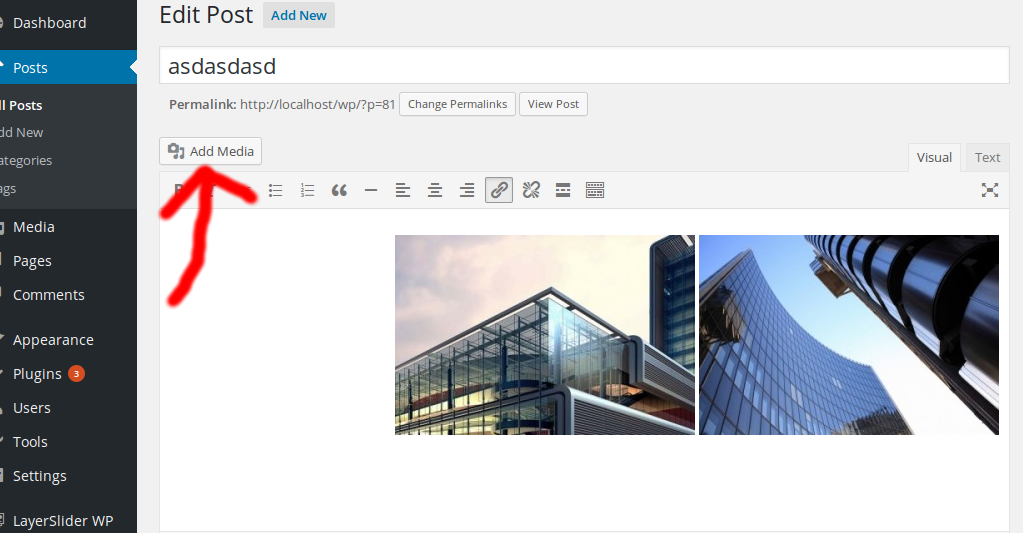
And for showing these attached images, I used following code in single.php file :
if ( have_posts() ) : while ( have_posts() ) : the_post();
    $args = array(
        'post_type'   => 'attachment',
        'numberposts' => -1,
        'post_status' => null,
        'post_parent' => $post->ID
    );
    $attachments = get_posts( $args );
    if ( $attachments ) {
        foreach ( $attachments as $attachment ) {
            echo '<li>';
            echo wp_get_attachment_image( $attachment->ID, 'full' );
            echo '<p>';
            echo apply_filters( 'the_title', $attachment->post_title );
            echo '</p></li>';
        }
    }
endwhile; endif;
This shows the attached images and works fine.
The Problem :
When I remove an attached image from a post:
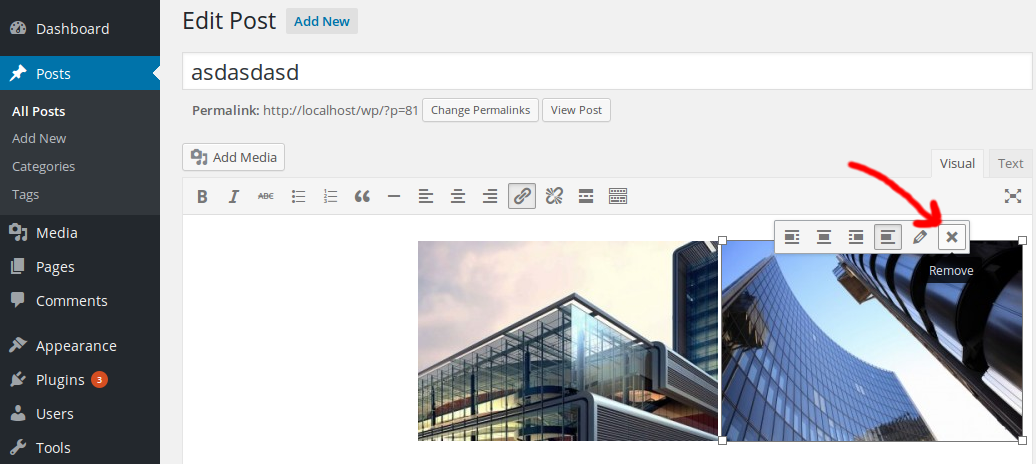
The removed image still exists in that post!
How can I completely detach images from posts?
P.S. I also tried Ctrl + F5
Answers:
Thank you for visiting the Q&A section on Magenaut. Please note that all the answers may not help you solve the issue immediately. So please treat them as advisements. If you found the post helpful (or not), leave a comment & I’ll get back to you as soon as possible.
Method 1
If you view the Media Library in the list mode:
/wp-admin/upload.php?mode=list
then you will see the Attach/Detach links for each attachment.
Each attachment can only be attached to a single parent through the post_parent field in the wp_posst table.
Deleting an image from the post editor will not change the post_parent field to 0.
Making life a little bit easier!
It would be nice to be able to do it within the Media View popup, when editing a post, since it can take a long time to find it within the media library.
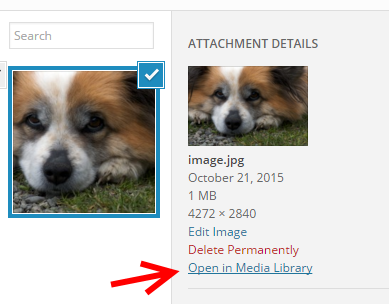
First we construct a custom Backbone micro template, that we will add to the Attachment Details view:
<script type="text/html" id="tmpl-wpse-open-in-library">
    <div class="wpse-open-in-library">
        <a href="<?php echo admin_url('upload.php?mode=list&p=');?>{{ data.id }}" rel="nofollow noreferrer noopener" rel="nofollow noreferrer noopener" target="_blank">
             <?php _e( 'Open in Media Library' ); ?>
        </a>
    </div>
</script>
where {{ data.id }} is the current attachment’s ID.
This is how we insert it after the Delete Attachment link:
$( wp.media.template('wpse-open-in-library')(
      {
         id: attachment.get( 'id' )  // <-- This is how we can fetch the current ID
      }
    )
 ).insertAfter('.delete-attachment');
where we pass the id variable to our custom micro template.
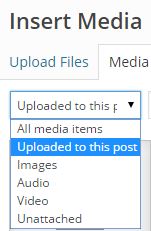
Note that we can view all the attached files by selecting the following option:
Demo plugin
Here’s the whole demo plugin:
/**
 * Open an attachment in the Media Library, to be able to attach/detach it
 *
 * @link https://wordpress.stackexchange.com/a/206179/26350
 */
add_action( 'print_media_templates', function()
{ ?>

  <!-- Custom template part -->
  <script type="text/html" id="tmpl-wpse-open-in-library">
        <div class="wpse-open-in-library">
            <a href="<?php echo admin_url('upload.php?mode=list&p=');?>{{ data.id }}" rel="nofollow noreferrer noopener" rel="nofollow noreferrer noopener" target="_blank">
                <?php _e( 'Open in Media Library' ); ?>
           </a>
       </div>
  </script>

  <!-- Extend the Attachment Details View -->
  <script>
      jQuery(document).ready( function( $ )
      {
          wp.media.view.Settings.AttachmentDisplay = wp.media.view.Settings.AttachmentDisplay.extend(
          {
              render: function()
              {
                  wp.media.View.prototype.render.apply( this, arguments );
                  var attachment = this.options.attachment;
                  $( wp.media.template('wpse-open-in-library')(
                        {
                            id: attachment.get( 'id' )
                        }
                     )
                  ).insertAfter('.delete-attachment');

                return this;
            }
      } );
    } );
  </script>
<?php
} );
This answer by @kalimah-apps and the answers here by @bonger and @Fabien Quatravaux, were of great help construction this demo plugin.
Then the next step would be to add the Detach link, to make it even easier 😉
All methods was sourced from stackoverflow.com or stackexchange.com, is licensed under cc by-sa 2.5, cc by-sa 3.0 and cc by-sa 4.0