I’m trying to get a WCF service running in IIS8 on Windows Server 2012 build 8400.
When installing the web role the WCF stuff (under 3.51) wasn’t to be found like in Windows Server 2008.
When installed the svc handler mapping was missing, so i did a:
%windir%Microsoft.NETFrameworkv3.0WindowsCommunication FoundationServiceModelReg.exe –i
Now the handler mapping is there, but I still get:
The resource you are looking for does not have a handler associated with it.
(I removed the static file handler.)
The site is using the classic pipeline in order to use impersonation.
Answers:
Thank you for visiting the Q&A section on Magenaut. Please note that all the answers may not help you solve the issue immediately. So please treat them as advisements. If you found the post helpful (or not), leave a comment & I’ll get back to you as soon as possible.
Method 1
More specifically:
- Run
Server Manager(on task bar and start menu) - Choose the server to administer (probably local server)
- Scroll down to “
Roles and Features” section. - Choose “
Add Role or Feature” from Tasks drop down - On “
Add Role or Feature Wizard” dialog, click down to “Features” in list of pages on the left. - Expand
".Net 3.5"or".Net 4.5", depending on what you have installed. (you can go back up to “roles” screen to add if you don’t have. - Under “
WCF Services“, check the box for “HTTP-Activation“. You can also add non-http types if you know you need them (tcp, named pipes, etc). - Click
"Install"Button.
Method 2
I had to enable HTTP Activation in .NET Framework 4.5 Advanced Services > WCF Services
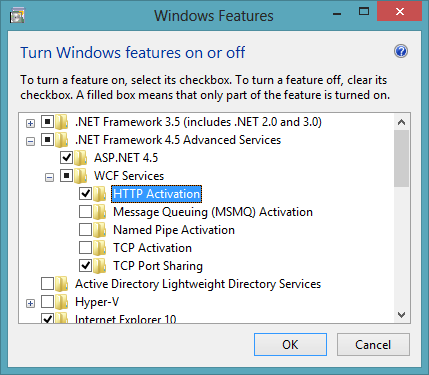
Method 3
turn ON the following on ‘Turn Windows Features on or off’
a) .Net Framework 3.5 – WCF HTTP Activation and Non-Http Activation
b) all under WCF Services
Method 4
Windows 8 with IIS8
- Hit
Windows+X - Select
Programs and Features(first item on list) - Select
Turn Windows Features on or offon the left - Expand
.NET Framework 4.5 Advanced Services - Expand
WCF Services - Enable
HTTP Activation
Method 5
I prefer to do this via a script nowadays
REM install the needed Windows IIS features for WCF
dism /Online /Enable-Feature /FeatureName:WAS-WindowsActivationService
dism /Online /Enable-Feature /FeatureName:WAS-ProcessModel
dism /Online /Enable-Feature /FeatureName:WAS-NetFxEnvironment
dism /Online /Enable-Feature /FeatureName:WAS-ConfigurationAPI
dism /Online /Enable-Feature /FeatureName:WCF-HTTP-Activation
dism /Online /Enable-Feature /FeatureName:WCF-HTTP-Activation45

REM Feature Install Complete
pause
Method 6
We managed to solve the error under Windows Server 2012 by:
- Removing from “Remove Roles and Features Wizard” .NET Framework 4.5 Features/ASP.NET 4.5 and all its dependent features
- Re-installing the removed features.
It seems the order of installation is the cause.
Also, make sure you have HTTP Activation installed under WCF Services.
Method 7
For Windows 8 machines there is no “Server Manager” application (at least I was not able to find it).
Though I was able to resolve the problem. I’m not sure in which sequence I did the following operations but looks like one/few of following actions help:
- Turn ON the following on ‘Turn Windows Features on or off’ a) .Net Framework 3.5 – WCF HTTP Activation and Non-Http Activation b) all under WCF Services (as specified in one of the answers to this question)
- executed “ServiceModelReg.exe –i” in “%windir%Microsoft.NETFrameworkv3.0Windows Communication Foundation” folder
-
Registered ASP.NET 2.0 via two commands ( in folder C:WINDOWSMicrosoft.NETFrameworkv2.0.50727):
aspnet_regiis -ga “NT AUTHORITYNETWORK SERVICE”
aspnet_regiis -iru - Restarted PC… it looks like as a result as actions ## 3 and 4 something got broken in my ASP.NET configuration
- Repeat action #2
- Install two other options from the “Programs and Features”: .Net Framework 4.5 Advanced Services. I checked both sub options: ASP.NET 4.5 and WCF services
- Restart App Pool.
Sequence is kind of crazy, but that helped to me and probably will help to other
Method 8
using PowerShell you can install the required feature with:
Add-WindowsFeature 'NET-HTTP-Activation'
Method 9
Order of installation matters a lot when configuring IIS 8 on Windows 8 or Windows Server 2012.
I faced lot of issues configuring IIS 8 but finally these links helped me
Method 10
On windows 10 (client) you can also script this using
Enable-WindowsOptionalFeature -Online -NoRestart -FeatureName WCF-HTTP-Activation45 -All
Note that this is a different command from the server skus
Method 11
It’s HTTP Activation feature of .NET framework
Windows Process Activation feature is required too
Method 12
This was a really silly one for me. Adding this here as it’s one of the more popular threads on svc 404 issues.
I had in my Project Settings’ Web Project URL, pasted:
http://blah.webservice.local.blahblah.com/Blah.svc
And for some unknown reason (having done this a thousand times) didn’t spot straight away that the name of the .svc file was at the end.
DOH!
I had just pasted the address from my WCF test client and hadn’t checked it sufficiently. What this did in the background was create an IIS application at the .svc address and I was getting nothing out of IIS. I couldn’t work out how I couldn’t even hit the .svc file.
Simple fix, obviously, just remove the application in IIS and change the project URL.
After almost 20 years at this, you can still make schoolboy errors / rookie mistakes. Hope this helps someone.
All methods was sourced from stackoverflow.com or stackexchange.com, is licensed under cc by-sa 2.5, cc by-sa 3.0 and cc by-sa 4.0