Here’s an issue with IIS 7.5 and ASP.NET that I’ve been researching and getting nowhere with. Any help would be greatly appreciated.
My question is: using ASP.NET in IIS 7.5, how does IIS and/or the operating system allow the web application to write to a folder like C:dump when running under full trust? How is it that I don’t have to explicitly add write access for the application pool user (in this case ApplicationPoolIdentity)?
This much I know:
- In IIS 7.5, the default Identity for an Application Pool is
ApplicationPoolIdentity. ApplicationPoolIdentityrepresents a Windows user account called “IIS APPPOOLAppPoolName”, which is created when the Application Pool is created, where AppPoolName is the name of the Application Pool.- The “IIS APPPOOLAppPoolName” user is by default a member of the
IIS_IUSRSgroup. - If you are running under Full Trust, your web application can write to many areas of the file system (excluding folders like
C:Users,C:Windows, etc). For example, your application will have access to write to some folders, like,C:dump. - By default, the
IIS_IUSRSgroup is not given read or write access toC:dump(at least not access that is visible through the “Security” tab in Windows Explorer). - If you deny write access to
IIS_IUSRS, you will get a SecurityException when trying to write to the folder (as expected).
So, taking all of that into account, how is write access granted to the “IIS APPPOOLAppPoolName” user? The w3wp.exe process runs as this user, so what allows this user to write to a folder it doesn’t seem to have explicit access to?
Please note that I understand this was probably done for the sake of convenience, since it would be a pain to grant a user access to every folder it needs to write to if you are running under Full Trust. If you want to limit this access, you can always run the application under Medium Trust. I am interested in finding out about the way the operating system and/or IIS allows these writes to take place, even though there appears to be no explicit file system access granted.
Answers:
Thank you for visiting the Q&A section on Magenaut. Please note that all the answers may not help you solve the issue immediately. So please treat them as advisements. If you found the post helpful (or not), leave a comment & I’ll get back to you as soon as possible.
Method 1
The ApplicationPoolIdentity is assigned membership of the Users group as well as the IIS_IUSRS group. On first glance this may look somewhat worrying, however the Users group has somewhat limited NTFS rights.
For example, if you try and create a folder in the C:Windows folder then you’ll find that you can’t. The ApplicationPoolIdentity still needs to be able to read files from the windows system folders (otherwise how else would the worker process be able to dynamically load essential DLL’s).
With regard to your observations about being able to write to your c:dump folder. If you take a look at the permissions in the Advanced Security Settings, you’ll see the following:
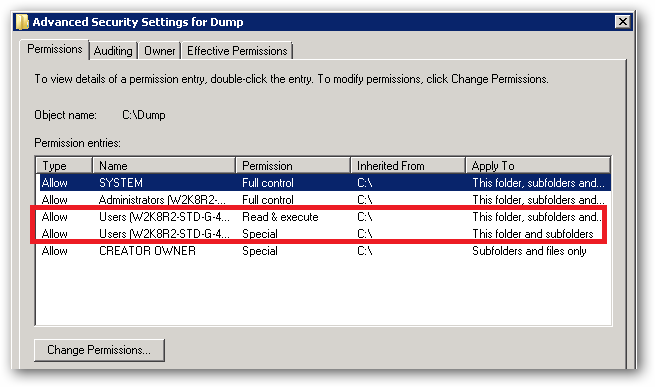
See that Special permission being inherited from c::
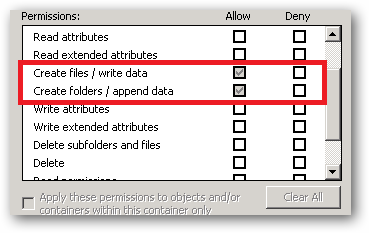
That’s the reason your site’s ApplicationPoolIdentity can read and write to that folder. That right is being inherited from the c: drive.
In a shared environment where you possibly have several hundred sites, each with their own application pool and Application Pool Identity, you would store the site folders in a folder or volume that has had the Users group removed and the permissions set such that only Administrators and the SYSTEM account have access (with inheritance).
You would then individually assign the requisite permissions each IIS AppPool[name] requires on it’s site root folder.
You should also ensure that any folders you create where you store potentially sensitive files or data have the Users group removed. You should also make sure that any applications that you install don’t store sensitive data in their c:program files[app name] folders and that they use the user profile folders instead.
So yes, on first glance it looks like the ApplicationPoolIdentity has more rights than it should, but it actually has no more rights than it’s group membership dictates.
An ApplicationPoolIdentity‘s group membership can be examined using the SysInternals Process Explorer tool. Find the worker process that is running with the Application Pool Identity you’re interested in (you will have to add the User Name column to the list of columns to display:
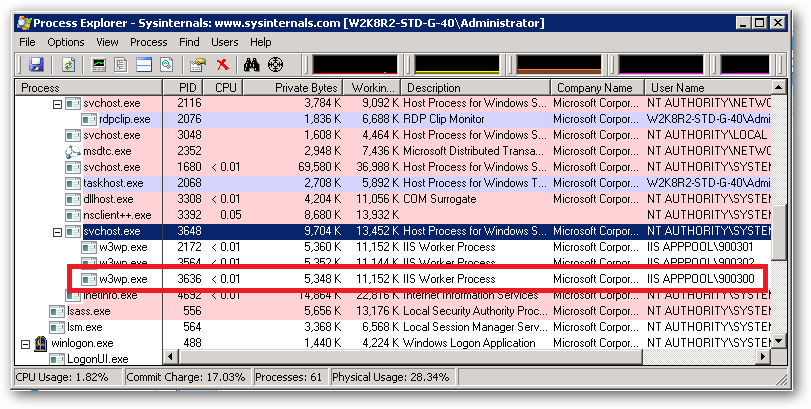
For example, I have a pool here named 900300 which has an Application Pool Identity of IIS APPPOOL900300. Right clicking on properties for the process and selecting the Security tab we see:
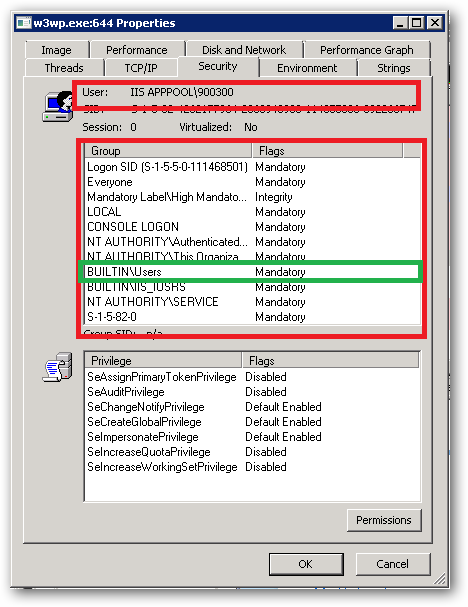
As we can see IIS APPPOOL900300 is a member of the Users group.
Method 2
- Right click on folder.
- Click Properties
- Click Security Tab. You will see something like this:
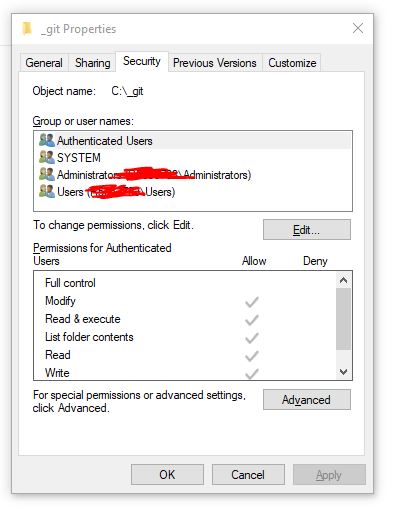
- Click “Edit…” button in above screen. You will see something like this:
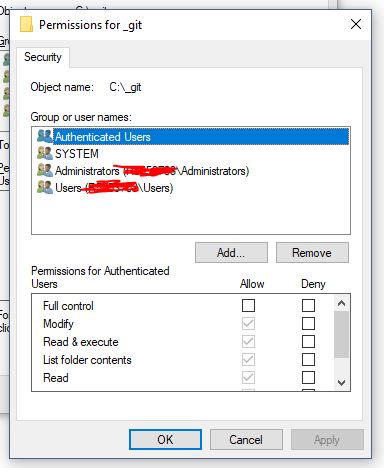
- Click “Add…” button in above screen. You will see something like this:
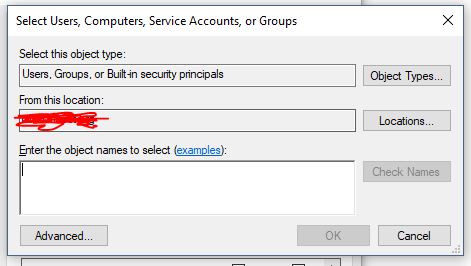
- Click “Locations…” button in above screen. You will see something like this. Now, go to the very of top of this tree structure and select your computer name, then click OK.
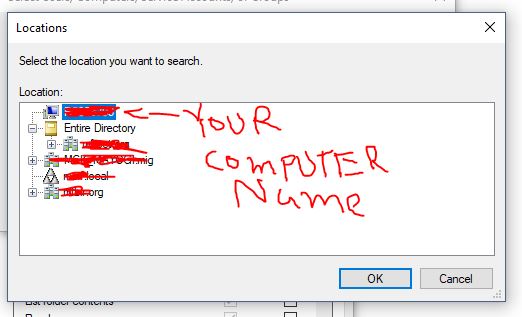
- Now type “iis apppoolyour_apppool_name” and click “Check Names” button. If the apppool exists, you will see your apppool name in the textbox with underline in it. Click OK button.
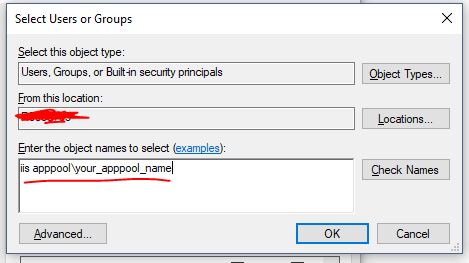
- Check/uncheck whatever access you need to grant to the account
- Click Apply button and then OK.
Method 3
Each application pool in IIs creates its own secure user folder with FULL read/write permission by default under c:users. Open up your Users folder and see what application pool folders are there, right click, and check their rights for the application pool virtual account assigned. You should see your application pool account added already with read/write access assigned to its root and subfolders.
So that type of file storage access is automatically done and you should be able to write whatever you like there in the app pools user account folders without changing anything. That’s why virtual user accounts for each application pool were created.
Method 4
I tried this to fix access issues to an IIS website, which manifested as something like the following in the Event Logs → Windows → Application:
Log Name:      Application
Source:        ASP.NET 4.0.30319.0
Date:          1/5/2012 4:12:33 PM
Event ID:      1314
Task Category: Web Event
Level:         Information
Keywords:      Classic
User:          N/A
Computer:      SALTIIS01

Description:
Event code: 4008
Event message: File authorization failed for the request.
Event time: 1/5/2012 4:12:33 PM
Event time (UTC): 1/6/2012 12:12:33 AM
Event ID: 349fcb2ec3c24b16a862f6eb9b23dd6c
Event sequence: 7
Event occurrence: 3
Event detail code: 0

Application information:
    Application domain: /LM/W3SVC/2/ROOT/Application/SNCDW-19-129702818025409890
    Trust level: Full
    Application Virtual Path: /Application/SNCDW
    Application Path: D:SitesWCFApplicationSNCDW
    Machine name: SALTIIS01

Process information:
    Process ID: 1896
    Process name: w3wp.exe
    Account name: iisservice

Request information:
    Request URL: http://webservicestest/Application/SNCDW/PC.svc
    Request path: /Application/SNCDW/PC.svc
    User host address: 10.60.16.79
    User: js3228
    Is authenticated: True
    Authentication Type: Negotiate
    Thread account name: iisservice
In the end I had to give the Windows Everyone group read access to that folder to get it to work properly.
All methods was sourced from stackoverflow.com or stackexchange.com, is licensed under cc by-sa 2.5, cc by-sa 3.0 and cc by-sa 4.0