How is it possible to add a custom button to the visual editor TinyMCE, Version 4?
Currently I found this q&a with a little bit hints to the topic, but not a solution or a how to. But I can’t find a tutorial, documentation, q&a for the topic to add a custom button to the TinyMCE version 4, include in WordPress since version 3.9-beta1.
Goal

Answers:
Thank you for visiting the Q&A section on Magenaut. Please note that all the answers may not help you solve the issue immediately. So please treat them as advisements. If you found the post helpful (or not), leave a comment & I’ll get back to you as soon as possible.
Method 1
The following small plugin creates a custom button inside line 1 of the WordPress TinyMCE Version 4, tested in WP Version 3.9-beta2.
The plugin has var_dump included to understand the values. It’s also possible to add the button to other lines of the visual editor, only a other hook, like for line 2: mce_buttons_2.
Result
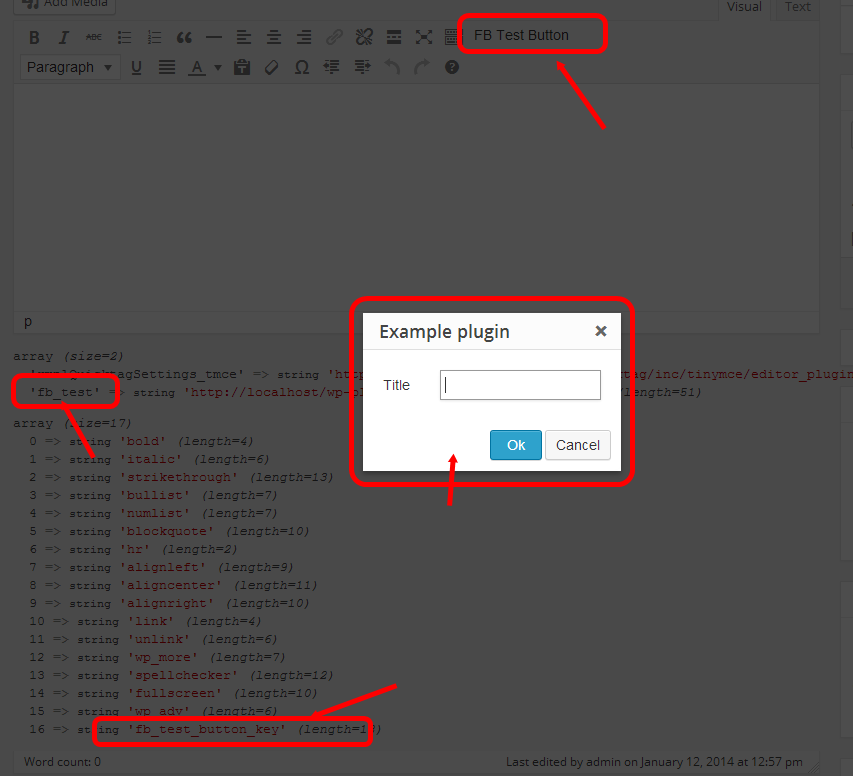
Plugin, PHP side – tinymce4-test.php
<?php
/**
 * Plugin Name: TinyMCE 4 @ WP Test
 * Description:
 * Plugin URI:
 * Version:     0.0.1
 * Author:      Frank Bültge
 * Author URI:  http://bueltge.de
 * License:     GPLv2
 * License URI: ./assets/license.txt
 * Text Domain:
 * Domain Path: /languages
 * Network:     false
 */

add_action( 'admin_head', 'fb_add_tinymce' );
function fb_add_tinymce() {
    global $typenow;

    // Only on Post Type: post and page
    if( ! in_array( $typenow, array( 'post', 'page' ) ) )
        return ;

    add_filter( 'mce_external_plugins', 'fb_add_tinymce_plugin' );
    // Add to line 1 form WP TinyMCE
    add_filter( 'mce_buttons', 'fb_add_tinymce_button' );
}

// Inlcude the JS for TinyMCE
function fb_add_tinymce_plugin( $plugin_array ) {

    $plugin_array['fb_test'] = plugins_url( '/plugin.js', __FILE__ );
    // Print all plugin JS path
    var_dump( $plugin_array );
    return $plugin_array;
}

// Add the button key for address via JS
function fb_add_tinymce_button( $buttons ) {

    array_push( $buttons, 'fb_test_button_key' );
    // Print all buttons
    var_dump( $buttons );
    return $buttons;
}
Script, JavaScript side – plugin.js
( function() {
    tinymce.PluginManager.add( 'fb_test', function( editor, url ) {

        // Add a button that opens a window
        editor.addButton( 'fb_test_button_key', {

            text: 'FB Test Button',
            icon: false,
            onclick: function() {
                // Open window
                editor.windowManager.open( {
                    title: 'Example plugin',
                    body: [{
                        type: 'textbox',
                        name: 'title',
                        label: 'Title'
                    }],
                    onsubmit: function( e ) {
                        // Insert content when the window form is submitted
                        editor.insertContent( 'Title: ' + e.data.title );
                    }

                } );
            }

        } );

    } );

} )();
Gist
Use the Gist bueltge/9758082 as reference, or download. The Gist also has more examples for different buttons in TinyMCE.
Links
- TinyMCE API 4
- Migration guide from 3.x
- WP Trac Ticket
- TinyMCE Default Font for Icons-Fonts
- Alternative Icon via Dashicon or Genericons
- TinyMCE Default Plugins
- Compat Plugin – This plugin contains a few compatibility files for the old 3.x branch. This enables you to run most old 3.x plugins with out any modifications.
Method 2
And, if you’d like to have an actual icon button, then you can leverage dashicons, or your own icon font for it.
Create a CSS file, and enqueue on the admin side;
i.mce-i-pluginname:before {
    content: "f164";
    display: inline-block;
    -webkit-font-smoothing: antialiased;
    text-align: center;
    font: 400 20px/1 dashicons!important;
    speak: none;
    vertical-align: top;
}
Basically taken straight from core.
Method 3
The simple method of adding button
1) ADD THIS CODE INTO FUNCTIONS.PHP, OR IN PLUGIN
//add_protect_shortcode_button
add_action('admin_init', 'add_cb_button');function add_cb_button() {
   if (current_user_can('edit_posts')  &&  get_user_option('rich_editing') == 'true') {
        add_filter('mce_buttons_2', 'register_buttonfirst');
        add_filter('mce_external_plugins', 'add_pluginfirst');
   }
}
function register_buttonfirst($buttons) {  array_push($buttons, "|", "shortcode_button1" );   return $buttons;}
function add_pluginfirst($plugin_array) {$plugin_array['MyPuginButtonTag'] =  plugin_dir_url( __FILE__ ).'My_js_folder/1_button.php';return $plugin_array;}
add_filter( 'tiny_mce_version', 'my_refresh_mceeee1');  function my_refresh_mceeee1($ver) {$ver += 3;return $ver;}
2) Create 1_button.php in target folder and insert this code (note, change “wp-load” and “ButtonImage.png” urls!!!)
<?php
header("Content-type: application/x-javascript");
require('../../../../wp-load.php');
?>
(function() {
    // START my customs
    var abcd =location.host;

    tinymce.create('tinymce.plugins.shortcodebuton_plugin2', {
        init            : function(ed, this_folder_url)
        {
                    // -------------------------
                    ed.addButton('shortcode_button1', {
                        title : 'Show Level1 count',
                        image : this_folder_url + '/ButtonImage.png',
                        onclick : function() {
                            ed.selection.setContent('[statistics_sp]');
                                //var vidId = prompt("YouTube Video", "");
                                //ed.execCommand('mceInsertContent', false, '');
                        }
                    });


        },

        createControl   : function(n, cm) {     return null;  },
    });
    tinymce.PluginManager.add('MyPuginButtonTag', tinymce.plugins.shortcodebuton_plugin2);
})();
All methods was sourced from stackoverflow.com or stackexchange.com, is licensed under cc by-sa 2.5, cc by-sa 3.0 and cc by-sa 4.0