I have a large number of images of a fixed size (say 500*500). I want to write a python script which will resize them to a fixed size (say 800*800) but will keep the original image at the center and fill the excess area with a fixed color (say black).
I am using PIL. I can resize the image using the resize function now, but that changes the aspect ratio. Is there any way to do this?
Answers:
Thank you for visiting the Q&A section on Magenaut. Please note that all the answers may not help you solve the issue immediately. So please treat them as advisements. If you found the post helpful (or not), leave a comment & I’ll get back to you as soon as possible.
Method 1
You can create a new image with the desired new size, and paste the old image in the center, then saving it. If you want, you can overwrite the original image (are you sure? ;o)
import Image

old_im = Image.open('someimage.jpg')
old_size = old_im.size

new_size = (800, 800)
new_im = Image.new("RGB", new_size)   ## luckily, this is already black!
box = tuple((n - o) // 2 for n, o in zip(new_size, old_size))
new_im.paste(old_im, box)

new_im.show()
# new_im.save('someimage.jpg')
You can also set the color of the new border with a third argument of Image.new() (for example: Image.new("RGB", new_size, "White"))
Method 2
Yes, there is.
Make something like this:
from PIL import Image, ImageOps
ImageOps.expand(Image.open('original-image.png'),border=300,fill='black').save('imaged-with-border.png')
You can write the same at several lines:
from PIL import Image, ImageOps
img = Image.open('original-image.png')
img_with_border = ImageOps.expand(img,border=300,fill='black')
img_with_border.save('imaged-with-border.png')
And you say that you have a list of images. Then you must use a cycle to process all of them:
from PIL import Image, ImageOps
for i in list-of-images:
  img = Image.open(i)
  img_with_border = ImageOps.expand(img,border=300,fill='black')
  img_with_border.save('bordered-%s' % i)
Method 3
Alternatively, if you are using OpenCV, they have a function called copyMakeBorder that allows you to add padding to any of the sides of an image. Beyond solid colors, they’ve also got some cool options for fancy borders like reflecting or extending the image.
import cv2

img = cv2.imread('image.jpg')

color = [101, 52, 152] # 'cause purple!

# border widths; I set them all to 150
top, bottom, left, right = [150]*4

img_with_border = cv2.copyMakeBorder(img, top, bottom, left, right, cv2.BORDER_CONSTANT, value=color)
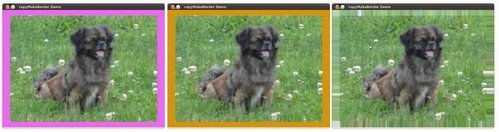
Sources: OpenCV border tutorial and
OpenCV 3.1.0 Docs for copyMakeBorder
Method 4
PIL’s crop method can actually handle this for you by using numbers that are outside the bounding box of the original image, though it’s not explicitly stated in the documentation. Negative numbers for left and top will add black pixels to those edges, while numbers greater than the original width and height for right and bottom will add black pixels to those edges.
This code accounts for odd pixel sizes:
from PIL import Image

with Image.open('/path/to/image.gif') as im:
    old_size = im.size
    new_size = (800, 800)

    if new_size > old_size:
        # Set number of pixels to expand to the left, top, right,
        # and bottom, making sure to account for even or odd numbers
        if old_size[0] % 2 == 0:
            add_left = add_right = (new_size[0] - old_size[0]) // 2
        else:
            add_left = (new_size[0] - old_size[0]) // 2
            add_right = ((new_size[0] - old_size[0]) // 2) + 1

        if old_size[1] % 2 == 0:
            add_top = add_bottom = (new_size[1] - old_size[1]) // 2
        else:
            add_top = (new_size[1] - old_size[1]) // 2
            add_bottom = ((new_size[1] - old_size[1]) // 2) + 1

        left = 0 - add_left
        top = 0 - add_top
        right = old_size[0] + add_right
        bottom = old_size[1] + add_bottom

        # By default, the added pixels are black
        im = im.crop((left, top, right, bottom))
Instead of the 4-tuple, you could instead use a 2-tuple to add the same number of pixels on the left/right and top/bottom, or a 1-tuple to add the same number of pixels to all sides.
Method 5
It is important to consider old dimension, new dimension and their difference here. If the difference is odd (not even), you will need to specify slightly different values for left, top, right and bottom borders.
Assume the old dimension is ow,oh and new one is nw,nh.
So, this would be the answer:
import Image, ImageOps
img = Image.open('original-image.png')
deltaw=nw-ow
deltah=nh-oh
ltrb_border=(deltaw/2,deltah/2,deltaw-(deltaw/2),deltah-(deltah/2))
img_with_border = ImageOps.expand(img,border=ltrb_border,fill='black')
img_with_border.save('imaged-with-border.png')
Method 6
You can load the image with scipy.misc.imread as a numpy array. Then create an array with the desired background with numpy.zeros((height, width, channels)) and paste the image at the desired location:
import numpy as np
import scipy.misc

im = scipy.misc.imread('foo.jpg', mode='RGB')
height, width, channels = im.shape

# make canvas
im_bg = np.zeros((height, width, channels))
im_bg = (im_bg + 1) * 255  # e.g., make it white

# Your work: Compute where it should be
pad_left = ...
pad_top = ...

im_bg[pad_top:pad_top + height,
      pad_left:pad_left + width,
      :] = im
# im_bg is now the image with the background.
Method 7
ximg = Image.open(qpath)
xwid,xhgt = func_ResizeImage(ximg)
qpanel_3 = tk.Frame(Body,width=xwid+10,height=xhgt+10,bg='white',bd=5)
ximg = ximg.resize((xwid,xhgt),Image.ANTIALIAS)
ximg = ImageTk.PhotoImage(ximg)
panel = tk.Label(qpanel_3,image=ximg)
panel.image = ximg
panel.grid(row = 2)
Method 8
from PIL import Image
from PIL import ImageOps
img = Image.open("dem.jpg").convert("RGB")
This part will add black borders at the sides (10% of width)
img_side = ImageOps.expand(img, border=(int(0.1*img.size[0]),0,int(0.1*img.size[0]),0), fill=(0,0,0))
img_side.save("sunset-sides.jpg")
This part will add black borders at the bottom & top (10% of height)
img_updown = ImageOps.expand(img, border=(0,int(0.1*img.size[1]),0,int(0.1*img.size[1])), fill=(0,0,0))
img_updown.save("sunset-top_bottom.jpg")
This part will add black borders at the bottom,top & sides (10% of height-width)
img_updown_side = ImageOps.expand(img, border=(int(0.1*img.size[0]),int(0.1*img.size[1]),int(0.1*img.size[0]),int(0.1*img.size[1])), fill=(0,0,0))
img_updown_side.save("sunset-all_sides.jpg")
img.close()
img_side.close()
img_updown.close()
img_updown_side.close()
All methods was sourced from stackoverflow.com or stackexchange.com, is licensed under cc by-sa 2.5, cc by-sa 3.0 and cc by-sa 4.0