I have a problem with ASP.NET Core web application running on IIS 10.
I am developing a Single Page Application with AngularJS.
The index.html loads perfectly but the backend requests are failing with 404 error code on the IIS 10. From Visual Studio with IIS Express it works perfectly.
Can anyone spot how can I fix the backend requests?
Here’s my Program.cs
public static void Main(string[] args)
{
    var host = new WebHostBuilder()
        .UseKestrel()
        .UseContentRoot(Directory.GetCurrentDirectory())
        .UseIISIntegration()
        .UseStartup<Startup>()
        .Build();

    host.Run();
}
And here’s my Configure method from Startup.cs
public void Configure(IApplicationBuilder app, IHostingEnvironment env, ILoggerFactory loggerFactory)
{
    app.UseDefaultFiles();

    app.UseStaticFiles();

    app.UseIdentity();

    // Custom middleware for Angular UI-Router
    app.Use(async (context, next) =>
    {
        if (!Path.HasExtension(context.Request.Path.Value)
        && context.Request.HttpContext.Request.Headers["X-Requested-With"] != "XMLHttpRequest"
        && context.Request.Method.ToUpper() != "POST"
        && context.Request.Method.ToUpper() != "PUT"
        && context.Request.Method.ToUpper() != "DELETE")
        {
            await context.Response.WriteAsync(File.ReadAllText(env.WebRootPath + "/index.html"));
        }

        await next();
    });

    app.UseMvc(routes =>
    {
        routes.MapRoute(
            name: "default",
            template: "api/{controller=Home}/{action=Index}/{id?}");
    });
}
Answers:
Thank you for visiting the Q&A section on Magenaut. Please note that all the answers may not help you solve the issue immediately. So please treat them as advisements. If you found the post helpful (or not), leave a comment & I’ll get back to you as soon as possible.
Method 1
In my case the problem was that my controller threw an exception, thus the framework tried to use the exception handler page which was no available, thus the 404 error, the controller itself was throwing 500 error
Method 2
For the benefit of searchers.
I was getting a 404 when Using IIS. I had followed the correct procedure for publishing (here) and deployment as detailed here.
It took some time to figure out, but I eventually found the answer hidden in a Rick Strahl blog post.
Basically, when making the application pool, as well as setting it to ‘No Managed Code’, I also needed to go into the advanced settings and set the Application Pool Identity to ‘Network Service’. It was fine under ApplicationPoolIdentity on my machine, but not on a machine I deployed to.
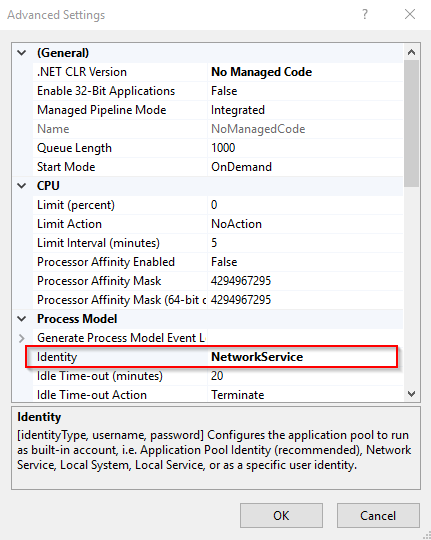
So, for clarity, my full procedure was:
To create package:
- Create dotnet core website (I used Visual Studio 2017)
-
Publish. Could have used VS’s publish function, but I used CLR via the package manager. The command was:
dotnet publish -c Release -r win-x64 –self-contained
I had to use the win-x64 identifier as we have to be compatible with 64-bit Windows Server 2008.
To deploy:
- Make a folder in C:inetpubwwwroot (e.g. ‘testsite’)
- Take the contents of the publish folder ({root}binReleasenetcoreapp2.1win-x64publish) and copy it to the new ‘testsite’ folder (or your equivalent).
- Install the dotnet core runtime (not SDK!) on the host machine.
- Open IIS. Right click ‘Application pools’, then ‘Add Application Pool’. Create one with the .NET CLR Version set to ‘No Managed Code’.
- (my machine didn’t need this step, but server did).Click on Application pools again. Right click your new App Pool and Choose ‘Advanced Settings’. Change the identity to ‘Network Service’ (as shown in the picture above).
- Back at top level IIS, Expand ‘Default Web Site’, right click the folder of your website and choose ‘Convert to application’. Choose your new App Pool with No Managed Code.
- Open command prompt as admin and
iisreset. You should only need this the first time after you’ve installed the dotnet core runtime. - Visit the site (e.g. http://localhost/testsite)
Method 3
You code is working on my machine with Kestrel. A good troubleshooting step is to find out whether the problem is with your ASP.NET Core application or with your IIS Hosting configuration.
Try this from the root of your project.
dotnet restore
dotnet run
You will see something like this:
Hosting environment: Production
Content root path: C:MyApplicationPath
Now listening on: http://localhost:5000
Application started. Press Ctrl+C to shut down.
In your browser go to the following two URLs. If they don’t work, then something is wrong with your application. If they do work, something is wrong with your IIS hosting.
localhost:5000        // you will see your index.html page
localhost:5000/api    // you will see your default routes output
Method 4
I’m a noob with windows IIS deployments so this answer might seem obvious to some people.
I was missing a key file – web.config which IIS needs in order to run your web application. I used the web.config configurations specified here:
https://docs.microsoft.com/en-us/aspnet/core/host-and-deploy/iis/web-config?view=aspnetcore-5.0
Specifically, the configurations for ASP.NET Core Module.
Method 5
Another very silly but probable variant is that the app was deployed in folder different from what you were expecting (ex: your server root instead of sub-folder) due to erroneous deploy settings.
Method 6
Had the same issue now which brought me to this page. In case anyone is having this issue now this was what fixed it for me:
- Downloaded and installed dotnet-hosting-3.1.4-win from https://dotnet.microsoft.com/download/dotnet-core/thank-you/runtime-aspnetcore-3.1.4-windows-hosting-bundle-installer
- Downloaded and installed dotnet-sdk-2.2.207-win-x64 from https://dotnet.microsoft.com/download/dotnet-core/2.2
Method 7
If you are using an api call make sure you class has:
[Route(“api/[controller]”)]
[ApiController]
above where the class is instantiated.
Also make sure you have:
[HttpGet()]
for example above the api method you are trying to debug.
Method 8
For me the issue was an ISAPI Filter called UrlScan. I had to delete it from the application, only then did it work.
All methods was sourced from stackoverflow.com or stackexchange.com, is licensed under cc by-sa 2.5, cc by-sa 3.0 and cc by-sa 4.0