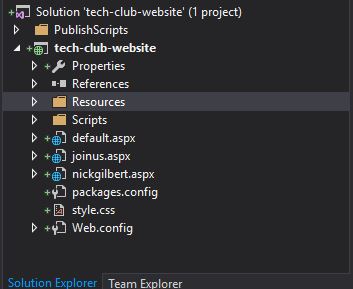
I have a website that I’m developing with ASP.NET. I’m using Visual Studio 2015. When I right-click and hit publish website the site publishes correctly except that my resources folder gets left behind. Heres what the solution explorer looks like in Visual Studio
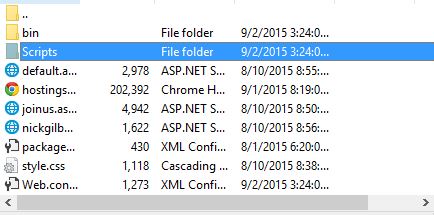
But after I publish it here are the files that get put on Azure (accessed via FileZilla)
How do I tell Visual Studio to publish the Resources folder with the rest of the website?
Answers:
Thank you for visiting the Q&A section on Magenaut. Please note that all the answers may not help you solve the issue immediately. So please treat them as advisements. If you found the post helpful (or not), leave a comment & I’ll get back to you as soon as possible.
Method 1
Likely Answer
- Open the Solution Explorer.
- Right click one of the files in the Resources directory.
- Choose Properties.
You now need to set two properties.
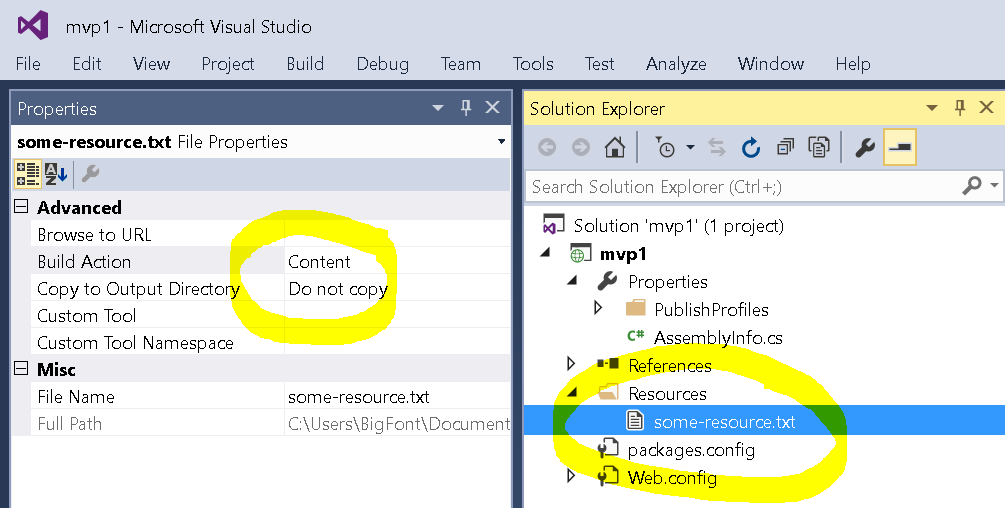
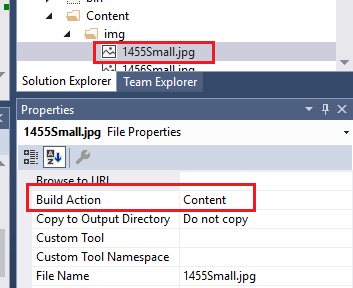
Build Action                      Content
Copy to Output Directory          Do not copy
Do this to all the files that you would like to publish as content to the web server.
File Properties for Web Server Content
Remarks on File Properties
The Build Action property indicates what Visual Studio does with a file when a build is executed. Build Action can have one of several values:
- None. Not what you want. The file is not included in the project output group and is not compiled in the build process. An example is a text file that contains documentation, such as a Readme file, that you do not want to publish to the web server.
-
Compile. Not what you want. The file is compiled into the build output. This setting is used for code files. In other words, we compile the file and the stick it into the
bindirectory. - Content. This is what you want. The file is not compiled, but is included in the Content output group. For example, this setting is the default value for an .htm or other kind of Web file. The “Content output group” is a list of files that Visual Studio will publish while also maintaining the same directory structure.
-
Embedded Resource. Not what you want. This file is embedded in the main project build output as a DLL or executable. It is typically used for resource files. In other words, it not only goes into the
bindirectory but is also embedded within a.dllor.exefile.
Copy to Output Directory. This property specifies the conditions under which the selected source file will be copied to the output directory. The output directory is normally the bin.
See Also
Method 2
If like me you are using Visual studio 2019, just right-click on the folder and select publish “name of the folder”
Method 3
Steps to add resources to be published (Visual Studio 2017):
1) Right click the resources folder and select “Include In Project”
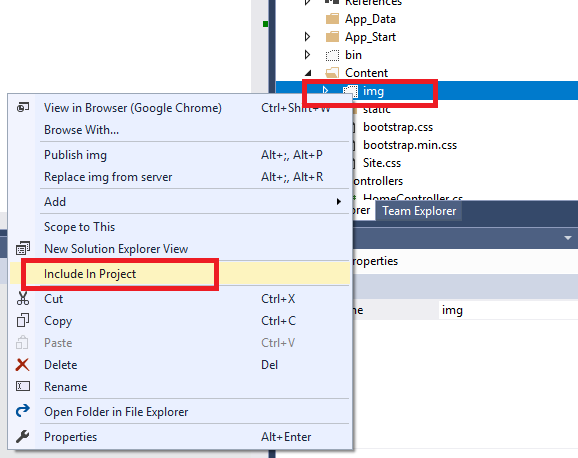
2) Now you should see Build Action: Content on the properties for the images.
Method 4
Make sure the contents of your Resources folder have the proper “Copy to Output Directory” property. Right click the files you want to copy over, select Properties, then in the Advanced section look at the value under Copy to Output Directory. Generally this is set to “Do not copy” by default since most things get packaged up in the .dll. Change it to “Copy if newer” to get it to bring over the file. It’ll bring over the folder structure as well.
All methods was sourced from stackoverflow.com or stackexchange.com, is licensed under cc by-sa 2.5, cc by-sa 3.0 and cc by-sa 4.0