The new .csproj format includes some significant improvements over the classic files, including tight integration with NuGet package management and significantly less-verbose structure. I want to gain these benefits whilst still using the .NET Framework 4.6 and ASP.NET (because my project depends on Umbraco which has yet to produce a .NET Core version).
The biggest challenge would seem to be the debugging experience – an ASP.NET Core project expects to run a dotnet core application and set up a reverse proxy to an IIS instance. This process is completely alien to the .NET Framework model and I wouldn’t know where to start trying to set up debugging in Visual Studio.
Is there any way to get these two project models to mix?
Answers:
Thank you for visiting the Q&A section on Magenaut. Please note that all the answers may not help you solve the issue immediately. So please treat them as advisements. If you found the post helpful (or not), leave a comment & I’ll get back to you as soon as possible.
Method 1
There is a bunch of open issues on GitHub regarding support of new csproj format for ASP.NET (non-Core) applications. Some of them:
- Using the new .Csproj without .Net core #1688
- Add support for ASP.NET (non-Core) projects #2670
- Support for “classic” ASP.NET #1978
As you probably already understood, new csproj format is not yet supported for ASP.NET applications. It’s possible to make it work, however it won’t be smooth.
Some time ago I have tried to create ASP.NET MVC project in new csproj format, just for fun. I made it work, however I had not played with it a lot. So it will be interesting to know your experience.
The steps are following:
-
Remove old unrequired project files:
- MvcApplication.csproj
- MvcApplication.csproj.user
- packages.config
-
Create new MvcApplication.csproj with the following content:
<Project Sdk="Microsoft.NET.Sdk">

  <PropertyGroup>
    <TargetFramework>net461</TargetFramework>
  </PropertyGroup>

  <PropertyGroup>
    <AppendTargetFrameworkToOutputPath>false</AppendTargetFrameworkToOutputPath>
    <OutputPath>bin</OutputPath>
  </PropertyGroup>

  <ItemGroup>
    <PackageReference Include="Antlr" version="3.4.1.9004" />
    <PackageReference Include="bootstrap" version="3.0.0" />
    <PackageReference Include="jQuery" version="1.10.2" />
    <PackageReference Include="jQuery.Validation" version="1.11.1" />
    <PackageReference Include="Microsoft.ApplicationInsights" version="2.2.0" />
    <PackageReference Include="Microsoft.ApplicationInsights.Agent.Intercept" version="2.0.6" />
    <PackageReference Include="Microsoft.ApplicationInsights.DependencyCollector" version="2.2.0" />
    <PackageReference Include="Microsoft.ApplicationInsights.PerfCounterCollector" version="2.2.0" />
    <PackageReference Include="Microsoft.ApplicationInsights.Web" version="2.2.0" />
    <PackageReference Include="Microsoft.ApplicationInsights.WindowsServer" version="2.2.0" />
    <PackageReference Include="Microsoft.ApplicationInsights.WindowsServer.TelemetryChannel" version="2.2.0" />
    <PackageReference Include="Microsoft.AspNet.Mvc" version="5.2.3" />
    <PackageReference Include="Microsoft.AspNet.Razor" version="3.2.3" />
    <PackageReference Include="Microsoft.AspNet.Web.Optimization" version="1.1.3" />
    <PackageReference Include="Microsoft.AspNet.WebPages" version="3.2.3" />
    <PackageReference Include="Microsoft.CodeDom.Providers.DotNetCompilerPlatform" version="1.0.5" />
    <PackageReference Include="Microsoft.CSharp" Version="4.4.1" />
    <PackageReference Include="Microsoft.jQuery.Unobtrusive.Validation" version="3.2.3" />
    <PackageReference Include="Microsoft.Net.Compilers" version="2.1.0" developmentDependency="true" />
    <PackageReference Include="Microsoft.Web.Infrastructure" version="1.0.0.0" />
    <PackageReference Include="Modernizr" version="2.6.2" />
    <PackageReference Include="Newtonsoft.Json" version="6.0.4" />
    <PackageReference Include="Respond" version="1.2.0" />
    <PackageReference Include="WebGrease" version="1.5.2" />
  </ItemGroup>

  <ItemGroup>
    <DotNetCliToolReference Include="Microsoft.VisualStudio.Web.CodeGeneration.Tools" Version="2.0.0" />
  </ItemGroup>

  <ItemGroup>
    <Reference Include="System.Web" />
  </ItemGroup>

  <ItemGroup>
    <Compile Update="Global.asax.cs">
      <DependentUpon>Global.asax</DependentUpon>
    </Compile>
  </ItemGroup>

  <ItemGroup>
    <Content Include="Web.config">
      <SubType>Designer</SubType>
    </Content>
    <Content Include="Web.*.config">
      <DependentUpon>Web.config</DependentUpon>
      <SubType>Designer</SubType>
    </Content>
  </ItemGroup>

</Project>
The long package list above includes default packages added for default ASP.NET MVC application. You should add other packages used by your application.
Don’t forget to add the
Microsoft.CSharppackage, otherwise you’ll get following compilation error onViewBagassignments:error CS0656: Missing compiler required member
‘Microsoft.CSharp.RuntimeBinder.CSharpArgumentInfo.Create’In ASP.NET projects,
Microsoft.CSharpis added as reference to the project. But it’s better to consume it as NuGet package.The only direct reference that could not be avoided is a
System.Web. -
Debugging the project
You were right when said that debugging could be a pain. Since Visual Studio does not know it’s an ASP.NET application, there is no instant method to start debugging session.
I see 2 possible solutions here:
a. Use IIS Express for debugging.
It’s quite easy to configure debugging based on IIS Express executable. Just create the following debugging profile:
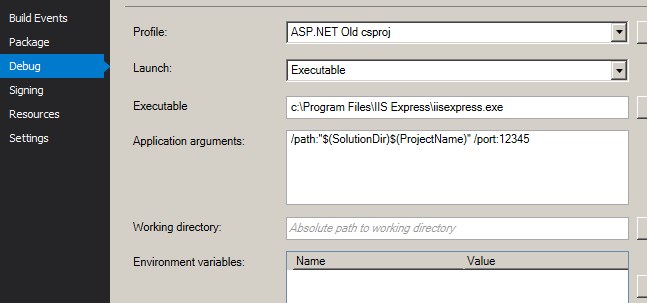
Corresponding launchSettings.json:
{
  "profiles": {
    "ASP.NET Old csproj": {
      "commandName": "Executable",
      "executablePath": "c:\Program Files\IIS Express\iisexpress.exe",
      "commandLineArgs": "/path:"$(SolutionDir)$(ProjectName)" /port:12345"
    }
}
b. Use IIS for debugging.
In IIS Manager create application that points to directory with your project. Now you could debug your application by attaching to
w3wp.exeprocess.
Here is Sample Project on GitHub. It is basically default ASP.NET MVC project migrated to new csproj format following above steps. It could be compiled, executed and debugged (profile for IIS Express included)
Method 2
I am following this github issue regarding this, and the latest comments posted add the last missing pieces. Basically, with a .csproj file like this:
<Project>
  <Import Project="Sdk.props" Sdk="Microsoft.NET.Sdk" />
  <PropertyGroup>
    <OutputType>Library</OutputType>
    <OutputPath>bin</OutputPath>
    <TargetFramework>net48</TargetFramework>
    <AppendTargetFrameworkToOutputPath>false</AppendTargetFrameworkToOutputPath>
    <PublishProfileImported>true</PublishProfileImported>
  </PropertyGroup>
  <ItemGroup>
    <ProjectCapability Include="DotNetCoreWeb" />
    <ProjectCapability Include="SupportsSystemWeb" />
  </ItemGroup>
  <!-- add your packagereference/content/etc includes here -->
  <PropertyGroup>
    <VisualStudioVersion Condition="'$(VisualStudioVersion)' == ''">15.0</VisualStudioVersion>
    <VSToolsPath Condition="'$(VSToolsPath)' == ''">$(MSBuildExtensionsPath32)MicrosoftVisualStudiov$(VisualStudioVersion)</VSToolsPath>
  </PropertyGroup>
  <!-- order is important! -->
  <Import Project="Sdk.targets" Sdk="Microsoft.NET.Sdk" />
  <Import Project="$(VSToolsPath)WebApplicationsMicrosoft.WebApplication.targets" />
</Project>
everything works!
- The normal run and debug experience with visual studio starting iisexpress with the right applicationhost.config. If you fill out the sslport in launchsettings, it even works with ssl.
- The normal edit and debug razor experience without any red squiggles and with working intellisense/autocomplete.
The only thing that still seems to be missing is right click deploy functionality… But as you can use msbuild /p:DeployOnBuild=True to deploy, I finally don’t see anything missing anymore that stops me from upgrading.
Method 3
The best way to migrate ASP.NET MVC to new csproj format is using try-convert using the following command:
try-convert -p .project.csproj --keep-current-tfms --no-backup --force-web-conversion
Thanks to the --keep-current-tfms option your target framework will not change.
After that you should change project SDK to MSBuild.SDK.SystemWeb because the default SDK doesn’t support old ASP.NET MVC.
<Project Sdk="MSBuild.SDK.SystemWeb/4.0.66">
Thanks to MSBuild.SDK.SystemWeb you should be able to use every function of VS in the same way like with the old csproj format. There you can file the documentation about this library.
All methods was sourced from stackoverflow.com or stackexchange.com, is licensed under cc by-sa 2.5, cc by-sa 3.0 and cc by-sa 4.0