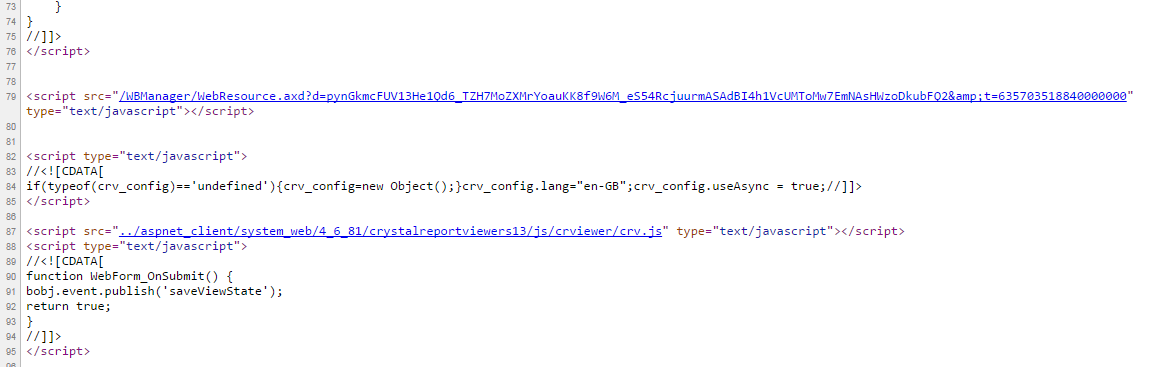
I am totally confused with behavior of SAP Crystal Report which i am using with Visual Studio 2013. When I run my ASP.NET Web Application, I am getting following folder path aspnet_client/system_web/4_6_81/crystalreportviewers13/
instead of C:inetpubwwwrootaspnet_clientsystem_web4_0_30319crystalreportviewers13.
I do not have any such folder found in my IIS 7.5 C:inetpubwwwrootaspnet_clientsystem_web). Can you please help me on this? due to this i am not able to see the report.
Please check the below screenshot for the refernce
Answers:
Thank you for visiting the Q&A section on Magenaut. Please note that all the answers may not help you solve the issue immediately. So please treat them as advisements. If you found the post helpful (or not), leave a comment & I’ll get back to you as soon as possible.
Method 1
The most robust solution is to create a virtual directory under your application in IIS:
- Go to IIS, Right click your application
-
Add virtual directory Set the physical path to
C:inetpubwwwrootaspnet_clientsystem_web4_0_30319crystalreportviewers13. - Set the virtual Path to /crystalreportviewers13
-
In your web.config file add the following after the root element:
<configSections> <sectionGroup name="businessObjects"> <sectionGroup name="crystalReports"> <section name="rptBuildProvider" type="CrystalDecisions.Shared.RptBuildProviderHandler, CrystalDecisions.Shared, Version=13.0.2000.0, Culture=neutral, PublicKeyToken=692fbea5521e1304, Custom=null" /> <section name="crystalReportViewer" type="System.Configuration.NameValueSectionHandler" /> </sectionGroup> </sectionGroup> </configSections> -
Then later on in your web.config file, add:
<businessObjects>
  <crystalReports>
    <rptBuildProvider>
      <add embedRptInResource="true" />
    </rptBuildProvider>
    <crystalReportViewer>
      <add key="ResourceUri" value="~/crystalreportviewers13" />
    </crystalReportViewer>
  </crystalReports>
</businessObjects>
Method 2
I had the same issue after battling an blank report (from the client, no issue using VS debug on server). I saw the different version while inspecting the source of the blank report, changed the folder name to 4_6_81 and it worked.
Method 3
Create a new folder under System.Web into your solution, and name it “4_6_81”. Then, copy all resources from the folder “4_0_30319” and paste them into the new folder “4_6_81”.
This has worked for me in the past.
Method 4
I just installed Visual Studio 2015 and my crystal report stopped working.
Here is solution working for me
- Uninstall framework 4.6
- If it uninstall all framework of 4.x, 4.5.x then reinstall 4.0, 4.5.x
Hope this will work
Method 5
It is still an issue. Workaround still seems to have to change the folder version under aspnet_client>system_web> like;
Before

After
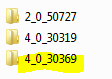
When report pages are blank or stop working just view the source from browser and check system.web‘s version from url ../../aspnet_client/system_web/4_0_30369/crystalreportviewers13/js/crviewer/crv.js.
Here’s SAP’s website.
https://apps.support.sap.com/sap/support/knowledge/public/en/0002250097
All methods was sourced from stackoverflow.com or stackexchange.com, is licensed under cc by-sa 2.5, cc by-sa 3.0 and cc by-sa 4.0