I created a new Blazor project using Visual Studio 2019 (look at the picture)
I checked https, ASP.NET Core hosted and Progressive Web Application
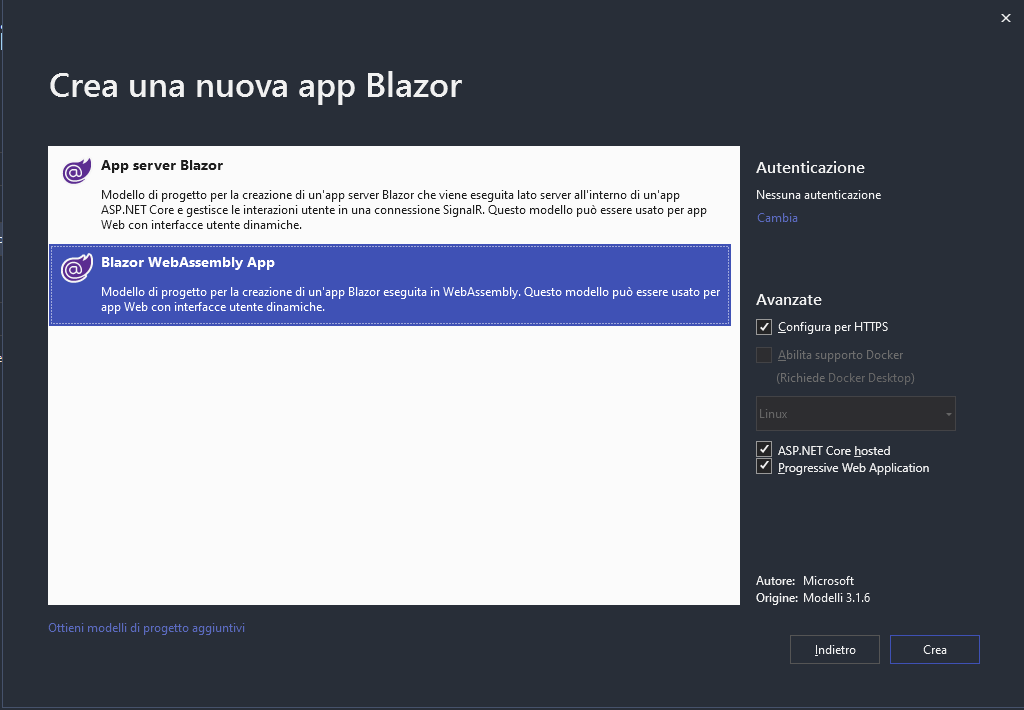
After that visual studio creates the client project,the server project and a shared class project.
I make sure that the project has no error so I compile it and run it on visual studio.
After that I want to host it into my IIS , so i go into the server project , right click , publish and I publish everything into my release folder.
Everything goes fine, now I go into my IIS , add new site, and select the path of the publish folder generated before (I used the port 80 for this test).
I also grant to the web config the IIS_IUSRS permission.
Now I type localhost:80 into my browser and I go into an infinite loop of waiting for the page that loads , but it never loads.
No errors are shown into the browser.
So I went into my IIS manager and say that the web config generated by default by visual studio is seen as wrong.
My webconfig.xml :
<?xml version="1.0" encoding="utf-8"?>
<configuration>
  <location path="." inheritInChildApplications="false">
    <system.webServer>
      <handlers>
        <add name="aspNetCore" path="*" verb="*" modules="AspNetCoreModuleV2" resourceType="Unspecified" />
      </handlers>
      <aspNetCore processPath="dotnet" arguments=".Funzia.Server.dll" stdoutLogEnabled="false" stdoutLogFile=".logsstdout" hostingModel="inprocess" />
    </system.webServer>
  </location>
</configuration>
<!--ProjectGuid: 4872489F-5CAD-4DF4-BAFC-9D401F53BF48-->
I have installed ASP.NET core Runtime bundle also dotnet-hosting-2.2.2.
In fact I can easily host a Server App blazor , zero problems, but when I try to publish an Blazor WebAssembly App it is not working.
Other useful info:
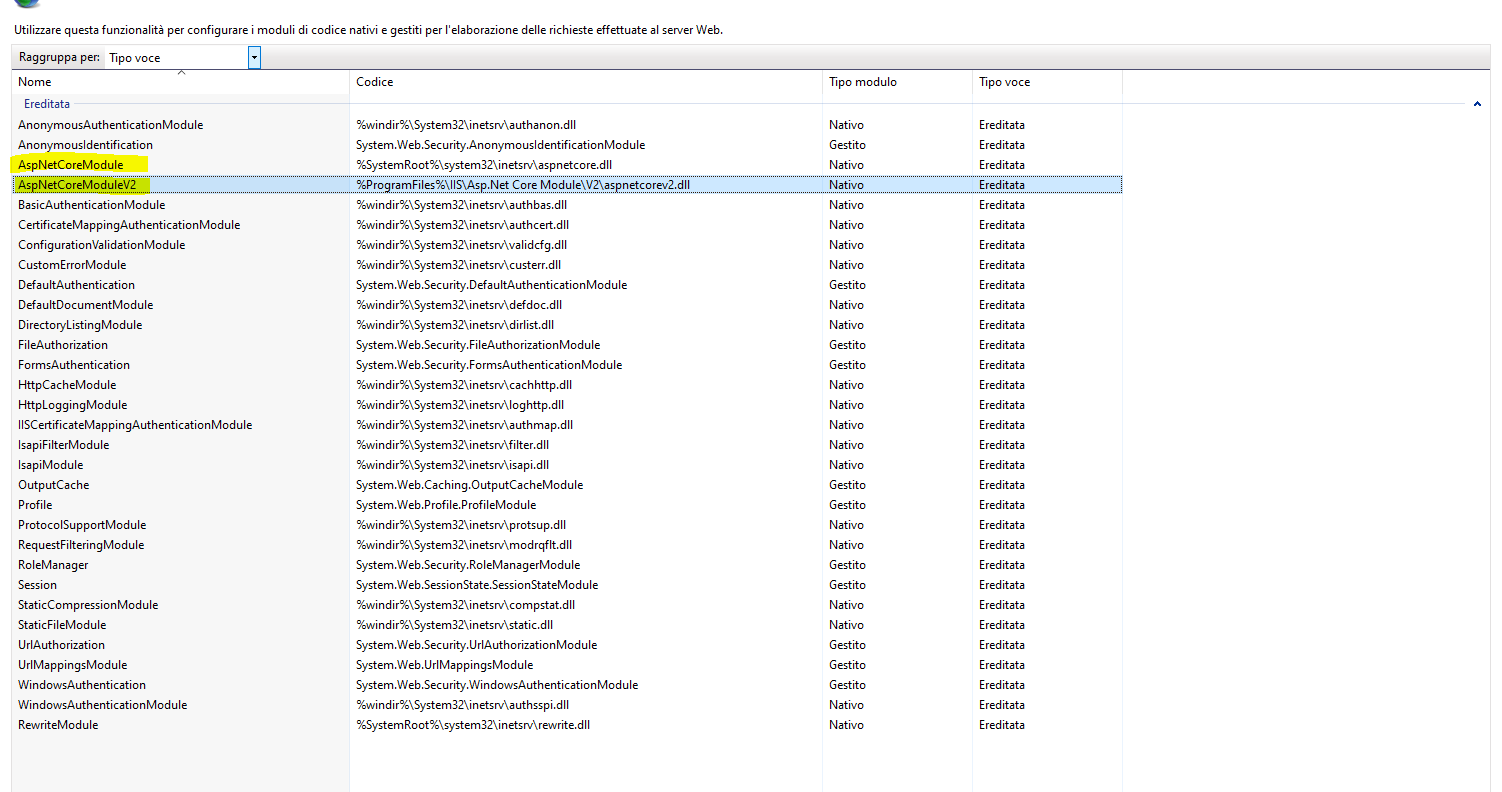
The modules are not missing.
Output of dotnet –info:
.NET Core SDK (che rispecchia un qualsiasi file global.json):
 Version:   3.1.301
 Commit:    7feb845744

Ambiente di runtime:
 OS Name:     Windows
 OS Version:  10.0.18363
 OS Platform: Windows
 RID:         win10-x64
 Base Path:   C:Program Filesdotnetsdk3.1.301

Host (useful for support):
  Version: 3.1.5
  Commit:  65cd789777

.NET Core SDKs installed:
  3.1.300 [C:Program Filesdotnetsdk]
  3.1.301 [C:Program Filesdotnetsdk]

.NET Core runtimes installed:
  Microsoft.AspNetCore.All 2.1.18 [C:Program FilesdotnetsharedMicrosoft.AspNetCore.All]
  Microsoft.AspNetCore.All 2.2.2 [C:Program FilesdotnetsharedMicrosoft.AspNetCore.All]
  Microsoft.AspNetCore.App 2.1.18 [C:Program FilesdotnetsharedMicrosoft.AspNetCore.App]
  Microsoft.AspNetCore.App 2.2.2 [C:Program FilesdotnetsharedMicrosoft.AspNetCore.App]
  Microsoft.AspNetCore.App 3.1.4 [C:Program FilesdotnetsharedMicrosoft.AspNetCore.App]
  Microsoft.AspNetCore.App 3.1.5 [C:Program FilesdotnetsharedMicrosoft.AspNetCore.App]
  Microsoft.NETCore.App 2.1.18 [C:Program FilesdotnetsharedMicrosoft.NETCore.App]
  Microsoft.NETCore.App 2.2.2 [C:Program FilesdotnetsharedMicrosoft.NETCore.App]
  Microsoft.NETCore.App 3.1.4 [C:Program FilesdotnetsharedMicrosoft.NETCore.App]
  Microsoft.NETCore.App 3.1.5 [C:Program FilesdotnetsharedMicrosoft.NETCore.App]
  Microsoft.WindowsDesktop.App 3.1.4 [C:Program FilesdotnetsharedMicrosoft.WindowsDesktop.App]
  Microsoft.WindowsDesktop.App 3.1.5 [C:Program FilesdotnetsharedMicrosoft.WindowsDesktop.App]
I also tried to add an autosigned certificate and tried to access by https but I’ve experienced the same result as going with http.
More further I also tried to publish the project via console , I thought that maybe visual studio could create corrupted web config file, but the file created was the same.
I’ve found that also some other users are experiencing this problem but I have not found any solution yet.
Any suggestions?
Answers:
Thank you for visiting the Q&A section on Magenaut. Please note that all the answers may not help you solve the issue immediately. So please treat them as advisements. If you found the post helpful (or not), leave a comment & I’ll get back to you as soon as possible.
Method 1
You can try the following steps to publish an Blazor WebAssembly App on iis. I tested it can work normally on my pc.
To publish blazor app in iis first make sure you installed below iis feature.
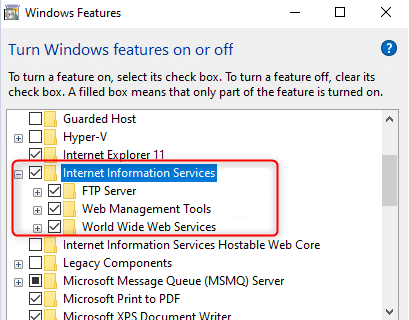
- .NET Core hosting bundle
- ASP.NET Core Runtime
Download and Install the Runtime and Hosting bundle as per your version. after installing hosting bundles do not forget to restart the machine.
Now take a look at the Solution Explorer tab, which is located on the left side of the screen. Right-click on Server project of the solution, which is BlazorDDL.Server. Click on Publish.
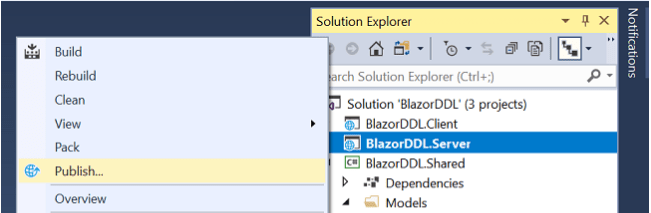
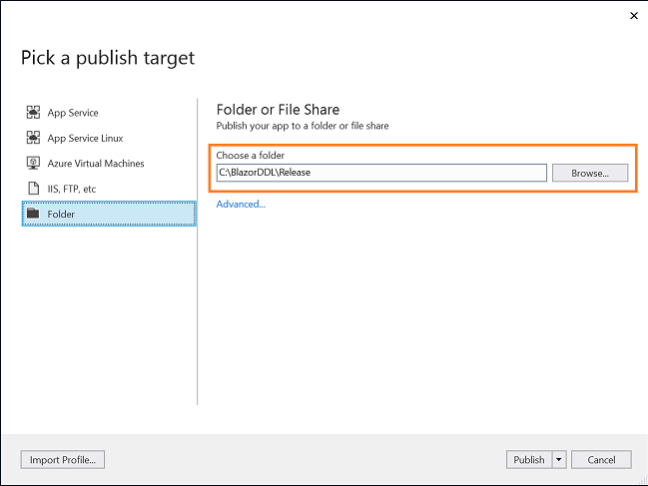
You will see a new screen. In the left menu, click on Folder. Choose the folder where you want your Blazor application to be published to.Click on Publish. If there is no error, your application will be published successfully.
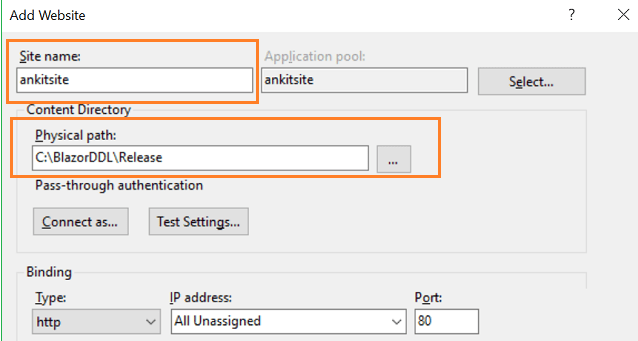
Next, you will have to configure IIS.
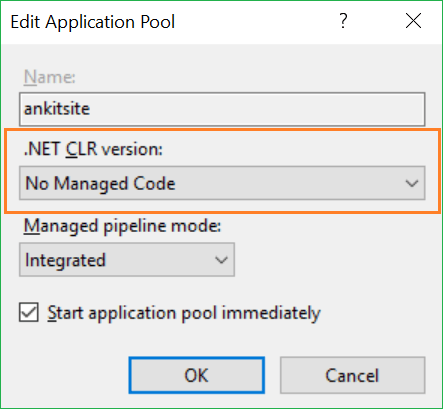
And you have to configure Application Pool. You will find it the left panel. Double click on the pool ankisite.The Edit Application Pool window will appear. From the .NET CLR Version drop-down list, choose No Managed Code option.
Method 2
I solved the issue by using hosting my application into Azure.
I think that I had problems with the autosigned certificate.
Moreover some features were missing from my Windows feature windows.
All methods was sourced from stackoverflow.com or stackexchange.com, is licensed under cc by-sa 2.5, cc by-sa 3.0 and cc by-sa 4.0