What is an efficient way to generate PDF for data frames in Pandas?
Answers:
Thank you for visiting the Q&A section on Magenaut. Please note that all the answers may not help you solve the issue immediately. So please treat them as advisements. If you found the post helpful (or not), leave a comment & I’ll get back to you as soon as possible.
Method 1
First plot table with matplotlib then generate pdf
import pandas as pd
import numpy as np
import matplotlib.pyplot as plt
from matplotlib.backends.backend_pdf import PdfPages

df = pd.DataFrame(np.random.random((10,3)), columns = ("col 1", "col 2", "col 3"))

#https://stackoverflow.com/questions/32137396/how-do-i-plot-only-a-table-in-matplotlib
fig, ax =plt.subplots(figsize=(12,4))
ax.axis('tight')
ax.axis('off')
the_table = ax.table(cellText=df.values,colLabels=df.columns,loc='center')

#https://stackoverflow.com/questions/4042192/reduce-left-and-right-margins-in-matplotlib-plot
pp = PdfPages("foo.pdf")
pp.savefig(fig, bbox_inches='tight')
pp.close()
reference:
How do I plot only a table in Matplotlib?
Reduce left and right margins in matplotlib plot
Method 2
Here is how I do it from sqlite database using sqlite3, pandas and pdfkit
import pandas as pd
import pdfkit as pdf
import sqlite3

con=sqlite3.connect("baza.db")

df=pd.read_sql_query("select * from dobit", con)
df.to_html('/home/linux/izvestaj.html')
nazivFajla='/home/linux/pdfPrintOut.pdf'
pdf.from_file('/home/linux/izvestaj.html', nazivFajla)
Method 3
Well one way is to use markdown. You can use df.to_html(). This converts the dataframe into a html table. From there you can put the generated html into a markdown file (.md) (see http://daringfireball.net/projects/markdown/basics). From there, there are utilities to convert markdown into a pdf (https://www.npmjs.com/package/markdown-pdf).
One all-in-one tool for this method is to use Atom text editor (https://atom.io/). There you can use an extension, search “markdown to pdf”, which will make the conversion for you.
Note: When using to_html() recently I had to remove extra ‘n’ characters for some reason. I chose to use Atom -> Find -> 'n' -> Replace "".
Overall this should do the trick!
Method 4
With reference to these two examples that I found useful:
The simple CSS code saved in same folder as ipynb:
/* includes alternating gray and white with on-hover color */

.mystyle {
    font-size: 11pt;
    font-family: Arial;
    border-collapse: collapse;
    border: 1px solid silver;

}

.mystyle td, th {
    padding: 5px;
}

.mystyle tr:nth-child(even) {
    background: #E0E0E0;
}

.mystyle tr:hover {
    background: silver;
    cursor: pointer;
}
The python code:
pdf_filepath = os.path.join(folder,file_pdf)
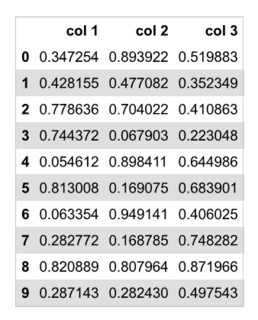
demo_df = pd.DataFrame(np.random.random((10,3)), columns = ("col 1", "col 2", "col 3"))

table=demo_df.to_html(classes='mystyle')

html_string = f'''
<html>
  <head><title>HTML Pandas Dataframe with CSS</title></head>
  <link rel="stylesheet" type="text/css" href="df_style.css"/>
  <body>
    {table}
  </body>
</html>
'''

HTML(string=html_string).write_pdf(pdf_filepath, stylesheets=["df_style.css"])
Method 5
This is a solution with an intermediate pdf file.
The table is pretty printed with some minimal css.
The pdf conversion is done with weasyprint. You need to pip install weasyprint.
# Create a pandas dataframe with demo data:
import pandas as pd
demodata_csv = 'https://raw.githubusercontent.com/mwaskom/seaborn-data/master/iris.csv'
df = pd.read_csv(demodata_csv)

# Pretty print the dataframe as an html table to a file
intermediate_html = '/tmp/intermediate.html'
to_html_pretty(df,intermediate_html,'Iris Data')
# if you do not want pretty printing, just use pandas:
# df.to_html(intermediate_html)

# Convert the html file to a pdf file using weasyprint
import weasyprint
out_pdf= '/tmp/demo.pdf'
weasyprint.HTML(intermediate_html).write_pdf(out_pdf)

# This is the table pretty printer used above:

def to_html_pretty(df, filename='/tmp/out.html', title=''):
    '''
    Write an entire dataframe to an HTML file
    with nice formatting.
    Thanks to @stackoverflowuser2010 for the
    pretty printer see https://stackoverflow.com/a/47723330/362951
    '''
    ht = ''
    if title != '':
        ht += '<h2> %s </h2>n' % title
    ht += df.to_html(classes='wide', escape=False)

    with open(filename, 'w') as f:
         f.write(HTML_TEMPLATE1 + ht + HTML_TEMPLATE2)

HTML_TEMPLATE1 = '''
<html>
<head>
<style>
  h2 {
    text-align: center;
    font-family: Helvetica, Arial, sans-serif;
  }
  table {
    margin-left: auto;
    margin-right: auto;
  }
  table, th, td {
    border: 1px solid black;
    border-collapse: collapse;
  }
  th, td {
    padding: 5px;
    text-align: center;
    font-family: Helvetica, Arial, sans-serif;
    font-size: 90%;
  }
  table tbody tr:hover {
    background-color: #dddddd;
  }
  .wide {
    width: 90%;
  }
</style>
</head>
<body>
'''

HTML_TEMPLATE2 = '''
</body>
</html>
'''
Thanks to @stackoverflowuser2010 for the pretty printer, see stackoverflowuser2010’s answer https://stackoverflow.com/a/47723330/362951
I did not use pdfkit, because I had some problems with it on a headless machine. But weasyprint is great.
Method 6
when using Matplotlib, here’s how to get a prettier table with alternating colors for the rows, etc. as well as to optionally paginate the PDF:
import pandas as pd
import numpy as np
import matplotlib.pyplot as plt
from matplotlib.backends.backend_pdf import PdfPages

def _draw_as_table(df, pagesize):
    alternating_colors = [['white'] * len(df.columns), ['lightgray'] * len(df.columns)] * len(df)
    alternating_colors = alternating_colors[:len(df)]
    fig, ax = plt.subplots(figsize=pagesize)
    ax.axis('tight')
    ax.axis('off')
    the_table = ax.table(cellText=df.values,
                        rowLabels=df.index,
                        colLabels=df.columns,
                        rowColours=['lightblue']*len(df),
                        colColours=['lightblue']*len(df.columns),
                        cellColours=alternating_colors,
                        loc='center')
    return fig


def dataframe_to_pdf(df, filename, numpages=(1, 1), pagesize=(11, 8.5)):
  with PdfPages(filename) as pdf:
    nh, nv = numpages
    rows_per_page = len(df) // nh
    cols_per_page = len(df.columns) // nv
    for i in range(0, nh):
        for j in range(0, nv):
            page = df.iloc[(i*rows_per_page):min((i+1)*rows_per_page, len(df)),
                           (j*cols_per_page):min((j+1)*cols_per_page, len(df.columns))]
            fig = _draw_as_table(page, pagesize)
            if nh > 1 or nv > 1:
                # Add a part/page number at bottom-center of page
                fig.text(0.5, 0.5/pagesize[0],
                         "Part-{}x{}: Page-{}".format(i+1, j+1, i*nv + j + 1),
                         ha='center', fontsize=8)
            pdf.savefig(fig, bbox_inches='tight')

            plt.close()
Use it as follows:
dataframe_to_pdf(df, 'test_1.pdf')
dataframe_to_pdf(df, 'test_6.pdf', numpages=(3, 2))
Explanation of the code is here:
https://levelup.gitconnected.com/how-to-write-a-pandas-dataframe-as-a-pdf-5cdf7d525488
All methods was sourced from stackoverflow.com or stackexchange.com, is licensed under cc by-sa 2.5, cc by-sa 3.0 and cc by-sa 4.0