How can one modify the format for the output from a groupby operation in pandas that produces scientific notation for very large numbers?
I know how to do string formatting in python but I’m at a loss when it comes to applying it here.
df1.groupby('dept')['data1'].sum()

dept
value1       1.192433e+08
value2       1.293066e+08
value3       1.077142e+08
This suppresses the scientific notation if I convert to string but now I’m just wondering how to string format and add decimals.
sum_sales_dept.astype(str)
Answers:
Thank you for visiting the Q&A section on Magenaut. Please note that all the answers may not help you solve the issue immediately. So please treat them as advisements. If you found the post helpful (or not), leave a comment & I’ll get back to you as soon as possible.
Method 1
Granted, the answer I linked in the comments is not very helpful. You can specify your own string converter like so.
In [25]: pd.set_option('display.float_format', lambda x: '%.3f' % x)

In [28]: Series(np.random.randn(3))*1000000000
Out[28]:
0    -757322420.605
1   -1436160588.997
2   -1235116117.064
dtype: float64
I’m not sure if that’s the preferred way to do this, but it works.
Converting numbers to strings purely for aesthetic purposes seems like a bad idea, but if you have a good reason, this is one way:
In [6]: Series(np.random.randn(3)).apply(lambda x: '%.3f' % x)
Out[6]:
0     0.026
1    -0.482
2    -0.694
dtype: object
Method 2
Here is another way of doing it, similar to Dan Allan’s answer but without the lambda function:
>>> pd.options.display.float_format = '{:.2f}'.format
>>> Series(np.random.randn(3))
0    0.41
1    0.99
2    0.10
or
>>> pd.set_option('display.float_format', '{:.2f}'.format)
Method 3
You can use round function just to suppress scientific notation for specific dataframe:
df1.round(4)
or you can suppress is globally by:
pd.options.display.float_format = '{:.4f}'.format
Method 4
If you want to style the output of a data frame in a jupyter notebook cell, you can set the display style on a per-dataframe basis:
df = pd.DataFrame({'A': np.random.randn(4)*1e7})
df.style.format("{:.1f}")
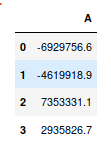
See the documentation here.
Method 5
Setting a fixed number of decimal places globally is often a bad idea since it is unlikely that it will be an appropriate number of decimal places for all of your various data that you will display regardless of magnitude. Instead, try this which will give you scientific notation only for large and very small values (and adds a thousands separator unless you omit the “,”):
pd.set_option('display.float_format', lambda x: '%,g' % x)
Or to almost completely suppress scientific notation without losing precision, try this:
pd.set_option('display.float_format', str)
Method 6
I had multiple dataframes with different floating point, so thx to Allans idea made dynamic length.
pd.set_option('display.float_format', lambda x: f'%.{len(str(x%1))-2}f' % x)
The minus of this is that if You have last 0 in float, it will cut it. So it will be not 0.000070, but 0.00007.
Method 7
If you would like to use the values, say as part of csvfile csv.writer, the numbers can be formatted before creating a list:
df['label'].apply(lambda x: '%.17f' % x).values.tolist()
All methods was sourced from stackoverflow.com or stackexchange.com, is licensed under cc by-sa 2.5, cc by-sa 3.0 and cc by-sa 4.0