Here is the problem:
I have a requirements.txt file that looks like:
BeautifulSoup==3.2.0
Django==1.3
Fabric==1.2.0
Jinja2==2.5.5
PyYAML==3.09
Pygments==1.4
SQLAlchemy==0.7.1
South==0.7.3
amqplib==0.6.1
anyjson==0.3
...
I have a local archive directory containing all the packages + others.
I have created a new virtualenv with
bin/virtualenv testing
Upon activating it, I tried to install the packages according to requirements.txt from the local archive directory.
source bin/activate
pip install -r /path/to/requirements.txt -f file:///path/to/archive/
I got some output that seems to indicate that the installation is fine:
Downloading/unpacking Fabric==1.2.0 (from -r ../testing/requirements.txt (line 3))
  Running setup.py egg_info for package Fabric
    warning: no previously-included files matching '*' found under directory 'docs/_build'
    warning: no files found matching 'fabfile.py'
Downloading/unpacking South==0.7.3 (from -r ../testing/requirements.txt (line 8))
  Running setup.py egg_info for package South
....
But a later check revealed that none of the packages are installed properly. I cannot import the packages, and none are found in the site-packages directory of my virtualenv. So what went wrong?
Answers:
Thank you for visiting the Q&A section on Magenaut. Please note that all the answers may not help you solve the issue immediately. So please treat them as advisements. If you found the post helpful (or not), leave a comment & I’ll get back to you as soon as possible.
Method 1
This works for everyone:
pip install -r /path/to/requirements.txt
Explanation:
-r, –requirement < filename >
Install from the given requirements file. This option can be used multiple times.
Method 2
This works for me:
$ pip install -r requirements.txt --no-index --find-links file:///tmp/packages
--no-index – Ignore package index (only looking at --find-links URLs instead).
-f, --find-links <URL> – If a URL or path to an HTML file, then parse for links to archives.
If a local path or file:// URL that’s a directory, then look for archives in the directory listing.
Method 3
For virtualenv to install all files in the requirements.txt file.
- cd to the directory where requirements.txt is located
- activate your virtualenv
- run:
pip install -r requirements.txtin your shell
Method 4
I had a similar problem. I tried this:
pip install -U -r requirements.txt
(-U = update if it had already installed)
But the problem continued. I realized that some of generic libraries for development were missed.
sudo apt-get install libtiff5-dev libjpeg8-dev zlib1g-dev liblcms2-dev libwebp-dev tcl8.6-dev tk8.6-dev python-tk
I don’t know if this would help you.
Method 5
Use:
pip install -r requirements.txt
For further details, please check the help option:
pip install --help
We can find the option ‘-r’ –
-r, –requirement Install from the given requirements file. This option can be
used multiple times.
Further information on some commonly used pip install options (this is the help option on the pip install command):
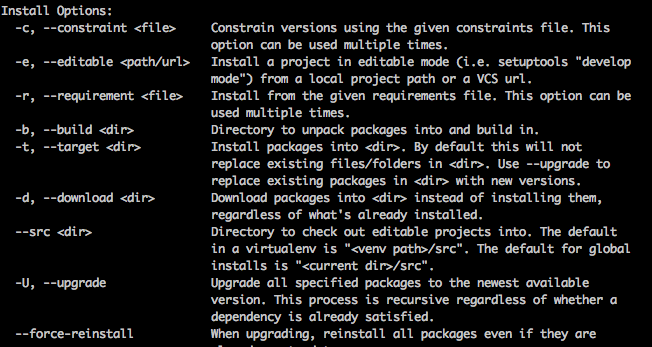
Also the above is the complete set of options. Please use pip install --help for the complete list of options.
Method 6
Short answer
pip install -r /path/to/requirements.txt
or in another form:
python -m pip install -r /path/to/requirements.txt
Explanation
Here, -r is short form of --requirement and it asks the pip to install from the given requirements file.
pip will start installation only after checking the availability of all listed items in the requirements file and it won’t start installation even if one requirement is unavailable.
One workaround to install the available packages is installing listed packages one by one. Use the following command for that. A red color warning will be shown to notify you about the unavailable packages.
cat requirements.txt | xargs -n 1 pip install
To ignore comments (lines starting with a #) and blank lines, use:
cat requirements.txt | cut -f1 -d"#" | sed '/^s*$/d' | xargs -n 1 pip install
Method 7
First of all, create a virtual environment.
In Python 3.6
virtualenv --python=/usr/bin/python3.6 <path/to/new/virtualenv/>
In Python 2.7
virtualenv --python=/usr/bin/python2.7 <path/to/new/virtualenv/>
Then activate the environment and install all the packages available in the requirement.txt file.
source <path/to/new/virtualenv>/bin/activate
pip install -r <path/to/requirement.txt>
Method 8
Often, you will want a fast install from local archives, without probing PyPI.
First, download the archives that fulfill your requirements:
$ pip install --download <DIR> -r requirements.txt
Then, install using –find-links and –no-index:
$ pip install --no-index --find-links=[file://]<DIR> -r requirements.txt
Method 9
Try this:
python -m pip install -r requirements.txt
Method 10
I work with a lot of systems that have been mucked by developers “following directions they found on the Internet”. It is extremely common that your pip and your python are not looking at the same paths/site-packages. For this reason, when I encounter oddness I start by doing this:
$ python -c 'import sys; print(sys.path)'
['', '/usr/lib/python2.7', '/usr/lib/python2.7/plat-x86_64-linux-gnu',
'/usr/lib/python2.7/lib-tk', '/usr/lib/python2.7/lib-old',
'/usr/lib/python2.7/lib-dynload', '/usr/local/lib/python2.7/dist-packages',
'/usr/lib/python2.7/dist-packages']

$ pip --version
pip 9.0.1 from /usr/local/lib/python2.7/dist-packages (python 2.7)
That is a happy system.
Below is an unhappy system. (Or at least it’s a blissfully ignorant system that causes others to be unhappy.)
$ pip --version
pip 9.0.1 from /usr/local/lib/python3.6/site-packages (python 3.6)

$ python -c 'import sys; print(sys.path)'
['', '/usr/local/Cellar/python/2.7.13/Frameworks/Python.framework/Versions/2.7/lib/python27.zip',
'/usr/local/Cellar/python/2.7.13/Frameworks/Python.framework/Versions/2.7/lib/python2.7',
'/usr/local/Cellar/python/2.7.13/Frameworks/Python.framework/Versions/2.7/lib/python2.7/plat-darwin',
'/usr/local/Cellar/python/2.7.13/Frameworks/Python.framework/Versions/2.7/lib/python2.7/plat-mac',
'/usr/local/Cellar/python/2.7.13/Frameworks/Python.framework/Versions/2.7/lib/python2.7/plat-mac/lib-scriptpackages',
'/usr/local/Cellar/python/2.7.13/Frameworks/Python.framework/Versions/2.7/lib/python2.7/lib-tk',
'/usr/local/Cellar/python/2.7.13/Frameworks/Python.framework/Versions/2.7/lib/python2.7/lib-old',
'/usr/local/Cellar/python/2.7.13/Frameworks/Python.framework/Versions/2.7/lib/python2.7/lib-dynload',
'/usr/local/lib/python2.7/site-packages']

$ which pip pip2 pip3
/usr/local/bin/pip
/usr/local/bin/pip3
It is unhappy because pip is (python3.6 and) using /usr/local/lib/python3.6/site-packages while python is (python2.7 and) using /usr/local/lib/python2.7/site-packages
When I want to make sure I’m installing requirements to the right python, I do this:
$ which -a python python2 python3
/usr/local/bin/python
/usr/bin/python
/usr/local/bin/python2
/usr/local/bin/python3

$ /usr/bin/python -m pip install -r requirements.txt
You’ve heard, “If it ain’t broke, don’t try to fix it.” The DevOps version of that is, “If you didn’t break it and you can work around it, don’t try to fix it.”
Method 11
Installing requirements.txt file inside virtual env with Python 3:
I had the same issue. I was trying to install the requirements.txt file inside a virtual environment. I found the solution.
Initially, I created my virtualenv in this way:
virtualenv -p python3 myenv
Activate the environment using:
source myenv/bin/activate
Now I installed the requirements.txt file using:
pip3 install -r requirements.txt
Installation was successful and I was able to import the modules.
Method 12
- Create virtual environment
python3 -m venv virtual-env(For windows use python instead of python3) - Activate your virtual environment
source virtual-env/bin/activate - Now install requirements
pip install -r requirements.txt
Method 13
pip install --user -r requirements.txt
OR
pip3 install --user -r requirements.txt
Method 14
Use pip3 install -r requirements.txt But make sure the requirements.txt file has been pull from origin and not added to .gitignore
Method 15
In Windows, this can lead to less format-related path issues, if you have
c:foldersubfolderrequirements.txt
cd c:foldersubfolder
pip install -r requirements.txt
Method 16
I have solved with running the below command:
py -m pip install ./requirements.txt
the above command will install all dependencies and libraries for the Django project.
All methods was sourced from stackoverflow.com or stackexchange.com, is licensed under cc by-sa 2.5, cc by-sa 3.0 and cc by-sa 4.0