I’m new to python and therefore decided to try to make a simple game in pygame. I want to add a timer/clock that shows how long “you have played/survived”, so creating a clock basically.
However, I’ve searched around and gotten the time.sleep(1) function and it does indeed work as a clock, but it slows down everything else of the game to the point it barely moves.
Is there a simple way to add a clock to the gamescreen?
Answers:
Thank you for visiting the Q&A section on Magenaut. Please note that all the answers may not help you solve the issue immediately. So please treat them as advisements. If you found the post helpful (or not), leave a comment & I’ll get back to you as soon as possible.
Method 1
The number of milliseconds since pygame.init() can be retrieved by pygame.time.get_ticks(). See pygame.time module.
Furthermore in pygame exists a timer event. Use pygame.time.set_timer() to repeatedly create an USEREVENT. e.g.:
time_delay = 500 # 0.5 seconds
timer_event = pygame.USEREVENT + 1
pygame.time.set_timer(timer_event , time_delay )
Note, in pygame customer events can be defined. Each event needs a unique id. The ids for the user events have to start at pygame.USEREVENT. In this case pygame.USEREVENT+1 is the event id for the timer event.
Receive the event in the event loop:
running = True
while running:

    for event in pygame.event.get():
        if event.type == pygame.QUIT:
            running = False

         elif event.type == timer_event:
             # [...]
The timer event can be stopped by passing 0 to the time parameter.
See the example:
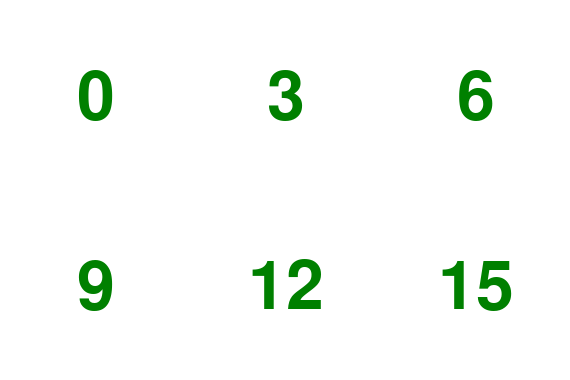
import pygame

pygame.init()
window = pygame.display.set_mode((200, 200))
clock = pygame.time.Clock()
font = pygame.font.SysFont(None, 100)

counter = 0
text = font.render(str(counter), True, (0, 128, 0))

time_delay = 1000
timer_event = pygame.USEREVENT+1
pygame.time.set_timer(timer_event, time_delay)

# main application loop
run = True
while run:
    clock.tick(60)

    # event loop
    for event in pygame.event.get():
        if event.type == pygame.QUIT:
            run = False
        elif event.type == timer_event:
            # recreate text
            counter += 1
            text = font.render(str(counter), True, (0, 128, 0))

    # clear the display
    window.fill((255, 255, 255))

    # draw the scene
    text_rect = text.get_rect(center = window.get_rect().center)
    window.blit(text, text_rect)

    # update the display
    pygame.display.flip()
All methods was sourced from stackoverflow.com or stackexchange.com, is licensed under cc by-sa 2.5, cc by-sa 3.0 and cc by-sa 4.0