I have created a login window in tkinter which has two Entry field, first one is Username and second one is Password.
code
from tkinter import *

ui = Tk()

e1 = Entry(ui)
#i need a placeholder "Username" in the above entry field
e1.pack()

ui.mainloop()
I want a placeholder called “Username” in the Entry, but if you click inside the entry box, the text should disappear.
Answers:
Thank you for visiting the Q&A section on Magenaut. Please note that all the answers may not help you solve the issue immediately. So please treat them as advisements. If you found the post helpful (or not), leave a comment & I’ll get back to you as soon as possible.
Method 1
You can create a class that inherits from Entry like below:
import tkinter as tk

class EntryWithPlaceholder(tk.Entry):
    def __init__(self, master=None, placeholder="PLACEHOLDER", color='grey'):
        super().__init__(master)

        self.placeholder = placeholder
        self.placeholder_color = color
        self.default_fg_color = self['fg']

        self.bind("<FocusIn>", self.foc_in)
        self.bind("<FocusOut>", self.foc_out)

        self.put_placeholder()

    def put_placeholder(self):
        self.insert(0, self.placeholder)
        self['fg'] = self.placeholder_color

    def foc_in(self, *args):
        if self['fg'] == self.placeholder_color:
            self.delete('0', 'end')
            self['fg'] = self.default_fg_color

    def foc_out(self, *args):
        if not self.get():
            self.put_placeholder()

if __name__ == "__main__":
    root = tk.Tk()
    username = EntryWithPlaceholder(root, "username")
    password = EntryWithPlaceholder(root, "password", 'blue')
    username.pack()
    password.pack()
    root.mainloop()
Method 2
You need to set a default value for this entry. Like this:
from tkinter import *

ui = Tk()

e1 = Entry(ui)
e1.insert(0, 'username')
e1.pack()

ui.mainloop()
Then if you want to delete the content when you click the entry, then you have to bind a mouse click event with an event handler method to update content of this entry.
Here is a link for you.
Method 3
This will work for any place holder you want.
from tkinter import *
root = Tk()

my_entry = Entry(root, width=50)
my_entry.pack()
my_entry.insert(0, "Place Holder")
my_entry.configure(state=DISABLED)

def on_click(event):
    my_entry.configure(state=NORMAL)
    my_entry.delete(0, END)

    # make the callback only work once
    my_entry.unbind('<Button-1>', on_click_id)

on_click_id = my_entry.bind('<Button-1>', on_click)

root.mainloop()
Update (Improvements)
- It is discouraged to
import *, so that, we should import like thisimport tkinter as tk. - Now we are using
on_focus_outfunction to reinsert the placeholder if the text field is empty (if you don’t want this to happen, you can use the method from the older code) - I have created two
Entrywidgets to depict the changes.
import tkinter as tk


def on_focus_in(entry):
    if entry.cget('state') == 'disabled':
        entry.configure(state='normal')
        entry.delete(0, 'end')


def on_focus_out(entry, placeholder):
    if entry.get() == "":
        entry.insert(0, placeholder)
        entry.configure(state='disabled')


root = tk.Tk()

entry_x = tk.Entry(root, width=50)
entry_x.pack(pady=10)
entry_x.insert(0, "Place Holder X")
entry_x.configure(state='disabled')

entry_y = tk.Entry(root, width=50)
entry_y.pack(pady=10)
entry_y.insert(0, "Place Holder Y")
entry_y.configure(state='disabled')

x_focus_in = entry_x.bind('<Button-1>', lambda x: on_focus_in(entry_x))
x_focus_out = entry_x.bind(
    '<FocusOut>', lambda x: on_focus_out(entry_x, 'Place Holder X'))

y_focus_in = entry_y.bind('<Button-1>', lambda x: on_focus_in(entry_y))
y_focus_out = entry_y.bind(
    '<FocusOut>', lambda x: on_focus_out(entry_y, 'Place Holder Y'))

root.mainloop()
Method 4
My solution is to subclass the tk.Entry and control the content and color, binding the <FocusIn> and <FocusOut> events to methods that fill and clear the text as necessary. This is the behavior:
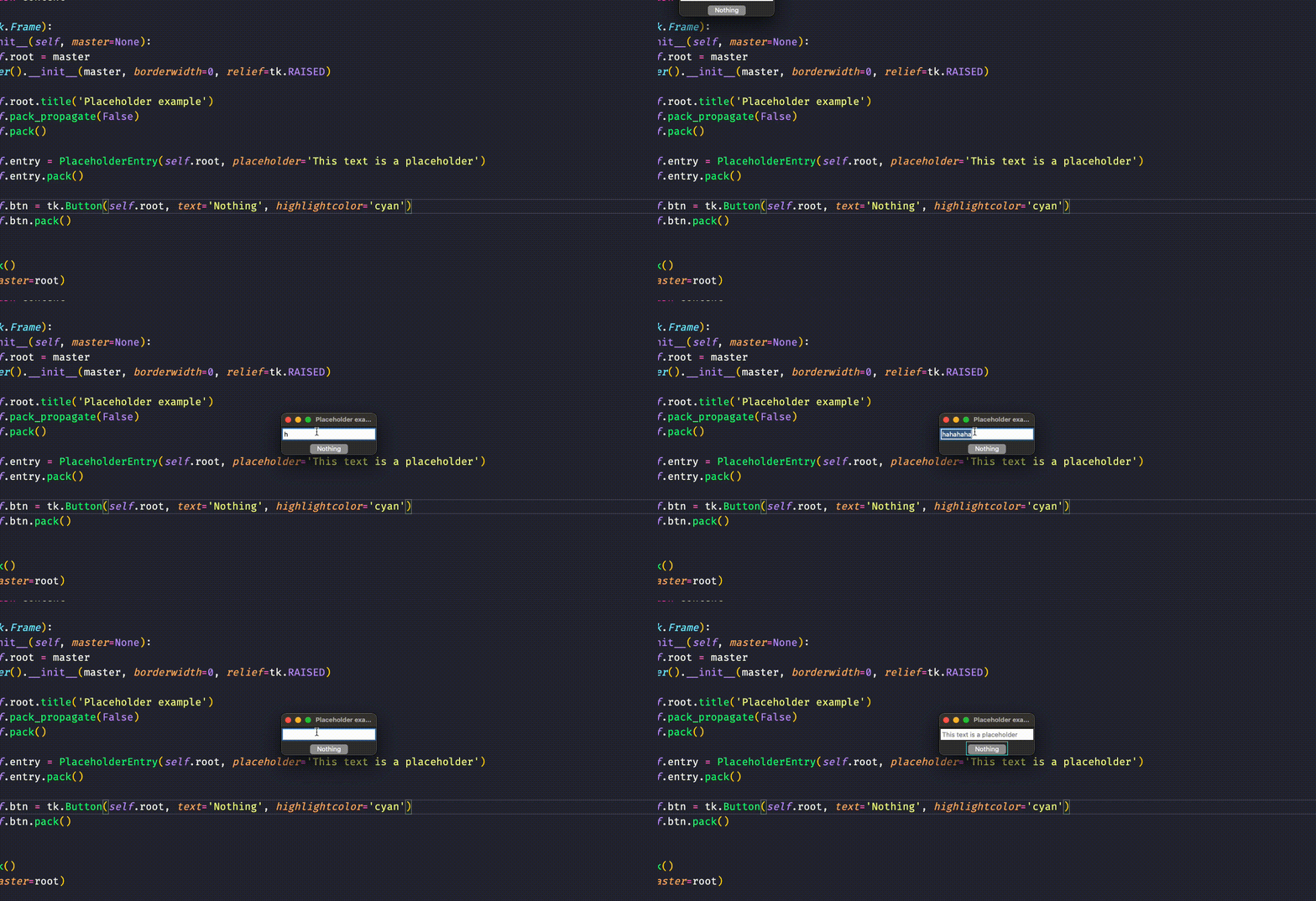
Here the complete example code:
import tkinter as tk

class PlaceholderEntry(tk.Entry):
    def __init__(self, master=None, placeholder='', cnf={}, fg='black',
                 fg_placeholder='grey50', *args, **kw):
        super().__init__(master=None, cnf={}, bg='white', *args, **kw)
        self.fg = fg
        self.fg_placeholder = fg_placeholder
        self.placeholder = placeholder
        self.bind('<FocusOut>', lambda event: self.fill_placeholder())
        self.bind('<FocusIn>', lambda event: self.clear_box())
        self.fill_placeholder()

    def clear_box(self):
        if not self.get() and super().get():
            self.config(fg=self.fg)
            self.delete(0, tk.END)

    def fill_placeholder(self):
        if not super().get():
            self.config(fg=self.fg_placeholder)
            self.insert(0, self.placeholder)

    def get(self):
        content = super().get()
        if content == self.placeholder:
            return ''
        return content

class App(tk.Frame):
    def __init__(self, master=None):
        self.root = master
        super().__init__(master, borderwidth=0, relief=tk.RAISED)

        self.root.title('Placeholder example')
        self.pack_propagate(False)
        self.pack()

        self.entry = PlaceholderEntry(self.root, placeholder='This text is a placeholder')
        self.entry.pack()

        self.btn = tk.Button(self.root, text='Nothing', highlightcolor='cyan')
        self.btn.pack()


root = tk.Tk()
app = App(master=root)

app.root.mainloop()
Method 5
A working placeholder class. What this does is that it binds to <FocusIn> and <FocusOut> so that when you put focus on it if there is no text it will insert your placeholder into it. You can also change the color on if it is selected or not.
class Placeholder:
    def __init__(self,master,placeholder='',placeholdercolor='grey',color='black',**kwargs):
        self.e = Entry(master,fg=placeholdercolor,**kwargs)
        self.e.bind('<FocusIn>',self.focus_in)
        self.e.bind('<FocusOut>',self.focus_out)
        self.e.insert(0, placeholder)
        self.placeholder = placeholder
        self.placeholdercolor=placeholdercolor
        self.color = color

    def pack(self,side=None,**kwargs):
        self.e.pack(side=side,**kwargs)

    def place(self,side=None,**kwargs):
        self.e.place(side=side,**kwargs)

    def grid(self,column=None,**kwargs):
        self.e.grid(column=column,**kwargs)

    def focus_in(self,e):
        if self.e.get() == self.placeholder:
            self.e.delete(0,END)
        self.e.configure(fg=self.color)

    def focus_out(self,e):
        if self.e.get() == '':
            self.e.configure(fg=self.placeholdercolor)
            self.e.delete(0,END)
            self.e.insert(0,self.placeholder)
Method 6
from tkinter import *

root=Tk()
root.geometry("300x200+600+250")
root.config(background="#E0FFFF")
root.resizable(False,False)


def userText(event):
    e1.delete(0,END)
    usercheck=True

def passText(event):
    e2.delete(0, END)
    passcheck=True


a=StringVar()
b=StringVar()
usercheck=False
passcheck=False


Label(root,text="User name",bg="#E0FFFF").place(x=20,y=50)
e1= Entry(root,textvariable=a)
e1.place(x=100,y=50)
e1.insert(0,"Enter username")
e1.bind("<Button>",userText)


Label(root,text="Password",bg="#E0FFFF").place(x=20,y=95)
e2= Entry(root,textvariable=b)
e2.place(x=100,y=95)
e2.insert(0,"Enter password")
e2.bind("<Button>",passText)


root.mainloop()
Method 7
For a more compact solution than the above listed, I suggest that you create a function that would erase the text box on a click event (lambda), as shown here.
from tkinter import *

def clear_entry(event, entry):
    entry.delete(0, END)
    entry.unbind('<Button-1>', click_event)

ui = Tk()

entry = Entry(ui)

entry.pack()
placeholder_text = '<enter-placeholder>'
entry.insert(0, placeholder_text)

entry.bind("<Button-1>", lambda event: clear_entry(event, entry))

ui.mainloop()
The “<Button-1>” stands for when you left-click the entry box, so do not alter it, and once you click on the box, it will trigger the event and run the function clear_entry. You have to declare the function and the entry element before defining placeholder_text and using entry.insert. Hopefully, this is a viable solution to this problem.
All methods was sourced from stackoverflow.com or stackexchange.com, is licensed under cc by-sa 2.5, cc by-sa 3.0 and cc by-sa 4.0