In my terminal, I type $ which python3, outputting
/opt/local/bin/python3
I would like to configure Atom to run Python3 scripts. In my Atom Config, I have
runner:
python: "/opt/local/bin/python3"
However, if I run the following script in some script named filename.py,
import sys
print(sys.version)
I get the following output:
2.7.11 (default, Feb 18 2016, 22:00:44)
[GCC 4.2.1 Compatible Apple LLVM 7.0.2 (clang-700.1.81)]
How exactly does one set up the PATH for Python3.x scripts to run correctly? Is there a different package I could use?
Answers:
Thank you for visiting the Q&A section on Magenaut. Please note that all the answers may not help you solve the issue immediately. So please treat them as advisements. If you found the post helpful (or not), leave a comment & I’ll get back to you as soon as possible.
Method 1
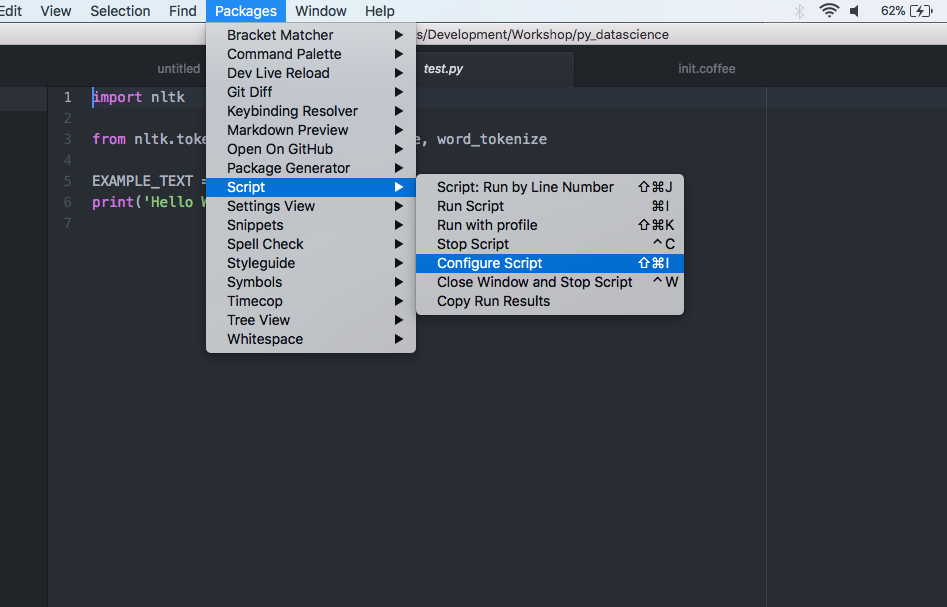
Go to the Atom’s menu bar -> Packages -> Script -> Configure Script
(Or, you can use the shortcut Shift+Ctrl+Alt+O)
Then type python3 to the Command space.
Hopefully, it will work.
Method 2
i am using “script” package (3.18.1 by rgbkrk) to run code inside atom and this is how i fixed it
- open package settings -> view code
- open lib -> grammars -> python.coffee
- change from python to python3 in those two places ‘Selection Based’ and ‘File Based’
Method 3
Install atom-runner in your Atom going into your settings of Atom and then inside Package and search for atom-runner and install it.
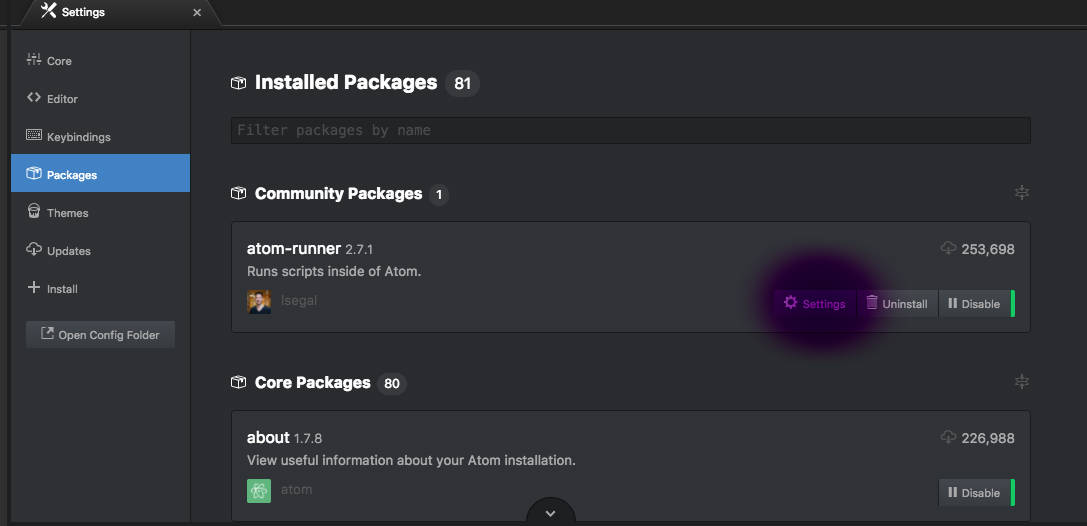
Now click on settings tab for atom-runner as shown above on picture.
Then click on View Code as shown in below picture.
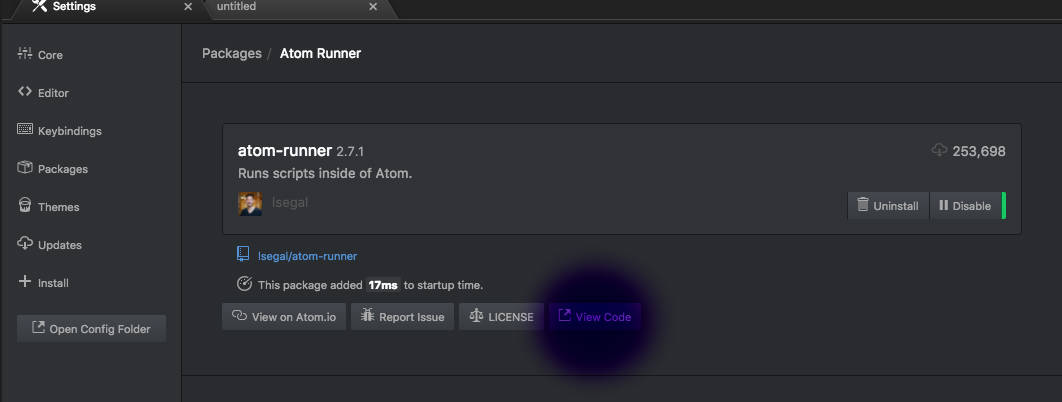
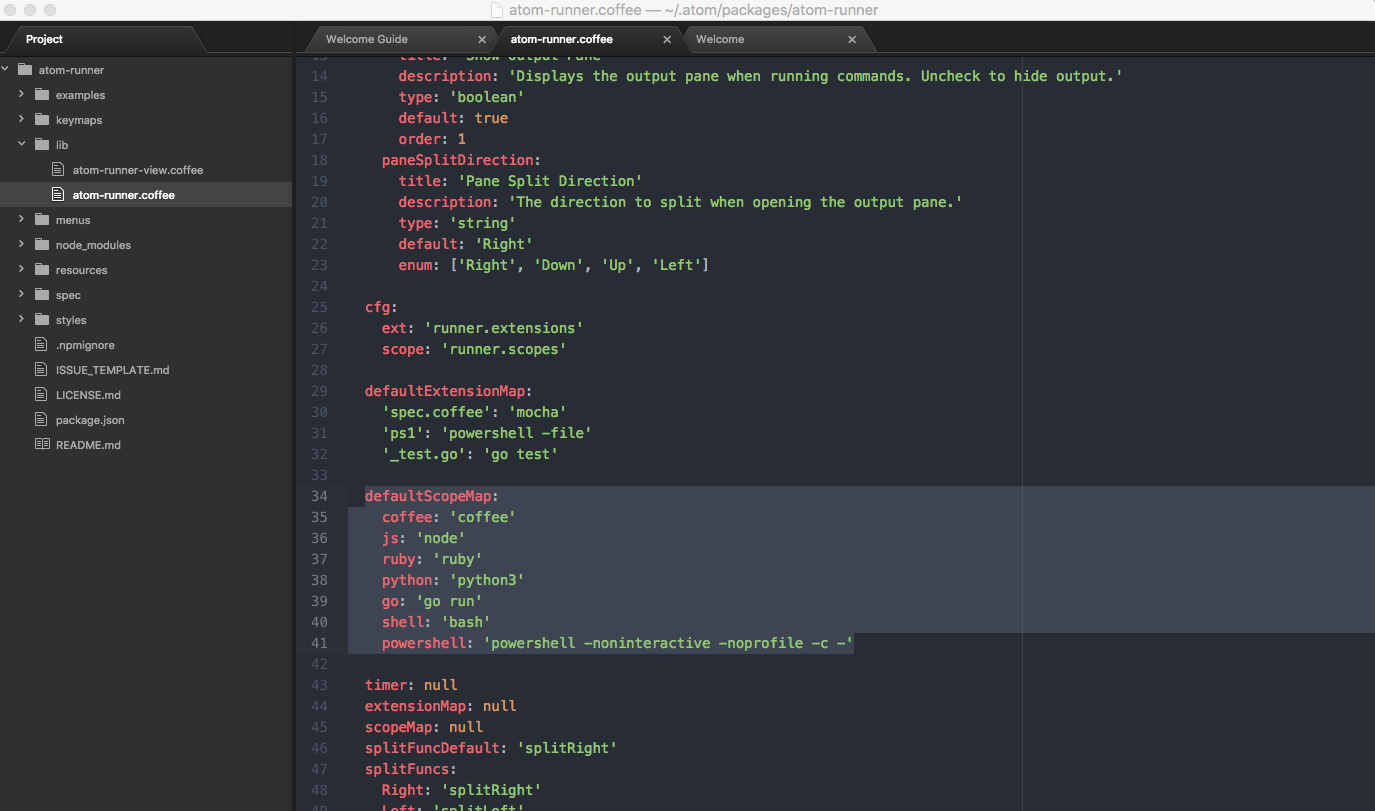
Then go to lib folder and open atom-runner.coffee and replace the following section of code:
defaultScopeMap:
coffee: 'coffee'
js: 'node'
ruby: 'ruby'
python: 'python3'
go: 'go run'
shell: 'bash'
powershell: 'powershell -noninteractive -noprofile -c -'
Make sure that for python keyword value is python3, by default it is python. Refer to the pic below:
Other way is to find the location of python3 using command
which python3
for me output is :
/usr/local/bin/python3
and add as a shebang in your every python file. For example:-
#!/usr/local/bin/python3
import sys
print("Version ",sys.version)
Only catch is that you have to write this in each file.
Method 4
If you are using Mac OS X, use the directory on the terminal to open the file.
Select the file python3, right click and select “get info”. Select the directory from “Where:” and past it in Atom.
As Terry told you:
Then type python3 to the Command space.
Method 5
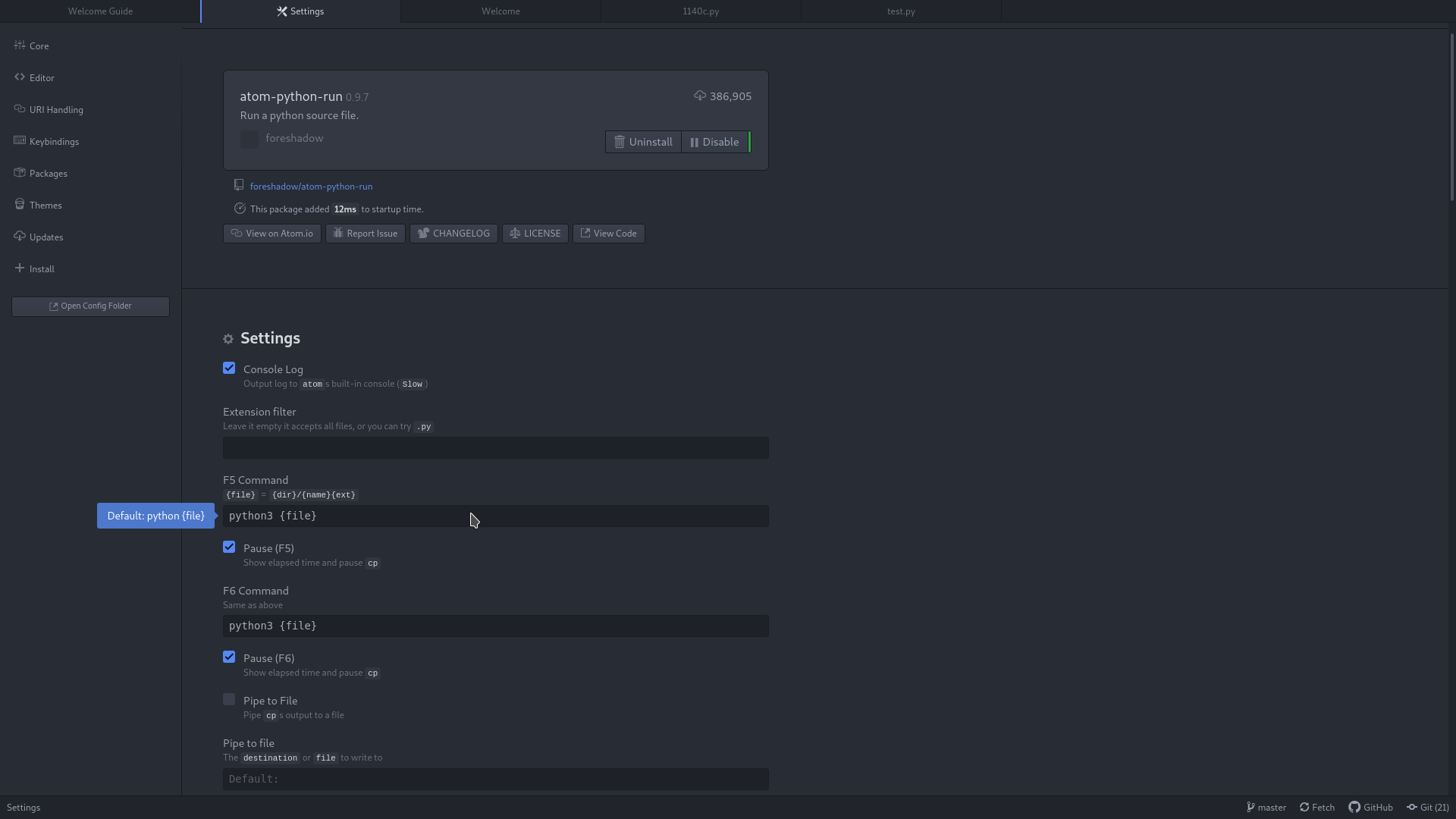
You can use the Atom package atom-python-run to launch python code from Atom, the python version can be configured in the package settings. By default atom-python-run uses the syntax python {file}. If the python command on your system is not yet pointing to python3, just replace the setting and write python3 {file}.
Method 6
You are probably using atom-python-run package to run Python directly from Atom. If Python2 is the default version of Python in your system, then Atom will try to run your Python code with Python2 interpreter. All you have to do is to change some settings in atom-python-run package to tell it that we want to use Python3. The process is simple. Go to settings>>Packages, click the settings button on atom-python-run package and in the fields of F5 and F6 command, exchange python with python3. That’s it. Now you can run your Python3 script by pressing F5 or F6 button.
Method 7
If you are using Atom on Mac OS and have script 3.18.1 and atom-python-run 0.9.7 packages installed, the following steps will help you out.
Script-> Configure Script
Then type in Python3 in the command field in the options dialog.
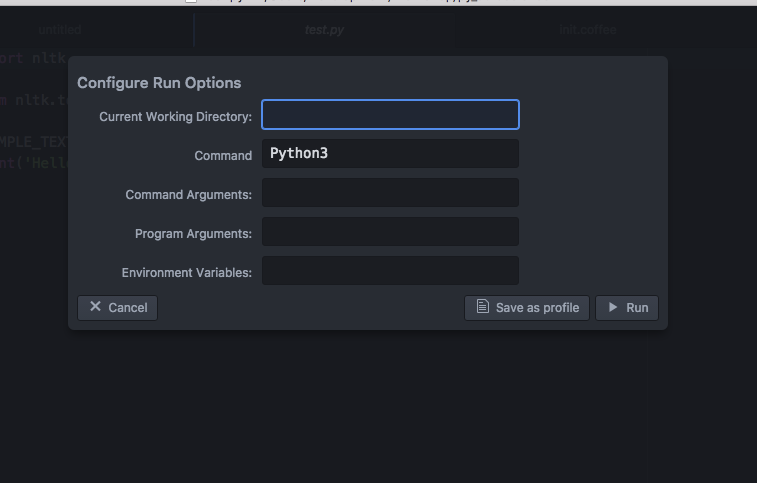
This should solve your problem.
Method 8
For mac user:
if you want to use Python3 by default, you can open Atom Settings, Atom→Preferences→Open Config Folder, and open.atom/packages/script/lib/grammars/python.coffee, Changing python to python3 under ‘Selection Based’ and ‘File Based’, saving it.
Method 9
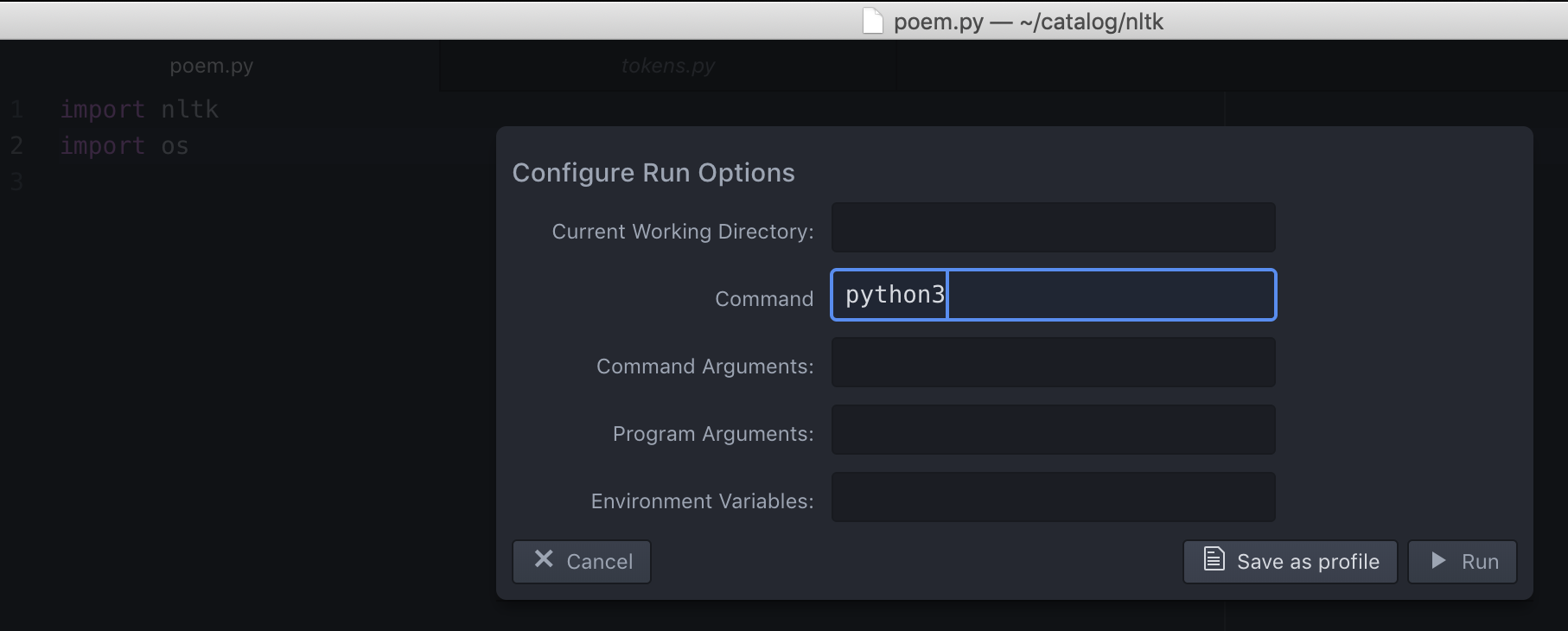
Just add your command in the Configure Run Options and save it. Then use ‘Run with Profile’ to use the command to execute your script. This worked for me.
Method 10
I have Atom v1.57.0 application installed in Ubuntu 20.04 and the atom package called script is installed to execute python3 scripts.
To allow Atom configuration to run python3 script persistently, I installed the python-is-python3 package by running the terminal command sudo apt install python-is-python3. These links 1 and 2 explain what it is. So simply pressing Ctrl+Shift+B or Run Script will run the python3 scripts persistently by default and without error messages.
If you do not want python to be replace python3 at the system-wide level, you can uninstalled python-is-python3, i.e. run terminal command sudo apt remove python-is-python3. Then in Atom, pressed Ctrl+Shift+P, typed script and selected Script: Run Options. For Command, you can key in the path /usr/bin/python3.8 or /usr/bin/python3 to define using python3.8 or python3 to execute your python script. Thereafter, you have to click on Save as profile, give it a profile name and then selected that profile name to execute your python script. See this video that was created by Corey-Schafer from 18.21mins. It shows you what to do. So finally, instead of using Ctrl+Shift+B or Run Script to execute your script, you now have to use Alt+Ctrl+Shift+B or Run With Profile to execute the script. More tedious but this approach allows finer control. For folks who want to use Atom to run different version-types of Python scripts.
All methods was sourced from stackoverflow.com or stackexchange.com, is licensed under cc by-sa 2.5, cc by-sa 3.0 and cc by-sa 4.0