I have a transparent png image “foo.png”
and I’ve opened another image with
im = Image.open("foo2.png");
now what i need is to merge foo.png with foo2.png.
( foo.png contains some text and I want to print that text on foo2.png )
Answers:
Thank you for visiting the Q&A section on Magenaut. Please note that all the answers may not help you solve the issue immediately. So please treat them as advisements. If you found the post helpful (or not), leave a comment & I’ll get back to you as soon as possible.
Method 1
from PIL import Image

background = Image.open("test1.png")
foreground = Image.open("test2.png")

background.paste(foreground, (0, 0), foreground)
background.show()
First parameter to .paste() is the image to paste. Second are coordinates, and the secret sauce is the third parameter. It indicates a mask that will be used to paste the image. If you pass a image with transparency, then the alpha channel is used as mask.
Check the docs.
Method 2
Image.paste does not work as expected when the background image also contains transparency. You need to use real Alpha Compositing.
Pillow 2.0 contains an alpha_composite function that does this.
background = Image.open("test1.png")
foreground = Image.open("test2.png")

Image.alpha_composite(background, foreground).save("test3.png")
EDIT: Both images need to be of the type RGBA. So you need to call convert('RGBA') if they are paletted, etc.. If the background does not have an alpha channel, then you can use the regular paste method (which should be faster).
Method 3
As olt already pointed out, Image.paste doesn’t work properly, when source and destination both contain alpha.
Consider the following scenario:
Two test images, both contain alpha:
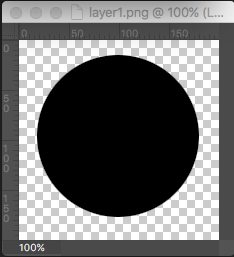
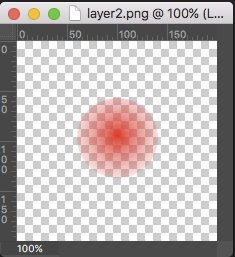
layer1 = Image.open("layer1.png")
layer2 = Image.open("layer2.png")
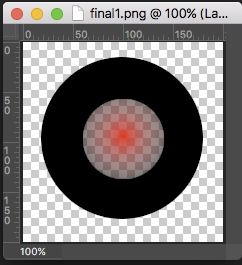
Compositing image using Image.paste like so:
final1 = Image.new("RGBA", layer1.size)
final1.paste(layer1, (0,0), layer1)
final1.paste(layer2, (0,0), layer2)
produces the following image (the alpha part of the overlayed red pixels is completely taken from the 2nd layer. The pixels are not blended correctly):
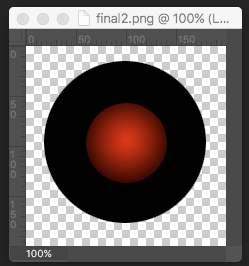
Compositing image using Image.alpha_composite like so:
final2 = Image.new("RGBA", layer1.size)
final2 = Image.alpha_composite(final2, layer1)
final2 = Image.alpha_composite(final2, layer2)
produces the following (correct) image:
Method 4
One can also use blending:
im1 = Image.open("im1.png")
im2 = Image.open("im2.png")
blended = Image.blend(im1, im2, alpha=0.5)
blended.save("blended.png")
Method 5
Had a similar question and had difficulty finding an answer. The following function allows you to paste an image with a transparency parameter over another image at a specific offset.
import Image

def trans_paste(fg_img,bg_img,alpha=1.0,box=(0,0)):
    fg_img_trans = Image.new("RGBA",fg_img.size)
    fg_img_trans = Image.blend(fg_img_trans,fg_img,alpha)
    bg_img.paste(fg_img_trans,box,fg_img_trans)
    return bg_img

bg_img = Image.open("bg.png")
fg_img = Image.open("fg.png")
p = trans_paste(fg_img,bg_img,.7,(250,100))
p.show()
Method 6
def trans_paste(bg_img,fg_img,box=(0,0)):
    fg_img_trans = Image.new("RGBA",bg_img.size)
    fg_img_trans.paste(fg_img,box,mask=fg_img)
    new_img = Image.alpha_composite(bg_img,fg_img_trans)
    return new_img
Method 7
Here is my code to merge 2 images of different sizes, each with transparency and with offset:
from PIL import Image

background = Image.open('image1.png')
foreground = Image.open("image2.png")

x = background.size[0]//2
y = background.size[1]//2

background = Image.alpha_composite(
    Image.new("RGBA", background.size),
    background.convert('RGBA')
)

background.paste(
    foreground,
    (x, y),
    foreground
)

background.show()
This snippet is a mix of the previous answers, blending elements with offset while handling images with different sizes, each with transparency.
Method 8
the key code is:
_, _, _, alpha = image_element_copy.split()
image_bg_copy.paste(image_element_copy, box=(x0, y0, x1, y1), mask=alpha)
the full function is:
def paste_image(image_bg, image_element, cx, cy, w, h, rotate=0, h_flip=False):
    image_bg_copy = image_bg.copy()
    image_element_copy = image_element.copy()

    image_element_copy = image_element_copy.resize(size=(w, h))
    if h_flip:
        image_element_copy = image_element_copy.transpose(Image.FLIP_LEFT_RIGHT)
    image_element_copy = image_element_copy.rotate(rotate, expand=True)
    _, _, _, alpha = image_element_copy.split()
    # image_element_copy's width and height will change after rotation
    w = image_element_copy.width
    h = image_element_copy.height
    x0 = cx - w // 2
    y0 = cy - h // 2
    x1 = x0 + w
    y1 = y0 + h
    image_bg_copy.paste(image_element_copy, box=(x0, y0, x1, y1), mask=alpha)
    return image_bg_copy
the above function supports:
- position(cx, cy)
- auto resize image_element to (w, h)
- rotate image_element without cropping it
- horizontal flip
All methods was sourced from stackoverflow.com or stackexchange.com, is licensed under cc by-sa 2.5, cc by-sa 3.0 and cc by-sa 4.0