I’m creating a scheduling page through ASP.NET Web Forms using custom CSS. I have added a print button and would like it to print the page exactly how it looks on screen, however it’s seems to be ignoring all my CSS when I go to print. How can I fix this?
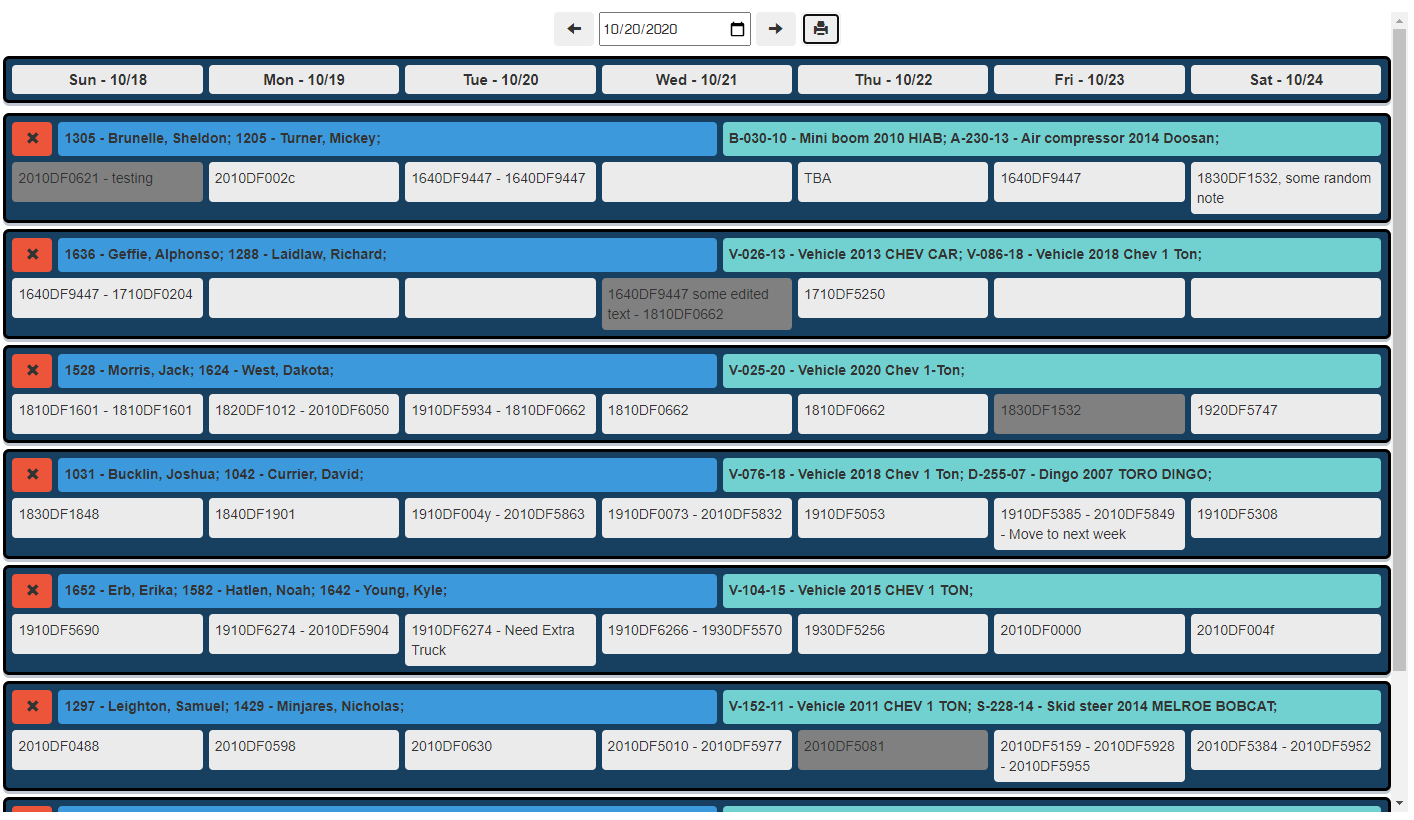
My schedule layout:
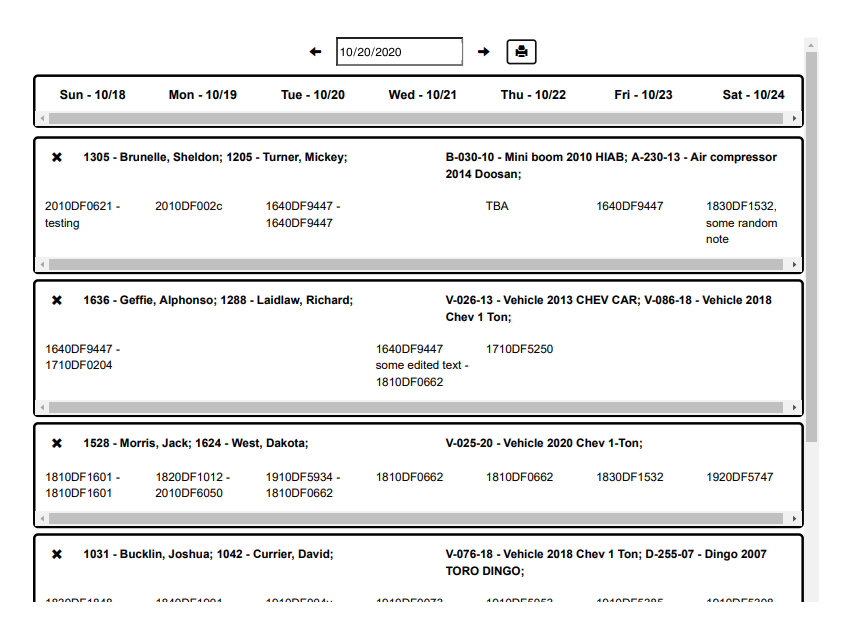
How it currently prints:
My CSS:
.board-layout {
    background-color: #173F5F;
    font-family: Arial, Helvetica, sans-serif;
    font-size: 14px;
    display: grid;
    grid-gap: 6px;
    padding: 6px;
    width: 100%;
    height: auto;
    border-radius: 6px;
    overflow: auto;
    box-shadow: 0 3px 0 rgba(9,30,66,.25);
    border: 3px solid black;
    transition: all .2s ease-in-out;
}

.board-layout:hover {
    /*transform: scale(1.005);*/
    border: 3px solid lightgrey;
}

.list-layout {
    display: grid;
    grid-gap: 10px;
}

.board-text {
    font-size: 14px;
    padding: 6px;
    color: #EEFBFB;
}

.board-lists {
    display: grid;
    grid-auto-columns: 13.9%;
    grid-auto-flow: column;
    grid-gap: 6px;
    height: auto;
}
.crew-board-lists {
    display: grid;
    grid-auto-columns: 49.72%;
    grid-auto-flow: column;
    grid-gap: 6px;
    height: auto;
    font-weight: bold;
}

.Job-lists {
    display: grid;
    grid-auto-columns: auto;
    grid-auto-flow: column;
    grid-gap: 10px;
    height: auto;
}

.board-list {
    background-color: rgb(235, 236, 240);
    border-radius: 4px;
    display: grid;
    grid-auto-rows: max-content;
    grid-gap: 10px; /* Chrome use a fixed height */
    min-height: 40px;
    height: max-content;
    padding: 6px;
    cursor: pointer;
}

.day-board-list {
    background-color: #EBEBEB;
    border-radius: 4px;
    display: grid;
    grid-auto-rows: max-content;
    grid-gap: 10px; /* Chrome use a fixed height */
    min-height: 40px;
    height: max-content;
    padding: 6px;
    cursor: pointer;
}

.day-board-list:hover, .crew-board-list:hover, .equipment-board-list:hover, .card:hover, .cardEmployee:hover, .cardEquipment:hover {
    box-shadow: 0 14px 28px rgba(0,0,0,0.25), 0 10px 10px rgba(0,0,0,0.22);
    transform: scale(1.01);
    border: 1px solid white;
}

.day-board-list, .crew-board-list, .equipment-board-list, .card, .cardEmployee, .cardEquipment {
    transition: all .1s ease-in-out;
}

.DragHoverCustom {
    box-shadow: 0 14px 28px rgba(0,0,0,0.25), 0 10px 10px rgba(0,0,0,0.22);
    transform: scale(1.01);
    border: 1px solid white;
}

.date-list {
    background-color: #EBEBEB;
    border-radius: 4px;
    display: grid;
    grid-auto-rows: max-content;
    grid-gap: 10px; /* Chrome use a fixed height */
    height: auto;
    padding: 4px;
    text-align: center;
}

.crew-board-list {
    background-color: #3C99DC;
    border-radius: 4px;
    display: grid;
    grid-auto-rows: max-content;
    grid-gap: 10px; /* Chrome use a fixed height */
    height: max-content;
    min-height: 34px;
    padding: 6px;
    cursor: pointer;
}
.equipment-board-list {
    background-color: #70D1D0;
    border-radius: 4px;
    display: grid;
    grid-auto-rows: max-content;
    grid-gap: 10px; /* Chrome use a fixed height */
    height: max-content;
    min-height: 34px;
    padding: 6px;
    cursor: pointer;
}

.list-title {
    font-size: 15px;
    font-weight: bold;
}
.schedule-dates {
    font-size: 18px;
    font-weight: bold;
}

.card {
    background-color: #EEFBFB;
    border-radius: 4px;
    box-shadow: 0 2px 0 rgba(9,30,66,.25);
    padding: 2px;
    cursor: pointer;
}

.cardEquipment {
    background-color: #70D1D0;
    border-radius: 4px;
    box-shadow: 0 2px 0 rgba(9,30,66,.25);
    padding: 2px;
    cursor: pointer;
}

.cardEmployee {
    background-color: #3C99DC;
    border-radius: 4px;
    box-shadow: 0 2px 0 rgba(9,30,66,.25);
    padding: 2px;
    cursor: pointer;
}

.tabs {
    width: 100%;
    height: 800px;
    margin: 0 auto;
}

/* tab list item */
.tabs .tabs-list {
    list-style: none;
    margin: 0px;
    padding: 0px;
}

.tabs .tabs-list li {
    width: 30%;
    float: left;
    margin: 0px;
    margin-right: 2px;
    padding: 10px 5px;
    text-align: center;
    background-color: #173F5F;
    border-radius: 4px;
}

.tabs .tabs-list li:hover {
    cursor: pointer;
}

.tabs .tabs-list li a {
    text-decoration: none;
    color: white;
}

/* Tab content section */
.tabs .tab {
    display: none;
    width: 96%;
    min-height: 200px;
    height: auto;
    border-radius: 4px;
    padding: 20px 15px;
    background-color: #EBEBEB;
    clear: both;
}

.tabs .tab h3 {
    border-bottom: 3px solid cornflowerblue;
    letter-spacing: 1px;
    font-weight: normal;
    padding: 5px;
}

.tabs .tab p {
    line-height: 20px;
    letter-spacing: 1px;
}

/* When active state */
.active {
    display: block !important;
}

.tabs .tabs-list li.active {
    background-color: #EBEBEB !important;
    color: black !important;
}

.active a {
    color: black !important;
}

/* media query */
@media screen and (max-width:360px) {
    .tabs {
        margin: 0;
        width: 96%;
    }

    .tabs .tabs-list li {
        width: 80px;
    }
}

/* Context menu */
.context-menu {
    display: none;
    position: absolute;
    border: 1px solid black;
    border-radius: 3px;
    width: 200px;
    background: white;
    box-shadow: 10px 10px 10px black;
    z-index: 10000;
}

.context-menu ul {
    list-style: none;
    padding: 2px;
}

.context-menu ul li {
    padding: 5px 2px;
    margin-bottom: 3px;
    color: white;
    font-weight: bold;
    background-color: darkturquoise;
}

.context-menu ul li:hover {
    cursor: pointer;
    background-color: #7fffd4;
}
Normal CSS link on my page:
<link rel="stylesheet" href="Content/CustomCSS.css" type="text/css">
Answers:
Thank you for visiting the Q&A section on Magenaut. Please note that all the answers may not help you solve the issue immediately. So please treat them as advisements. If you found the post helpful (or not), leave a comment & I’ll get back to you as soon as possible.
Method 1
Just checked, and what I actually did was added media styles:
@media print {
    *                           {   color:#333; }
    html                        {   height:auto; }
    h1:before                   {   content:"Site Name - "; }
    .pageTitle                  {   font-size:20pt; }
    #selectedTitleWrapper       {   text-align: left !important; }
    .mainContentColumn          {   margin-bottom: 0; }
}
These styles are used on print and override existing styles. Experiment with a few. For ex, remove the scroll bar in your top row:
.container { overflow-x: hidden; } /* for example. */
Method 2
I have found a solution called html2canvas which rebuilds any element or the entire page as an image. My JavaScript code ended up looking like this and produces a perfect copy of my schedule!
function customPrint() {
    document.getElementById('scheduleArea').style.maxHeight = 'max-content';
    html2canvas(document.querySelector("#scheduleArea")).then(canvas => {
        document.body.appendChild(canvas)
    }).then(() => {
        let canvas = document.querySelector('canvas');
        canvas.style.display = 'none';
        let image = canvas.toDataURL("image/png");
        let tWindow = window.open("");
        $(tWindow.document.body)
            .html("<img id='Image' src=" + image + " style='width:100%; height:auto;'></img>")
            .ready(function () {
                tWindow.focus();
                tWindow.print();
            });
        document.getElementById('scheduleArea').style.maxHeight = '800px';
        document.body.removeChild(canvas);
    });
};
All methods was sourced from stackoverflow.com or stackexchange.com, is licensed under cc by-sa 2.5, cc by-sa 3.0 and cc by-sa 4.0