I am using visual studio 2010 and was wondering if there is a way to automatically remove all the namespaces that aren’t being used at the the top of the page e.g.
using System;
using System.Collections.Generic;
using System.Linq;
using System.Xml.Linq;
in the above example System.Collections.Generic is not being used is there a way to know that without trial and error.
Answers:
Thank you for visiting the Q&A section on Magenaut. Please note that all the answers may not help you solve the issue immediately. So please treat them as advisements. If you found the post helpful (or not), leave a comment & I’ll get back to you as soon as possible.
Method 1
Yes you can right click on the page and from the menu select;
Organise Usings > Remove Unused Usings
Alternatively if you prefer shortcuts, please use;
Ctrl + R + G
I am using this all the time, to clean up code, and make code compilation quicker.
Or you can use PowerCommands to remove unused usings for entire projects
Method 2
In Visual Studio 2017, I use this very simple key combinations: CTRL+R+G to remove unused imports/namespaces
Update:
In VS for Mac:
Unfortunately, there’s no default key binding for this but you can always edit your preferences.
Visual Studio->Preferences
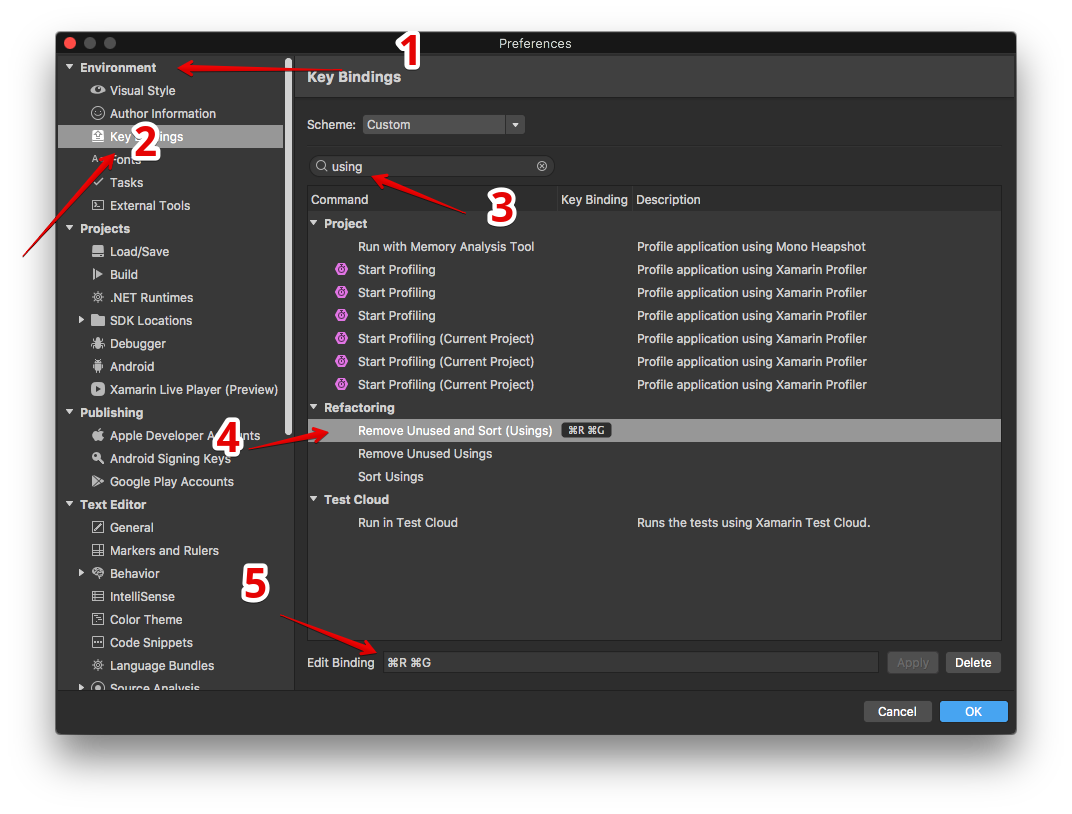
In my case, it is binded as ⌘+R+G
Method 3
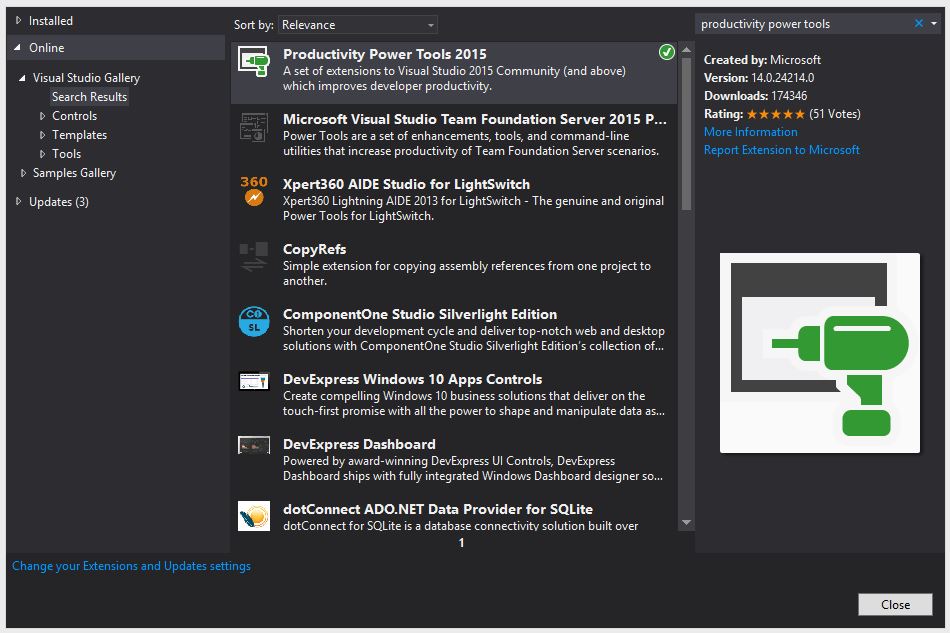
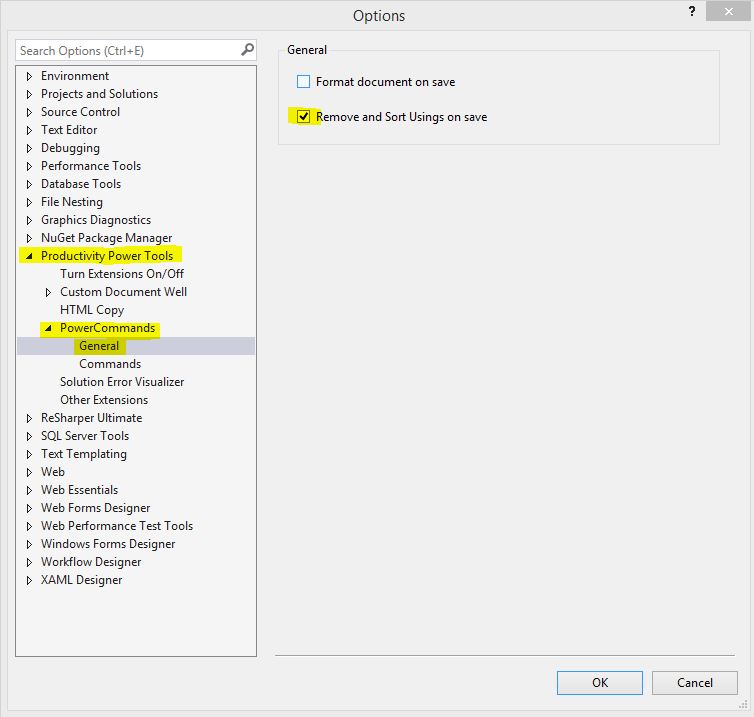
You can install an extension called: Productivity Power Tools 2015 (from Microsoft) and it has an option to automatically remove unused usings when you save your file. No more work needed after.
Method 4
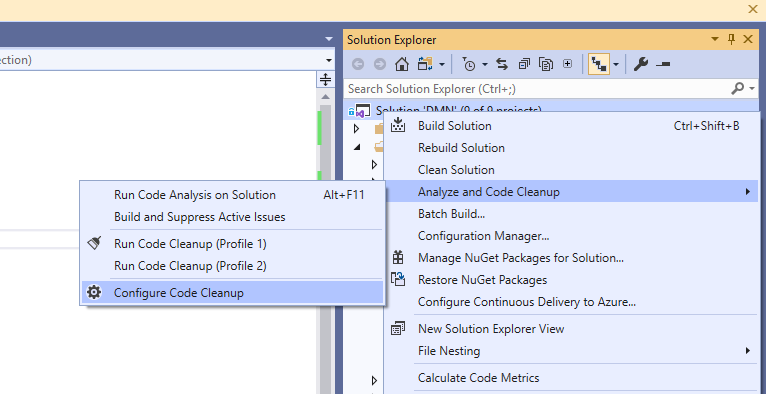
If you are using Visual Studio 2019, you can:
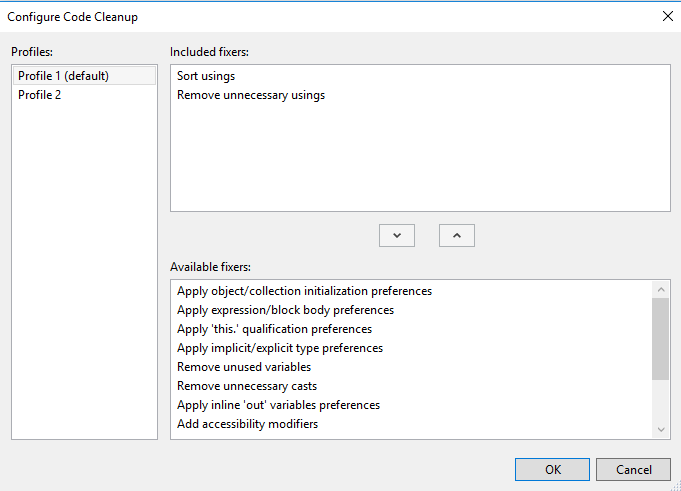
Right click your solution -> Analyze and Code Cleanup -> Configure Code Cleanup -> Create a profile (Remove & Sort usings) and then run it.
Method 5
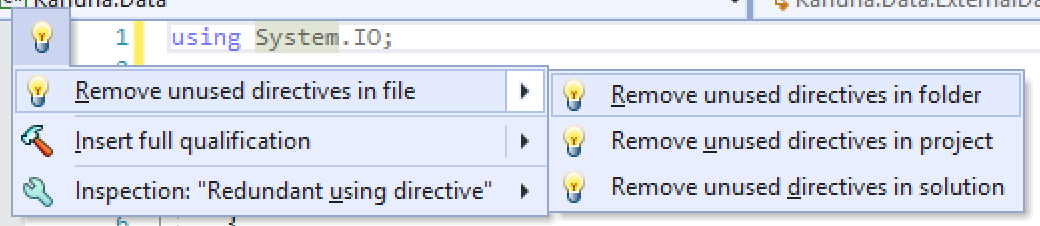
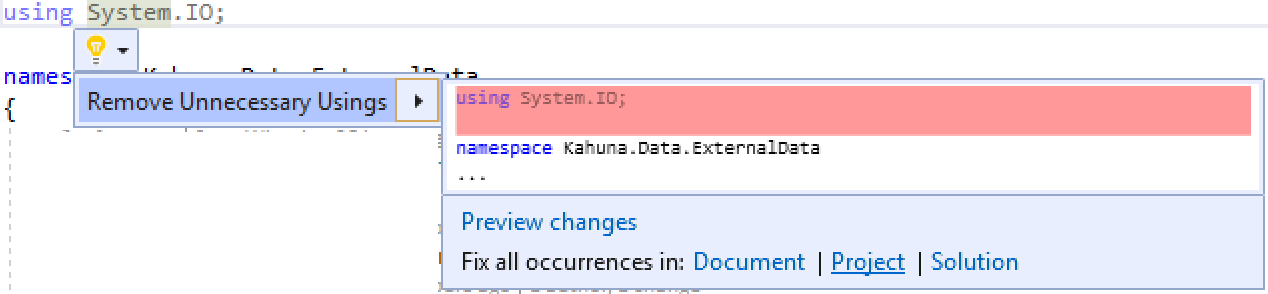
For VS 2019, VS 2022 or ReSharper. If you add an unused using to the top of a file such as using System.IO; a light bulb appears. Clicking on the light bulb gives the option to remove the unused usings from either the file, folder, project or entire solution.
Method 6
Same answer as everyone else. If you are a keyboard ninja (Shift+F10 pops up contextual menu), use this:
Shift+F10,O,R
What do you call that special key for contextual menu? Instead of pressing Shift+F10 (my keyboard don’t have that special key, that’s why I uses Shift+F10), that is shorter:
whateverThatKeyCalled, O, R
Method 7
Update:
For VS 2019 and later, there are better answers, see For Visual Studio 2019 and later, this question has been re-asked. See In Visual Studio 2019 how can I remove unused usings on format document?
Original Answer:
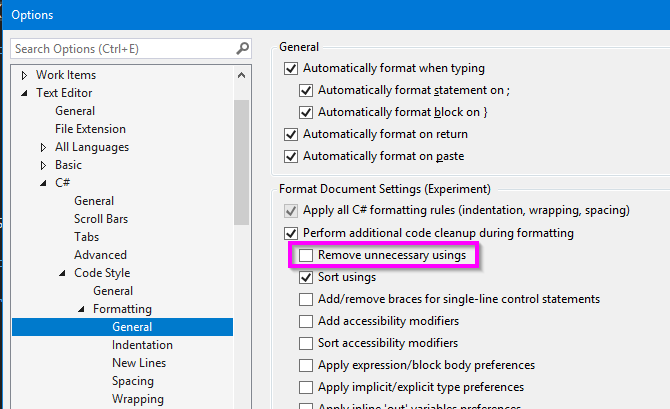
I know the OP specified VS 2010, but that was a while ago and this feature is built right into VS 2017. From the Menu, Tools -> Options, then find the check box below.
After that, any time you use CTRL + K , CTRL + D they will be removed.
Method 8
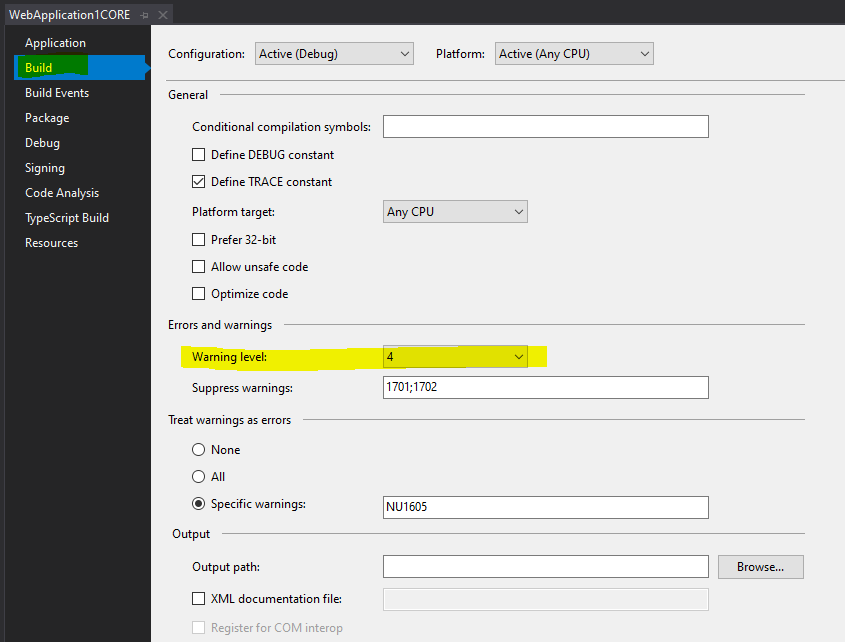
I am using Visual Studio 2019 and for some reason my project settings have a Warning level of 3 and this prevent Visual Studio from cleaning the usings. Make sure this value is set to 4.
Method 9
As saj is saying you can use the Remove Unused Usings, which works great and even greater if you sort the usings at the same time. Resharper 4.5 can help you do this for entire projects which is a functionality that is missing (and is missed) in VS2010.
More info provided in the following thread: Remove unused Usings across entire assembly
Tip: The thread above refers to the blog that proposes a macro to remove unused usings across the entire solution. Organize Usings Across Your Entire Solution.
I just tried it out, and it worked like a charm!
All methods was sourced from stackoverflow.com or stackexchange.com, is licensed under cc by-sa 2.5, cc by-sa 3.0 and cc by-sa 4.0