It sounds somewhat weird, but I need to save the Pandas console output string to png pics. For example:
>>> df
                   sales  net_pft     ROE    ROIC
STK_ID RPT_Date
600809 20120331  22.1401   4.9253  0.1651  0.6656
       20120630  38.1565   7.8684  0.2567  1.0385
       20120930  52.5098  12.4338  0.3587  1.2867
       20121231  64.7876  13.2731  0.3736  1.2205
       20130331  27.9517   7.5182  0.1745  0.3723
       20130630  40.6460   9.8572  0.2560  0.4290
       20130930  53.0501  11.8605  0.2927  0.4369
Is there any way like df.output_as_png(filename='df_data.png') to generate a pic file which just display above content inside?
Answers:
Thank you for visiting the Q&A section on Magenaut. Please note that all the answers may not help you solve the issue immediately. So please treat them as advisements. If you found the post helpful (or not), leave a comment & I’ll get back to you as soon as possible.
Method 1
Option-1: use matplotlib table functionality, with some additional styling:
import pandas as pd
import numpy as np
import matplotlib.pyplot as plt

df = pd.DataFrame()
df['date'] = ['2016-04-01', '2016-04-02', '2016-04-03']
df['calories'] = [2200, 2100, 1500]
df['sleep hours'] = [8, 7.5, 8.2]
df['gym'] = [True, False, False]

def render_mpl_table(data, col_width=3.0, row_height=0.625, font_size=14,
                     header_color='#40466e', row_colors=['#f1f1f2', 'w'], edge_color='w',
                     bbox=[0, 0, 1, 1], header_columns=0,
                     ax=None, **kwargs):
    if ax is None:
        size = (np.array(data.shape[::-1]) + np.array([0, 1])) * np.array([col_width, row_height])
        fig, ax = plt.subplots(figsize=size)
        ax.axis('off')
    mpl_table = ax.table(cellText=data.values, bbox=bbox, colLabels=data.columns, **kwargs)
    mpl_table.auto_set_font_size(False)
    mpl_table.set_fontsize(font_size)

    for k, cell in mpl_table._cells.items():
        cell.set_edgecolor(edge_color)
        if k[0] == 0 or k[1] < header_columns:
            cell.set_text_props(weight='bold', color='w')
            cell.set_facecolor(header_color)
        else:
            cell.set_facecolor(row_colors[k[0]%len(row_colors) ])
    return ax.get_figure(), ax

fig,ax = render_mpl_table(df, header_columns=0, col_width=2.0)
fig.savefig("table_mpl.png")
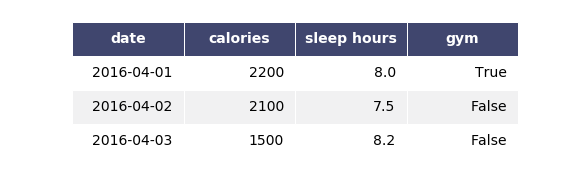
Options-2 Use Plotly + kaleido
import plotly.figure_factory as ff
import pandas as pd

df = pd.DataFrame()
df['date'] = ['2016-04-01', '2016-04-02', '2016-04-03']
df['calories'] = [2200, 2100, 1500]
df['sleep hours'] = [8, 7.5, 8.2]
df['gym'] = [True, False, False]

fig =  ff.create_table(df)
fig.update_layout(
    autosize=False,
    width=500,
    height=200,
)
fig.write_image("table_plotly.png", scale=2)
fig.show()
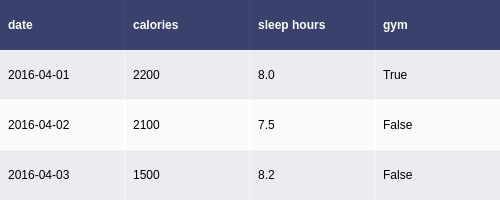
For the above, the font size can be changed using the font attribute:
fig.update_layout(
    autosize=False,
    width=500,
    height=200,
    font={'size':8}
)
Method 2
You have to use the figure returned by the DataFrame.plot() command:
ax = df.plot()
fig = ax.get_figure()
fig.savefig('asdf.png')
Method 3
I was interested saving my dataframe as a table for an appendix for a report. I found this to be the simplest solution:
import pandas as pd
from matplotlib.backends.backend_pdf import PdfPages
import matplotlib.pyplot as plt

# Assuming that you have a dataframe, df
pp = PdfPages('Appendix_A.pdf')
total_rows, total_cols = df.shape; #There were 3 columns in my df

rows_per_page = 40; # Assign a page cut off length
rows_printed = 0
page_number = 1;

while (total_rows >0):
    #put the table on a correctly sized figure
    fig=plt.figure(figsize=(8.5, 11))
    plt.gca().axis('off')
    matplotlib_tab = pd.tools.plotting.table(plt.gca(),df.iloc[rows_printed:rows_printed+rows_per_page],
        loc='upper center', colWidths=[0.2, 0.2, 0.2])

    # Give you cells some styling
    table_props=matplotlib_tab.properties()
    table_cells=table_props['child_artists'] # I have no clue why child_artists works
    for cell in table_cells:
        cell.set_height(0.024)
        cell.set_fontsize(12)

    # Add a header and footer with page number
    fig.text(4.25/8.5, 10.5/11., "Appendix A", ha='center', fontsize=12)
    fig.text(4.25/8.5, 0.5/11., 'A'+str(page_number), ha='center', fontsize=12)

    pp.savefig()
    plt.close()

    #Update variables
    rows_printed += rows_per_page;
    total_rows -= rows_per_page;
    page_number+=1;

pp.close()
Method 4
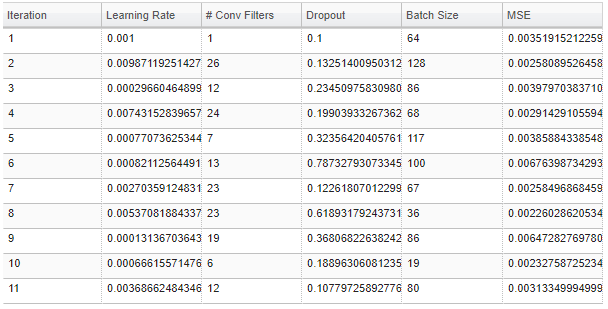
I had the same requirement for a project I am doing. But none of the answers were elegant per my requirement. Here is something which finally helped me, and might be useful for this case, using Bokeh:
from bokeh.io import export_png, export_svgs
from bokeh.models import ColumnDataSource, DataTable, TableColumn

def save_df_as_image(df, path):
    source = ColumnDataSource(df)
    df_columns = [df.index.name]
    df_columns.extend(df.columns.values)
    columns_for_table=[]
    for column in df_columns:
        columns_for_table.append(TableColumn(field=column, title=column))

    data_table = DataTable(source=source, columns=columns_for_table,height_policy="auto",width_policy="auto",index_position=None)
    export_png(data_table, filename = path)
Sample output:
Method 5
Here is a somewhat hackish solution but it gets the job done.
import numpy as np
import pandas as pd
from matplotlib.backends.backend_pdf import PdfPages
import matplotlib.pyplot as plt

from PySide.QtGui import QImage
from PySide.QtGui import QPainter
from PySide.QtCore import QSize
from PySide.QtWebKit import QWebPage

arrays = [np.hstack([ ['one']*3, ['two']*3]), ['Dog', 'Bird', 'Cat']*2]
columns = pd.MultiIndex.from_arrays(arrays, names=['foo', 'bar'])
df =pd.DataFrame(np.zeros((3,6)),columns=columns,index=pd.date_range('20000103',periods=3))

h = "<!DOCTYPE html> <html> <body> <p> " + df.to_html() + " </p> </body> </html>";
page = QWebPage()
page.setViewportSize(QSize(5000,5000))

frame = page.mainFrame()
frame.setHtml(h, "text/html")

img = QImage(1000,700, QImage.Format(5))
painter = QPainter(img)
frame.render(painter)
painter.end()
a = img.save("html.png")
Method 6
You might like to save the df as pdf, in that case reportlab Table will do the job.
Method 7
You can also just use Dask to offload workloads from RAM, it works with Pandas dataframes, Numpy and Sklearn and ML as well.
All methods was sourced from stackoverflow.com or stackexchange.com, is licensed under cc by-sa 2.5, cc by-sa 3.0 and cc by-sa 4.0