I have PyCharm 1.5.4 and have used the “Open Directory” option to open the contents of a folder in the IDE.
I have Python version 3.2 selected (it shows up under the “External Libraries” node).
How can I select another version of Python (that I already have installed on my machine) so that PyCharm uses that version instead?
Answers:
Thank you for visiting the Q&A section on Magenaut. Please note that all the answers may not help you solve the issue immediately. So please treat them as advisements. If you found the post helpful (or not), leave a comment & I’ll get back to you as soon as possible.
Method 1
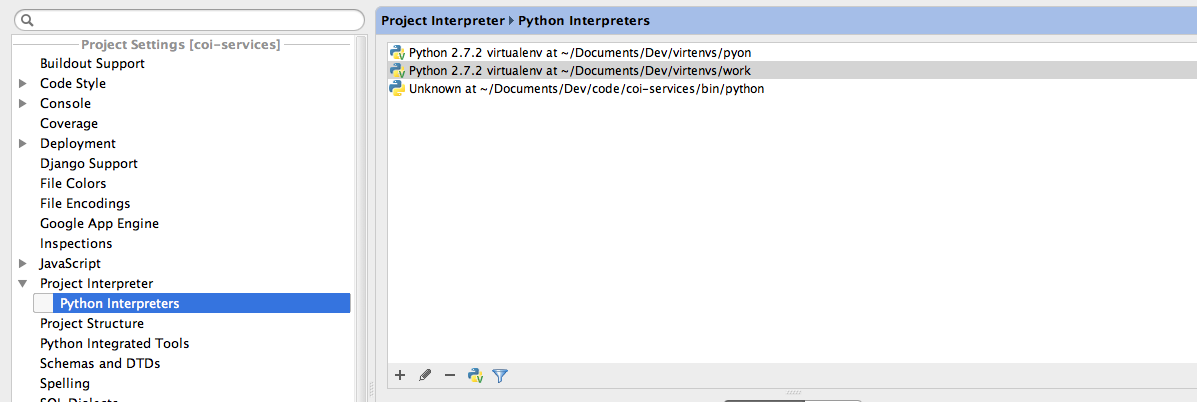
File -> Settings
Preferences->Project Interpreter->Python Interpreters
If it’s not listed add it.
Method 2
I think you are saying that you have python2 and python3 installed and have added a reference to each version under Pycharm > Settings > Project Interpreter
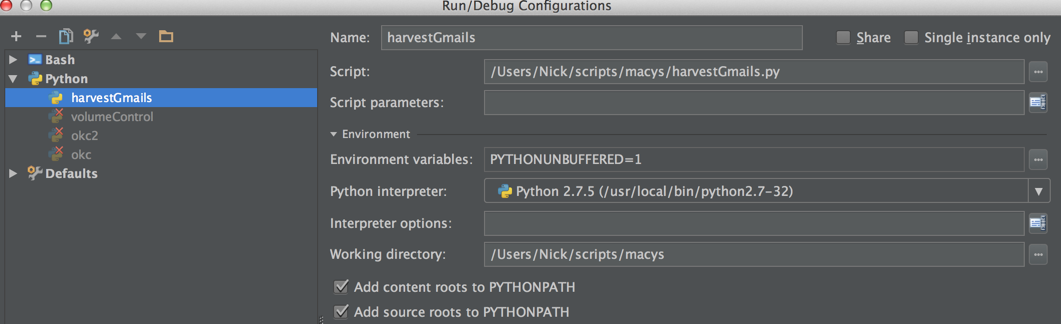
What I think you are asking is how do you have some projects run with Python 2 and some projects running with Python 3.
If so, you can look under Run > Edit Configurations
Method 3
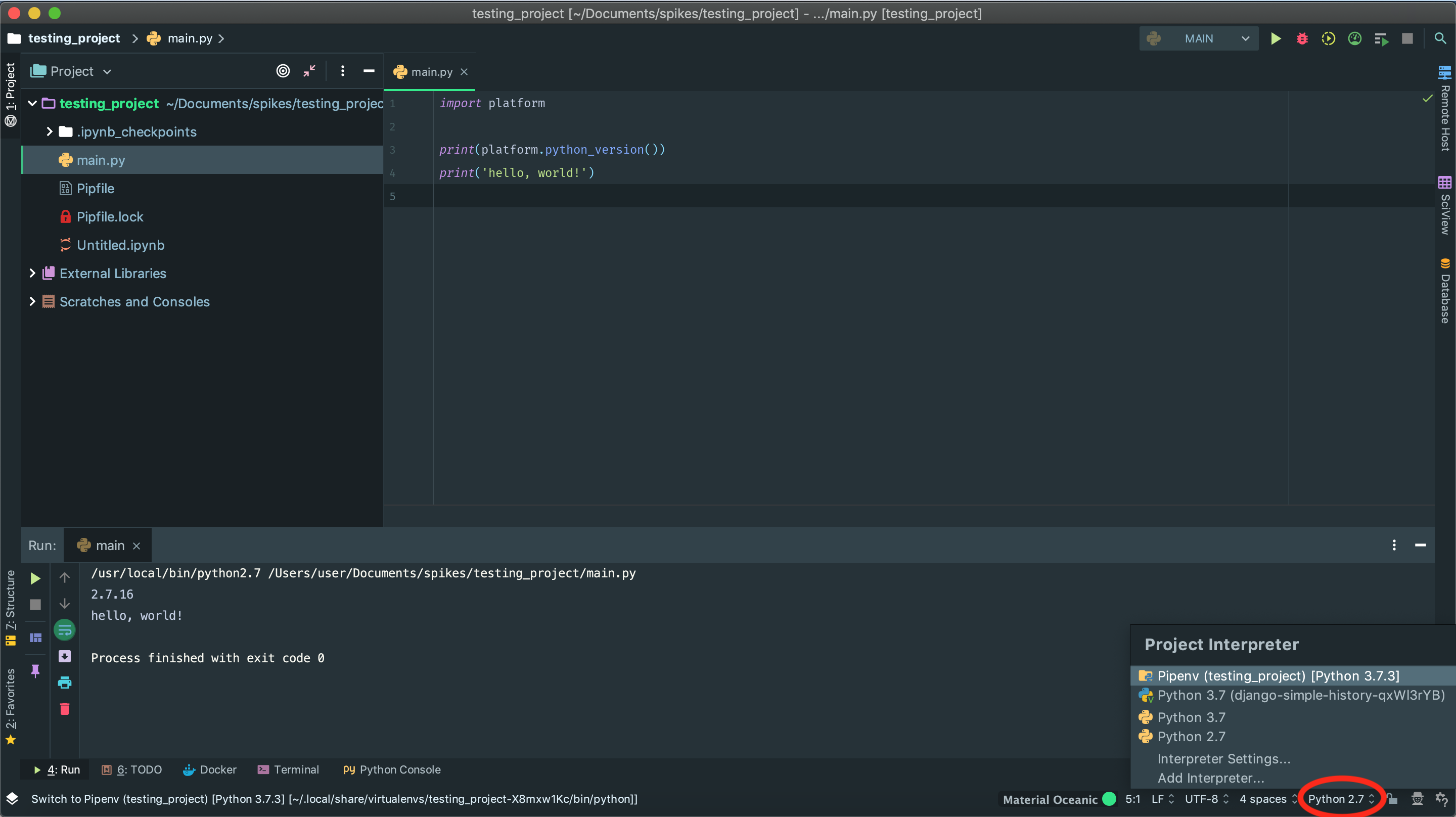
PyCharm 2019.1+
There is a new feature called Interpreter in status bar (scroll down a little bit). This makes switching between python interpreters and seeing which version you’re using easier.
Enable status bar
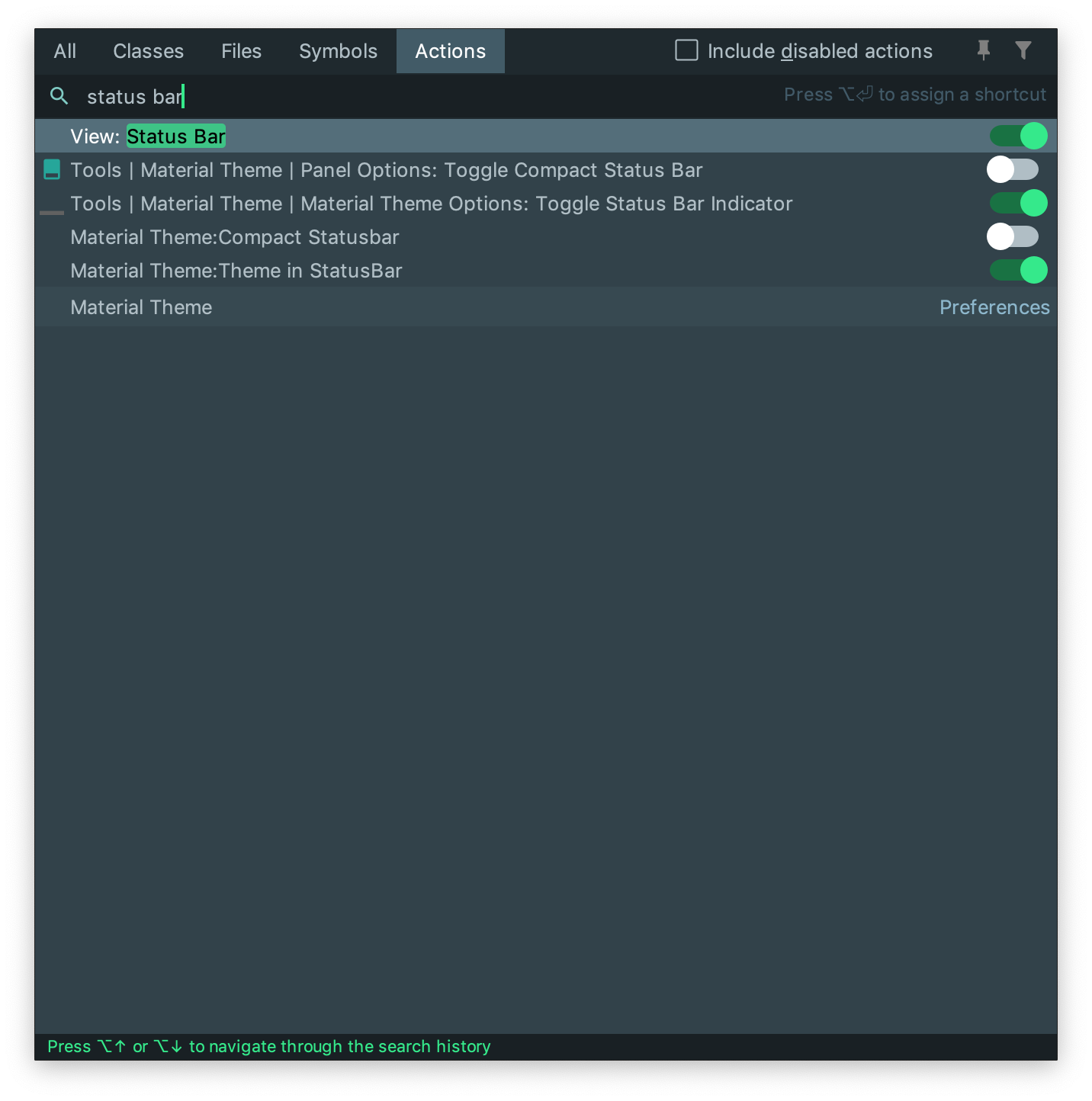
In case you cannot see the status bar, you can easily activate it by running the Find Action command (Ctrl+Shift+A or ⌘+ ⇧+A on mac). Then type status bar and choose View: Status Bar to see it.
Method 4
This can also happen in Intellij Ultimate, which has PyCharm integrated. The issue is as diagnosed above, you have the wrong interpreter selected.
The exact method to fix this for any given project is to go to Project Settings…Project and adjust the Project SDK. You can add a New Project SDK if you don’t have Python 3 added by navigating to the python3 binary. This will fix the errors listed above. A shortcut to Project Settings is the blue checkerboard-type icon.
You can also add Python 3 as the default interpreter for Python projects. On OSX this is in File..Other Settings…Default Project Structure. There you can set the Project SDK which will now apply on each new project. It can be different on other platforms, but still similar.
Method 5
Go to:
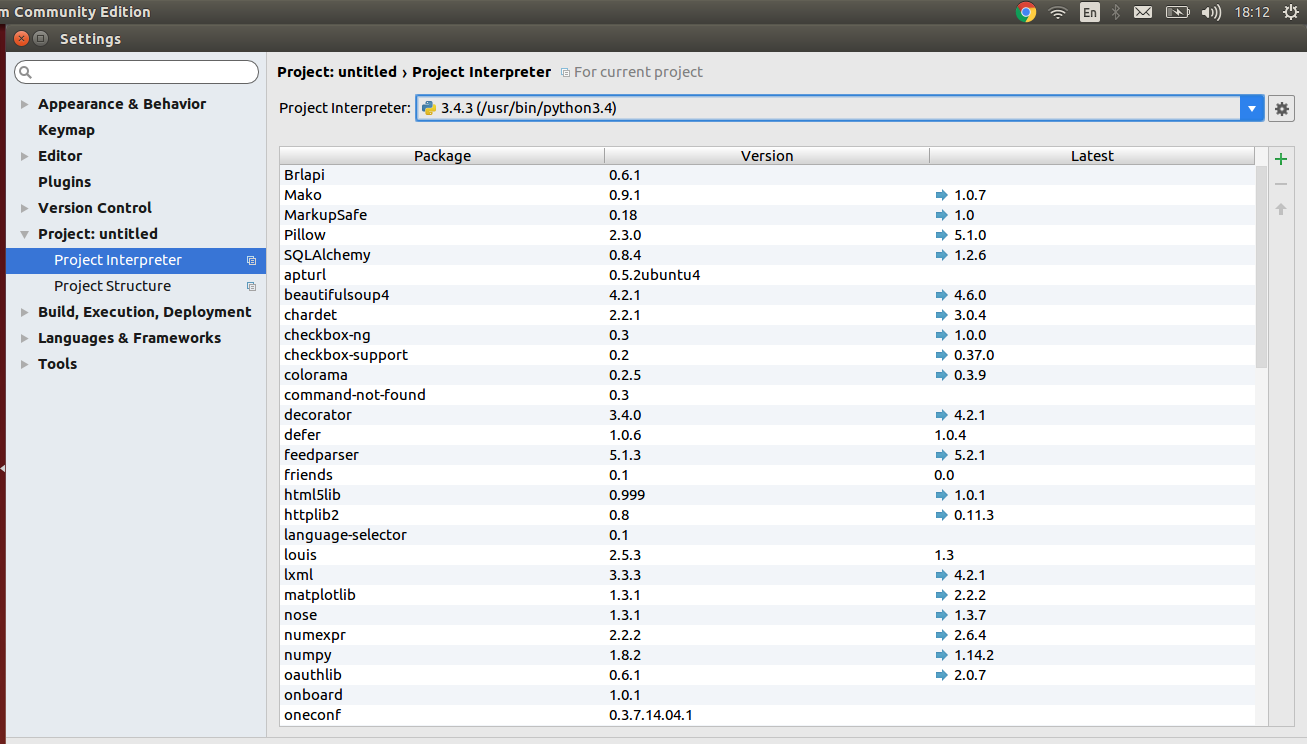
Files -> Settings -> Project -> *"Your Project Name"* -> Project Interpreter
There you can see which external libraries you have installed for python2 and which for python3.
Select the required python version according to your requirements.
Method 6
Quick Answer:
File–>Setting- In left side in
projectsection –>Project interpreter - Select desired
Project interpreter - Apply + OK
[NOTE]:
Tested on Pycharm 2018 and 2017.
All methods was sourced from stackoverflow.com or stackexchange.com, is licensed under cc by-sa 2.5, cc by-sa 3.0 and cc by-sa 4.0