I’ve searched and searched on Google, and I can’t find anything that even seems applicable to my situation, let alone solves the problem. It doesn’t matter which address in my website I try to navigate to (even addresses that don’t exist give this error instead of a 404), I get the exact same message (the path is always ‘/’). Any ideas?
Server Error in '/' Application.

Failed to map the path '/'.

Description: An unhandled exception occurred during the execution of the current web request. Please review the stack trace for more information about the error and where it originated in the code.

Exception Details: System.InvalidOperationException: Failed to map the path '/'.

Source Error:

An unhandled exception was generated during the execution of the current web request. Information regarding the origin and location of the exception can be identified using the exception stack trace below.

Stack Trace:


[InvalidOperationException: Failed to map the path '/'.]
   System.Web.HttpRuntime.HostingInit(HostingEnvironmentFlags hostingFlags, PolicyLevel policyLevel, Exception appDomainCreationException) +336

[HttpException (0x80004005): Failed to map the path '/'.]
   System.Web.HttpRuntime.FirstRequestInit(HttpContext context) +11556592
   System.Web.HttpRuntime.EnsureFirstRequestInit(HttpContext context) +141
   System.Web.HttpRuntime.ProcessRequestNotificationPrivate(IIS7WorkerRequest wr, HttpContext context) +4813333

Version Information: Microsoft .NET Framework Version:4.0.30319; ASP.NET Version:4.0.30319.225
UPDATE: I went back to the site a few minutes after posting this–made no changes to code or configuration–and the error went away. I’m really baffled, but it is no longer a problem.
Answers:
Thank you for visiting the Q&A section on Magenaut. Please note that all the answers may not help you solve the issue immediately. So please treat them as advisements. If you found the post helpful (or not), leave a comment & I’ll get back to you as soon as possible.
Method 1
restarting IIS solved the same issue in my case. Seems like something fails in IIS. Didn’t worth my panic, either.
IIS 7.5, btw.
Method 2
I had the same issue (MVC 4) under IIS 7. It turned out that the App Pool identity didn’t have the correct authorization to the site’s path.
Method 3
You don’t have to reset IIS, you can just recycle the app pool.
Method 4
Today when I renamed the default website, under which my MVC application was hosted, I started getting that error too. But I restarted IIS and the issue was resolved.
Method 5
I also have same issue. In my case working on InstalledSheild / InstalledAware, to make setup of web service. After setup run the above error comes, while resolve issue when check, found that IIs default website path remove after setup run.
So I just add path as below step.
- Go to Command prompt -> type InetMgr
-
Its open IIS, go to ‘Default Web Site’ -> Advanced Settings (at right side menu)
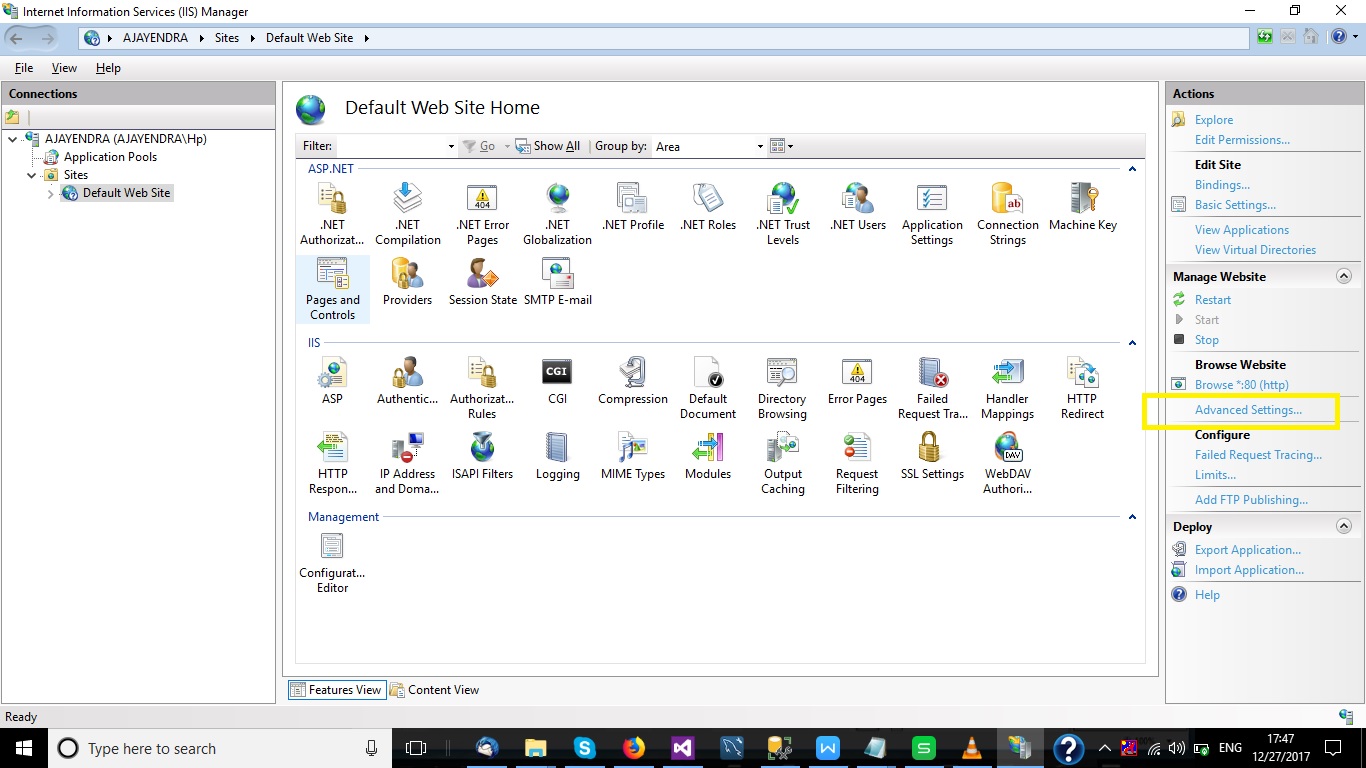
-
Go to Physical Path and paste this things – ‘%SystemDrive%inetpubwwwroot’ as below
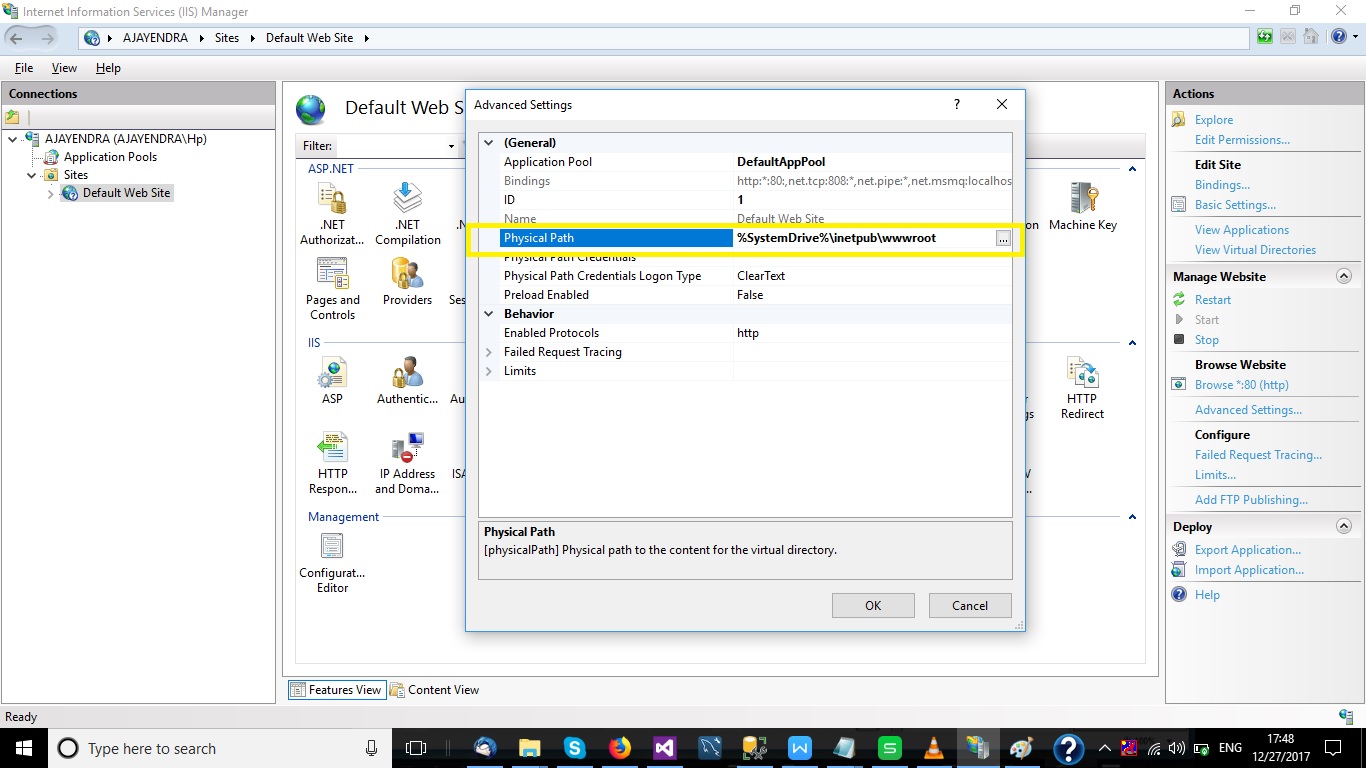
Method 6
Just start cmd and run the command iisreset and error will be gone.
Method 7
I found that I had misnamed some virtual directories in IIS Manager. After fixing them, I was good.
Method 8
These samples run in server. So either the Windows user must have READ/WRITE permissions or must run the sample in Administrator mode.
Try running the sample in Administrator mode.
Method 9
The following works for me:
1. Right click on “Default web site”
2. Choose Advance settings
3. Setup Physical Path to C:inetpubwwwroot
4. Click OK.
5. Browse the Default web site. –> It works.
Method 10
This line (top of the stack trace) is telling you there is something wrong which the hosting configuration.
System.Web.HttpRuntime.HostingInit(HostingEnvironmentFlags hostingFlags, PolicyLevel policyLevel, Exception appDomainCreationException) +336
How is your server set up? Have you checked the config files?
I’d search through them specifically for any settings or attributes which have the single value “/”.
Method 11
I Think this is because of IIS is unable to find the root folder. i.e wwwroot. Restarting the IIS wont be helpful in some scenarios.
if the root path has changed, you should bring it back to %SystemDrive%inetpubwwwroot
by right clicking sites node in IIS and changing physical path to the above one.
and make sure that your application pool is asp.net v4.0 and running in integrated mode
Method 12
Changing pool from ASP.NET v4.0 to Framework4 worked for me.
Method 13
i have tried following solution and it had work for me
C:Program FilesMicrosoft Visual Studio 10.0Common7IDEdevenv.exe
right click on Devenv.exe
in Compablity tab –> Privilage Level –> click on Run this Program as an Adminstrator
If as for the Admin Password Provide it
if it is already selected deselect it and again select it
–>Apply–>OK
restart the VS application
and Publish your website again
Method 14
I was receiving this error because I happened to be opening a website project over a mapped network drive z:folder instead of connecting via a UNC path \serverpathfolder. Once I opened the project from the UNC path it built just fine.
Method 15
I experienced this after updating to Windows 10 Fall Creators edition version 1709. None of the solutions above worked for me. I was able to fix the error this way:
- Go to “Control Panel” > “Administrative Tools” > “IIS Manager”.
- Choose “Change .NET Framework Version” from the “Actions” in the
right margin. - I chose the latest version shown and clicked “OK”.
If IIS Manager is not available under Administrative Tools, you can enable it this way:
- Press the Windows key and type “Turn Windows Features On or Off”
then select the search result. - In dialog that appears, check the box by “Internet Information
Services” and click OK.
Method 16
I had this issue with a specific application and not the entire IIS site. In my case, access to the application directory was not the problem. Instead, I needed to give the application pool a recycle.
I think this was related to how the application was deployed and the IIS settings were set (done via scripts and a deployment agent).
Method 17
It could be due to data in your web.config file. E.g. a backslash in a domain username.
userName='domainuser'.
Method 18
I ran into the same issue when trying to run the ASP.Net precompiler, it turned out that I was not opening the command prompt as administrator. Once I did, I was able to run the asp.net compiler successfully.
Method 19
~I’ve gone to the Internet Information Services Manager
~Click the sites
~Right click on your website
~Click Manage Website > Advance Settings
~Change the application pool to DefaultAppPool
And it works fine to me.
Method 20
My solution was to make sure that all IIS features are installed. So went to add remove programs in the control panel and clicked on add remove windows features and selected all options except IIS 6 console compatibility.
Method 21
Executing the command iisreset (cmd with elevated rights) fixed this issue for me.
All methods was sourced from stackoverflow.com or stackexchange.com, is licensed under cc by-sa 2.5, cc by-sa 3.0 and cc by-sa 4.0