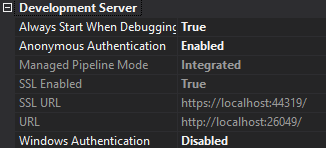
When I access the site as http://localhost:26049, the site runs fine. If I try to access the site with https://localhost:44319, I get page not found.
This is my project properties:
This is from my IISExpress application config:
<site name="MVC Authentication" id="2">
    <application path="/" applicationPool="Clr4IntegratedAppPool">
        <virtualDirectory path="/" physicalPath="F:ProjectsMySiteTest" />
    </application>
    <bindings>
        <binding protocol="https" bindingInformation="*:44319:localhost" />
        <binding protocol="http" bindingInformation="*:26049:localhost" />
    </bindings>
</site>
Answers:
Thank you for visiting the Q&A section on Magenaut. Please note that all the answers may not help you solve the issue immediately. So please treat them as advisements. If you found the post helpful (or not), leave a comment & I’ll get back to you as soon as possible.
Method 1
Please, for the love of g*d, try this, before you get mired in some unnecessary craziness!
(Apparently IIS Express has reserved port range of 44300 – 44399 for simulating SSL)
Change to port 44300 (https://localhost:44300/)
Method 2
Got solution from this post. Had to delete all localhost certificates and repair IIS Express. Thanks @ShaTin
https://stackoverflow.com/a/22818853/853295
Make sure to remove any previous ‘localhost’ certificates as those could conflict with the one generated by IIS Express. I had this same error (ERR_SSL_PROTOCOL_ERROR), and it took me many hours to finally figure it out after trying out many many “solutions”. My mistake was that I had created my own ‘localhost’ certificate and there were two of them. I had to delete both and have IIS Express recreate it.
Here is how you can check for and remove ‘localhost’ certificate:
On Start, type -> mmc.exe,
File -> Add/Remove Snap-in…,
Select Certificates -> Add> -> Computer account -> Local computer,
Check under Certificates > Personal > Certificates.
Make sure the localhost certificate that exist has a friendly name “IIS Express Development Certificate”. If not, delete it. Or if multiple, delete all.
On Visual Studio, select project and under property tab, enable SSL=true. Save, Build and Run. IIS Express will generate a new ‘localhost’ certificate.
Note: If it doesn’t work, try these: make sure to disable IIS Express on VS project and stopping all running app on it prior to removing ‘localhost’ certificate. Also, you can go to ‘control panel > programs’ and Repair IIS Express.
Method 3
The steps followed by me to resolve this (I am using vs2015)
1)Go to control panel
2)Add Remove Programs
3)Repair IIS Express
4)Restarted my computer
4)Next go to my documents->IIS Express->Config Files
5)Take a copy of them and Remove those files from there
6)Delete all items C:Temp
7)Check for .vs folder in your sln file and goto config folder in it
8)Take a copy of that as well and remove the files inside it
9)Clean your solution
10)Restart Visual studio
11)Build and run
(I copied clean config files from my colleagues machine – in locations mentioned above
1]In Documents
2] .vs folder
I suppose Just running IISExpress and it will recreate the file for you. The exe is located at: “c:Program FilesIIS Expressiisexpress.exe”.
)
Method 4
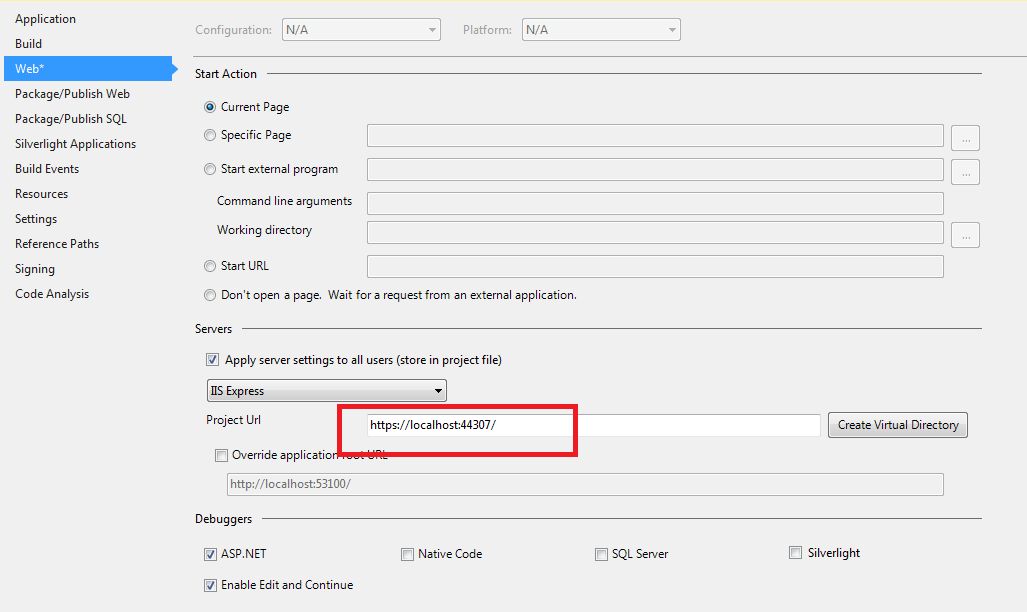
It looks like IIS Express is not starting the project under the https URL. Try changing the default project URL to the SSL one in
“Web Project->Properties->Web->Project URL” to the URL with https.
Method 5
In my case on a previous run the IIS Express added a certificate (called localhost) to the Personal > Certificates folder. But I was getting an invalid certificate error in the application. So I moved the localhost certificate to the Trusted Root…> Certificates and everything started to work.
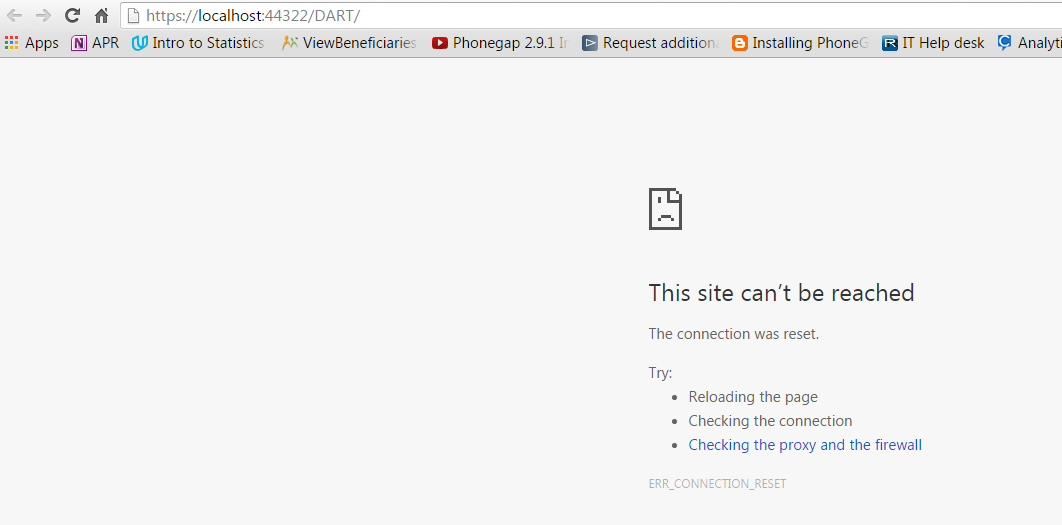
The next day when I run the same application I started to get this ERR_CONNECTION_RESET error. All I had to do is to move the localhost certificate out of the Trusted Root…> Certificates folder and back to the Personal > Certificates folder.
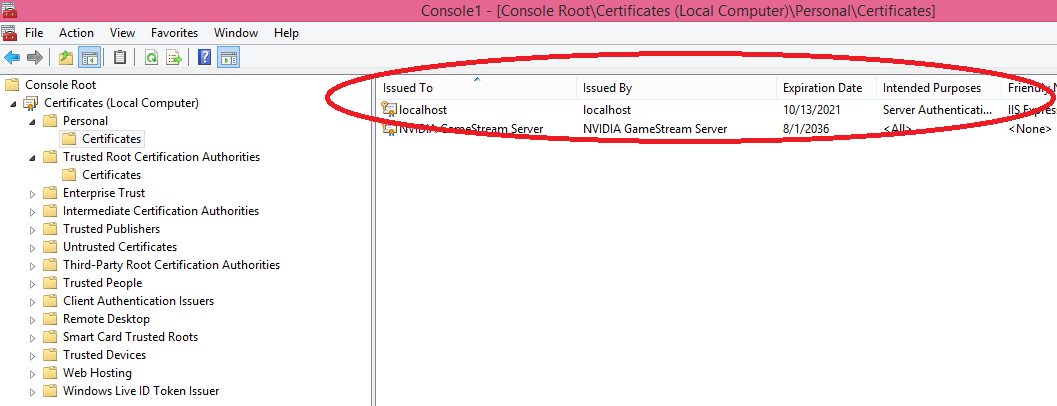
In case the “localhost” certificate is missing in either of the folders then you have to repair/reinstall IIS Express from Control Panel > Add/Remove Programs.
This will reinstate the localhost certificate.
Visual Studio 2015, IIS Express, Windows 8, Asp.net MVC
Method 6
I was having these SSL issues with Chrome and Edge.
After a long process of reviewing all these answers and suggestions, what eventually worked for me (asp.net mvc 5, VS2015) was a mix of the answers above
- Add Certificates snap in as shown above, removing mutlitple certs and regenerate a new certificat: Thanks @garethb
-
The issue then is around the trust level of that certificate. The following link shows step by step process to export and then import (not just move) the local certificate
https://blogs.msdn.microsoft.com/robert_mcmurray/2013/11/15/how-to-trust-the-iis-express-self-signed-certificate/- When closing everything and then rebuild and deploy into IIS Express, I no longer have the SSL errors in any browser
Method 7
I had the same problem. My HTTP site was running fine, but IIS Express just wouldn’t start my SSL site. While it did the day before.
My problem was that I had somehow messed up the aplicationhost.config file. My project was registered twice:
<site name="Test.Api" id="5">
    <application path="/" applicationPool="Clr4IntegratedAppPool">
        <virtualDirectory path="/" physicalPath="C:UsersbartdSourceReposTestTest.Api" />
    </application>
    <bindings>
        <binding protocol="http" bindingInformation="*:27108:localhost" />
    </bindings>
</site>
<site name="Test.Api(1)" id="6">
    <application path="/" applicationPool="Clr4IntegratedAppPool">
        <virtualDirectory path="/" physicalPath="C:UsersbartdSourceReposTestTest.Api" />
    </application>
    <bindings>
        <binding protocol="http" bindingInformation="*:27108:localhost" />
        <binding protocol="https" bindingInformation="*:44349:localhost" />
    </bindings>
</site>
Removing both entries and creating a new virtual directory from the project properties page fixed the problem for me.
Creating a new virtual directory from the properties page
Method 8
None of these options worked for me in VS2017 with the same problem. This solution using iisexpresscmdadmin with a self-signed cert got my site to finally pull up:
How do I fix a missing IIS Express SSL Certificate?
Method 9
Using VS 2017, none of these solutions seemed to work, even after exporting certificate and importing into Chrome.
It finally worked after I did two things:
(1) copied the localhost certificate from Personal to Trusted Root
(2) changed the port number in project properties from 61899 to 44300
I think doing just step (2) did the trick.
Method 10
Try changing bindings in IIS
This link is what solved my 3 day long intermittent headache:
https://deanhume.com/set-up-iis-7-to-run-a-secure-site-locally-https/
Here are the specific steps that lead to my discovery of the real problem:
Windows key > Administrative tools > Internet Information Services > Click on Default Website (or whatever your website is) > Bindings… > Blow all the duplicate bindings away for local host > Add https binding for port 80.
Method 11
0
I recently had a very similar problem with VS 2019 and IIS Epress. I tried to change the http to https so that I could use ADFS. https://magenaut.com/wp-content/uploads/2022/08/kd34a.png
After a little more research, I tried to switch the ‘Require SSL’ property from true to false and back to true. This triggered an update to the applicationhost.config file (… . Vs ProjectName config applicationhost.config) that created a new SSL binding with a new port number for the https protocol. So, I modified all the links with the proposed new port (in the web property of the project, the config file and the ADFS config) and it works. Conclusion, it is not necessary that the http port is the same as https same for the same site.
Method 12
In my case just switching from Edge to Chrome fixed this instantly (VS 2019 Pro / Windows 10 latest)
All methods was sourced from stackoverflow.com or stackexchange.com, is licensed under cc by-sa 2.5, cc by-sa 3.0 and cc by-sa 4.0