I am running Python 2.7 in Visual Studio 2013. The code previously worked ok when in Spyder, but when I run:
import numpy as np
import scipy as sp
import math as mt
import matplotlib.pyplot as plt
import Image
import random

# (0, 1) is N
SCALE = 2.2666 # the scale is chosen to be 1 m = 2.266666666 pixels
MIN_LENGTH = 150 # pixels

PROJECT_PATH = 'C:\cimtrack_v1'
im = Image.open(PROJECT_PATH + '\ST.jpg')
I end up with the following errors:
Traceback (most recent call last):
  File "<stdin>", line 1, in <module>
  File "C:cimtrack_v1PythonApplication1drtrajgen.py", line 19, in <module>
    im = Image.open(PROJECT_PATH + '\ST.jpg')
  File "C:Python27libsite-packagesPILImage.py", line 2020, in open
    raise IOError("cannot identify image file")
IOError: cannot identify image file
Why is it so and how may I fix it?
As suggested, I have used the Pillow installer to my Python 2.7. But weirdly, I end up with this:
>>> from PIL import Image
Traceback (most recent call last):
  File "<stdin>", line 1, in <module>
ImportError: No module named PIL


>>> from pil import Image
Traceback (most recent call last):
  File "<stdin>", line 1, in <module>
ImportError: No module named pil

>>> import PIL.Image
Traceback (most recent call last):
  File "<stdin>", line 1, in <module>
ImportError: No module named PIL.Image

>>> import PIL
Traceback (most recent call last):
  File "<stdin>", line 1, in <module>
ImportError: No module named PIL
All fail!
Answers:
Thank you for visiting the Q&A section on Magenaut. Please note that all the answers may not help you solve the issue immediately. So please treat them as advisements. If you found the post helpful (or not), leave a comment & I’ll get back to you as soon as possible.
Method 1
I had a same issue.
from PIL import Image
instead of
import Image
fixed the issue
Method 2
So after struggling with this issue for quite some time, this is what could help you:
from PIL import Image
instead of
import Image
Also, if your Image file is not loading and you’re getting an error “No file or directory” then you should do this:
path=r'C:ABCUsersPicturesimage.jpg'
and then open the file
image=Image.open(path)
Method 3
In my case.. I already had “from PIL import Image” in my code.
The error occurred for me because the image file was still in use (locked) by a previous operation in my code. I had to add a small delay or attempt to open the file in append mode in a loop, until that did not fail. Once that did not fail, it meant the file was no longer in use and I could continue and let PIL open the file. Here are the functions I used to check if the file is in use and wait for it to be available.
def is_locked(filepath):
    locked = None
    file_object = None
    if os.path.exists(filepath):
        try:
            buffer_size = 8
            # Opening file in append mode and read the first 8 characters.
            file_object = open(filepath, 'a', buffer_size)
            if file_object:
                locked = False
        except IOError as message:
            locked = True
        finally:
            if file_object:
                file_object.close()
    return locked

def wait_for_file(filepath):
    wait_time = 1
    while is_locked(filepath):
        time.sleep(wait_time)
Method 4
first, check your pillow version
python -c 'import PIL; print PIL.PILLOW_VERSION'
I use pip install --upgrade pillow upgrade the version from 2.7 to 2.9(or 3.0) fixed this.
Method 5
In my case, the image was corrupted during download (using wget with github url)
-
Try with multiple images from different sources.
pythonfrom PIL import Image
Image.open()
Method 6
In my case, it was because the images I used were stored on a Mac, which generates many hidden files like .image_file.png, so they turned out to not even be the actual images I needed and I could safely ignore the warning or delete the hidden files. It was just an oversight in my case.
Method 7
Just a note for people having the same problem as me.
I’ve been using OpenCV/cv2 to export numpy arrays into Tiffs but I had problems with opening these Tiffs with PIL Open Image and had the same error as in the title.
The problem turned out to be that PIL Open Image could not open Tiffs which was created by exporting numpy float64 arrays. When I changed it to float32, PIL could open the Tiff again.
Method 8
If you are using Anaconda on windows then you can open Anaconda Navigator app and go to Environment section and search for pillow in installed libraries and mark it for upgrade to latest version by right clicking on the checkbox.
Screenshot for reference: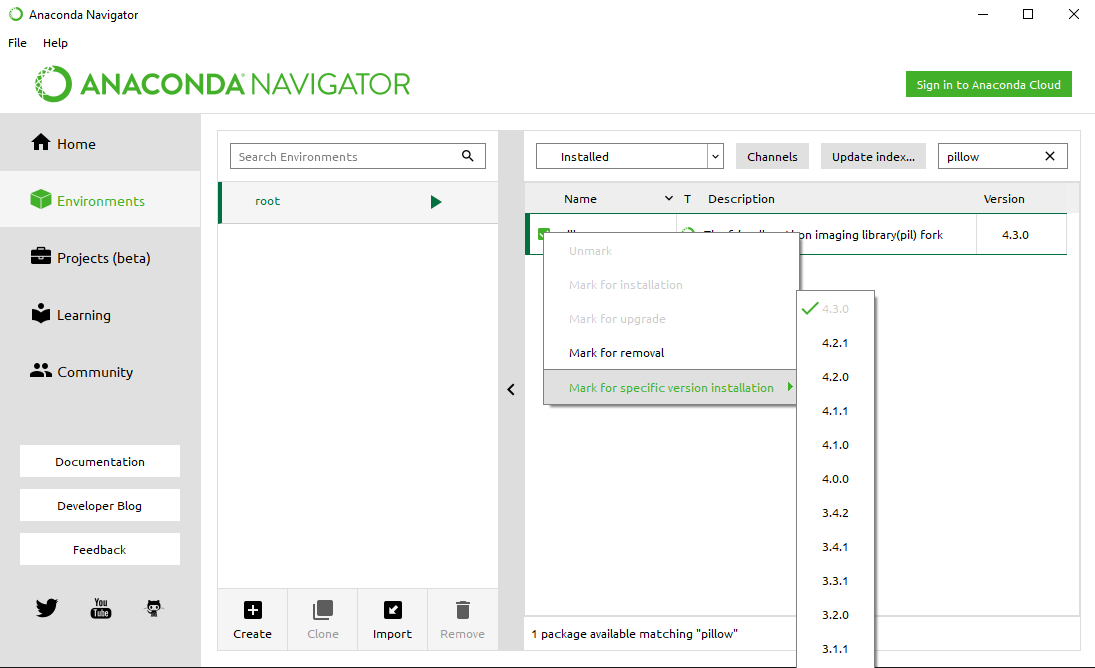
This has fixed the following error:
PermissionError: [WinError 5] Access is denied: 'e:\work\anaconda\lib\site-packages\pil\_imaging.cp36-win_amd64.pyd'
Method 9
Seems like a Permissions Issue. I was facing the same error. But when I ran it from the root account, it worked. So either give the read permission to the file using chmod (in linux) or run your script after logging in as a root user.
Method 10
In my case there was an empty picture in the folder. After deleting the empty .jpg’s it worked normally.
Method 11
Often it is because the image file is not closed by last program.
It should be better to use
with Image.open(file_path) as img:
    #do something
Method 12
This error can also occur when trying to open a multi-band image with PIL. It seems to do fine with 4 bands (probably because it assumes an alpha channel) but anything more than that and this error pops out. In my case, I fixed it by using tifffile.imread instead.
Method 13
In my case the image file had just been written to and needed to be flushed before opening, like so:
img_file.flush()
img = Image.open(img_file.name))
Method 14
For anyone who make it in bigger scale, you might have also check how many file descriptors you have. It will throw this error if you ran out at bad moment.
Method 15
For whoever reaches here with the error colab PIL UnidentifiedImageError: cannot identify image file in Google Colab, with a new PIL versions, and none of the previous solutions works for him:
Simply restart the environment, your installed PIL version is probably outdated.
Method 16
For me it was fixed by downloading the image data set I was using again (in fact I forwarded the copy I had locally using vs-code’s SFTP). Here is the jupyter notebook I used (in vscode) with it’s output:
from pathlib import Path

import PIL
import PIL.Image as PILI
#from PIL import Image

print(PIL.__version__)

img_path = Path('PATH_UR_DATASET/miniImagenet/train/n03998194/n0399819400000585.jpg')
print(img_path.exists())
img = PILI.open(img_path).convert('RGB')

print(img)
output:
7.0.0
True
<PIL.Image.Image image mode=RGB size=158x160 at 0x7F4AD0A1E050>
note that open always opens in r mode and even has a check to throw an error if that mode is changed.
Method 17
In my case the error was caused by alpha channels in a TIFF file.
Method 18
I had the same issue. In my case the image file size was 0(zero). Check the file size before opening the image.
fsize = os.path.getsize(fname_image)
if fsize > 0 :
    img = Image.open(fname_image)
    #do something
All methods was sourced from stackoverflow.com or stackexchange.com, is licensed under cc by-sa 2.5, cc by-sa 3.0 and cc by-sa 4.0