I am teaching myself pygame and am looking at making my character able to rotate and then move in the direction they are facing.
I can do the rotation but cannot get the character to move in the direction the image is then facing.
The code is on Trinket HERE
class Bob(pygame.sprite.Sprite):
  def __init__(self, color , height , width):
    super().__init__()
    self.image = pygame.Surface([width , height])
    self.image.fill(BLACK)
    self.image.set_colorkey(BLACK)

    #Loading the image for the character
    self.img = pygame.image.load("char.jfif")
    #creating a copy of the image
    self.img_orig = self.img.copy()
    #defining the starting angle of the character image
    self.angle = 0

    self.velocity = 5
    self.rect = self.img_orig.get_rect()

  def moveLeft(self):
    self.angle += 1
    self.img = pygame.transform.rotate(self.img_orig, self.angle)

  def moveRight(self):
    self.rect.x += self.velocity
    if self.rect.x > 485:
      self.rect.x = 485
while run:
    for event in pygame.event.get():
        if event.type == pygame.QUIT:
            run = False

    keys = pygame.key.get_pressed()
    if keys[pygame.K_UP]:
      pSprite.moveForward()
    if keys[pygame.K_DOWN]:
      pSprite.moveDown()
    if keys[pygame.K_LEFT]:
      pSprite.moveLeft()
    if keys[pygame.K_RIGHT]:
      pSprite.moveRight()

    #---- Game Logic Here


    #--- Drawing Code Here
    #Reset the screen to blank
    screen.fill(BLUE)
    #Draw Play Area

    #Draw Sprites
    screen.blit(pSprite.img,(pSprite.rect.x, pSprite.rect.y))
Answers:
Thank you for visiting the Q&A section on Magenaut. Please note that all the answers may not help you solve the issue immediately. So please treat them as advisements. If you found the post helpful (or not), leave a comment & I’ll get back to you as soon as possible.
Method 1
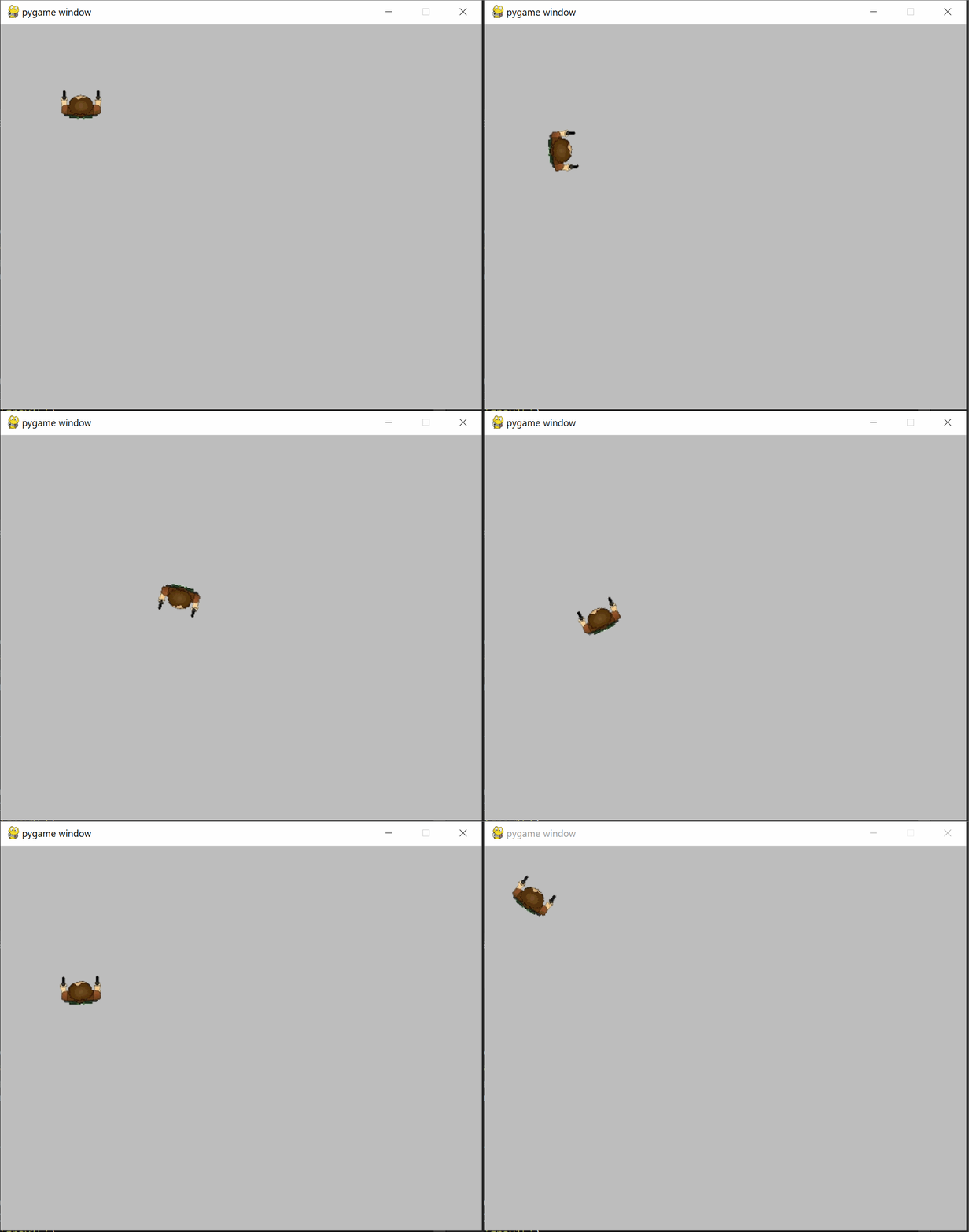
You can use pygame’s Vector2 class instead of calculating the position of your sprite yourself.
I also suggest to let the sprite itself handle its movement instead of doing so in the main loop and using a clock for constant framerates and easy control of the speed of your sprites.
You also probably want to use an image format with alpha channel (like PNG).
Here’s a simple example:
import pygame

class Actor(pygame.sprite.Sprite):
    def __init__(self, pos, *grps):
        super().__init__(*grps)
        self.image = pygame.image.load('char.png').convert_alpha()
        self.image_org = self.image.copy()
        self.rect = self.image.get_rect(center=pos)
        self.pos = pygame.Vector2(pos)
        self.direction = pygame.Vector2((0, -1))

    def update(self, events, dt):
        pressed = pygame.key.get_pressed()

        # if a is pressed, rotate left with 360 degress per second
        if pressed[pygame.K_a]: self.direction.rotate_ip(dt * -360)
        # if d is pressed, rotate right with 360 degress per second
        if pressed[pygame.K_d]: self.direction.rotate_ip(dt *  360)

        # check if should move forward or backward
        movement = 0
        if pressed[pygame.K_w]: movement =  1
        if pressed[pygame.K_s]: movement = -1
        movement_v = self.direction * movement
        if movement_v.length() > 0:
            movement_v.normalize_ip()
            # move 100px per second in the direction we're facing
            self.pos += movement_v * dt * 100

        # rotate the image
        self.image = pygame.transform.rotate(self.image_org, self.direction.angle_to((0, -1)))
        self.rect = self.image.get_rect(center=self.pos)


def main():
    pygame.init()
    screen = pygame.display.set_mode((600, 480))
    sprites = pygame.sprite.Group()
    Actor((100, 100), sprites)
    clock, dt = pygame.time.Clock(), 0
    while True:
        events = pygame.event.get()
        for e in events:
            if e.type == pygame.QUIT:
                return
        screen.fill('grey')
        sprites.draw(screen)
        sprites.update(events, dt)
        pygame.display.flip()
        dt = clock.tick(60) / 1000
main()
char.png

Method 2
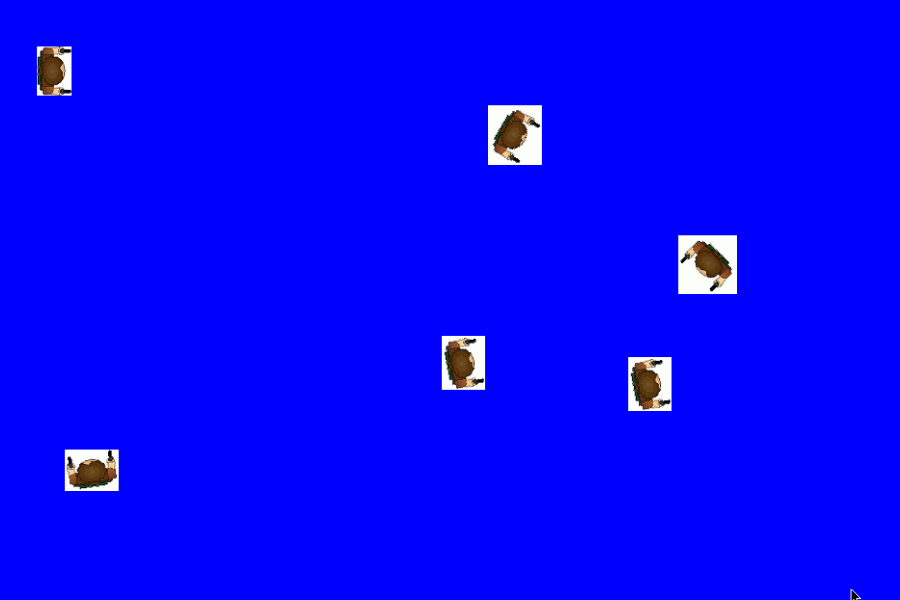
Rotate the player around its center (see How do I rotate an image around its center using PyGame?):
self.angle += 1
self.img = pygame.transform.rotate(self.img_orig, self.angle)
self.rect = self.img.get_rect(center = self.rect.center)
Use an attribute x and y to store the position of the player with floating point accuracy.
class Bob(pygame.sprite.Sprite):
  def __init__(self, color , height , width):
    # [...]

    self.x, self.y = self.rect.center
Compute the direction of the player dependent on the angle with the trgonometric function math.sin and math.cos. Change the position attributes and update the rect attribute:
self.x += self.velocity * math.cos(math.radians(self.angle + 90))
self.y -= self.velocity * math.sin(math.radians(self.angle + 90))
self.rect.center = round(self.x), round(self.y)
The y-axis needs to be reversed (-dy) as the y-axis is generally pointing up, but in the PyGame coordinate system the y-axis is pointing down. In addition, a correction angle must be deducted (+ 90). Since the “angle” is 0 ° when the sprite is looking up, you need to add 90 ° to the angle for the calculation of the direction vector.
See also te in pygame while moving with the keys](How to turn the sprite in pygame while moving with the keys.
Class Bob:
import pygame
import math
BLACK = (0,0,0)

class Bob(pygame.sprite.Sprite):
  def __init__(self, color , height , width):
    super().__init__()
    self.image = pygame.Surface([width , height])
    self.image.fill(BLACK)
    self.image.set_colorkey(BLACK)

    #Loading the image for the character
    self.img = pygame.image.load("char.jfif")
    #creating a copy of the image
    self.img_orig = self.img.copy()
    #defining the starting angle of the character image
    self.angle = 0

    self.velocity = 5
    self.rect = self.img_orig.get_rect()
    self.x, self.y = self.rect.center

  def rotate(self, change_angle):
    self.angle += change_angle
    self.img = pygame.transform.rotate(self.img_orig, self.angle)
    self.rect = self.img.get_rect(center = self.rect.center)

  def move(self, distance):
    self.x += distance * math.cos(math.radians(self.angle + 90))
    self.y -= distance * math.sin(math.radians(self.angle + 90))
    self.rect.center = round(self.x), round(self.y)

  def moveLeft(self):
    self.rotate(1)
  def moveRight(self):
    self.rotate(-1)

  def moveForward(self):
    self.move(self.velocity)
  def moveDown(self):
    self.move(-self.velocity)
When setting the starting position of the player, you need to set the x, y and rect attribute:
pSprite = Bob(WHITE , 25,25)
pSprite.rect.x = 50
pSprite.rect.y = 50
pSprite.x, pSprite.y = pSprite.rect.center
All methods was sourced from stackoverflow.com or stackexchange.com, is licensed under cc by-sa 2.5, cc by-sa 3.0 and cc by-sa 4.0