How can multiple scales can be implemented in Matplotlib? I am not talking about the primary and secondary axis plotted against the same x-axis, but something like many trends which have different scales plotted in same y-axis and that can be identified by their colors.
For example, if I have trend1 ([0,1,2,3,4]) and trend2 ([5000,6000,7000,8000,9000]) to be plotted against time and want the two trends to be of different colors and in Y-axis, different scales, how can I accomplish this with Matplotlib?
When I looked into Matplotlib, they say that they don’t have this for now though it is definitely on their wishlist, Is there a way around to make this happen?
Are there any other plotting tools for python that can make this happen?
Answers:
Thank you for visiting the Q&A section on Magenaut. Please note that all the answers may not help you solve the issue immediately. So please treat them as advisements. If you found the post helpful (or not), leave a comment & I’ll get back to you as soon as possible.
Method 1
If I understand the question, you may interested in this example in the Matplotlib gallery.
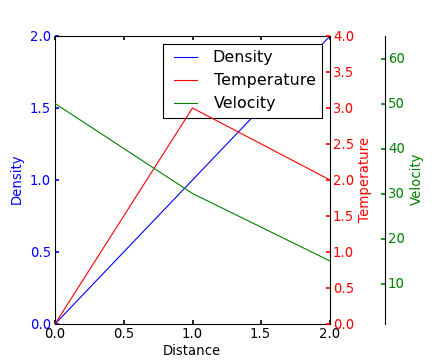
Yann’s comment above provides a similar example.
Edit – Link above fixed. Corresponding code copied from the Matplotlib gallery:
from mpl_toolkits.axes_grid1 import host_subplot
import mpl_toolkits.axisartist as AA
import matplotlib.pyplot as plt

host = host_subplot(111, axes_class=AA.Axes)
plt.subplots_adjust(right=0.75)

par1 = host.twinx()
par2 = host.twinx()

offset = 60
new_fixed_axis = par2.get_grid_helper().new_fixed_axis
par2.axis["right"] = new_fixed_axis(loc="right", axes=par2,
                                        offset=(offset, 0))

par2.axis["right"].toggle(all=True)

host.set_xlim(0, 2)
host.set_ylim(0, 2)

host.set_xlabel("Distance")
host.set_ylabel("Density")
par1.set_ylabel("Temperature")
par2.set_ylabel("Velocity")

p1, = host.plot([0, 1, 2], [0, 1, 2], label="Density")
p2, = par1.plot([0, 1, 2], [0, 3, 2], label="Temperature")
p3, = par2.plot([0, 1, 2], [50, 30, 15], label="Velocity")

par1.set_ylim(0, 4)
par2.set_ylim(1, 65)

host.legend()

host.axis["left"].label.set_color(p1.get_color())
par1.axis["right"].label.set_color(p2.get_color())
par2.axis["right"].label.set_color(p3.get_color())

plt.draw()
plt.show()

#plt.savefig("Test")
Method 2
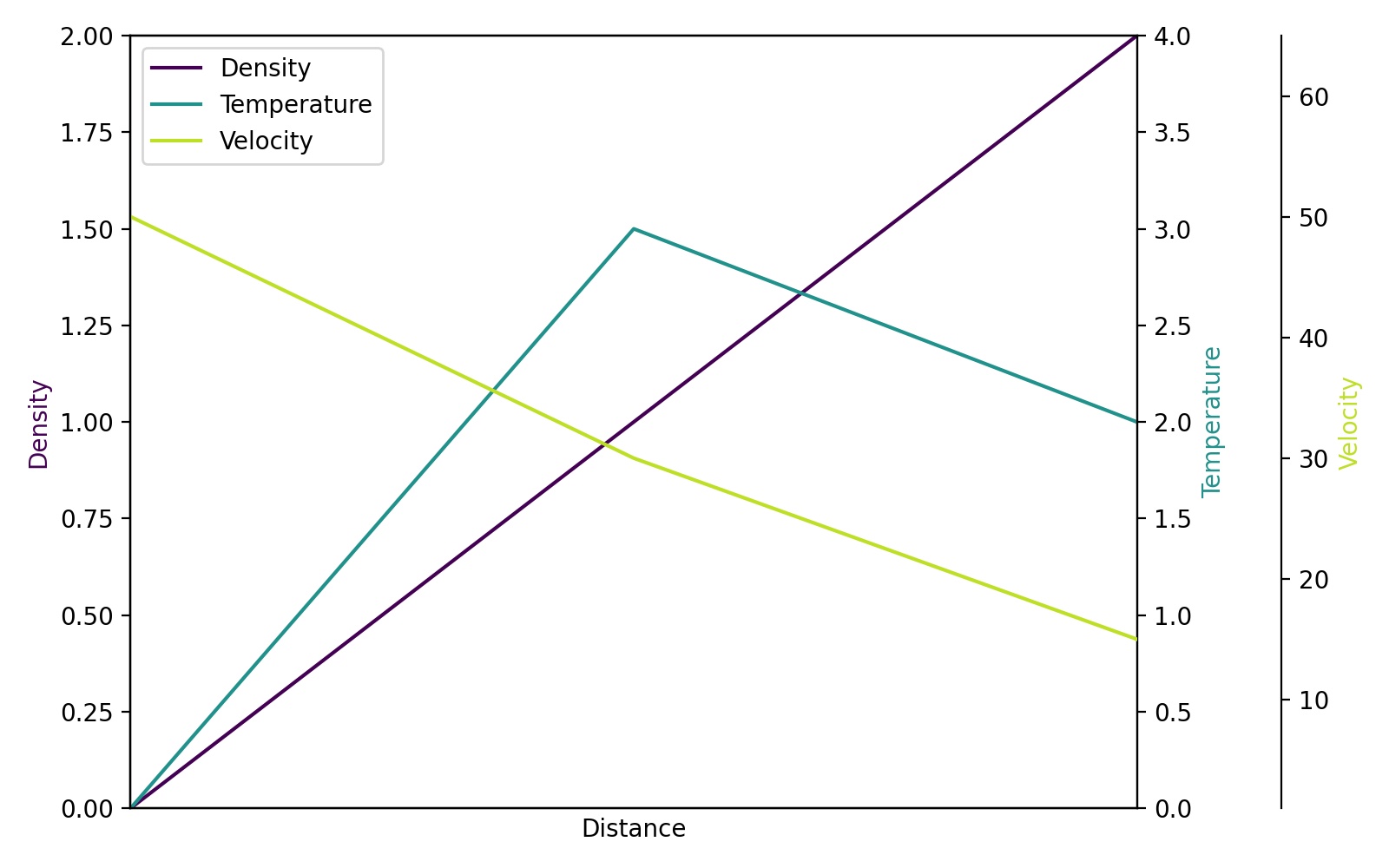
Since Steve Tjoa’s answer always pops up first and mostly lonely when I search for multiple y-axes at Google, I decided to add a slightly modified version of his answer. This is the approach from this matplotlib example.
Reasons:
- His modules sometimes fail for me in unknown circumstances and cryptic intern errors.
- I don’t like to load exotic modules I don’t know (
mpl_toolkits.axisartist,mpl_toolkits.axes_grid1). - The code below contains more explicit commands of problems people often stumble over (like single legend for multiple axes, using viridis, …) rather than implicit behavior.
import matplotlib.pyplot as plt

# Create figure and subplot manually
# fig = plt.figure()
# host = fig.add_subplot(111)

# More versatile wrapper
fig, host = plt.subplots(figsize=(8,5)) # (width, height) in inches
# (see https://matplotlib.org/3.3.3/api/_as_gen/matplotlib.pyplot.subplots.html)

par1 = host.twinx()
par2 = host.twinx()

host.set_xlim(0, 2)
host.set_ylim(0, 2)
par1.set_ylim(0, 4)
par2.set_ylim(1, 65)

host.set_xlabel("Distance")
host.set_ylabel("Density")
par1.set_ylabel("Temperature")
par2.set_ylabel("Velocity")

color1 = plt.cm.viridis(0)
color2 = plt.cm.viridis(0.5)
color3 = plt.cm.viridis(.9)

p1, = host.plot([0, 1, 2], [0, 1, 2],    color=color1, label="Density")
p2, = par1.plot([0, 1, 2], [0, 3, 2],    color=color2, label="Temperature")
p3, = par2.plot([0, 1, 2], [50, 30, 15], color=color3, label="Velocity")

lns = [p1, p2, p3]
host.legend(handles=lns, loc='best')

# right, left, top, bottom
par2.spines['right'].set_position(('outward', 60))

# no x-ticks
par2.xaxis.set_ticks([])

# Sometimes handy, same for xaxis
#par2.yaxis.set_ticks_position('right')

# Move "Velocity"-axis to the left
# par2.spines['left'].set_position(('outward', 60))
# par2.spines['left'].set_visible(True)
# par2.yaxis.set_label_position('left')
# par2.yaxis.set_ticks_position('left')

host.yaxis.label.set_color(p1.get_color())
par1.yaxis.label.set_color(p2.get_color())
par2.yaxis.label.set_color(p3.get_color())

# Adjust spacings w.r.t. figsize
fig.tight_layout()
# Alternatively: bbox_inches='tight' within the plt.savefig function
#                (overwrites figsize)

# Best for professional typesetting, e.g. LaTeX
plt.savefig("pyplot_multiple_y-axis.pdf")
# For raster graphics use the dpi argument. E.g. '[...].png", dpi=200)'
Method 3
if you want to do very quick plots with secondary Y-Axis then there is much easier way using Pandas wrapper function and just 2 lines of code. Just plot your first column then plot the second but with parameter secondary_y=True, like this:
df.A.plot(label="Points", legend=True)
df.B.plot(secondary_y=True, label="Comments", legend=True)
This would look something like below:
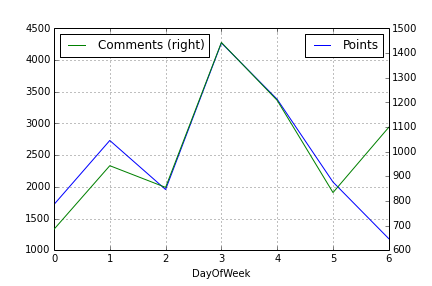
You can do few more things as well. Take a look at Pandas plotting doc.
All methods was sourced from stackoverflow.com or stackexchange.com, is licensed under cc by-sa 2.5, cc by-sa 3.0 and cc by-sa 4.0