I am using Microsoft Visual Studio 2015, I built a simple website with a C# contact form.
When I compile and run on localhost it works perfectly fine. However, when I try to publish it (on smarterasp.net) I am getting an error:
[Win32Exception (0x80004005): Access is denied]
[ExternalException (0x80004005): Cannot execute a program. The command being executed was “..binroslyncsc.exe”
I have contacted smarterasp.net and they said they dont allow .exe files. I tried to delete csc.exe with ftp from the server but when I do that I am getting the error:
Could not find file “..binroslyncsc.exe”.
How can I solve this issue with the csc.exe that is trying to get included in my project so I can get my this website published?
Answers:
Thank you for visiting the Q&A section on Magenaut. Please note that all the answers may not help you solve the issue immediately. So please treat them as advisements. If you found the post helpful (or not), leave a comment & I’ll get back to you as soon as possible.
Method 1
After hours of researching i came up with the solution.
Since the .NET 4.5 version, Roslyn compilation is the default way of compiling. This means if you create any web application either Web Forms or MVC using .NET 4.5 you get this Roslyn csc.exe compilation pre-installed in your project.
Basically what i needed was to compile and deploy my project without Roslyn or any .exe files on it.
So here is the Solution that worked for me. You can deploy without Roslyn with no change in code:
- Open NuGet Package Manager window
- uninstall Microsoft.CodeDom.Providers.DotNetCompilerPlatform package and rebuild & republish. (This uninstallation also removes CodeDom configuration from web.config file.)
This will solve your purpose. Basically this will not generate any csc.exe, vbc.exe files inside bin folder.
I hope it works for you too!
Method 2
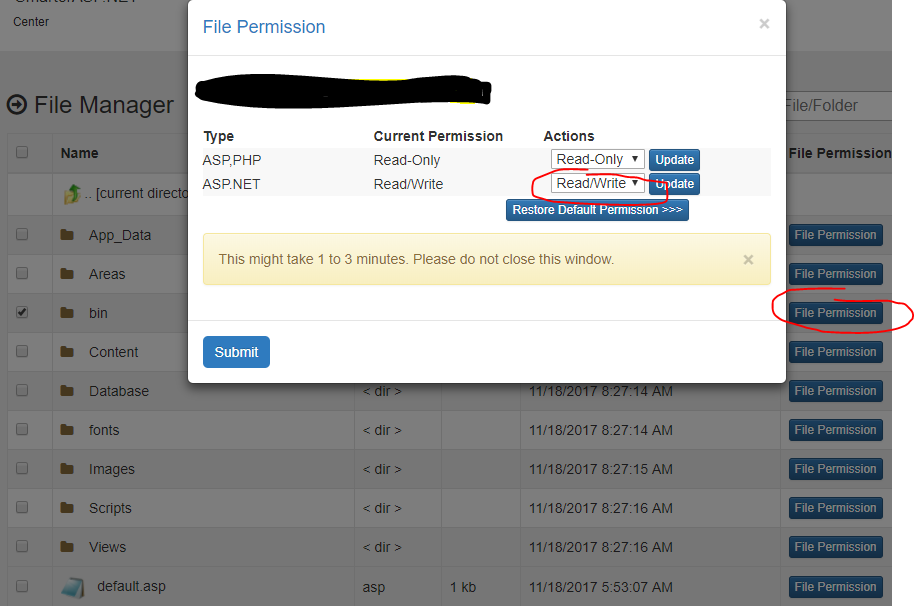
I had this issue on Smarter ASP. On the browser file manager in the control panel, navigate to ‘Roslyn’ folder in bin and set .net permission to read/write. It worked then.
Method 3
If you actually want to keep the roslyn codegen, you just need to set the permissions on the application’s bin folder to allow the ApplicationPool user Read & Execute.
I did this using the explorer Security tab on the folder properties dialog, but you should also be able to do something like:
icacls PATH_TO_SERVICE_BIN /grant "ApplicationPoolUser":(OI)(CI)RX
Method 4
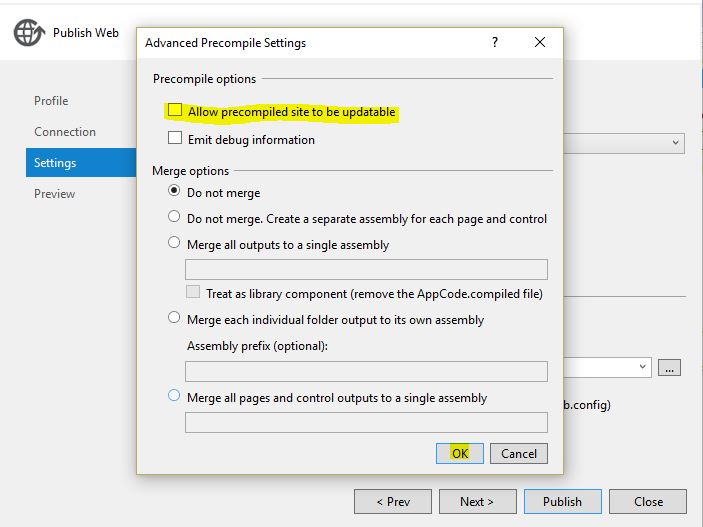
I found the solution as unchecking “Allow precompiled site to be updatable”, on publish window.
Method 5
Just remove the codedom section from the Web.config, this solves the problem.
Method 6
Just set rw access for /bin folder in Smarterasp.net File Manager as shown below, restart your app
Method 7
Just experienced the same issue as the OP when publishing an ASP.net 4.5.2 SPA via web deploy in VS2015.
The solution I found to work was to remove the Nuget package “Microsoft.CodeDom.Providers.DotNetCompilerPlatform”.
You could, alternatively, simply remove the system.codedom compiler config section from your Web.config file, which would have the same affect.
Method 8
Here’s how I got it working:
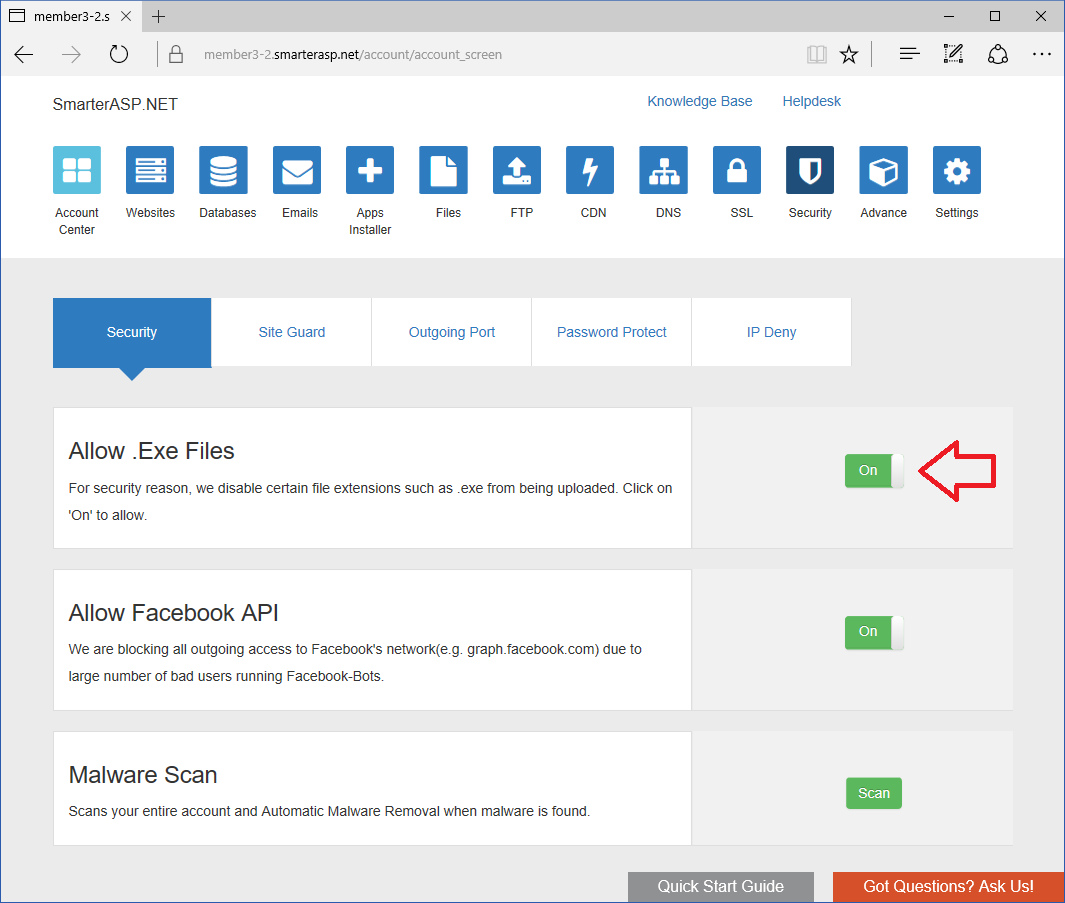
- In your control panel, navigate to Security Manager > Allow .EXE Files
- Set the value to On (this will let you upload .exe files)
-
In your
Web.config, set full trust (this will let you run them)<configuration> <system.web> <trust level="Full" /> </system.web> </configuration> -
In your publish settings, enable “Precompile during publishing”, but in the
Advanced Precompile Settings (the Configure link next to this option), disable “Allow precompiled site to be updateable”.
Method 9
I had the same error and I solved it by enable the permissions of the hosting directory (read/write/delete).
Method 10
If you need SmarterAsp.Net to allow the uploading of an .exe file to support the features and functionality of your website, you can. Just go to the control panel and turn on “Allow .Exe Files” See below:
In my case I had to do this because I wanted to host an Asp.Net Core website and that absolutely requires an .exe file 🙂
Method 11
tl;dr: Ensure that csc.exe is not zero bytes in size.
Longer answer
To add yet another cause and solution: In my case, I got this Yellow Screen Of Death in my browser:
Server Error in ‘/’ Application.
Compilation Error
Description: An error occurred during the compilation of a resource
required to service this request. Please review the following specific
error details and modify your source code appropriately.Compiler Error Message: The compiler failed with error code 255.
c:windowssystem32inetsrv>C:inetpubwwwrootbinroslyncsc.exe
/t:library /utf8output /nostdlib+ …Version Information: Microsoft .NET Framework Version:4.0.30319;
ASP.NET Version:4.7.2558.0
Upon investigation, I isolated the call to csc.exe by executing it inside a CMD window:
c:inetpubwwwrootbinroslyncsc.exe
I got this message box:

followed by this line in the CMD window:
Access is denied.
Upon inspecting the files in Windows File Explorer I found out that csc.exe had a size of zero bytes.
I’m unsure at which stage of my deployment script this happens, but after replacing the 0-byte-sized csc.exe with an actual working one, everything works correctly.
Method 12
The above solutions did not work for me and are not correct, since roslyn is not optional these days.
What worked was ensuring that the pool account had read & execute permissions on the root folder of the web application. You can find the account to grant this permission to by finding the Pool name your web app uses, then Application Pool -> pool name -> Advanced Settings -> Identity.
My VPS host uses non-standard directories for hosting as follows:
c:homeweb.app.namewwwroot
The web.app.name folder needed the permission.
Method 13
Updating the nuget package Microsoft.CodeDom.Providers.DotNetCompilerPlatform to the latest version (at that time) 2.0.1 resolved this issue for me without having to grant permissions to the folder or remove the compiler.
Method 14
We encountered this due to a 3rd party application. MalwareBytes Anti-Ransomeware was actually the culprit that was blocking access. Resolved this with:
- Right-click systray icon for MalwareBytes Anti-Ransomeware (not anti-exploit)
- Stop Protection
All methods was sourced from stackoverflow.com or stackexchange.com, is licensed under cc by-sa 2.5, cc by-sa 3.0 and cc by-sa 4.0