I use the Categories widget on my sidebar(s) and I would like to display a Font Awesome icon next to each category listed in the widget. The icon would be the same for all categories, for now, but I would like to give each category it’s own unique icon in the future.
I would like to modify the Categories widget using code in my functions.php file to add the icon by inserting markup like <i class="fa fa-chevron-right"></i> into category’s link/anchor element after the category’s title. I could accomplish this via CSS, but in doing so I lose the ability to programmatically determine which icon to display, along with the flexibility for other improvements/changes that I may wish to make in the future.
Basically, I wish to achieve this effect:
Cat 1          >

Cat 2          >

Cat 3          >
(The greater-than symbol ‘>’ represents the icon placement relative to the category title)
I have Font Awesome enqueued in the functions.php file using the wp_enqueue_scripts hook as follows, and it loads and displays the icons perfectly. Note that I do not use any Font Awesome plugin built for WordPress.
/* Enqueue Scripts
-----------------------------------------------------------------*/
add_action( 'wp_enqueue_scripts', 'essentials_enqueue_scripts' );
function essentials_enqueue_scripts() {
    /* jQuery */
    wp_enqueue_script('jquery');
    wp_enqueue_script( 'jquery_ui', "http" . ($_SERVER['SERVER_PORT'] == 443 ? "s" : "") . "://ajax.googleapis.com/ajax/libs/jqueryui/2.0.3/jquery-ui.min.js", false, null);
    wp_enqueue_script( 'waypoints', get_template_directory_uri() . '/js/waypoints.min.js');
    wp_enqueue_script( 'essentials_main', get_template_directory_uri() . '/js/essentials_main.js', array(), '1.0.0', true );
    wp_enqueue_script( 'essentials_show_stuff', get_template_directory_uri() . '/js/essentials_show_stuff.js', array(), '1.0.0', true );
    /* Google Fonts */
    wp_register_style('GoogleFonts','http://fonts.googleapis.com/css?family=Open+Sans:300,400,600,700,800|Bad+Script');
    wp_enqueue_style( 'GoogleFonts');
    /* Font Awesome Fonts */
    wp_register_style('Font Awesome','//netdna.bootstrapcdn.com/font-awesome/4.0.3/css/font-awesome.css');
    wp_enqueue_style( 'Font Awesome');
}
Despite my best research efforts, I was unable to find a solution to modify the categories widget.
Answers:
Thank you for visiting the Q&A section on Magenaut. Please note that all the answers may not help you solve the issue immediately. So please treat them as advisements. If you found the post helpful (or not), leave a comment & I’ll get back to you as soon as possible.
Method 1
Assumptions:
You don’t explain how you want to install the Font Awesome package, so I just assume for the moment that you use the plugin Font Awesome Icons.
You wrote:
Before anyone says use a background image, I do not want to do that. I
would like it to be physical.
so I assume you want to use the <i> tag directly, for example:
<i class="fa icon-caret-right"></i>
after each category link in the widget category list.
Idea:
You can use the wp_list_categories filter to modify the output of the widget category list.
Example:
Here is a simple example how to inject it into the category list via the wp_list_categories filter:
/**
 * Inject Font Awesome <i> tag after each widget category link
 *
 * @param string $output
 * @return string $output
 */

 function custom_wp_list_categories( $output )
 {
     remove_filter( current_filter(), __FUNCTION__ );
     return str_ireplace( '</li>', '<i class="fa icon-caret-right"></i></li>', $output);
 }

 add_action( 'widgets_init', function(){
     add_filter( 'wp_list_categories', 'custom_wp_list_categories' );
 });
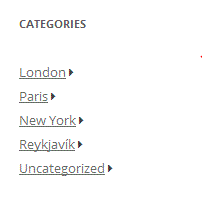
This will give you an output similar to this one:
Method 2
This answer contains a fairly simple CSS solution.
Essentially, you’d add the following to your stylesheet:
.cat-item cat-item-7 {
     list-style-image: url('my-epic-news-icon');
}


cat-item cat-item-11 {
     list-style-image: url('my-epic-jquery-icon');
}
etc
Yes, it’s not a very dynamic solution, but your categories aren’t likely to change I suppose.
Method 3
Assuming that you want to use the fa-chevron-right icon, you simply need to target the list item via CSS. Use the :after pseudo-class:
.list-item:after {
    font-family: FontAwesome; // or whatever the font awesome family is registered as
    content: 'f054';
}
Edit
So, to give an idea of how you might pass dynamic CSS (which can be easily adapted to a custom Plugin option) via a callback, here’s an example:
(Note: “plugin” and “theme” are interchangeable below.)
First, we’ll modify the CSS to target list items inside of a Widget specifically. WordPress adds a class, .widget, to the Widget container. So you can target that:
.widget .list-item:after {}
Or, if this will all be wrapped up in a Plugin that registers a custom Widget, then you can target the CSS class that you define in your custom Widget, via the $widget_ops array:
$widget_ops = array(
    'classname' => 'custom-widget-classname',
    'description' => __( 'Custom Widget Description', 'namespace' )
);
So, you can target that custom classname:
.custom-widget-classname .list-item:after {}
Or, if you want to target the core “Categories” Widget, you can use the .widget_categories class. We’ll go with that approach for the example.
We’re going to put it inside a callback, hooked into wp_head, though you can just as easily use wp_print_styles:
function pluginslug_fontawesome_styles() {
    // Code will go here
}
add_action( 'wp_head', 'pluginslug_fontawesome_styles' );
Inside, we’re just going to output a stylesheet, with our rule from above:
function pluginslug_fontawesome_styles() {
    ?>
<script type="text/css">
.widget_categories .list-item:after {
    font-family: FontAwesome; // or whatever the font awesome family is registered as
    content: 'f054';
}
</script>
    <?php
}
add_action( 'wp_head', 'pluginslug_fontawesome_styles' );
At this point, you’re done. Easy peasy. But, since you’re already inside a PHP function, you can easily make this stylesheet dynamic, by using a variable:
function pluginslug_fontawesome_styles() {

    // Define list-style icon variable
    $list_item_icon = 'f054';

    // ...snip:
    content: <?php echo $list_item_icon; ?>;
So now, it’s a simple matter to use a custom Plugin option value, just by passing it to the variable:
function pluginslug_fontawesome_styles() {

    // Get Plugin options, assumed to be an array
    $plugin_options = get_option( 'pluginslug_plugin_options' );

    // Define list-style icon variable
    $list_item_icon = $plugin_options['list_item_icon'];

    // Output stylesheet
    ?>
<script type="text/css">
.widget_categories .list-item:after {
    font-family: FontAwesome; // or whatever the font awesome family is registered as
    content: <?php echo $list_item_icon; ?>;
}
</script>
    <?php
}
add_action( 'wp_head', 'pluginslug_fontawesome_styles' );
So that’s it! Dynamic CSS, outputting an actual icon (not a background image), pulling from a Plugin option.
And since it’s just CSS, it’s easily extensible to pretty much any selector you can imagine – not just limited to a list item inside of a Widget.
Method 4
I would do it like this:
// If you're using the widget only on specific pages,
// you might want to use some appropriate conditions here
add_action('wp_enqueue_scripts', function() {
    wp_enqueue_style('font-awesome',
        '//netdna.bootstrapcdn.com/font-awesome/4.0.3/css/font-awesome.css');
});

function wpse_128247_font_awesome_categories($cat_name) {
    // Define your desired icon here
    $icon = ' <i class="fa fa-smile-o"></i>';

    return $cat_name.$icon;
} // function wpse_128247_font_awesome_categories

function wpse_128247_add_filter($cat_args) {
    add_filter('list_cats', 'wpse_128247_font_awesome_categories');

    // Since we're hijacking this filter, we just pass through its data
    return $cat_args;
} // function wpse_128247_add_filter
add_filter('widget_categories_args', 'wpse_128247_add_filter');

function wpse_128247_remove_filter($output) {
    remove_filter('list_cats', 'wpse_128247_font_awesome_categories');

    // Since we're hijacking this filter, we just pass through its data
    return $output;
} // function wpse_128247_remove_filter
add_filter('wp_list_categories', 'wpse_128247_remove_filter');
First, we enqueue the font awesome styles. Then, we hijack some filters to add/remove our own filter for the category listing. That’s it.
// EDIT:
Without the comments, adapted to the fact that you already have enqueued Font Awesome, using closures, and letting the filter remove itself, the code reads like the following:
function wpse_128247_font_awesome_categories($cat_name) {
    remove_filter(current_filter(), __FUNCTION__);
    return $cat_name.' <i class="fa fa-smile-o"></i>';
} // function wpse_128247_font_awesome_categories

function wpse_128247_add_filter($cat_args) {
    add_filter('list_cats', 'wpse_128247_font_awesome_categories');
    return $cat_args;
} // function wpse_128247_add_filter
add_filter('widget_categories_args', 'wpse_128247_add_filter');
I would not call that overkill. But yes, my code consists of more lines than birgire’s current solution.
All methods was sourced from stackoverflow.com or stackexchange.com, is licensed under cc by-sa 2.5, cc by-sa 3.0 and cc by-sa 4.0