I have read the top 20 posts relating to this issue here, read many examples on Google, tried using .convert(), .convert_alpha(), tried with neither, tried with .png, .gif, tried with the top 5 different images on google. Please someone help me figure out how to make the pieces show with a transparent background.
Here is ALL the code:
import pygame
pygame.init()
print("1")
screen_size = (600, 600)
blue = (100, 225, 225)
screen = pygame.display.set_mode(screen_size)
pygame.display.set_caption("Chess")


class SpriteSheet:

    def __init__(self, filename):
        """Load the sheet."""
        try:
            self.sheet = pygame.image.load(filename).convert.alpha()
        except pygame.error as e:
            print(f"Unable to load spritesheet image: {filename}")
            raise SystemExit(e)


    def image_at(self, rectangle, colorkey = None):
        """Load a specific image from a specific rectangle."""
        # Loads image from x, y, x+offset, y+offset.
        rect = pygame.Rect(rectangle)
        image = pygame.Surface(rect.size)
        image.blit(self.sheet, (0, 0), rect)
        if colorkey is not None:
            if colorkey == -1:
                colorkey = image.get_at((0,0))
            image.set_colorkey(colorkey, pygame.RLEACCEL)
        return image

    def images_at(self, rects, colorkey = None):
        """Load a whole bunch of images and return them as a list."""
        return [self.image_at(rect, colorkey) for rect in rects]

    def load_strip(self, rect, image_count, colorkey = None):
        """Load a whole strip of images, and return them as a list."""
        tups = [(rect[0]+rect[2]*x, rect[1], rect[2], rect[3])
                for x in range(image_count)]
        return self.images_at(tups, colorkey)
print("2")

class Game:
    def __init__(self):
        self.playing = False
        self.move = 0
        self.player_turn = 1
        self.quit = False

    def quit(self):
        self.quit = True

print("3")
class Piece:
    def __init__(self):
        self.sprite = None
        self.spacial = [0, 0, 0]
        self.temporal = [0, 0]
        self.position = [self.spacial, self.temporal]
        self.color = ""
        self.type = ""

print("4")
chess_image = SpriteSheet('ChessPiecesArray.png')
colors = ["White", "Black"]
types = ["K", "Q", "B", "N", "R", "P"]
rect_piece = (0, 0, 133, 133)

print("5")


class ChessSet:
    def __init__(self):
        self.set = []

    def create_set(self):
        for i in range(2):
            for j in range(6):
                this_piece = Piece()
                this_piece.color = colors[i]
                this_piece.type = types[j]
                rect_set = (133*j, 133*i, 133*(j+1), 133*(i+1))
                this_piece.sprite = SpriteSheet.image_at(chess_image, rect_set)
                self.set.append(this_piece)

print("6")
chess = Game()
set_one = ChessSet()
set_one.create_set()

print("7")
while not chess.quit:
    for event in pygame.event.get():
        if event.type == pygame.KEYDOWN:
            if event.key == pygame.K_q:
                chess.quit()
    screen.fill(blue)
    screen.blit(set_one.set[0].sprite, (10, 10))

    pygame.display.flip()
Here are a few images I spent time trying:
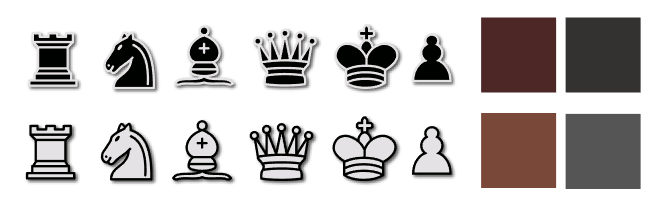
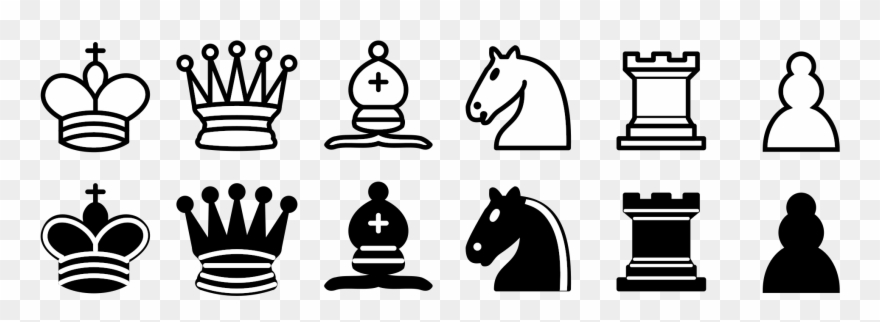
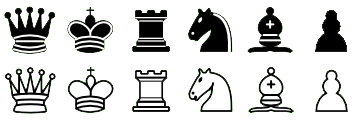
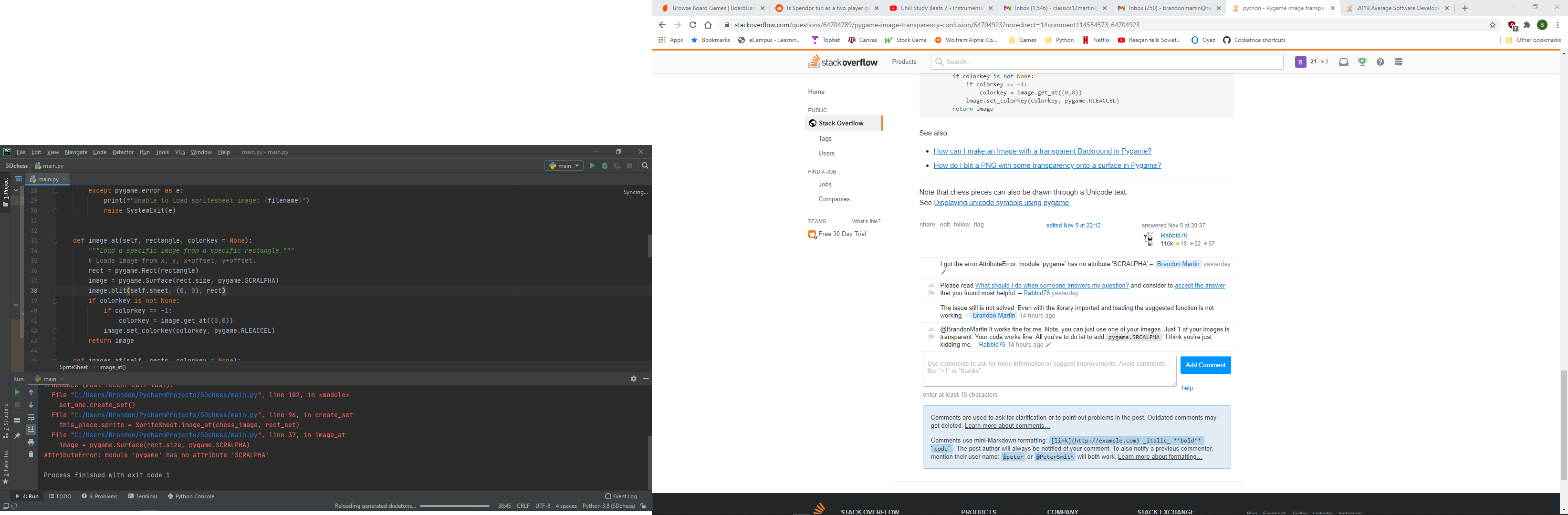
EDIT: Here is the screenshot of my error message over my code with the suggested change
Answers:
Thank you for visiting the Q&A section on Magenaut. Please note that all the answers may not help you solve the issue immediately. So please treat them as advisements. If you found the post helpful (or not), leave a comment & I’ll get back to you as soon as possible.
Method 1
If you copy a transparent Surface to another Surface the target Surface has to provide transparency respectively per pixel alpha.
You can enable additional functions when creating a new surface. Set the SRCALPHA flag to create a surface with an image format that includes a per-pixel alpha. The initial value of the pixels is (0, 0, 0, 0):
my_surface = pygame.Surface((width, height), pygame.SRCALPHA)
Use the following image
and adapt the method image_at of the class SpriteSheet. Use pygame.SRCALPHA:
class SpriteSheet:
    # [...]

    def image_at(self, rectangle, colorkey = None):
        """Load a specific image from a specific rectangle."""
        # Loads image from x, y, x+offset, y+offset.
        rect = pygame.Rect(rectangle)

        image = pygame.Surface(rect.size, pygame.SRCALPHA) # <----

        image.blit(self.sheet, (0, 0), rect)
        if colorkey is not None:
            if colorkey == -1:
                colorkey = image.get_at((0,0))
            image.set_colorkey(colorkey, pygame.RLEACCEL)
        return image
Or use convert_alpha():
class SpriteSheet:
    # [...]

    def image_at(self, rectangle, colorkey = None):
        """Load a specific image from a specific rectangle."""
        # Loads image from x, y, x+offset, y+offset.
        rect = pygame.Rect(rectangle)

        image = pygame.Surface(rect.size).convert_alpha() # <----
        image.fill((0, 0, 0, 0))                          # <---

        image.blit(self.sheet, (0, 0), rect)
        if colorkey is not None:
            if colorkey == -1:
                colorkey = image.get_at((0,0))
            image.set_colorkey(colorkey, pygame.RLEACCEL)
        return image
See also:
- How can I make an Image with a transparent Backround in Pygame?
- How do I blit a PNG with some transparency onto a surface in Pygame?
Note that chess pieces can also be drawn through a Unicode text.
See Displaying unicode symbols using pygame
All methods was sourced from stackoverflow.com or stackexchange.com, is licensed under cc by-sa 2.5, cc by-sa 3.0 and cc by-sa 4.0