Is it possible to change the line color in a plot when values exceeds a certain y value?
Example:
import numpy as np
import matplotlib.pyplot as plt
a = np.array([1,2,17,20,16,3,5,4])
plt.plt(a)
This one gives the following:
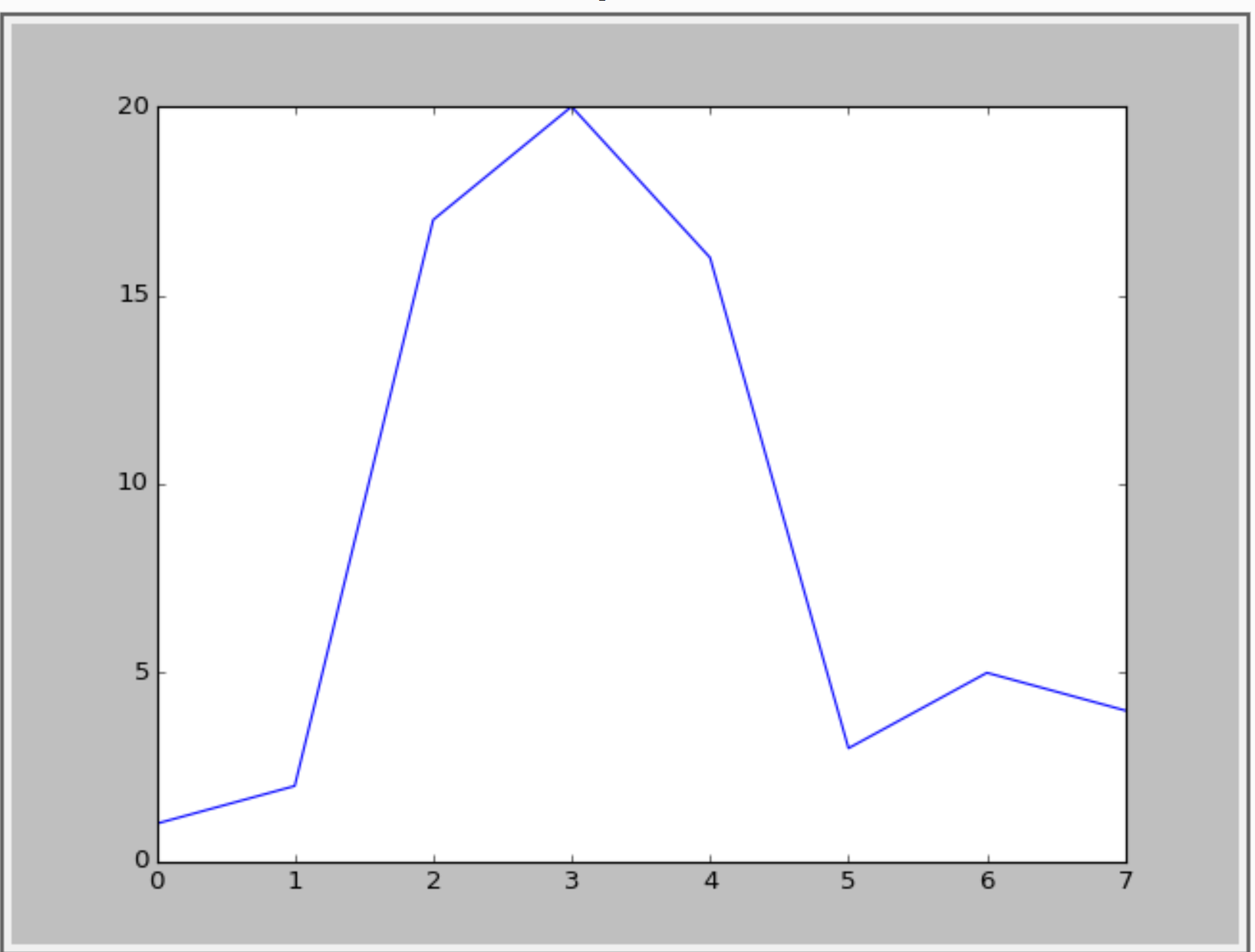
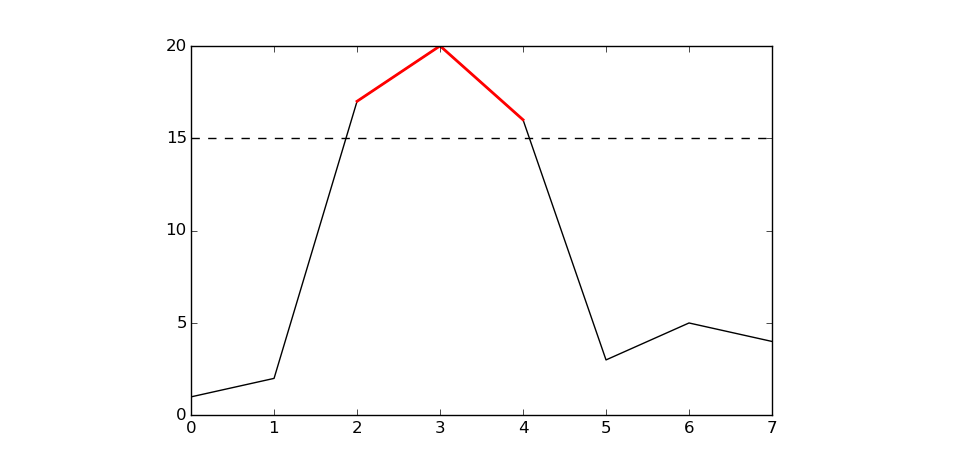
I want to visualise the values that exceeds y=15. Something like the following figure:
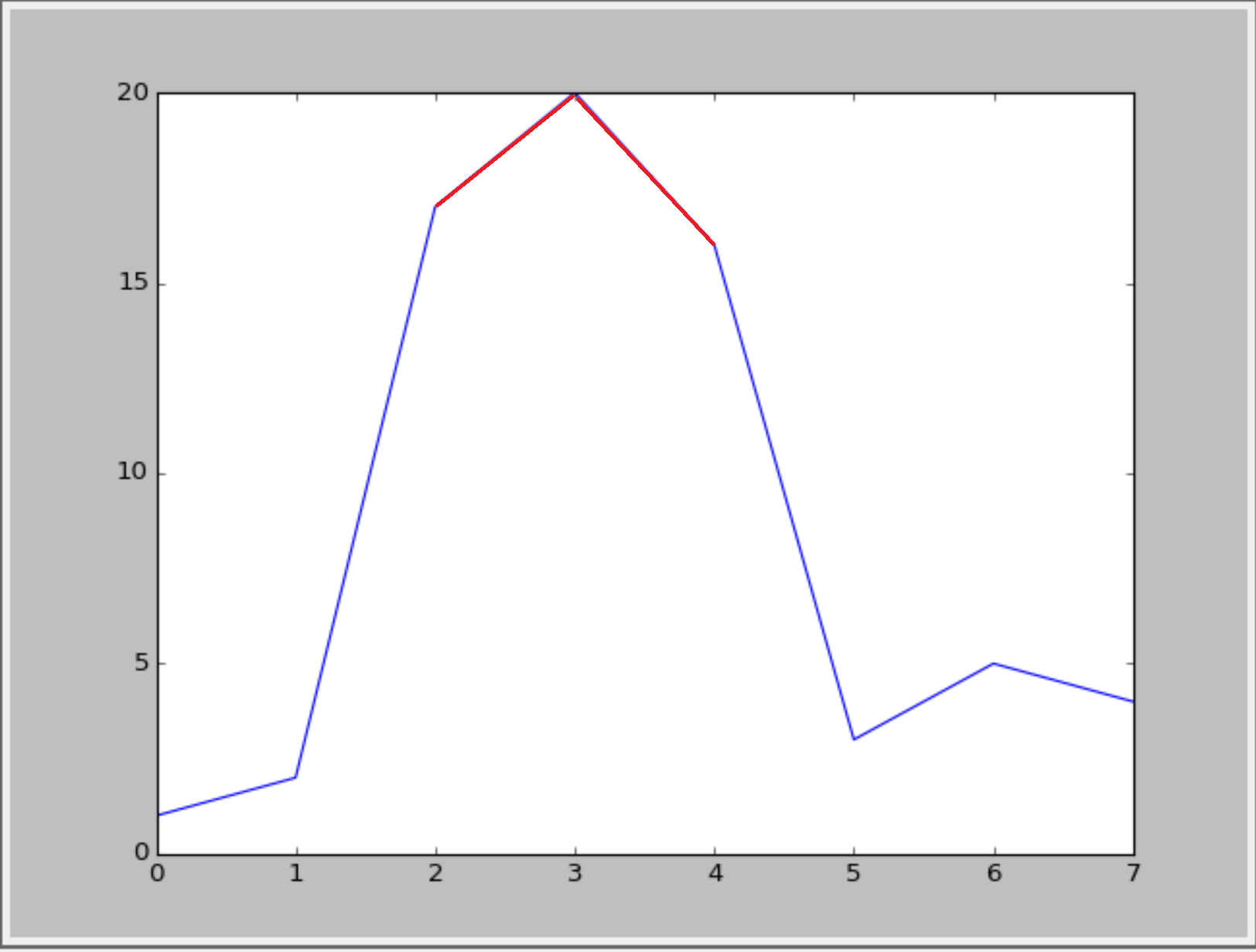
Or something like this(with cycle linestyle):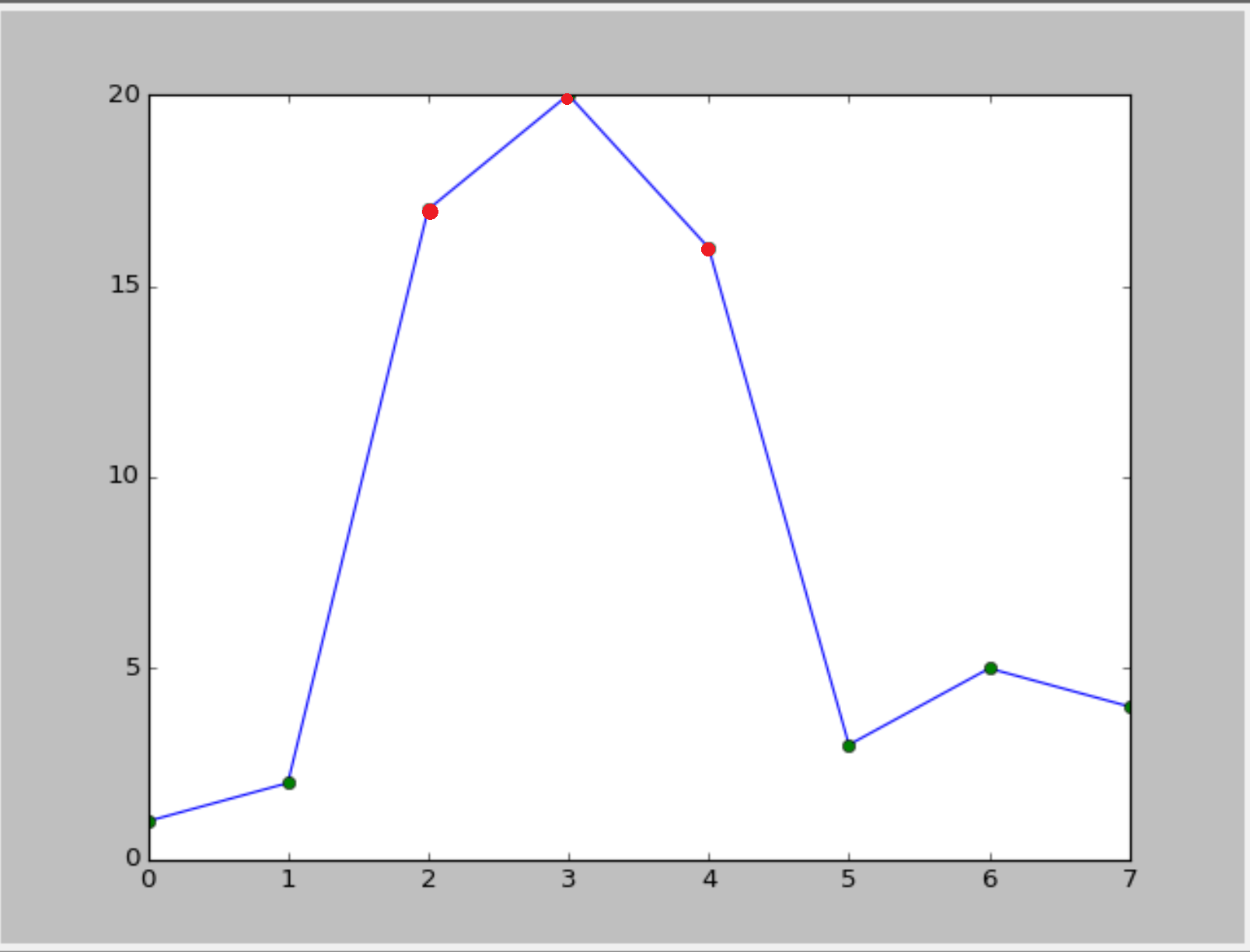 :
:
Is it possible?
Answers:
Thank you for visiting the Q&A section on Magenaut. Please note that all the answers may not help you solve the issue immediately. So please treat them as advisements. If you found the post helpful (or not), leave a comment & I’ll get back to you as soon as possible.
Method 1
Define a helper function (this a bare-bones one, more bells and whistles can be added). This code is a slight refactoring of this example from the documentation.
import numpy as np
import matplotlib.pyplot as plt
from matplotlib.collections import LineCollection
from matplotlib.colors import ListedColormap, BoundaryNorm

def threshold_plot(ax, x, y, threshv, color, overcolor):
    """
    Helper function to plot points above a threshold in a different color

    Parameters
    ----------
    ax : Axes
        Axes to plot to
    x, y : array
        The x and y values

    threshv : float
        Plot using overcolor above this value

    color : color
        The color to use for the lower values

    overcolor: color
        The color to use for values over threshv

    """
    # Create a colormap for red, green and blue and a norm to color
    # f' < -0.5 red, f' > 0.5 blue, and the rest green
    cmap = ListedColormap([color, overcolor])
    norm = BoundaryNorm([np.min(y), threshv, np.max(y)], cmap.N)

    # Create a set of line segments so that we can color them individually
    # This creates the points as a N x 1 x 2 array so that we can stack points
    # together easily to get the segments. The segments array for line collection
    # needs to be numlines x points per line x 2 (x and y)
    points = np.array([x, y]).T.reshape(-1, 1, 2)
    segments = np.concatenate([points[:-1], points[1:]], axis=1)

    # Create the line collection object, setting the colormapping parameters.
    # Have to set the actual values used for colormapping separately.
    lc = LineCollection(segments, cmap=cmap, norm=norm)
    lc.set_array(y)

    ax.add_collection(lc)
    ax.set_xlim(np.min(x), np.max(x))
    ax.set_ylim(np.min(y)*1.1, np.max(y)*1.1)
    return lc
Example of usage
fig, ax = plt.subplots()

x = np.linspace(0, 3 * np.pi, 500)
y = np.sin(x)

lc = threshold_plot(ax, x, y, .75, 'k', 'r')
ax.axhline(.75, color='k', ls='--')
lc.set_linewidth(3)
and the output
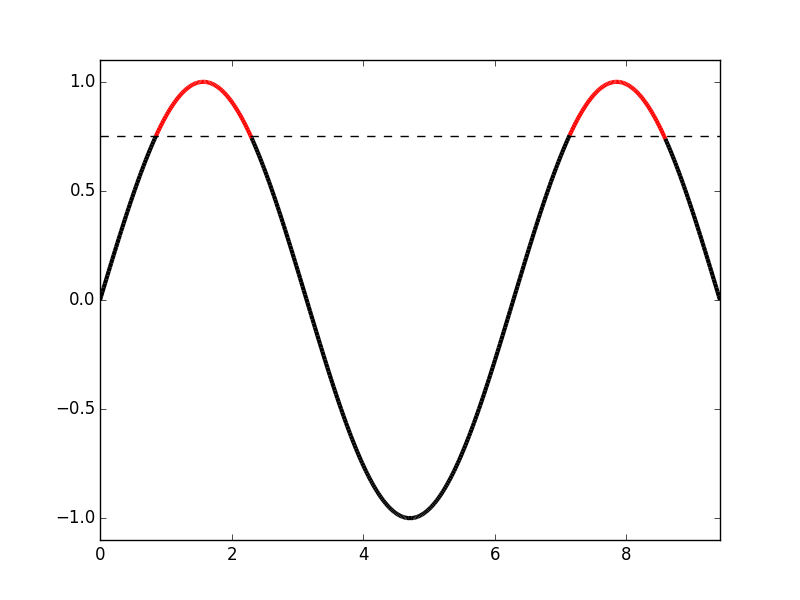
If you want just the markers to change color, use the same norm and cmap and pass them to scatter as
cmap = ListedColormap([color, overcolor])
norm = BoundaryNorm([np.min(y), threshv, np.max(y)], cmap.N)
sc = ax.scatter(x, y, c=c, norm=norm, cmap=cmap)
Method 2
Unfortunately, matplotlib doesn’t have an easy option to change the color of only part of a line. We will have to write the logic ourselves. The trick is to cut the line up into a collection of line segments, then assign a color to each of them, and then plot them.
from matplotlib import pyplot as plt
from matplotlib.collections import LineCollection
import numpy as np

# The x and y data to plot
y = np.array([1,2,17,20,16,3,5,4])
x = np.arange(len(y))

# Threshold above which the line should be red
threshold = 15

# Create line segments: 1--2, 2--17, 17--20, 20--16, 16--3, etc.
segments_x = np.r_[x[0], x[1:-1].repeat(2), x[-1]].reshape(-1, 2)
segments_y = np.r_[y[0], y[1:-1].repeat(2), y[-1]].reshape(-1, 2)

# Assign colors to the line segments
linecolors = ['red' if y_[0] > threshold and y_[1] > threshold else 'blue'
              for y_ in segments_y]

# Stamp x,y coordinates of the segments into the proper format for the
# LineCollection
segments = [zip(x_, y_) for x_, y_ in zip(segments_x, segments_y)]

# Create figure
plt.figure()
ax = plt.axes()

# Add a collection of lines
ax.add_collection(LineCollection(segments, colors=linecolors))

# Set x and y limits... sadly this is not done automatically for line
# collections
ax.set_xlim(0, 8)
ax.set_ylim(0, 21)
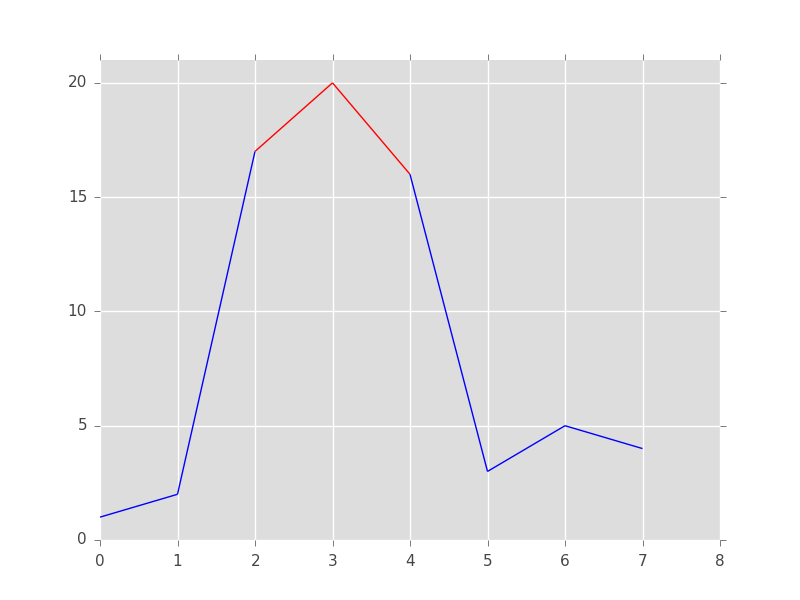
Your second option is much easier. We first draw the line and then add the markers as a scatterplot on top of it:
from matplotlib import pyplot as plt
import numpy as np

# The x and y data to plot
y = np.array([1,2,17,20,16,3,5,4])
x = np.arange(len(y))

# Threshold above which the markers should be red
threshold = 15

# Create figure
plt.figure()

# Plot the line
plt.plot(x, y, color='blue')

# Add below threshold markers
below_threshold = y < threshold
plt.scatter(x[below_threshold], y[below_threshold], color='green')

# Add above threshold markers
above_threshold = np.logical_not(below_threshold)
plt.scatter(x[above_threshold], y[above_threshold], color='red')
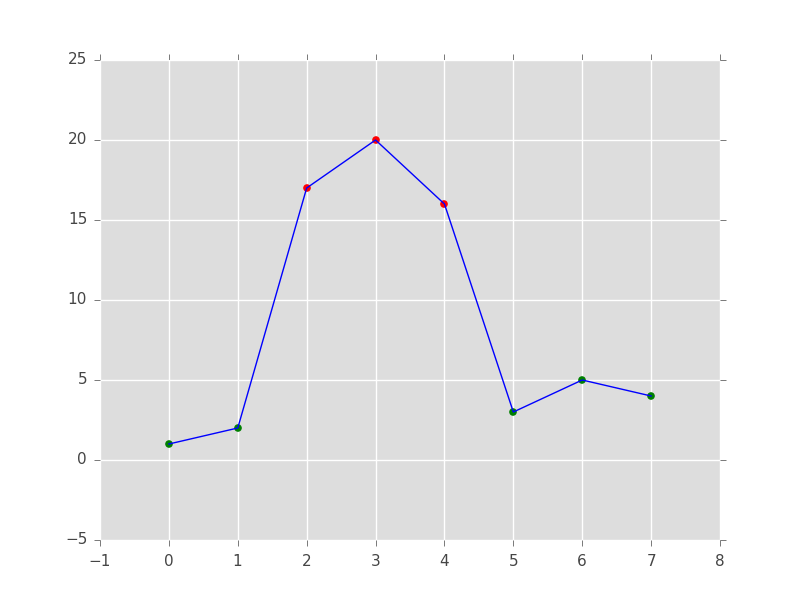
Method 3
Basically @RaJa provides the solution, but I think that you can do the same without loading an additional package (pandas), by using masked arrays in numpy:
import numpy as np
import matplotlib.pyplot as plt

a = np.array([1,2,17,20,16,3,5,4])

# use a masked array to suppress the values that are too low
a_masked = np.ma.masked_less_equal(a, 15)

# plot the full line
plt.plot(a, 'k')

# plot only the large values
plt.plot(a_masked, 'r', linewidth=2)

# add the threshold value (optional)
plt.axhline(15, color='k', linestyle='--')
plt.show()
Result:
Method 4
I don’t know wether there is a built-in function in matplolib. But you could convert your numpy array into a pandas series and then use the plot function in combination with boolean selection/masking.
import numpy as np
import pandas as pd

a = np.array([1,2,17,20,16,3,5,4])
aPandas = pd.Series(a)
aPandas.plot()
aPandas[aPandas > 15].plot(color = 'red')
All methods was sourced from stackoverflow.com or stackexchange.com, is licensed under cc by-sa 2.5, cc by-sa 3.0 and cc by-sa 4.0