I can not seem to find any documentation on how to make Selenium open the browser in incognito mode.
Do I have to setup a custom profile in the browser or?
Answers:
Thank you for visiting the Q&A section on Magenaut. Please note that all the answers may not help you solve the issue immediately. So please treat them as advisements. If you found the post helpful (or not), leave a comment & I’ll get back to you as soon as possible.
Method 1
First of all, since selenium by default starts up a browser with a clean, brand-new profile, you are actually already browsing privately. Referring to:
- Python – Start firefox with Selenium in private mode
- How might I simulate a private browsing experience in Watir? (Selenium)
But you can strictly enforce/turn on incognito/private mode anyway.
For chrome pass --incognito command-line argument:
--incognitoCauses the browser to launch directly in incognito mode.
from selenium import webdriver

chrome_options = webdriver.ChromeOptions()
chrome_options.add_argument("--incognito")

driver = webdriver.Chrome(chrome_options=chrome_options)
driver.get('https://google.com')
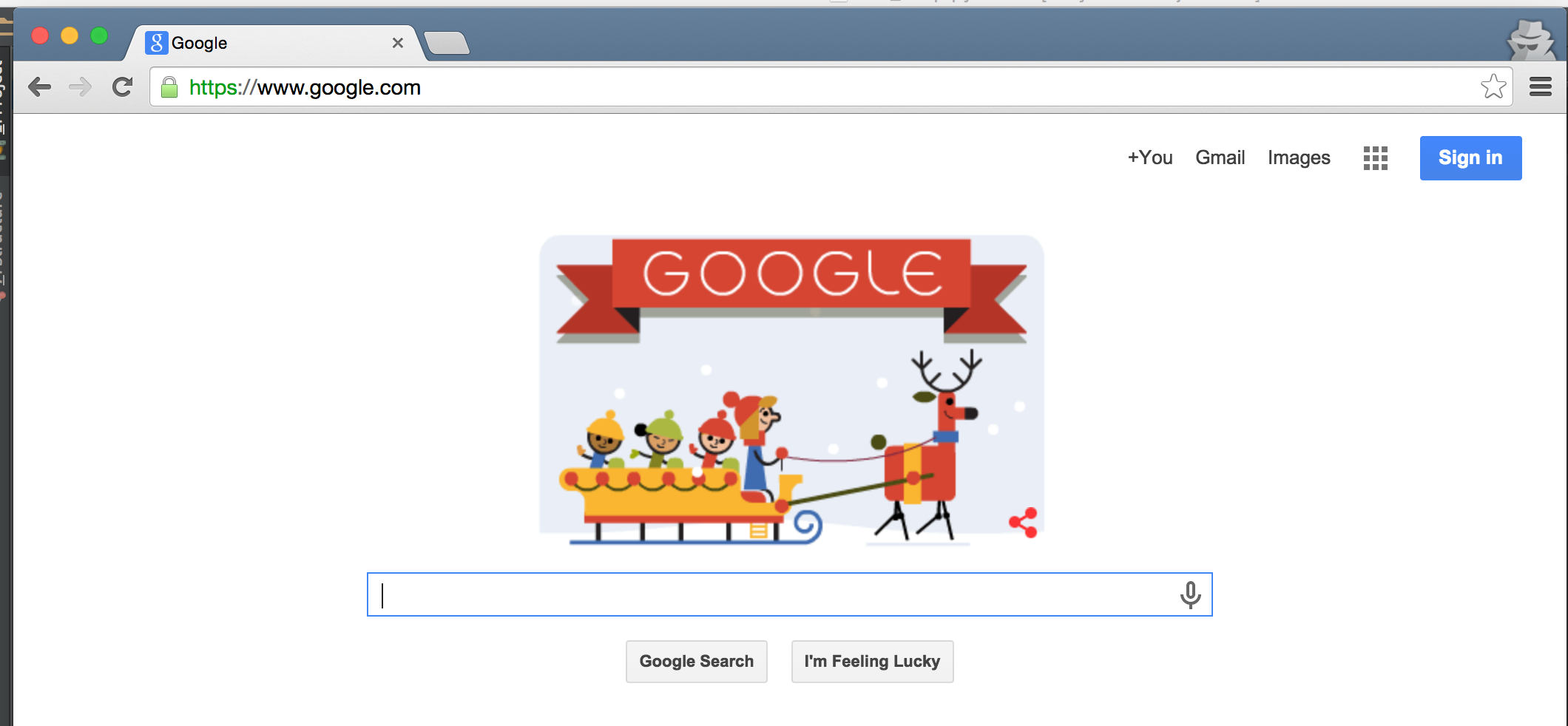
FYI, here is what it would open up:
For firefox, set browser.privatebrowsing.autostart to True:
from selenium import webdriver

firefox_profile = webdriver.FirefoxProfile()
firefox_profile.set_preference("browser.privatebrowsing.autostart", True)

driver = webdriver.Firefox(firefox_profile=firefox_profile)
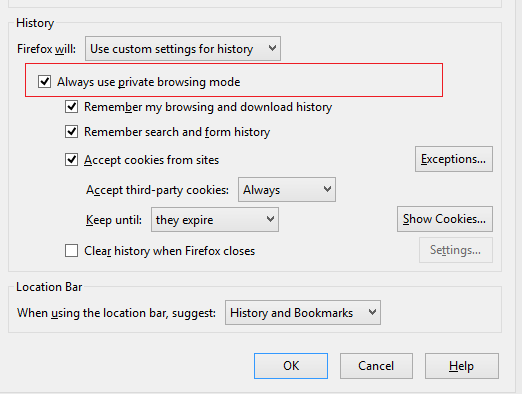
FYI, this corresponds to the following checkbox in settings:
Method 2
Note: chrome_options is now deprecated. We can use ‘options’ instead of chrome_options
from selenium import webdriver

options = webdriver.ChromeOptions()
options.add_argument("--incognito")

driver = webdriver.Chrome(options=options)
driver.get('https://google.com')
Method 3
I have initiated both Chrome and Firefox in incognito/Private mode using ChromeOptions and FirefoxOptions successfully using the code snippets in Java as below:
    //For Firefox
    FirefoxOptions options = new FirefoxOptions();
    options.addArguments("-private");
    DesiredCapabilities caps = new DesiredCapabilities();
    caps.setCapability("moz:firefoxOptions",options);

    //For Chrome
    ChromeOptions options = new ChromeOptions();
    options.addArguments("-incognito");
    caps.setCapability(ChromeOptions.CAPABILITY, options);

    WebDriver driver = new RemoteWebDriver(new URL(URL), caps);
Method 4
There is a really simple way to make a window open in incognito mode:
from selenium.webdriver.chrome.options import Options

chrome_options = Options()
# incognito window
chrome_options.add_argument("--incognito")
You can also use this library for maximizing the window and more, see the documentation: https://seleniumhq.github.io/selenium/docs/api/rb/Selenium/WebDriver/Chrome/Options.html
Method 5
For firefox : (Python) ==>
from selenium import webdriver
firefox_options = webdriver.FirefoxOptions()
firefox_options.add_argument("--private")
browser = webdriver.Firefox(firefox_options=firefox_options)
Method 6
//We need to add argument "--incogneto" in ChromeOptions object and pass this ChromeOptions instance to the web driver initialization.


    ChromeOptions options = new ChromeOptions()
    options.addArgument("start-maximized");
    options.addArgument("--incognito");
    ChromeDriver driver = new ChromeDriver(options);
    driver.get("https://investopedia.com");
Method 7
In Chrome Browser You Can Do This Using Python As Follows
As you can see when you uses chrome, you have the option of incognito mode in the options menu part of the chrome browser. So when you are using selenium, you can alter the things of options using
chrome_options = webdriver.ChromeOptions()
So, the code is:
chrome_options = webdriver.ChromeOptions()
chrome_options.add_argument("--incognito")

driver = webdriver.Chrome(executable_path="<path of chrome_driver.exe file>",options=chrome_options)
So the only thing you have to do is to give “webdriver.Chrome” this given value to its another parameter i.e. “options”.
Method 8
For python with opera
from selenium import webdriver

options =  webdriver.opera.webdriver.Options()
options.add_argument("private")
driver = webdriver.Opera(executable_path="operadriver",options=options)
Method 9
PowerShell
try{
    # Import the Selenium DLLs
    Add-Type -Path "$SeleniumlibSelenium.WebDriverBackedSelenium.dll"
    Add-Type -Path "$SeleniumlibWebDriver.dll"
    Add-Type -Path "$SeleniumlibWebDriver.Support.dll"
}
catch [Exception]{
    Write-Host ("Error: {0}" -f $_.Exception.Message)
    exit 1
}

$options = New-Object OpenQA.Selenium.Chrome.ChromeOptions
$options.AddArgument("--incognito")
$driver = New-Object OpenQA.Selenium.Chrome.ChromeDriver($options)
Method 10
Some options have been deprecated so for Firefox it worked out for me like this:
from selenium.webdriver.firefox.options import Options
from selenium import webdriver

firefox_options = Options()
firefox_options.add_argument("-private")
driver = webdriver.Firefox(options=firefox_options)
All methods was sourced from stackoverflow.com or stackexchange.com, is licensed under cc by-sa 2.5, cc by-sa 3.0 and cc by-sa 4.0