I have created a program that prints results on command line.
(It is server and it prints log on command line.)
Now, I want to see the same result to GUI .
How can I redirect command line results to GUI?
Please, suggest a trick to easily transform console application to simple GUI.
Note that it should work on Linux and Windows.
Answers:
Thank you for visiting the Q&A section on Magenaut. Please note that all the answers may not help you solve the issue immediately. So please treat them as advisements. If you found the post helpful (or not), leave a comment & I’ll get back to you as soon as possible.
Method 1
You could create a script wrapper that runs your command line program as a sub process, then add the output to something like a text widget.
from tkinter import *
import subprocess as sub
p = sub.Popen('./script',stdout=sub.PIPE,stderr=sub.PIPE)
output, errors = p.communicate()

root = Tk()
text = Text(root)
text.pack()
text.insert(END, output)
root.mainloop()
where script is your program. You can obviously print the errors in a different colour, or something like that.
Method 2
To display subprocess’ output in a GUI while it is still running, a portable stdlib-only solution that works on both Python 2 and 3 has to use a background thread:
#!/usr/bin/python
"""
- read output from a subprocess in a background thread
- show the output in the GUI
"""
import sys
from itertools import islice
from subprocess import Popen, PIPE
from textwrap import dedent
from threading import Thread

try:
    import Tkinter as tk
    from Queue import Queue, Empty
except ImportError:
    import tkinter as tk # Python 3
    from queue import Queue, Empty # Python 3

def iter_except(function, exception):
    """Works like builtin 2-argument `iter()`, but stops on `exception`."""
    try:
        while True:
            yield function()
    except exception:
        return

class DisplaySubprocessOutputDemo:
    def __init__(self, root):
        self.root = root

        # start dummy subprocess to generate some output
        self.process = Popen([sys.executable, "-u", "-c", dedent("""
            import itertools, time

            for i in itertools.count():
                print("%d.%d" % divmod(i, 10))
                time.sleep(0.1)
            """)], stdout=PIPE)

        # launch thread to read the subprocess output
        #   (put the subprocess output into the queue in a background thread,
        #    get output from the queue in the GUI thread.
        #    Output chain: process.readline -> queue -> label)
        q = Queue(maxsize=1024)  # limit output buffering (may stall subprocess)
        t = Thread(target=self.reader_thread, args=[q])
        t.daemon = True # close pipe if GUI process exits
        t.start()

        # show subprocess' stdout in GUI
        self.label = tk.Label(root, text="  ", font=(None, 200))
        self.label.pack(ipadx=4, padx=4, ipady=4, pady=4, fill='both')
        self.update(q) # start update loop

    def reader_thread(self, q):
        """Read subprocess output and put it into the queue."""
        try:
            with self.process.stdout as pipe:
                for line in iter(pipe.readline, b''):
                    q.put(line)
        finally:
            q.put(None)

    def update(self, q):
        """Update GUI with items from the queue."""
        for line in iter_except(q.get_nowait, Empty): # display all content
            if line is None:
                self.quit()
                return
            else:
                self.label['text'] = line # update GUI
                break # display no more than one line per 40 milliseconds
        self.root.after(40, self.update, q) # schedule next update

    def quit(self):
        self.process.kill() # exit subprocess if GUI is closed (zombie!)
        self.root.destroy()


root = tk.Tk()
app = DisplaySubprocessOutputDemo(root)
root.protocol("WM_DELETE_WINDOW", app.quit)
# center window
root.eval('tk::PlaceWindow %s center' % root.winfo_pathname(root.winfo_id()))
root.mainloop()
The essence of the solution is:
- put the subprocess output into the queue in a background thread
- get the output from the queue in the GUI thread.
i.e., call process.readline() in the background thread -> queue -> update GUI label in the main thread. Related kill-process.py (no polling — a less portable solution that uses event_generate in a background thread).
Method 3
Redirecting stdout to a write() method that updates your gui is one way to go, and probably the quickest – although running a subprocess is probably a more elegant solution.
Only redirect stderr once you’re really confident it’s up and working, though!
Example implimentation (gui file and test script):
test_gui.py:
from Tkinter import *
import sys
sys.path.append("/path/to/script/file/directory/")

class App(Frame):
    def run_script(self):
        sys.stdout = self
        ## sys.stderr = self
        try:
            del(sys.modules["test_script"])
        except:
            ## Yeah, it's a real ugly solution...
            pass
        import test_script
        test_script.HelloWorld()
        sys.stdout = sys.__stdout__
        ## sys.stderr = __stderr__

    def build_widgets(self):
        self.text1 = Text(self)
        self.text1.pack(side=TOP)
        self.button = Button(self)
        self.button["text"] = "Trigger script"
        self.button["command"] = self.run_script
        self.button.pack(side=TOP)

    def write(self, txt):
        self.text1.insert(INSERT, txt)

    def __init__(self, master=None):
        Frame.__init__(self, master)
        self.pack()
        self.build_widgets()

root = Tk()
app = App(master = root)
app.mainloop()
test_script.py:
print "Hello world!"

def HelloWorld():
    print "HelloWorldFromDef!"
Method 4
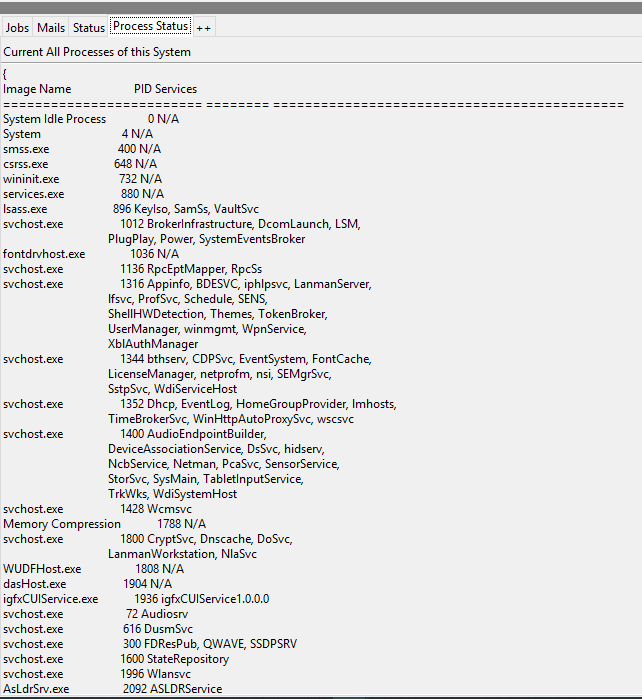
Sorry for my bad English. I actually, used a different way to print Command Prompt output into my new Automation tool.
Please find those steps below.
1> Create a Bat File & redirect its output to a LOG file.
Command Prompt command: tasklist /svc
2> Make read that file with Python 3.x.
`processedFile = open(‘D:LOGtaskLog.txt’, ‘r’)
3> The Finale step.
ttk.Label(Tab4, text=[ProcessFile.read()]).place(x=0, y=27)
**Hence please be informed that, I have not include scrollbar into this code yet.
Posting Screenshot:
All methods was sourced from stackoverflow.com or stackexchange.com, is licensed under cc by-sa 2.5, cc by-sa 3.0 and cc by-sa 4.0