I’ve got an ASP.NET website that I deployed to Azure. I’m using VS2013, .NET 4.5.1 and Azure SDK 2.2. I turned on remote debugging for VS2013 in the management portal. I can successfully right click the website under the “Azure” node in servers, and select “Attach debugger.” It says that it is downloading debugging settings, and then the web browser comes up. But breakpoints are never hit despite them being in code that I know is executed. One clue: the breakpoint has an open circle and states: “The breakpoint will not currently be hit. No symbols have been loaded for this document.” But the breakpoint works fine when testing locally. Does anyone have any thoughts on how to address this?
Thanks…
-Ben
Update: I dropped from .NET 4.5.1 to 4.5; problem persists.
Answers:
Thank you for visiting the Q&A section on Magenaut. Please note that all the answers may not help you solve the issue immediately. So please treat them as advisements. If you found the post helpful (or not), leave a comment & I’ll get back to you as soon as possible.
Method 1
I also struggled with this (VS2015 Enterprise) but found a solution that works pretty consistently.
- Make sure you aren’t attached to the web app
- Open up the Azure portal for the web app
- Stop the web app
- Restart the web app
- Give it a second to warm up, then go back to VS and re-attach
This works for me almost every time. Note that stopping and starting the web app from w/in Visual Studio does not work consistently.
Method 2
Make sure you publish a debug build to a specific deployment slot. I had this same problem and when I attached the remote debugger to my staging slot that had a debug build deployed there, it worked. Trying to debug a release build doesn’t work because the requisite debug symbols are not present. Like @Lars explains above, I had to restart the web app on Azure and then try the debug again against the debug build.
Method 3
I wrote a short article what helped me with debugging.
Have a look here: Debugging in Azure Cloud
In a nutshell: Find the correct processes to attach to for worker role and web role.
WebRole: WaIISHost.exe, w3wp.exe + conhost(s)
WorkerRole: WaWorkerHost.exe + conhost(s)
Method 4
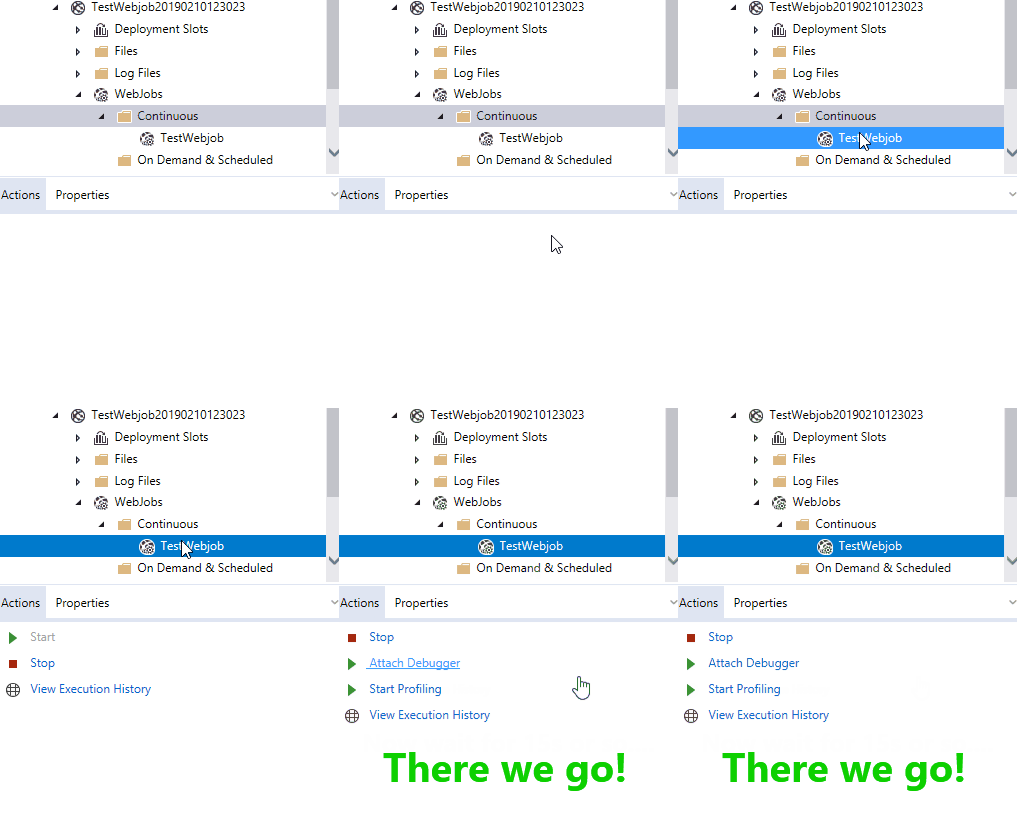
After struggling with this for hours, I found a consistent solution. I think the root cause is simply a confusing UI. Try this:
- Make sure your Web Job is running
- VS 2017 -> View -> Cloud Explorer
- Click on the WebJob name in Cloud Explorer then simply wait. After 15s or so, “Attach Debugger” will magically appear in the actions area below. It seems that when you click on the WebJob name, VS2017 has to query the WebJob remotely in Azure to determine if it’s both running and if it’s possible to perform remote debugging, which takes time. If the answer to both is “yes”, then “Attach Debugger” will appear in the UI.
Method 5
I ran into this issue a few times.
I got it fixed by making sure the platform/configuration of my publish profile matched my local build platform/configuration.
I was publishing Debug | Any CPU, but my local build was using Debug | Mixed Platforms.
Once I changed my publish configuration to Debug | Mixed Platforms and republished, I was able to attach the remote debugger and the symbols were loaded.
Verify the symbols are loaded for the assembly you are attempting to set breakpoints in by looking in the Visual Studio ‘Modules’ window for the namespace/assembly name. (This is after attaching the debugger to the remote process and your VS is in Debug mode.)
After I did this, breakpoints began working for the remote process from within my local VS instance.
Method 6
I was having this problem with a .Net Core Azure Function project. The following github issue speaks to it, but solution didn’t solve my problem:
https://github.com/Azure/Azure-Functions/issues/872
I finally stumbled across the answer here:
It boils down to manually attaching to the process in Azure, rather than relying on the Cloud Explorer right-click functionality.
All methods was sourced from stackoverflow.com or stackexchange.com, is licensed under cc by-sa 2.5, cc by-sa 3.0 and cc by-sa 4.0