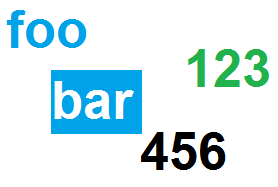
I have some text in blue #00a2e8, and some text in black on a PNG image (white background).
How to remove everything in blue (including text in blue) on an image with Python PIL or OpenCV, with a certain tolerance for the variations of color?
Indeed, every pixel of the text is not perfectly of the same color, there are variations, shades of blue.
Here is what I was thinking:
- convert from RGB to HSV
- find the Hue
h0for the blue - do a Numpy mask for Hue in the interval
[h0-10, h0+10] - set these pixels to white
Before coding this, is there a more standard way to do this with PIL or OpenCV Python?
Example PNG file: foo and bar blocks should be removed
Answers:
Thank you for visiting the Q&A section on Magenaut. Please note that all the answers may not help you solve the issue immediately. So please treat them as advisements. If you found the post helpful (or not), leave a comment & I’ll get back to you as soon as possible.
Method 1
Your image has some issues. Firstly, it has a completely superfluous alpha channel which can be ignored. Secondly, the colours around your blues are quite a long way from blue!
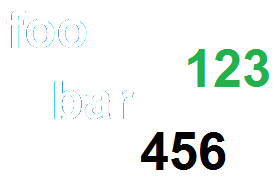
I used your planned approach and found the removal was pretty poor:
#!/usr/bin/env python3

import cv2
import numpy as np

# Load image
im = cv2.imread('nwP8M.png')

# Define lower and upper limits of our blue
BlueMin = np.array([90,  200, 200],np.uint8)
BlueMax = np.array([100, 255, 255],np.uint8)

# Go to HSV colourspace and get mask of blue pixels
HSV  = cv2.cvtColor(im,cv2.COLOR_BGR2HSV)
mask = cv2.inRange(HSV, BlueMin, BlueMax)

# Make all pixels in mask white
im[mask>0] = [255,255,255]
cv2.imwrite('DEBUG-plainMask.png', im)
That gives this:
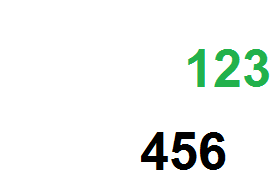
If you broaden the range, to get the rough edges, you start to affect the green letters, so instead I dilated the mask so that pixels spatially near the blues are made white as well as pixels chromatically near the blues:
# Try dilating (enlarging) mask with 3x3 structuring element
SE   = cv2.getStructuringElement(cv2.MORPH_ELLIPSE, (3,3))
mask = cv2.dilate(mask, kernel, iterations=1)

# Make all pixels in mask white
im[mask>0] = [255,255,255]
cv2.imwrite('result.png', im)
That gets you this:
You may wish to diddle with the actual values for your other images, but the principle is the same.
Method 2
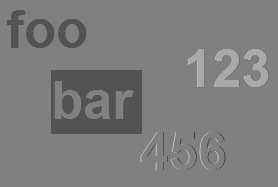
I would like to chime in with a different approach. My basic idea is convert the image from BGR to LAB color space and figure out if I can isolate the regions in blue. This can be done by focusing on the b-component of LAB, since it represents the color from yellow to blue.
Code
img = cv2.imread('image_path', cv2.IMREAD_UNCHANGED)
lab = cv2.cvtColor(img, cv2.COLOR_BGR2LAB)
b_component = lab[:,:,2]
(Note: The blue regions are actually quite darker such that it can be isolated easily.)
th = cv2.threshold(b_component,127,255,cv2.THRESH_BINARY_INV+cv2.THRESH_OTSU)[1]
But after applying threshold, the image contains some unwanted white pixels around the regions containing numeric text, which we do not want to consider.
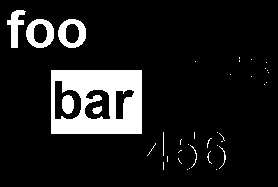
To avoid the unwanted regions I tried out the following:
- Find contours above a certain area and draw each of them on 2-channel mask
- Mask out rectangular bounding box area for each contour.
- Locate pixels within that bounding box area that are 255 (white) on the threshold image
- Change those pixel values to white on the original PNG image.
In code below:
# finding contours
contours = cv2.findContours(th, cv2.RETR_TREE, cv2.CHAIN_APPROX_SIMPLE)
contours = contours[0] if len(contours) == 2 else contours[1]

# initialize a mask of image shape and make copy of original image
black = np.zeros((img.shape[0], img.shape[1]), np.uint8)
res = img.copy()

# draw only contours above certain area on the mask
for c in contours:
    area = cv2.contourArea(c)
    if int(area) > 200:
            cv2.drawContours(black, [c], 0, 255, -1)
If you see the following mask, it has enclosed all pixels within the contour in white. However, the pixels within the word “bar” should not be considered.
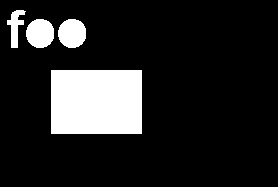
To isolate only the region with blue pixels, we perform “AND” operation with the threshold image th
mask = cv2.bitwise_and(th, th, mask = black)
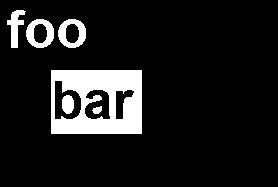
We got the mask we actually want. The regions that are white in mask are made white in the copy of the original image res:
res[mask == 255] = (255, 255, 255, 255)
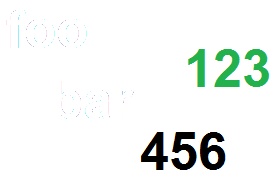
But the above image is not perfect. There are some regions still visible around the edges of the word foo.
In the following we dilate mask and repeat.
res = img.copy()
kernel_ellipse = cv2.getStructuringElement(cv2.MORPH_ELLIPSE, (3,3))
dilate = cv2.dilate(mask, kernel_ellipse, iterations=1)
res[dilate == 255] = (255, 255, 255, 255)
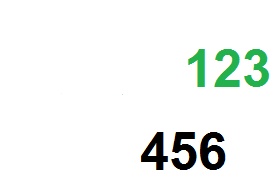
Note: Using the A and B components of LAB color space you can isolate different colors quite easily, without having to spend time searching for the range. Colors with nearby shading and saturation can also be segmented.
Method 3
I think you are looking for the function inRange:
thresh = 5
bgr = [255 - thresh, thresh , thresh ]
minBGR = np.array([bgr[0] - thresh, bgr[1] - thresh, bgr[2] - thresh])
maxBGR = np.array([bgr[0] + thresh, bgr[1] + thresh, bgr[2] + thresh])
maskBGR = cv2.inRange(image, minBGR, maxBGR)
resultBGR = cv2.bitwise_or(image, maskBGR)
All methods was sourced from stackoverflow.com or stackexchange.com, is licensed under cc by-sa 2.5, cc by-sa 3.0 and cc by-sa 4.0