When the Block Editor was added to WordPress, custom and core meta boxes became legacy, meaning, using the remove_meta_box() function won’t work when removing meta boxes/panels displayed on the post editing screen.
So, how do we remove the Excerpt panel when we can’t use remove_meta_box() anymore?
Answers:
Thank you for visiting the Q&A section on Magenaut. Please note that all the answers may not help you solve the issue immediately. So please treat them as advisements. If you found the post helpful (or not), leave a comment & I’ll get back to you as soon as possible.
Method 1
The remove_meta_box() function will not work with the Block Editor, because these are now Panels and work differently. There is currently no documentation on how to disable Panels, but, let’s dance.
We want to avoid hiding panels via CSS, and rely on the JS API.
We need to use the JS function removeEditorPanel() which will completely remove the panel with all its controls:
// remove excerpt panel
wp.data.dispatch( 'core/edit-post').removeEditorPanel( 'post-excerpt' );
Here is an (incomplete) list of panel IDs:
taxonomy-panel-category– Category panel.taxonomy-panel-CUSTOM-TAXONOMY-NAME– Custom taxonomy panel. If your taxonomy istopic, thentaxonomy-panel-topicworks.taxonomy-panel-post_tag– Tags panelfeatured-image– Featured image panel.post-link– Permalink panel.page-attributes– Page attributes panel.post-excerpt– Post excerpt panel.discussion-panel– Discussions panel.template– Template panel added with WP 5.9.
The full code
PHP (in your functions.php or custom plugin):
function cc_gutenberg_register_files() {
    // script file
    wp_register_script(
        'cc-block-script',
        get_stylesheet_directory_uri() .'/js/block-script.js', // adjust the path to the JS file
        array( 'wp-blocks', 'wp-edit-post' )
    );
    // register block editor script
    register_block_type( 'cc/ma-block-files', array(
        'editor_script' => 'cc-block-script'
    ) );

}
add_action( 'init', 'cc_gutenberg_register_files' );
The JS file (block-script.js):
wp.data.dispatch( 'core/edit-post').removeEditorPanel( 'taxonomy-panel-category' ) ; // category
wp.data.dispatch( 'core/edit-post').removeEditorPanel( 'taxonomy-panel-TAXONOMY-NAME' ) ; // custom taxonomy
wp.data.dispatch( 'core/edit-post').removeEditorPanel( 'taxonomy-panel-post_tag' ); // tags
wp.data.dispatch( 'core/edit-post').removeEditorPanel( 'featured-image' ); // featured image
wp.data.dispatch( 'core/edit-post').removeEditorPanel( 'post-link' ); // permalink
wp.data.dispatch( 'core/edit-post').removeEditorPanel( 'page-attributes' ); // page attributes
wp.data.dispatch( 'core/edit-post').removeEditorPanel( 'post-excerpt' ); // Excerpt
wp.data.dispatch( 'core/edit-post').removeEditorPanel( 'discussion-panel' ); // Discussion
wp.data.dispatch( 'core/edit-post').removeEditorPanel( 'template' ); // Template
How about other panels?
If you know the ID of other panel than the ones listed above, please leave a comment.
On some panels, there is the alternative to to hide the panel via CSS. For example, to hide the Revisions panel, we can use:
.components-panel__body.edit-post-last-revision__panel {
    display:none !important;
}
Inspect the element of the panel to located the class name (edit-post-last-revision__panel). Note that some panels do not have unique class names.
So, register you block style:
wp_register_style(
    'cc-block-style',
    get_stylesheet_directory_uri() .'/inc/block-style.css', // adjust file path
    array( 'wp-edit-blocks' )
);

register_block_type( 'cc/ma-block-files', array(
    'editor_style' => 'cc-block-style',
) );
And include your CSS code into the block-style.css file.
Method 2
Addition to Christine Coopers answer https://wordpress.stackexchange.com/a/339437/31140
How to remove non-core meta boxes
If you want to remove panels that were added by themes or plugins, proceed like this:
- Find the PANEL-ID by inspecting the HTML code:
RunjQuery('.postbox')in your browsers JS console.
jQuery will find all custom meta boxes for you!
You need to identify the correct box and copy the element ID.
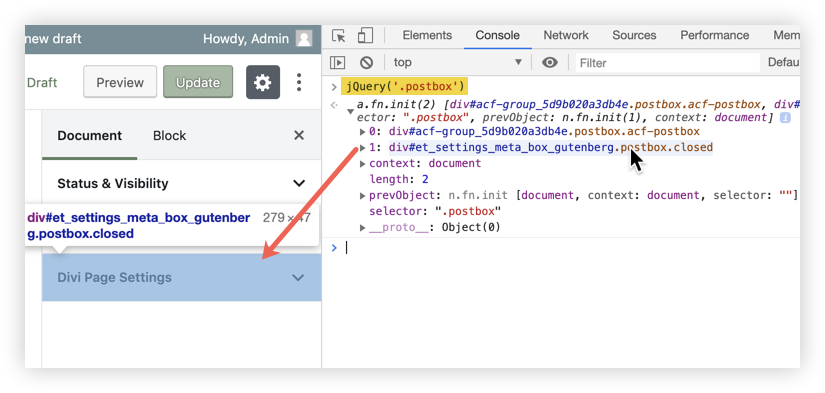
- The internal panel ID of the meta box is
meta-box-<PANEL-ID>
Example
// Remove the DIVI meta-box:
var boxId = 'et_settings_meta_box_gutenberg';
wp.data.dispatch( 'core/edit-post').removeEditorPanel( 'meta-box-' + boxId );

// Remove an ACF meta-box:
var boxId = 'acf-group_5d9b020a3db4e';
wp.data.dispatch( 'core/edit-post').removeEditorPanel( 'meta-box-' + boxId );
How to remove core panels
See Christine Coopers answer https://wordpress.stackexchange.com/a/339437/31140
Method 3
To hide meta_box from Block Editor and display them only in classic editor add arg __back_compat_meta_box set to true when adding meta box
add_meta_box( 'my-meta-box', 'My Meta Box', 'my_meta_box_callback',
    null, 'normal', 'high',
    array(
        '__back_compat_meta_box' => true,
    )
);
Method 4
This one worked for me.
function remove_post_support() {
    remove_post_type_support('post','excerpt');
}
add_action('init','remove_post_support');
All methods was sourced from stackoverflow.com or stackexchange.com, is licensed under cc by-sa 2.5, cc by-sa 3.0 and cc by-sa 4.0