I have been tasked with writing a parser to click a button on a website and I am having issues to click only one of the buttons. The following code works on every button except one.
Here’s the html:
http://pastebin.com/6dLF5ru8
here’s the source html:
http://pastebin.com/XhsedGLb
python code:
 driver = webdriver.Firefox()
 ...
 el = driver.find_element_by_id("-spel-nba")
 actions.move_to_element(el)
 actions.sleep(.1)
 actions.click()
 actions.perform()
I am getting this error.
ElementNotVisibleException: Message: Element is not currently visible and so may not be interacted with
as per Saifur I just tried waits with the same element not visible exception:
wait = WebDriverWait(driver, 10)
wait.until(EC.presence_of_element_located((By.XPATH, "//input[contains(@id,'spsel')][@value='nba']"))).click()
Answers:
Thank you for visiting the Q&A section on Magenaut. Please note that all the answers may not help you solve the issue immediately. So please treat them as advisements. If you found the post helpful (or not), leave a comment & I’ll get back to you as soon as possible.
Method 1
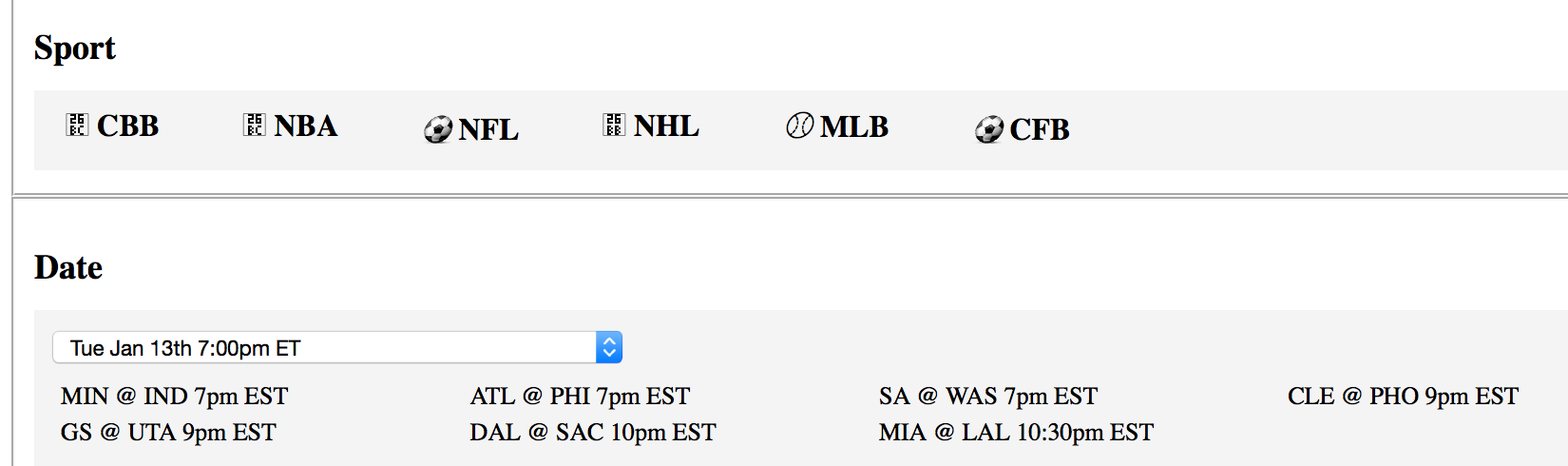
If you look at the page source, you’ll understand that almost all of theSELECT, DIV elements are faked and created from JavaScript, that is why webdriver cannot SEE them.
There’s a workaround though, by using ActionChains to open your developer console, and inject an artificial CLICK on the desired element, which in fact, is the Label triggering the NBA data loading… here’s a working example:
from selenium import webdriver
from selenium.webdriver.common import action_chains, keys
import time

driver = webdriver.Firefox()
driver.get('Your URL here...')
assert 'NBA' in driver.page_source
action = action_chains.ActionChains(driver)

# open up the developer console, mine on MAC, yours may be diff key combo
action.send_keys(keys.Keys.COMMAND+keys.Keys.ALT+'i')
action.perform()
time.sleep(3)
# this below ENTER is to rid of the above "i"
action.send_keys(keys.Keys.ENTER)
# inject the JavaScript...
action.send_keys("document.querySelectorAll('label.boxed')[1].click()"+keys.Keys.ENTER)
action.perform()
Alternatively to replace all the ActionChains commands, you can simply run execute_script like this:
driver.execute_script("document.querySelectorAll('label.boxed')[1].click()")
There you go, at least on my local file anyway… Hope this helps!
Method 2
What worked for me was to find the element just before the problematic one (that is, just before it in terms of tab order), then call Tab on that element.
from selenium.webdriver.common.keys import Keys
elem = br.find_element_by_name("username")
elem.send_keys(Keys.TAB) # tab over to not-visible element
After doing that, I was able to send actions to the element.
Method 3
The actual solution of this thread did not work for me.
however,
this one did :
element = WebDriverWait(driver, 3).until(EC.visibility_of_element_located((By.XPATH, xpaths['your_xpath_path'])))
the trick is to use :
EC.visibility_of_element_located
the WebDriverWait
WebDriverWait
from this import :
from selenium.webdriver.support import expected_conditions as EC
from selenium.webdriver.support.ui import WebDriverWait
Method 4
I suggest you use xpath with explicit wait
//input[contains(@id,'spsel')][@value='nba']
Method 5
if “Element is not currently visible” then make it VISIBLE
f.e.
>>> before is hidden top is outside of page
<input type="file" style="position: absolute;top:-999999" name="file_u">


>>> after move top on in page area
DRIVER.execute_script("document.getElementByName('file_u').style.top = 0;")
time.sleep(1); # give some time to render
DRIVER.find_element_by_name("file_u").send_keys("/tmp/img.png")
Method 6
Instead of get_element_by_id() you can try elem = browser.find_element_by_css_selector('#elemId') (go to that webpage and the element, right click it and Copy CSS Selector, or something like that.) This is what i did and it works. You also try find_element_by_link_text(text), find_element_by_partial_link_text(text), find_element_by_tag_name(tagName_case_insensitive_here), find_element_by_name(name) etc. Something will work. After the id the CSS Selector is your best bet.
Method 7
I ended up using @twasbrillig’s solution, but instead of finding the previous element and sending a TAB keypress, I find the desired element, send a TAB keypress with that element, and then a SHIFT + TAB keypress to the driver:
from selenium import webdriver
from selenium.webdriver.common.keys import Keys

driver = webdriver.Firefox()
el = driver.find_element_by_id("-spel-nba")
el.send_keys(Keys.TAB)
webdriver.ActionChains(driver).key_down(Keys.SHIFT).send_keys(Keys.TAB).key_up(Keys.SHIFT)
Method 8
I tried using the other methods but in the end found that the simplest way was to just try and click the button, and catch the error. This allows me to perform other actions based on if it worked (True) or didn’t (False).
def click_button(html_object):
 try:
  html_object.click()
 except:
  return False #most likely because it is NotVisible object and can be ignored
 return True

...
...
click_button(actions)
Method 9
The way I solved this in python was:
try:
    # the element you want to scroll to
    element = driver.find_element_by_id("some_id")
    ActionChains(driver).move_to_element(element).perform()
    element.send_keys(Keys.TAB).key_up(Keys.SHIFT)
    #element.click()
except Exception as e:
    print(e)
All methods was sourced from stackoverflow.com or stackexchange.com, is licensed under cc by-sa 2.5, cc by-sa 3.0 and cc by-sa 4.0