I´m starting to use “MVC 3” but I´m facing some little problems. In my Views, when I code something like this:
@if(Request.IsAuthenticated) {
    <text>Welcome <b>@Context.User.Identity.Name</b>!
    [ @Html.ActionLink("Log Off", "LogOff", "Account") ]</text>
}
else {
    @:[ @Html.ActionLink("Log On", "LogOn", "Account") ]
}
The objects like @Request and @Html is indicating an error: The name 'HTML' does not exist in the current context.
The same occurs with @Context, @ViewBag, @Layout, @Url and others.
See:
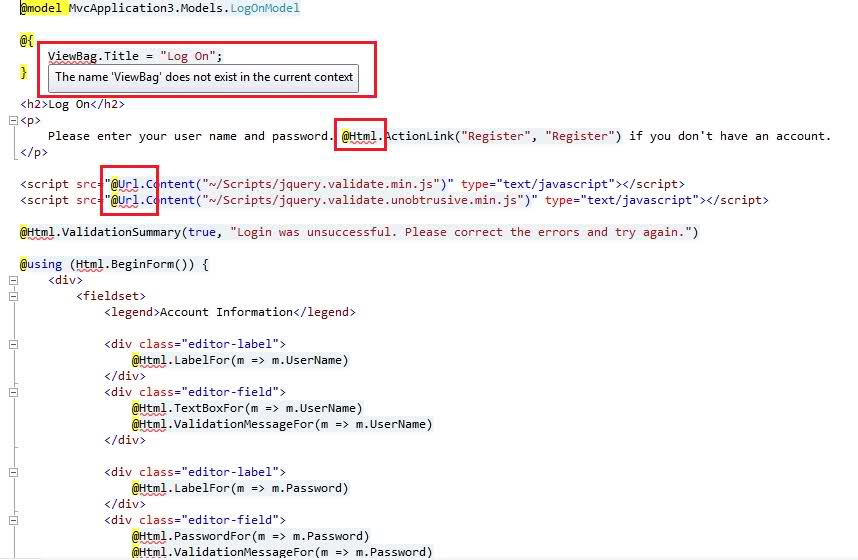
But the code is correctly compiled with no errors. The problem is that I cannot use the Intellisense with theses objects in the Views. Is it normal? (I don´t think so). What could be happening?
I have reinstalled the MVC 3 framework but the same still occurs.
Note: this is a new project from scratch, not a MVC 2 migration. This occurs both with Razor engine and ASPX.
This is the Web.Config in the Views folder:
<?xml version="1.0"?>

<configuration>
  <configSections>
    <sectionGroup name="system.web.webPages.razor" type="System.Web.WebPages.Razor.Configuration.RazorWebSectionGroup, System.Web.WebPages.Razor, Version=1.0.0.0, Culture=neutral, PublicKeyToken=31BF3856AD364E35">
      <section name="host" type="System.Web.WebPages.Razor.Configuration.HostSection, System.Web.WebPages.Razor, Version=1.0.0.0, Culture=neutral, PublicKeyToken=31BF3856AD364E35" requirePermission="false" />
      <section name="pages" type="System.Web.WebPages.Razor.Configuration.RazorPagesSection, System.Web.WebPages.Razor, Version=1.0.0.0, Culture=neutral, PublicKeyToken=31BF3856AD364E35" requirePermission="false" />
    </sectionGroup>
  </configSections>

  <system.web.webPages.razor>
    <host factoryType="System.Web.Mvc.MvcWebRazorHostFactory, System.Web.Mvc, Version=3.0.0.0, Culture=neutral, PublicKeyToken=31BF3856AD364E35" />
    <pages pageBaseType="System.Web.Mvc.WebViewPage">
      <namespaces>
        <add namespace="System.Web.Mvc" />
        <add namespace="System.Web.Mvc.Ajax" />
        <add namespace="System.Web.Mvc.Html" />
        <add namespace="System.Web.Routing" />
      </namespaces>
    </pages>
  </system.web.webPages.razor>

  <appSettings>
    <add key="webpages:Enabled" value="false" />
  </appSettings>

  <system.web>
    <httpHandlers>
      <add path="*" verb="*" type="System.Web.HttpNotFoundHandler"/>
    </httpHandlers>

    <!--
        Enabling request validation in view pages would cause validation to occur
        after the input has already been processed by the controller. By default
        MVC performs request validation before a controller processes the input.
        To change this behavior apply the ValidateInputAttribute to a
        controller or action.
    -->
    <pages
        validateRequest="false"
        pageParserFilterType="System.Web.Mvc.ViewTypeParserFilter, System.Web.Mvc, Version=3.0.0.0, Culture=neutral, PublicKeyToken=31BF3856AD364E35"
        pageBaseType="System.Web.Mvc.ViewPage, System.Web.Mvc, Version=3.0.0.0, Culture=neutral, PublicKeyToken=31BF3856AD364E35"
        userControlBaseType="System.Web.Mvc.ViewUserControl, System.Web.Mvc, Version=3.0.0.0, Culture=neutral, PublicKeyToken=31BF3856AD364E35">
      <controls>
        <add assembly="System.Web.Mvc, Version=3.0.0.0, Culture=neutral, PublicKeyToken=31BF3856AD364E35" namespace="System.Web.Mvc" tagPrefix="mvc" />
      </controls>
    </pages>
  </system.web>

  <system.webServer>
    <validation validateIntegratedModeConfiguration="false" />

    <handlers>
      <remove name="BlockViewHandler"/>
      <add name="BlockViewHandler" path="*" verb="*" preCondition="integratedMode" type="System.Web.HttpNotFoundHandler" />
    </handlers>
  </system.webServer>
</configuration>
Thanks!
Answers:
Thank you for visiting the Q&A section on Magenaut. Please note that all the answers may not help you solve the issue immediately. So please treat them as advisements. If you found the post helpful (or not), leave a comment & I’ll get back to you as soon as possible.
Method 1
You could try:
-
Close the
Viewwith the false errors. -
(Steps 2-5 are sometimes optional) Close
Visual Studio -
Delete the
binandobjfolders in all theProjectsin theSolution. -
Reopen the same
Solution -
Rebuilt the
Solution -
Open a different
Viewthen the one causing the errors -
Close that
View, hopefully you didn’t see any of the similar errors in thisView -
Reopen the
Viewthat gave you problems earlier
Method 2
I have solved this issue with the old, good, wise Microsoft default solution: reinstall all the things again.
Uninstall and Reinstall the Visual Studio 2010 and MVC 3 Framework.
Method 3
Clean your solution and Under references.
Then set the follow property:
System.Web.MVC file to Copy Local = True.
Method 4
All I had to do was close all views that were open in the editor and rebuild.
Method 5
What worked for me was closing Visual Studio, deleting the user option files (both solution and project level), then relaunching Visual Studio.
Method 6
I’m using dotnet core sdk 2.2 and Visual Studio Professional 2019.
This was caused by Visual Studio mangling code.
Code was pasted into the razor view. Visual Studio would attempt but then fail to auto-format it. Part of the failure resulted in deleting code.
Pressing ctrl+z reverted the formatting but kept the pasted code. The razor compilation errors were then fixed (The name 'Html' does not exist in the current context)
Disable format on paste (see https://stackoverflow.com/a/28053865/1462295 ) under Tools -> Options -> Text Editor -> HTML -> Advanced
Method 7
For me this just seemed to be the fact that I had compiler warnings. Code would still compile and run ok but it was not until I fixed all the build warnings that my Intellisense starting working.
Method 8
I tried to remove the project that is still in trouble from solution and add it back again, after which the problem had been gone.
Method 9
Set the property of System.Web.MVC,Copy Local = True
Method 10
In my case my Packages folder was missing including MVC and Razor so I have updated packages in packages.config, reopened the view and it worked.
Method 11
All you need to do is Restart Visual Studio and check.
Method 12
You could try some following point:
- Close the
Viewwith the false errors. - Close visual studio.
- open project again.
- clean your solution
- Rebuild your solution.
hopefully you will not get any of the similar errors now.
If you still have same problem. than Please check following steps.
- Make sure you have
web.configfile inside view folder. BecuaseMVChas twoweb.config. one for solution and other one for project.
Your web.config file will seems like this which is inside views folder.
<?xml version="1.0"?>

<configuration>
  <configSections>
    <sectionGroup name="system.web.webPages.razor" type="System.Web.WebPages.Razor.Configuration.RazorWebSectionGroup, System.Web.WebPages.Razor, Version=3.0.0.0, Culture=neutral, PublicKeyToken=31BF3856AD364E35">
      <section name="host" type="System.Web.WebPages.Razor.Configuration.HostSection, System.Web.WebPages.Razor, Version=3.0.0.0, Culture=neutral, PublicKeyToken=31BF3856AD364E35" requirePermission="false" />
      <section name="pages" type="System.Web.WebPages.Razor.Configuration.RazorPagesSection, System.Web.WebPages.Razor, Version=3.0.0.0, Culture=neutral, PublicKeyToken=31BF3856AD364E35" requirePermission="false" />
    </sectionGroup>
  </configSections>

  <system.web.webPages.razor>
    <host factoryType="System.Web.Mvc.MvcWebRazorHostFactory, System.Web.Mvc, Version=5.2.7.0, Culture=neutral, PublicKeyToken=31BF3856AD364E35" />
    <pages pageBaseType="System.Web.Mvc.WebViewPage">
      <namespaces>
        <add namespace="System.Web.Mvc" />
        <add namespace="System.Web.Mvc.Ajax" />
        <add namespace="System.Web.Mvc.Html" />
        <add namespace="System.Web.Optimization"/>
        <add namespace="System.Web.Routing" />
        <add namespace="Your Project Name" />
      </namespaces>
    </pages>
  </system.web.webPages.razor>

  <appSettings>
    <add key="webpages:Enabled" value="false" />
  </appSettings>

  <system.webServer>
    <handlers>
      <remove name="BlockViewHandler"/>
      <add name="BlockViewHandler" path="*" verb="*" preCondition="integratedMode" type="System.Web.HttpNotFoundHandler" />
    </handlers>
  </system.webServer>

  <system.web>
    <compilation>
      <assemblies>
        <add assembly="System.Web.Mvc, Version=5.2.7.0, Culture=neutral, PublicKeyToken=31BF3856AD364E35" />
      </assemblies>
    </compilation>
  </system.web>
</configuration>
It worked for me. and hope for you also.
Method 13
Close Visual Studio => Delete the obj and bin folders located in your project => Start Visual Studio
Method 14
<entityFramework>
<defaultConnectionFactory type="System.Data.Entity.Infrastructure.LocalDbConnectionFactory, EntityFramework">
  <parameters>
    <parameter value="v11.0" />
  </parameters>
</defaultConnectionFactory>
solution for this problem in web.config
Method 15
I experienced this on ASP.NET MVC 4 as well, after uninstalling EntityFramework from my packages list.
I had to remove this section
<section name="entityFramework" type="System.Data.Entity.Internal.ConfigFile.EntityFrameworkSection, EntityFramework, Version=4.4.0.0, ....
that’s left on the Web.config file… at the least it removed the errors from the errors list
Method 16
Apologies for the necro post.
Selecting “Build | Rebuild Solution” corrected this issue for me in Visual Studio 2015. In my case, the warnings occurred after renaming the primary namespace of a project. A rebuild set everything straight.
Method 17
I’m using ASP .net core. Solved mine by upgrading Microsoft.AspNetCore.Mvc from 1.1.2 to 1.1.3.
Method 18
For me, I just restarted my Visual Studios and everything got fixed.
Method 19
Maybe I am a bit late to answer this question but this easy fix helped me:
Right click the file > Exclude from project.
Right click the file > Include in project.
Method 20
I had this same issue in MVC 4. None of these solutions worked for me. Instead, in Windows, I went into Control Panel -> Uninstall a program. Select Microsoft ASP.NET MVC 4 in the program list. Click ‘Uninstall.’ A ‘Microsoft ASP.NET MVC 4 Setup’ wizard will display. Click ‘Repair.’
All methods was sourced from stackoverflow.com or stackexchange.com, is licensed under cc by-sa 2.5, cc by-sa 3.0 and cc by-sa 4.0