I have a web project in my solution file that is “unavailable” when I open the solution. When I right-click on the web project and reload the project, I get the following error:
The Web Application Project mycompany.myapp.mywebproject is configured to use IIS. The Web Server 'http://localhost/MyWebApp could not be found.
I have not manually set up virtual directories for this web application.
Per colleagues, Visual Studio should prompt me to create virtual directories but I am not getting prompted.
I installed VS2010 before installing IIS on my dev machine.
Here is my development machine setup:
- Windows 7 Enterprise
- Service Pack 1
- 64 bit OS
- Visual Studio 2010 Enterprise Service pack 1
- IIS version 7.5
Answers:
Thank you for visiting the Q&A section on Magenaut. Please note that all the answers may not help you solve the issue immediately. So please treat them as advisements. If you found the post helpful (or not), leave a comment & I’ll get back to you as soon as possible.
Method 1
Since the accepted answer requires IIS Manager, and IIS Express doesn’t have IIS Manager or any UI, here’s the solution for you IIS Express users (and should work for everyone else too):
When you open Visual Studio and get the error message, right-click the project Solution Explorer and choose “Edit {ProjectName}.csproj”
In the project file, change the following line:
<UseIIS>True</UseIIS>
to
<UseIIS>False</UseIIS>
Save the file.
Now reload your project.
Done.
You’ll then be able to open your project. If at this point, you want to use IIS, simply go to your project properties, click the “Web” tab, and select the option to use IIS. There’s the button there to “Create Virtual Directory”. It may tell you that you need to run Visual Studio as an administrator to create that directory, so do that if needed.
Method 2
Open the project folder and delete {Project}.csproj.user, then reload the project on Visual Studio.
Method 3
When this happens the easiest solution is to make the virtual directory manually.
First of all, you need to make sure you have the right version of ASP.Net installed and that you have installed the IIS extensions.
To do this, go to the relevant .net version’s folder in C:(Windows)Microsoft.NETFramework(dotnetver)
(substituting the bracketed folders for the right folders on your PC) and run this command
aspnet_regiis.exe -i
Next once that’s run and finished, sometimes running
iisreset
from the command line helps, sometimes you don’t need to.
Next, go to your IIS Manager and find you localhost website and choose add a folder.
Browse to the folder in your project that contains the actual ASP.Net project and add that.
Finally, right click on the folder you added and you should have an option that says ‘convert to application’ or ‘create virtual directory’ or something similar.
!!Make sure the Virtual directory has the name ‘MyWebApp’!!
Reload your solution and it should work.
Please be wary; this isn’t a programming question (and shouldn’t really be posted here) but I’ve posted this guidance as it’s a common problem, but the advice I’ve posted is generic; the commands I’ve listed are correct but the steps you need to do in IIS may vary, it depends on your version and your account privileges.
Good luck!
Method 4
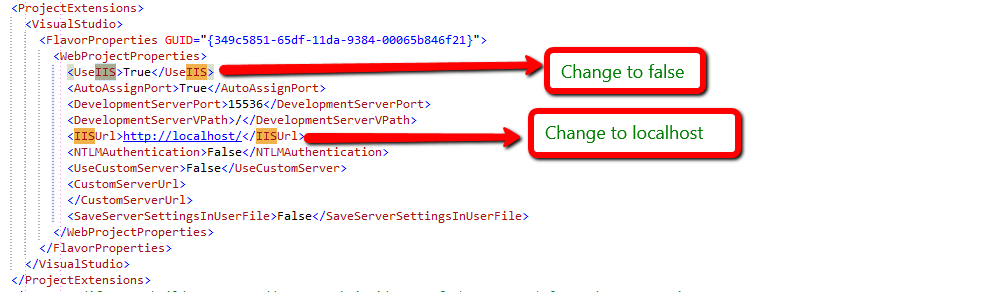
This solution worked for me: Right click the Project and select edit and find the following code as shown below in the picture.
change the <UseIIS>True</UseIIS> to <UseIIS>False</UseIIS>
OR
change the <IISUrl>http://example.com/</IISUrl> to <IISUrl>http://localhost/</IISUrl>
Method 5
For my project, I had to delete these two lines from .csproj file
<ProjectGuid>{3AA499DF-4A65-43B7-8965-D08A4C811834}</ProjectGuid>
<ProjectTypeGuids>{349c5851-65df-11da-9384-00065b846f21};{fae04ec0-301f-11d3-bf4b-00c04f79efbc}</ProjectTypeGuids>
I tried deleting only the first one, but it wasn’t enough.
EDIT: As many users have pointed out, this can change your project type or mess with your source control program. I can’t investigate these issues as it was a school project I do not have anymore.
Please be careful when trying this. At least make a copy of what you delete.
Method 6
Edit the .csproj or vbproj file. Find and replace these entries
<UseIIS>true</UseIIS> by <UseIIS>false</UseIIS>
<UseIISExpress>true</UseIISExpress> by <UseIISExpress>false</UseIISExpress>
Method 7
In my case, this problem was caused by broken IIS bindings. Specifically, my ‘http’ binding had been deleted. Recreating it fixed the problem.
Method 8
Cause: The IISURL inside project.csproj is not correctly reflected in the project setting, and the virtual directory was not created.
Solution: Change the Project URL to correct PORT and create the Virtual Directory to make the missing PORT available.
Follow Below Steps:
Step 1: Right click on the project file to Edit the project.csproj file.
![The Web Application Project [...] is configured to use IIS. The Web server [...] could not be found.](https://magenaut.com/wp-content/uploads/2022/09/rf42x.png "rf42x")
Step 2: Search IIS and modify from <UseIIS>True</UseIIS> to <UseIIS>False</UseIIS>
![The Web Application Project [...] is configured to use IIS. The Web server [...] could not be found.](https://magenaut.com/wp-content/uploads/2022/09/e9zdk.png "e9zdk")
Step 3: Right Click Project to Reload the Project. After Reload successfully, right click Project and select Properties.
![The Web Application Project [...] is configured to use IIS. The Web server [...] could not be found.](https://magenaut.com/wp-content/uploads/2022/09/n6tkg.png "n6tkg")
Step 4: Locate Project URL option under Properties => Web
![The Web Application Project [...] is configured to use IIS. The Web server [...] could not be found.](https://magenaut.com/wp-content/uploads/2022/09/3rms4.png "3rms4")
Step 5: Change the Project URL to IIS URL indicated both on the Error Message and on the <IISURL>http://localhost:8086 </IISURL> from project.csproj file. Then Click Create Virtual Directory. Save All
![The Web Application Project [...] is configured to use IIS. The Web server [...] could not be found.](https://magenaut.com/wp-content/uploads/2022/09/ncfby.png "ncfby")
![The Web Application Project [...] is configured to use IIS. The Web server [...] could not be found.](https://magenaut.com/wp-content/uploads/2022/09/itlyk.png "itlyk")
Step 6: Redo Step 2 so it doesn’t impact the remote codebase and the server deployment settings.
Method 9
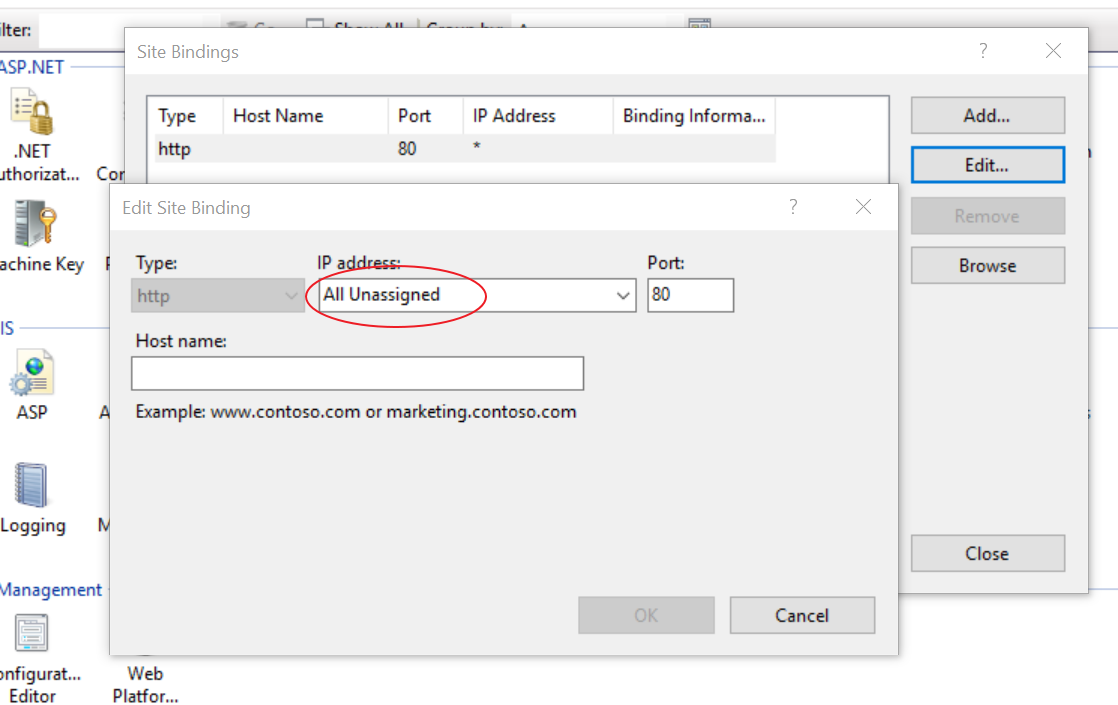
This worked for me:-
Make all your IIS websites point to localhost(All Unassigned) only
Method 10
Try opening Visual Studio with Administrator privileges. In my case, it gave access to the IIS site and made this error go away. I was then able to switch the project to use IIS Express which doesn’t seem to need administrator privileges.
Method 11
If you are connected via TFS, open your project.csproj.user file and check for
<UseIISExpress>false</UseIISExpress>
and change it to true.
<UseIISExpress>true</UseIISExpress>
Method 12
You will not believe that, start visual studio as Administrator
as obvious from the message
The Web Server ‘http://localhost/MyWebApp‘ could not be found.
could not be found because may it has no privileges to see it
so Just restart visual studio as Administrator
Method 13
You can load the project without setting the value of attribute UseIIS to true.
Simply follow the below steps:
In the mywebproject.csproj file–
Delete the tag < IISUrl>http://localhost/MyWebApp/< /IISUrl> and save the file.
The application will automatically assign the default port to it.
Method 14
In my case I wanted to switch from http to https, so I had deleted http from IIS. In my .csproj.user file found that I still had:
<IISUrl>http://localhost/</IISUrl>
So I changed it to:
<IISUrl>https://localhost/</IISUrl>
Method 15
In my case I was able to open the solution in offline mode just running the command:
iisreset
Method 16
For you Win8 users out there, if you follow the steps in the accepted answer, console spits out a message at you saying “thou shalt not use the command-line to execute this command” (paraphrasing). Instead, access the Programs & Features via Control Panel (or Windows + R > appwiz.cpl), click ‘Turn Windows features on or off’, and make sure you have the following installed:
Internet Information Services
  > World Wide Web Services
    > Application Development Features
      > ASP.NET 4.5
This will check a bunch of other options as well. As soon as I installed these features, and ran VS2012 with elevated permissions, I was able to launch my app successfully.
Method 17
This happens with me when I tried to open a project from the .csproj file, but I get over it by opening the project from VS:
File> Open> Web Site
and select the directory which include my project.
Method 18
I had this error, too. I thought everything was setup correctly, but I found out that one thing was missing: The host name I used for my project was not (yet) resolvable.
Since my app determines the current client’s name from the host name I used a host name like clientname.mysuperapp.local for development. When I added the development host name to my hosts file, the project was loadable again. Obviously, I had to this anyway, but I haven’t thought that VS checks the host name before loading the project.
Method 19
Check if IIS Express is installed. If IIS Express is missing, Visual Studio might discard the setting <UseIISExpress>false</UseIISExpress> and still look for the express.
Method 20
in my case, make sure you have a “Default” website
Method 21
In my case, the “Default Web Site” in IIS didn’t have a binding for localhost on port 80.
You should have a binding for whatever your value in the .csproj file is.
Method 22
I fixed this simply by reinstalling IIS Express after downloading from below link:
https://www.microsoft.com/en-us/download/confirmation.aspx?id=48264
Method 23
Turns out my IIS was working on localhost:8181.Had to configure the {Project}.csproj file.
    <ProjectExtensions>
    <VisualStudio>
      <FlavorProperties GUID="{349c5851-65df-11da-9384-00065b846f21}">
        <WebProjectProperties>
          <UseIIS>True</UseIIS>
          <AutoAssignPort>True</AutoAssignPort>
          <DevelopmentServerPort>7386</DevelopmentServerPort>
          <DevelopmentServerVPath>/</DevelopmentServerVPath>
          <IISUrl>**http://localhost:8181/ProjectName**</IISUrl>
          <NTLMAuthentication>False</NTLMAuthentication>
          <UseCustomServer>False</UseCustomServer>
          <CustomServerUrl>
          </CustomServerUrl>
          <SaveServerSettingsInUserFile>False</SaveServerSettingsInUserFile><EnableWcfTestClientForSVCDefaultValue>True</EnableWcfTestClientForSVCDefaultValue>
        </WebProjectProperties>
      </FlavorProperties>
    </VisualStudio>
  </ProjectExtensions>
Method 24
In my case, the url referenced in the csproj file was incorrect.
It needed to be prefixed with www.
I made the changes, saved the file and the project loaded fine.
Method 25
I ran into this issue when the <ProjectTypeGuids> element in the .csproj file contained the unit test project GUID: {3AC096D0-A1C2-E12C-1390-A8335801FDAB}.
Removing it made the project load without problems.
Method 26
For DNN users my issue was I needed a binding for dnndev.me at port 80. I have multiple installs that run on different ports and VS requires that that particular Url to exist on port 80 (not 86 like mine was).
Method 27
Follow this completed solution step by step. it’s works for me in VS 2017.
- Open Command prompt in administrator mode
-
Open File explorer and got to .NET Framework folder
Eg:C:WindowsMicrosoft.NETFrameworkv4.0.30319
v4.0.30319 this is my .NET folder. you want to select your relevant folder.
-
in CMD – Go to .NET folder path
cd C:WindowsMicrosoft.NETFrameworkv4.0.30319
-
Execute below command in CMD
aspnet_regiis.exe -i
You can see this message finally – Finished installing ASP.NET (4.0.30319.0)
iisreset
You can see this message finally – Internet services successfully restarted
-
Open IIS in your computer (if not config Follow this)
- Go to Site and right click
- Add WebSite
- Fill – Site name and select physical path
- Then type port number (you can find port number in .csproj file and port number must equal with (IISUrl)
EG : <IISUrl>http://localhost:15724/</IISUrl> my port is 15724
Note : you cannot create port 80 number. because it used default IIS page
- Click Ok
- Open visual studio with administrator permission
- Then right click and reload your project
Your Problem may be solved.
Method 28
This may help some people in 2020. The main issue is that the IIS settings in the CSPROJ file don’t match with the configuration for the machine. For example, if you had the Web Application Project pointing to localhost:12345, and a virtual directory isn’t set up on the machine on that port, you’ll get this error.
Using VS2019, I had this same issue, and the IIS settings in the CSProj file were being ignored. The reason for this is a new property in the CSProj file called “SaveServerSettingsInUserFile”:
<ProjectExtensions>
    <VisualStudio>
      <FlavorProperties GUID="{349c5851-65df-11da-9384-00065b846f21}">
        <WebProjectProperties>
          <SaveServerSettingsInUserFile>True</SaveServerSettingsInUserFile>
        </WebProjectProperties>
      </FlavorProperties>
      <UserProperties UseAjaxifiedTemplates="True" UseJQuerySupport="True" />
    </VisualStudio>
  </ProjectExtensions>
When this is set to TRUE, the IIS/Web server properties are in the
.CSPROJ.User file of the same project name.
This allows individual users of a project to have their own IIS settings, provided this file is not checked into source control.
You can control where the settings are stored using Visual Studio GUI in the properties for the project under “Web”, “Apply server settings to all users”
![The Web Application Project [...] is configured to use IIS. The Web server [...] could not be found.](https://magenaut.com/wp-content/uploads/2022/09/d8xow.png "d8xow")
When this is on, the IIS settings are stored in CSPROJ, when off, they are stored in CSPROJ.User
All methods was sourced from stackoverflow.com or stackexchange.com, is licensed under cc by-sa 2.5, cc by-sa 3.0 and cc by-sa 4.0