I have a multi-project solution that I was building in Visual Studio 2013 and it was working fine but now that I have upgraded to Visual Studio 2015 I can no longer hit break points in debug mode for any project exect the main project selected as the Startup project in the Project Properties page. I used to be able to click on the other projects and just choose Debug -> Start New Instance. I am getting the error The breakpoint will not currently be hit. No symbols have been loaded for this document. I have tried a lot of things found on Google including:
- Clean/Rebuild
- Delete the OBJ and BIN folder form the projects
- Did VS repair
- Rebooted
- Uninstalled/Reinstalled
- Confirmed Define DEBUG constraint is enabled for Properties -> Build
- Confirmed Optimize Code is unchecked for Properties -> Build
- Confirmed Properties -> Build => Platform target was set to Any CPU for all projects
- Tried running VS using “Run as Administrator”
- Deleted all the files in /AppData/Local/Temp/Temporary ASP.Net Files/
- Made sure Debug -> Attack to Process -> Select had “Automatically determine the type of code to debug” was selected
- Made sure the Properties -> Web -> Debuggerts had ASP.Net checked (my properties has ASP.NEt and Enable Edit and Continue Checked, Natvie Code SQL Server and Silverlight unchecked)
- Confirmed Target framework in Properties -> Application was set to the same version (4.6) as in the Web.Config/App.Config files.
So what am I missing here? Why can I no longer debug the other projects?
Answers:
Thank you for visiting the Q&A section on Magenaut. Please note that all the answers may not help you solve the issue immediately. So please treat them as advisements. If you found the post helpful (or not), leave a comment & I’ll get back to you as soon as possible.
Method 1
I had a similar problem, when I created a new build configuration. After hunting around settings in VS2015, I noticed that there were no *.pdb files in my build output. Obviously, debugging would not work if there were *.pdb files.
The fix for me was to go into every project’s properties -> ‘build’ page -> click the “advanced” button at the bottom of the page -> In the dialog’s ‘Output’ section, I set “debug info” to equal “full”.
Basically, I created a new solution and project and copied all the build properties into the solution that the debugger was not stopping at break points anymore. In addition to the setting above, I also changed the following setting to match the default debug settings:
- I set on the same advanced page “Internal Compiler Error Reporting” to “prompt”
- In the main ‘build’ page, I checked in the ‘general’ section “Define DEBUG constant” and “Define TRACE constant”
Method 2
I solved this problem when checked Options->Debugging->General->Suppress jit optimization on module load. Before I did that I have also unchecked Tools->Options “Projects and Solutions” “Build and Run” “Only build startup projects and dependencies on run”. Don’t know if that has any reason why it works after suppress jit is unchecked.
Method 3
My situation was that I have enabled “Optimize code” in the project properties.
Method 4
If you only hit breakpoints in the startup project:
- Tools > Options > Projects and Solutions > Build and Run
- Uncheck Only build startup projects and dependencies on Run
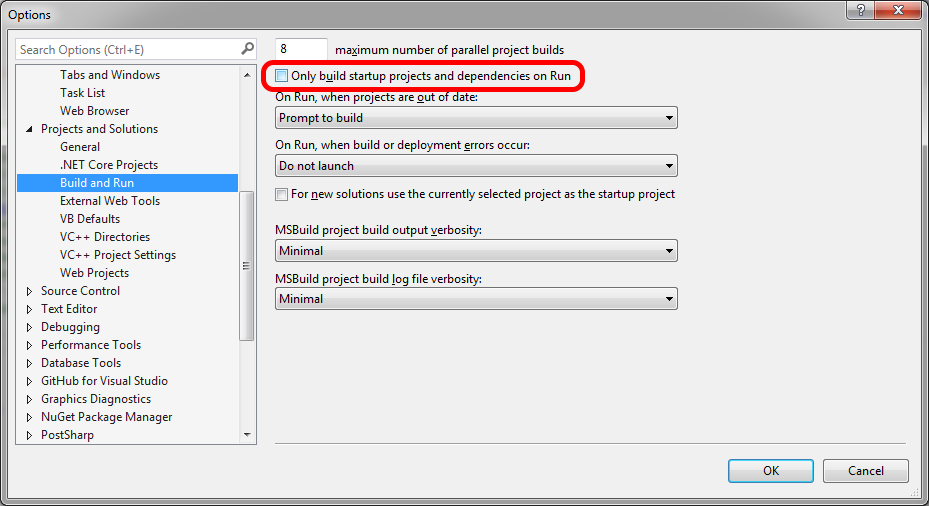
And here it is in German:
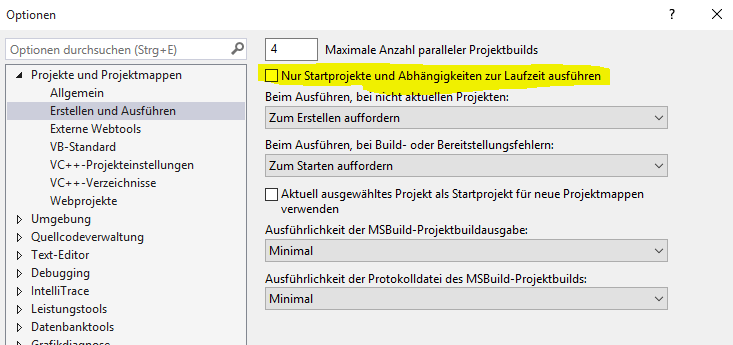
Method 5
Running the VS command prompt as admin as running the command: devenv /setup fixed this for me.
Method 6
I never figured out what happened but I ended up building a whole new project and just importing the files into it and everything works now.
Method 7
This sent me insane, until I realised in another solution I set to release configuration, changing it back to debug worked.
This probably isn’t your particular answer, but thought I would share it “just in case” someone else gets driven to distraction by something obvious!
Method 8
The debugger wasn’t hitting breakpoints for my ASP application after migrating from my old system to my new system. I forgot to configure in IIS for debugging.
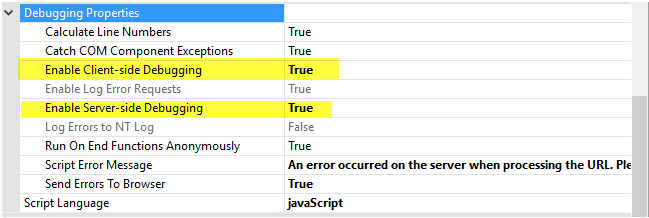
To configure IIS for debugging:
- Sites > MyWebsite
- IIS > ASP > Debugging Properties
- Set Enable Client-side Debugging to True
- Set Enable Server-side Debugging to True
Method 9
In my case I just changed the setting of my running mode.
Before, I used “release” running mode:

And now, I’m using “debug” running mode:

Method 10
I just fixed this issue for one of our front end developers. It may or may not apply to you. We use IIS Express for local debugging, and somehow his had become detached from the correct process when debugging.
To fix, I checked what process ID it was attached to according to IIS Express (right click IIS icon on taskbar, select Show All Applications, check the PID listed for the application). I then attached it to the proper process (with the solution running in VS, click Debug on the toolbar, select attach to process, find the correct process using the PID gotten above from IIS Express). Hope this helps someone.
Method 11
I was never able to get it to work with the above methods and finally rolled back to VS 2013 for the solution which worked fine. It is very upsetting that VS2015 feels much like VS2005 when it moved from the stable robust VS2003.
I hope 2017 resolves these inconsistencies.
Method 12
You may leave everything as-is, just take care of the following:
- Advanced Compiler Settings -> Generate debug info -> has to be either “pdb-only” or “full”
- Advanced Compiler Settings -> Enable optimizations -> needs to be UNCHECKED
Method 13
I was also facing this issue but after Visual Studio 2015 Update 1, its now fixed.
https://www.visualstudio.com/en-us/news/vs2015-update1-vs.aspx
Method 14
Restarting Visual Studio worked for me.
Method 15
I hope this helps anyone. If you are running code in your local machine under IIS, you need to attach your solution to the w3wp.exe process. So, select your project, on the menu go to debug->attach to process and in the list you should see w3wp.exe
Now, if you don’t see w3wp.exe you might either select the show all processes checkbox, or go to your IIS Manager and browse your web site in order to actually run the w3wp.exe instance.
Method 16
In my case I was unable to debug because I had breakpoint set in source control temporary file while analyzing file history instead of actual file in solution.
Method 17
My project was an MVC web app, and when i was running the project with debugger, a new tab was opening in browser which was redirecting me to login page. But in another tab i had logged in user which could do anything, but it wasn’t hitting the breakpoints, even though i was hard refreshing the page. And every time i was closing the newly opened tab that was redirecting to login page. Once, i closed old tab with logged in user and actually logged in to app again in the newly opened tab. Then it started to hit the break points.
Method 18
uninstalling postsharp nuget solved my problem, it is explained in this post https://doc.postsharp.net/uninstalling
All methods was sourced from stackoverflow.com or stackexchange.com, is licensed under cc by-sa 2.5, cc by-sa 3.0 and cc by-sa 4.0