I am currently using Selenium to run instances of Chrome to test web pages. Each time my script runs, a clean instance of Chrome starts up (clean of extensions, bookmarks, browsing history, etc). I was wondering if it’s possible to run my script with Chrome extensions. I’ve tried searching for a Python example, but nothing came up when I googled this.
Answers:
Thank you for visiting the Q&A section on Magenaut. Please note that all the answers may not help you solve the issue immediately. So please treat them as advisements. If you found the post helpful (or not), leave a comment & I’ll get back to you as soon as possible.
Method 1
You should use Chrome WebDriver options to set a list of extensions to load. Here’s an example:
import os
from selenium import webdriver
from selenium.webdriver.chrome.options import Options


executable_path = "path_to_webdriver"
os.environ["webdriver.chrome.driver"] = executable_path

chrome_options = Options()
chrome_options.add_extension('path_to_extension')

driver = webdriver.Chrome(executable_path=executable_path, chrome_options=chrome_options)
driver.get("http://stackoverflow.com")
driver.quit()
Hope that helps.
Method 2
The leading answer didn’t work for me because I didn’t realize you had to point the webdriver options toward a .zip file.
I.e. chrome_options.add_extension('path_to_extension_dir') doesn’t work.
You need: chrome_options.add_extension('path_to_extension_dir.zip')
After figuring that out and reading a couple posts on how to create the zip file via the command line and load it into selenium, the only way it worked for me was to zip my extension files within the same python script. This actually turned out to be a nice way for automatically updating any changes you might have made to your extension:
import os, zipfile
from selenium import webdriver

# Configure filepaths
chrome_exe = "path/to/chromedriver.exe"
ext_dir = 'extension'
ext_file = 'extension.zip'

# Create zipped extension
## Read in your extension files
file_names = os.listdir(ext_dir)
file_dict = {}
for fn in file_names:
    with open(os.path.join(ext_dir, fn), 'r') as infile:
        file_dict[fn] = infile.read()

## Save files to zipped archive
with zipfile.ZipFile(ext_file), 'w') as zf:
    for fn, content in file_dict.iteritems():
        zf.writestr(fn, content)

# Add extension
chrome_options = webdriver.ChromeOptions()
chrome_options.add_extension(ext_file)

# Start driver
driver = webdriver.Chrome(executable_path=chrome_exe, chrome_options=chrome_options)
driver.get("http://stackoverflow.com")
driver.quit()
Method 3
This is because the selenium expects the packed extensions as the extension argument which will be with .crx extension.
I already had the extension in my chrome. Below are the steps I followed to pack the existing extension,
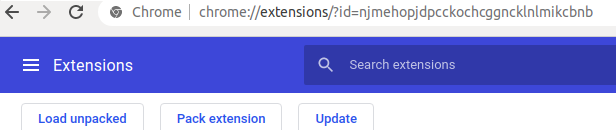
- Click on your extension ‘details’. In my Chrome version, it was on
right top click (3 dots) -> 'More tools' -> 'Extensions'.- Have the developer mode enabled in your chrome
- Click ‘Pack extension’ (As shown above) and pack it.
- This will get stored in the extensions location. For me it was on
/home/user/.config/google-chrome/Default/Extensions/fdjsidgdhskifcclfjowijfwidksdj/2.3.4_22.crx
That’s it, you can configure the extension in your selenium as argument.
extension='/home/user/.config/google-chrome/Default/Extensions/fdjsidgdhskifcclfjowijfwidksdj/2.3.4_22.crx'
options = webdriver.ChromeOptions()
options.add_extension(extension)
NOTE: You can also find the ‘fdjsidgdhskifcclfjowijfwidksdj’ id in the extensions url as query param
Method 4
If you wanna import any chrome extension in your selenium python scrip
- Put your extension.crx.crx file in the same folder as your code or give the path
-
you can copy-paste this code and just change the file crx.crx name
import os
from selenium import webdriver
from selenium.webdriver.chrome.options import Optionsexecutable_path = "/webdrivers" os.environ["webdriver.chrome.driver"] = executable_path chrome_options = Options() chrome_options.add_extension(' YOUR - EXTIONTION - NAME ') driver = webdriver.Chrome(chrome_options=chrome_options) driver.get("http://stackoverflow.com")
if this code is throwing an error maybe this will solve it
Method 5
An alternative way is to use the unpacked folder method. I found the crx and zip method did not work at all on Selenium Grid. In this method, you need to copy the extension from the user data in a Chrome version where you have already manually installed it, the long ID made up of loads of letters like pehaalcefcjfccdpbckoablngfkfgfgj, to the user data directory of the Selenium-controlled Chrome (which you can choose at runtime using the first line of this code, and it will get populated automatically). It should be in the same equivalent directory (which is Extensions). The path must take you all the way to the directory where there is a manifest.json, hence in this example ‘1.1.0’
chrome_options.add_argument("user-data-dir=C:/Users/charl/OneDrive/python/userprofile/profilename"
unpacked_extension_path = 'C:/Users/charl/OneDrive/python/userprofile/profilename/Default/Extensions/pehaalcefcjfccdpbckoablngfkfgfgj/1.1_0'
chrome_options.add_argument('--load-extension={}'.format(unpacked_extension_path))
driver = webdriver.Chrome(options=chrome_options)
Method 6
I also needed to add an extention to chrome while using selenium. What I did was first open the browser using selenium then add extention to the browser in the normal way like you would do in google chrome.
All methods was sourced from stackoverflow.com or stackexchange.com, is licensed under cc by-sa 2.5, cc by-sa 3.0 and cc by-sa 4.0