In the answers to how to dynamically update a plot in a loop in ipython notebook (within one cell), an example is given of how to dynamically update a plot inside a Jupyter notebook within a Python loop. However, this works by destroying and re-creating the plot on every iteration, and a comment in one of the threads notes that this situation can be improved by using the new-ish %matplotlib nbagg magic, which provides an interactive figure embedded in the notebook, rather than a static image.
However, this wonderful new nbagg feature seems to be completely undocumented as far as I can tell, and I’m unable to find an example of how to use it to dynamically update a plot. Thus my question is, how does one efficiently update an existing plot in a Jupyter/Python notebook, using the nbagg backend? Since dynamically updating plots in matplotlib is a tricky issue in general, a simple working example would be an enormous help. A pointer to any documentation on the topic would also be extremely helpful.
To be clear what I’m asking for: what I want to do is to run some simulation code for a few iterations, then draw a plot of its current state, then run it for a few more iterations, then update the plot to reflect the current state, and so on. So the idea is to draw a plot and then, without any interaction from the user, update the data in the plot without destroying and re-creating the whole thing.
Here is some slightly modified code from the answer to the linked question above, which achieves this by re-drawing the whole figure every time. I want to achieve the same result, but more efficiently using nbagg.
%matplotlib inline
import time
import pylab as pl
from IPython import display
for i in range(10):
    pl.clf()
    pl.plot(pl.randn(100))
    display.display(pl.gcf())
    display.clear_output(wait=True)
    time.sleep(1.0)
Answers:
Thank you for visiting the Q&A section on Magenaut. Please note that all the answers may not help you solve the issue immediately. So please treat them as advisements. If you found the post helpful (or not), leave a comment & I’ll get back to you as soon as possible.
Method 1
Here is an example that updates a plot in a loop. It updates the data in the figure and does not redraw the whole figure every time. It does block execution, though if you’re interested in running a finite set of simulations and saving the results somewhere, it may not be a problem for you.
%matplotlib notebook

import numpy as np
import matplotlib.pyplot as plt
import time

def pltsin(ax, colors=['b']):
    x = np.linspace(0,1,100)
    if ax.lines:
        for line in ax.lines:
            line.set_xdata(x)
            y = np.random.random(size=(100,1))
            line.set_ydata(y)
    else:
        for color in colors:
            y = np.random.random(size=(100,1))
            ax.plot(x, y, color)
    fig.canvas.draw()

fig,ax = plt.subplots(1,1)
ax.set_xlabel('X')
ax.set_ylabel('Y')
ax.set_xlim(0,1)
ax.set_ylim(0,1)
for f in range(5):
    pltsin(ax, ['b', 'r'])
    time.sleep(1)
I put this up on nbviewer here.
There is an IPython Widget version of nbagg that is currently a work in progress at the Matplotlib repository. When that is available, that will probably be the best way to use nbagg.
EDIT: updated to show multiple plots
Method 2
I’m using jupyter-lab and this works for me (adapt it to your case):
from IPython.display import clear_output
from matplotlib import pyplot as plt
import numpy as np
import collections
%matplotlib inline

def live_plot(data_dict, figsize=(7,5), title=''):
    clear_output(wait=True)
    plt.figure(figsize=figsize)
    for label,data in data_dict.items():
        plt.plot(data, label=label)
    plt.title(title)
    plt.grid(True)
    plt.xlabel('epoch')
    plt.legend(loc='center left') # the plot evolves to the right
    plt.show();
Then in a loop you populate a dictionary and you pass it to live_plot():
data = collections.defaultdict(list)
for i in range(100):
    data['foo'].append(np.random.random())
    data['bar'].append(np.random.random())
    data['baz'].append(np.random.random())
    live_plot(data)
make sure you have a few cells below the plot, otherwise the view snaps in place each time the plot is redrawn.
Method 3
If you don’t want to clear all outputs, you can use display_id=True to obtain a handle and use .update() on it:
import numpy as np
import matplotlib.pyplot as plt
import time

from IPython import display

def pltsin(ax, *,hdisplay, colors=['b']):
    x = np.linspace(0,1,100)
    if ax.lines:
        for line in ax.lines:
            line.set_xdata(x)
            y = np.random.random(size=(100,1))
            line.set_ydata(y)
    else:
        for color in colors:
            y = np.random.random(size=(100,1))
            ax.plot(x, y, color)
    hdisplay.update(fig)


fig,ax = plt.subplots(1,1)
hdisplay = display.display("", display_id=True)

ax.set_xlabel('X')
ax.set_ylabel('Y')
ax.set_xlim(0,1)
ax.set_ylim(0,1)
for f in range(5):
    pltsin(ax, colors=['b', 'r'], hdisplay=hdisplay)
    time.sleep(1)

plt.close(fig)
(adapted from @pneumatics)
Method 4
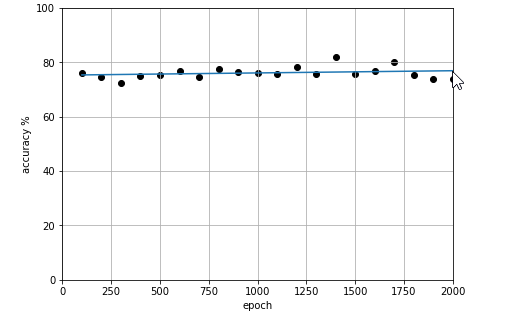
I’ve adapted @Ziofil answer and modified it to accept x,y as list and output a scatter plot plus a linear trend on the same plot.
from IPython.display import clear_output
from matplotlib import pyplot as plt
%matplotlib inline

def live_plot(x, y, figsize=(7,5), title=''):
    clear_output(wait=True)
    plt.figure(figsize=figsize)
    plt.xlim(0, training_steps)
    plt.ylim(0, 100)
    x= [float(i) for i in x]
    y= [float(i) for i in y]

    if len(x) > 1:
        plt.scatter(x,y, label='axis y', color='k')
        m, b = np.polyfit(x, y, 1)
        plt.plot(x, [x * m for x in x] + b)

    plt.title(title)
    plt.grid(True)
    plt.xlabel('axis x')
    plt.ylabel('axis y')
    plt.show();
you just need to call live_plot(x, y) inside a loop.
here’s how it looks:
Method 5
The canvas.draw method of the figure dynamically updates its graphs, for the current figure:
from matplotlib import pyplot as plt

plt.gcf().canvas.draw()
All methods was sourced from stackoverflow.com or stackexchange.com, is licensed under cc by-sa 2.5, cc by-sa 3.0 and cc by-sa 4.0