As I know, %debug magic can do debug within one cell.
However, I have function calls across multiple cells.
For example,
In[1]: def fun1(a)
           def fun2(b)
               # I want to set a breakpoint for the following line #
               return do_some_thing_about(b)

       return fun2(a)

In[2]: import multiprocessing as mp
       pool=mp.Pool(processes=2)
       results=pool.map(fun1, 1.0)
       pool.close()
       pool.join
What I tried:
-
I tried to set
%debugin the first line of cell-1. But it enter into debug mode immediately, even before executing cell-2. -
I tried to add
%debugin the line right before the codereturn do_some_thing_about(b). But then the code runs forever, never stops.
What is the right way to set a break point within the ipython notebook?
Answers:
Thank you for visiting the Q&A section on Magenaut. Please note that all the answers may not help you solve the issue immediately. So please treat them as advisements. If you found the post helpful (or not), leave a comment & I’ll get back to you as soon as possible.
Method 1
You can use ipdb inside jupyter with:
from IPython.core.debugger import Tracer; Tracer()()
Edit: the functions above are deprecated since IPython 5.1. This is the new approach:
from IPython.core.debugger import set_trace
Add set_trace() where you need a breakpoint. Type help for ipdb commands when the input field appears.
Method 2
Use ipdb
Install it via
pip install ipdb
Usage:
In[1]: def fun1(a):
   def fun2(a):
       import ipdb; ipdb.set_trace() # debugging starts here
       return do_some_thing_about(b)
   return fun2(a)
In[2]: fun1(1)
For executing line by line use n and for step into a function use s and to exit from debugging prompt use c.
For complete list of available commands: https://appletree.or.kr/quick_reference_cards/Python/Python%20Debugger%20Cheatsheet.pdf
Method 3
In Python 3.7 you can use breakpoint() function. Just enter
breakpoint()
wherever you would like runtime to stop and from there you can use the same pdb commands (r, c, n, …) or evaluate your variables.
Method 4
Your return function is in line of def function(main function), you must give one tab to it.
And Use
%%debug
instead of
%debug
to debug the whole cell not only line. Hope, maybe this will help you.
Method 5
You can always add this in any cell:
import pdb; pdb.set_trace()
and the debugger will stop on that line. For example:
In[1]: def fun1(a):
           def fun2(a):
               import pdb; pdb.set_trace() # debugging starts here
           return fun2(a)

In[2]: fun1(1)
Method 6
After you get an error, in the next cell just run %debug and that’s it.
Method 7
The %pdb magic command is good to use as well. Just say %pdb on and subsequently the pdb debugger will run on all exceptions, no matter how deep in the call stack. Very handy.
If you have a particular line that you want to debug, just raise an exception there (often you already are!) or use the %debug magic command that other folks have been suggesting.
Method 8
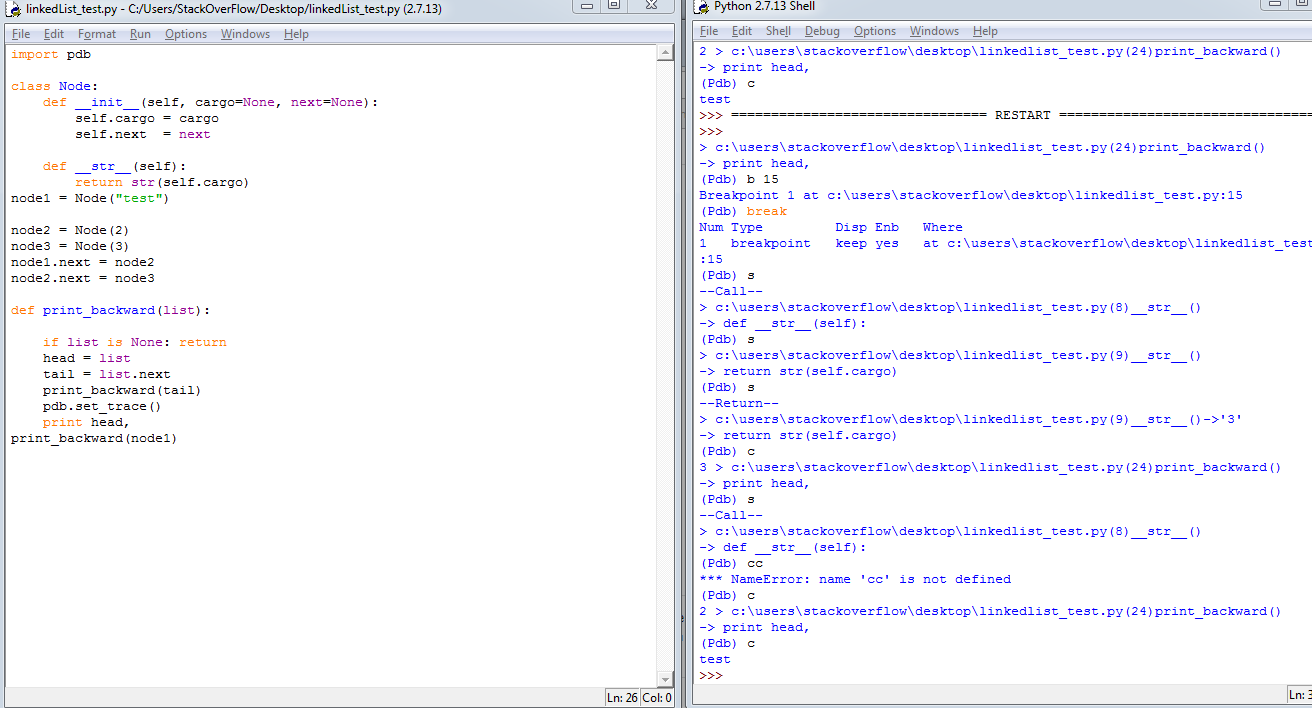
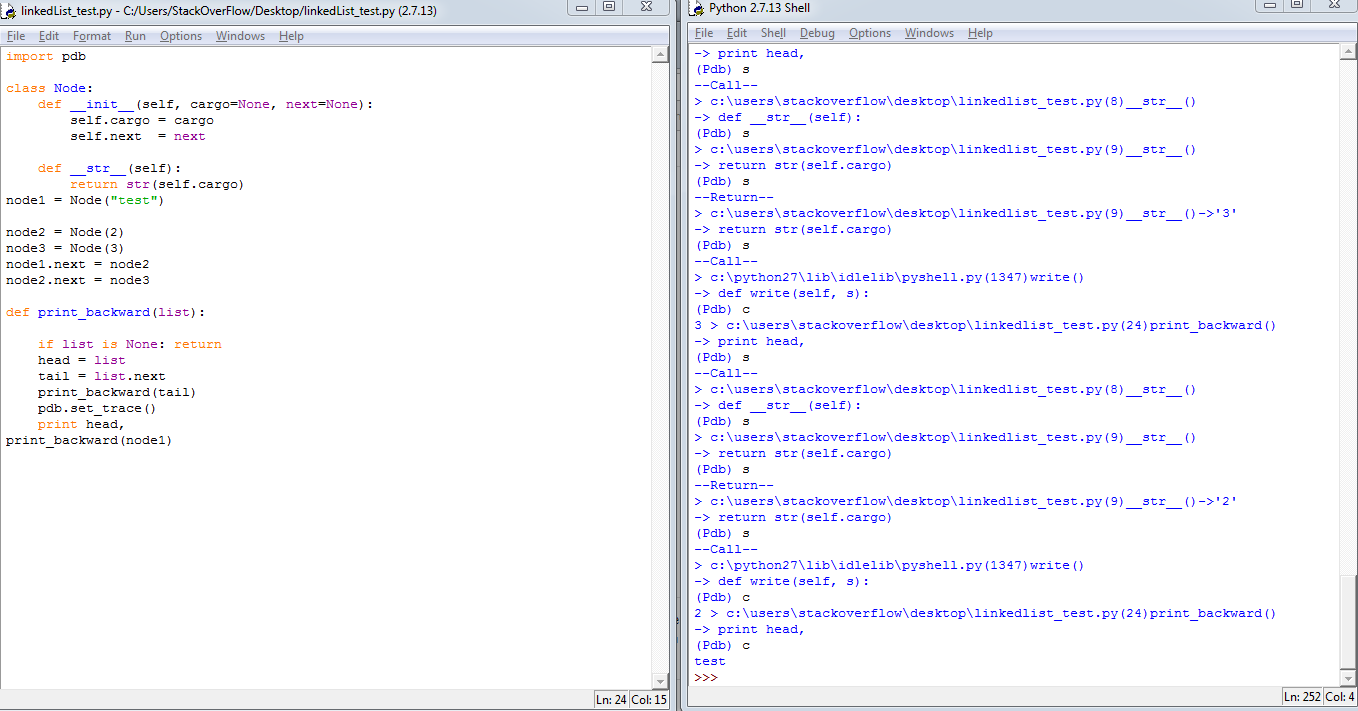
Just type import pdb in jupyter notebook, and then use this cheatsheet to debug. It’s very convenient.
c –> continue, s –> step, b 12 –> set break point at line 12 and so on.
Some useful links:
Python Official Document on pdb, Python pdb debugger examples for better understanding how to use the debugger commands.Some useful screenshots:
Method 9
I just discovered PixieDebugger. Even thought I have not yet had the time to test it, it really seems the most similar way to debug the way we’re used in ipython with ipdb
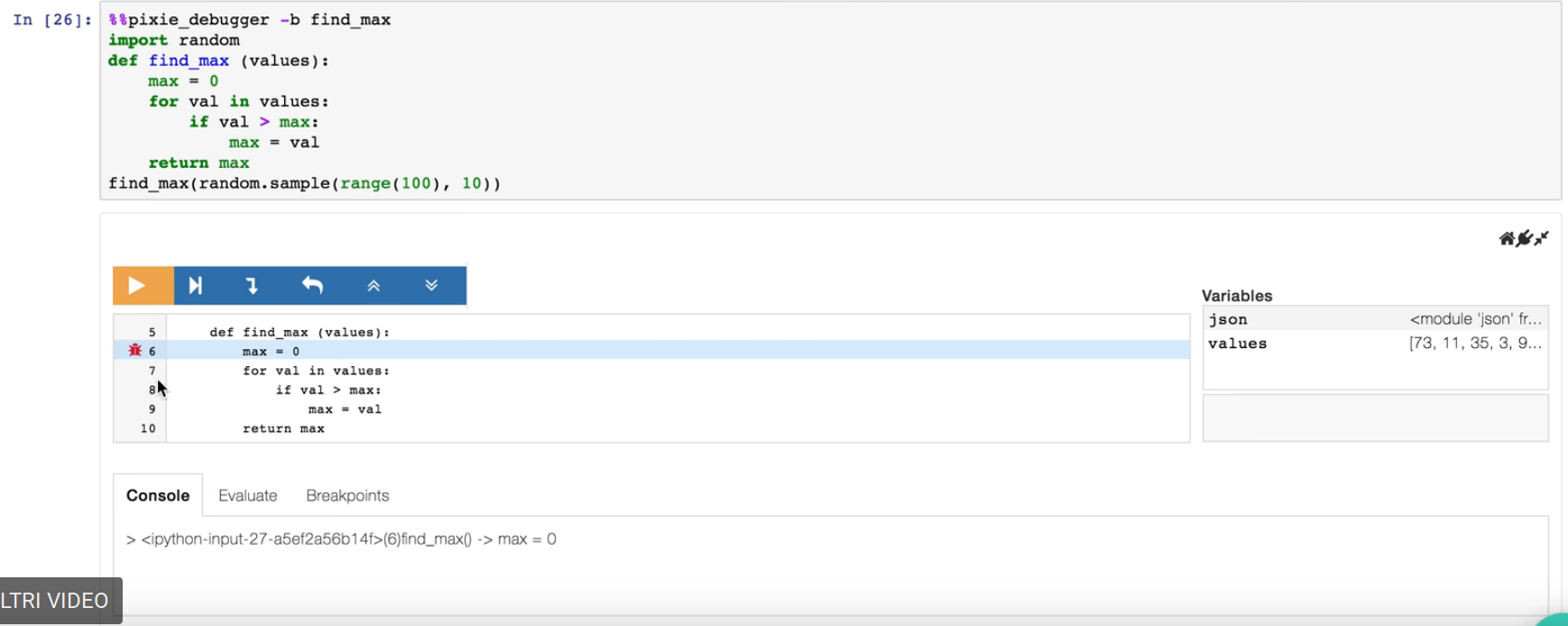
It also has an “evaluate” tab
Method 10
A native debugger is being made available as an extension to JupyterLab. Released a few weeks ago, this can be installed by getting the relevant extension, as well as xeus-python kernel (which notably comes without the magics well-known to ipykernel users):
jupyter labextension install @jupyterlab/debugger
conda install xeus-python -c conda-forge
This enables a visual debugging experience well-known from other IDEs.
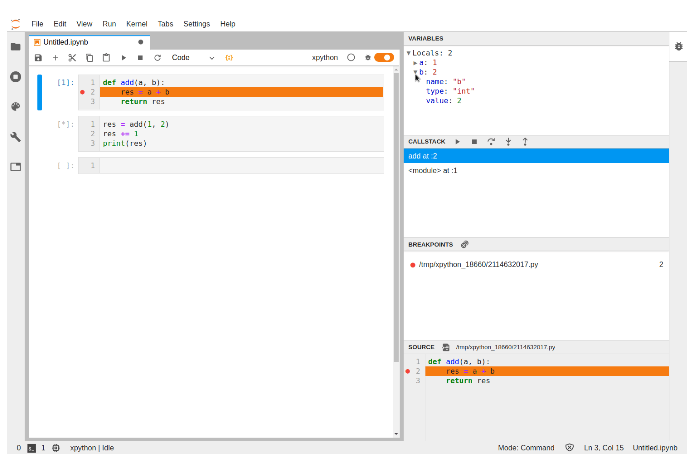
Source: A visual debugger for Jupyter
Method 11
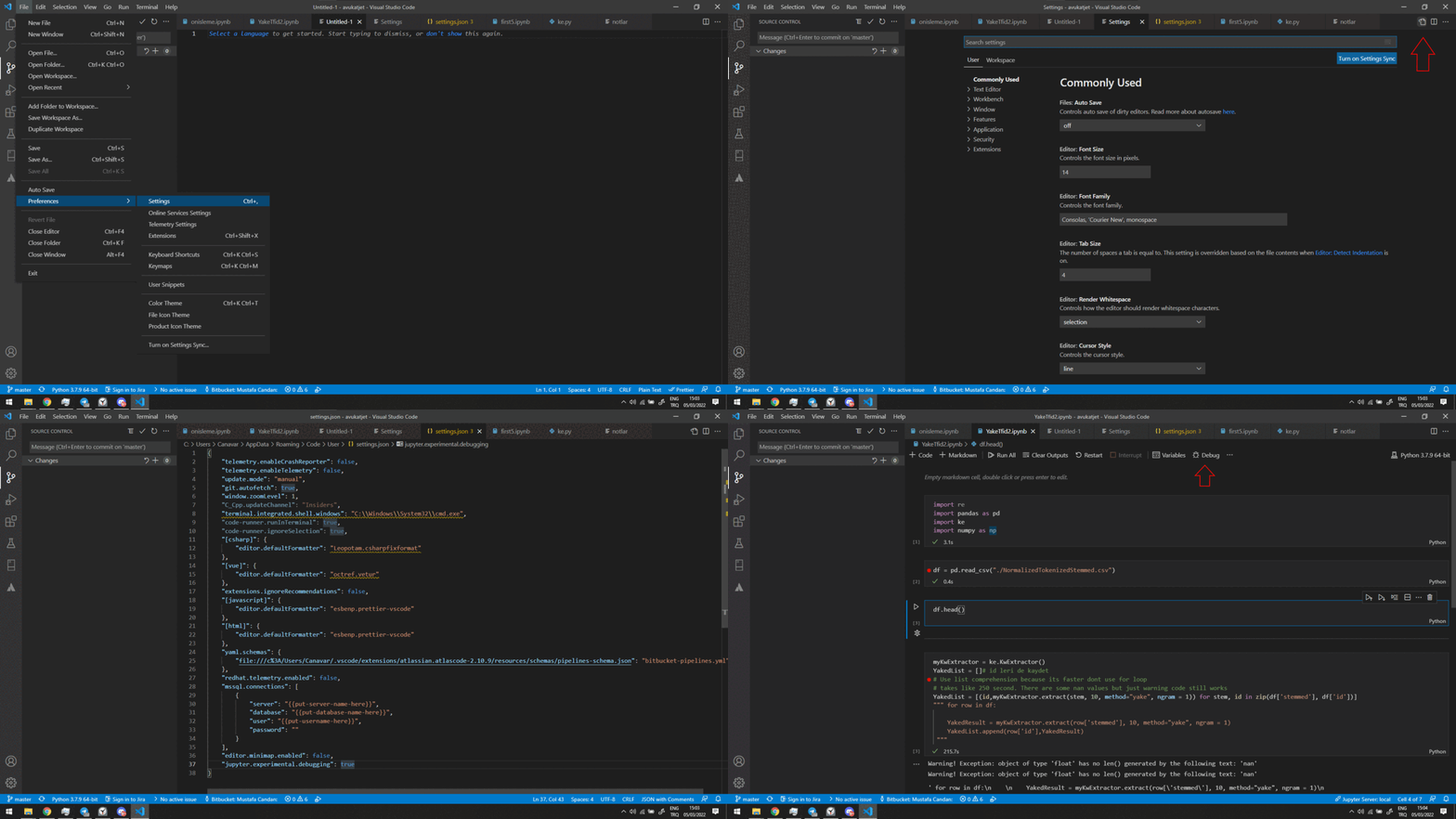
In VsCode
File -> Preferances -> Settings ->
Open Settings (JSON) [small page icon on the upper right]
Paste this line of code to the end of it
"jupyter.experimental.debugging": true
Now you should see debug option at the top navigation bar
All methods was sourced from stackoverflow.com or stackexchange.com, is licensed under cc by-sa 2.5, cc by-sa 3.0 and cc by-sa 4.0