I have to run a Python script on a Windows server. How can I know which version of Python I have, and does it even really matter?
I was thinking of updating to the latest version of Python.
Answers:
Thank you for visiting the Q&A section on Magenaut. Please note that all the answers may not help you solve the issue immediately. So please treat them as advisements. If you found the post helpful (or not), leave a comment & I’ll get back to you as soon as possible.
Method 1
python -V
http://docs.python.org/using/cmdline.html#generic-options
--version may also work (introduced in version 2.5)
Method 2
In a Python IDE, just copy and paste in the following code and run it (the version will come up in the output area):
import sys
print(sys.version)
Method 3
Python 2.5+:
python --version
Python 2.4-:
python -c 'import sys; print(sys.version)'
Method 4
At a command prompt type:
python -V
Or if you have pyenv:
pyenv versions
Method 5
Although the question is “which version am I using?”, this may not actually be everything you need to know. You may have other versions installed and this can cause problems, particularly when installing additional modules. This is my rough-and-ready approach to finding out what versions are installed:
updatedb                  # Be in root for this
locate site.py            # All installations I've ever seen have this
The output for a single Python installation should look something like this:
/usr/lib64/python2.7/site.py
/usr/lib64/python2.7/site.pyc
/usr/lib64/python2.7/site.pyo
Multiple installations will have output something like this:
/root/Python-2.7.6/Lib/site.py
/root/Python-2.7.6/Lib/site.pyc
/root/Python-2.7.6/Lib/site.pyo
/root/Python-2.7.6/Lib/test/test_site.py
/usr/lib/python2.6/site-packages/site.py
/usr/lib/python2.6/site-packages/site.pyc
/usr/lib/python2.6/site-packages/site.pyo
/usr/lib64/python2.6/site.py
/usr/lib64/python2.6/site.pyc
/usr/lib64/python2.6/site.pyo
/usr/local/lib/python2.7/site.py
/usr/local/lib/python2.7/site.pyc
/usr/local/lib/python2.7/site.pyo
/usr/local/lib/python2.7/test/test_site.py
/usr/local/lib/python2.7/test/test_site.pyc
/usr/local/lib/python2.7/test/test_site.pyo
Method 6
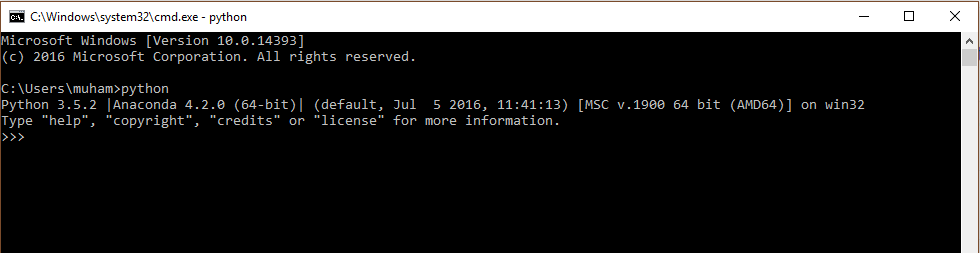
When I open Python (command line) the first thing it tells me is the version.
Method 7
In [1]: import sys

In [2]: sys.version
2.7.11 |Anaconda 2.5.0 (64-bit)| (default, Dec  6 2015, 18:08:32)
[GCC 4.4.7 20120313 (Red Hat 4.4.7-1)]

In [3]: sys.version_info
sys.version_info(major=2, minor=7, micro=11, releaselevel='final', serial=0)

In [4]: sys.version_info >= (2,7)
Out[4]: True

In [5]: sys.version_info >= (3,)
Out[5]: False
Method 8
In short:
Type
pythonin a command prompt
Simply open the command prompt (Win + R) and type cmd and in the command prompt then typing python will give you all necessary information regarding versions:
Method 9
I have Python 3.7.0 on Windows 10.
This is what worked for me in the command prompt and Git Bash:
To run Python and check the version:
py
To only check which version you have:
py --version
or
py -V # Make sure it is a capital V
Note: python, python --version, python -V,Python, Python --version, Python -V did not work for me.
Method 10
>>> import sys; print('{0[0]}.{0[1]}'.format(sys.version_info))
3.5
so from the command line:
python -c "import sys; print('{0[0]}.{0[1]}'.format(sys.version_info))"
Method 11
Use
python -V
or
python --version
NOTE: Please note that the “V” in the python -V command is capital V. python -v (small “v”) will launch Python in verbose mode.
Method 12
You can get the version of Python by using the following command
python --version
You can even get the version of any package installed in venv using pip freeze as:
pip freeze | grep "package name"
Or using the Python interpreter as:
In [1]: import django
In [2]: django.VERSION
Out[2]: (1, 6, 1, 'final', 0)
Method 13
To check the Python version in a Jupyter notebook, you can use:
from platform import python_version
print(python_version())
to get version number, as:
3.7.3
or:
import sys
print(sys.version)
to get more information, as
3.7.3 (default, Apr 24 2019, 13:20:13) [MSC v.1915 32 bit (Intel)]
or:
sys.version_info
to get major, minor and micro versions, as
sys.version_info(major=3, minor=7, micro=3, releaselevel='final', serial=0)
Method 14
On Windows 10 with Python 3.9.1, using the command line:
    py -V

Python 3.9.1

    py --version

Python 3.9.1

    py -VV

Python 3.9.1 (tags/v3.9.1:1e5d33e, Dec  7 2020, 17:08:21) [MSC v.1927 64 bit
(AMD64)]
Method 15
If you are already in a REPL window and don’t see the welcome message with the version number, you can use help() to see the major and minor version:
>>>help()
Welcome to Python 3.6's help utility!
...
Method 16
Typing where python on Windows into a Command Prompt may tell you where multiple different versions of python are installed, assuming they have been added to your path.
Typing python -V into the Command Prompt should display the version.
Method 17
If you have Python installed then the easiest way you can check the version number is by typing “python” in your command prompt. It will show you the version number and if it is running on 32 bit or 64 bit and some other information. For some applications you would want to have a latest version and sometimes not. It depends on what packages you want to install or use.
Method 18
To verify the Python version for commands on Windows, run the following commands in a command prompt and verify the output:
c:> python -V
Python 2.7.16

c:> py -2 -V
Python 2.7.16

c:> py -3 -V
Python 3.7.3
Also, to see the folder configuration for each Python version, run the following commands:
For Python 2, 'py -2 -m site'
For Python 3, 'py -3 -m site'
Method 19
For me, opening CMD and running
py
will show something like
Python 3.4.3 (v3.4.3:9b73f1c3e601, Feb 24 2015, 22:43:06) [MSC v.1600 32 bit (Intel)] on win32

Type "help", "copyright", "credits" or "license" for more information.
Method 20
Just create a file ending with .py and paste the code below into and run it.
#!/usr/bin/python3.6

import platform
import sys

def linux_dist():
  try:
    return platform.linux_distribution()
  except:
    return "N/A"

print("""Python version: %s
dist: %s
linux_distribution: %s
system: %s
machine: %s
platform: %s
uname: %s
version: %s
""" % (
sys.version.split('n'),
str(platform.dist()),
linux_dist(),
platform.system(),
platform.machine(),
platform.platform(),
platform.uname(),
platform.version(),
))
If several Python interpreter versions are installed on a system, run the following commands.
On Linux, run in a terminal:
ll /usr/bin/python*
On Windows, run in a command prompt:
dir %LOCALAPPDATA%ProgramsPython
Method 21
Mostly usage commands:
python -version
Or
python -V
Method 22
For bash scripts this would be the easiest way:
# In the form major.minor.micro e.g. '3.6.8'
# The second part excludes the 'Python ' prefix
PYTHON_VERSION=`python3 --version | awk '{print $2}'`
echo "python3 version: ${PYTHON_VERSION}"
python3 version: 3.6.8
And if you just need the major.minor version (e.g. 3.6) you can either use the above and then pick the first 3 characters:
PYTHON_VERSION=`python3 --version | awk '{print $2}'`
echo "python3 major.minor: ${PYTHON_VERSION:0:3}"
python3 major.minor: 3.6
or
PYTHON_VERSION=`python3 -c 'import sys; print(str(sys.version_info[0])+"."+str(sys.version_info[1]))'`
echo "python3 major.minor: ${PYTHON_VERSION}"
python3 major.minor: 3.6
Method 23
The default Python version and the paths of all installed versions on Windows:
py -0p
Method 24
Open a command prompt window (press Windows + R, type in cmd, and hit Enter).
Type python.exe
All methods was sourced from stackoverflow.com or stackexchange.com, is licensed under cc by-sa 2.5, cc by-sa 3.0 and cc by-sa 4.0