I am getting the error:
HTTP Error 500.21 – Internal Server Error
Handler “CloudConnectHandler” has a bad module “ManagedPipelineHandler” in its module list
my web.config file looks like this:
<?xml version="1.0" encoding="utf-8"?>
<configuration>
  <system.webServer>
    <handlers>
      <add name="CloudConnectHandler" verb="*" path="CloudConnect.aspx" type="CloudConnectHandler" resourceType="Unspecified" />
    </handlers>
  </system.webServer>
  <system.web>
    <customErrors mode="Off" />
    <compilation debug="true" targetFramework="4.0" batch="false">
      <assemblies>
        <add assembly="System.Xml.Linq, Version=4.0.0.0, Culture=neutral, PublicKeyToken=B77A5C561934E089" />
        <add assembly="System.Core, Version=4.0.0.0, Culture=neutral, PublicKeyToken=B77A5C561934E089" />
        <add assembly="Microsoft.CSharp, Version=4.0.0.0, Culture=neutral, PublicKeyToken=B03F5F7F11D50A3A" />
      </assemblies>
    </compilation>
    <pages>
      <controls>
        <add tagPrefix="ajaxToolkit" assembly="AjaxControlToolkit" namespace="AjaxControlToolkit" />
      </controls>
    </pages>
        <identity impersonate="true" />
        <authentication mode="Forms" />
  </system.web>
  <system.codedom>
    <compilers>
      <compiler language="c#;cs;csharp" extension=".cs" warningLevel="4" type="Microsoft.CSharp.CSharpCodeProvider, System, Version=4.0.0.0, Culture=neutral, PublicKeyToken=b77a5c561934e089">
        <providerOption name="CompilerVersion" value="v4.0" />
        <providerOption name="WarnAsError" value="false" />
      </compiler>
    </compilers>
  </system.codedom>
  <appSettings>
    <add key="CloudConnectAuthorization" value="xxxx" />
    <add key="ConnectionInfo" value="xxxx" />
    <add key="ConnectionString" value="xxxx" />
    <add key="DefaultChannel" value="xxxx" />
    <add key="LoginValidationConnectionString" value="xxxx" />
  </appSettings>
  <runtime>
    <assemblyBinding xmlns="urn:schemas-microsoft-com:asm.v1">
      <dependentAssembly>
        <assemblyIdentity name="protobuf-net" publicKeyToken="257b51d87d2e4d67" culture="neutral" />
        <bindingRedirect oldVersion="0.0.0.0-2.0.0.640" newVersion="2.0.0.640" />
      </dependentAssembly>
    </assemblyBinding>
  </runtime>
</configuration>
There is a lot of advice out there indicating that asp.net is not installed correctly. The usual fix is to run:
%windir%Microsoft.NETFramework64v4.0.30319aspnet_regiis.exe -i
or
%windir%Microsoft.NETFrameworkv4.0.21006aspnet_regiis.exe -i
I have run both, without any errors. I have restarted IIS, but the problem still persists. The site is using an application pool. The app pool is started, .net framework = 4.0, Managed Pipeline = Classic, Identity = LocalSystem.
I’ve spent the last couple hours trying to figure out what the problem is. I’m hoping someone can help.
Answers:
Thank you for visiting the Q&A section on Magenaut. Please note that all the answers may not help you solve the issue immediately. So please treat them as advisements. If you found the post helpful (or not), leave a comment & I’ll get back to you as soon as possible.
Method 1
Please follow these steps:
1) Run the command prompt as administrator.
2) Type either of the two lines below in the command prompt:
%windir%Microsoft.NETFrameworkv4.0.30319aspnet_regiis.exe -i
or
%windir%Microsoft.NETFramework64v4.0.30319aspnet_regiis.exe -i
Method 2
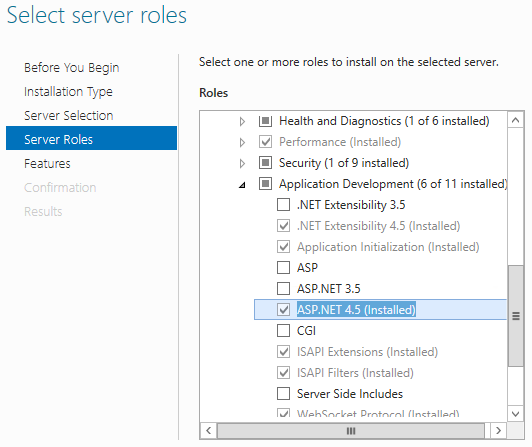
I ran into this error on a fresh build of Windows Server 2012 R2. IIS and .NET 4.5 had been installed, but the ASP.NET Server Role (version 4.5 in my case) had not been added. Make sure that the version of ASP.NET you need has been added/installed like ASP.NET 4.5 is in this screenshot.
Method 3
To fix the problem, I tried to run
%windir%Microsoft.NETFramework64v4.0.30319aspnet_regiis.exe -i
However It didn’t work for me. I have to run another command line in CMD window as administrator. Here is the command:
dism /online /enable-feature /featurename:IIS-ASPNET45
or
dism /online /enable-feature /featurename:IIS-ASPNET45 /all
Hope it will help.
Method 4
Try switching to Integrated mode. See the following thread:
IIS 7, HttpHandler and HTTP Error 500.21
Method 5
I got this error on my ASP.Net 4.5 app on Windows Server 2012 R2.
Go to start menu -> “Turn windows features on or off”. A wizard popped up for me.
Click Next to Server Roles
I had to check these to get this to work, located under Web Server IIS->Web Server-> Application Development (these are based on Jeremy Cook’s answer above):
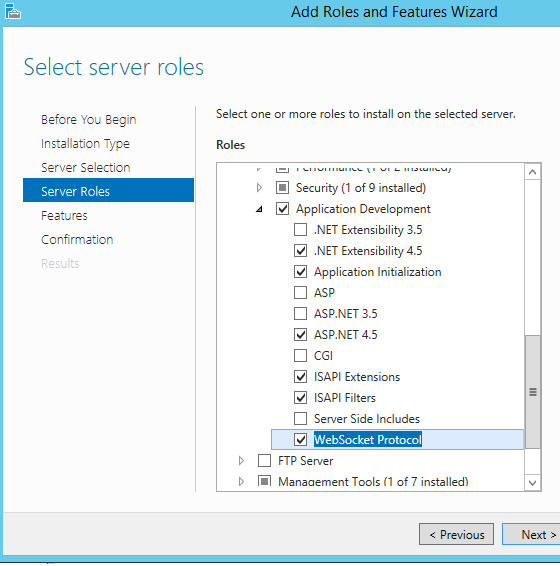
Then click next to Features and make sure the following is checked:
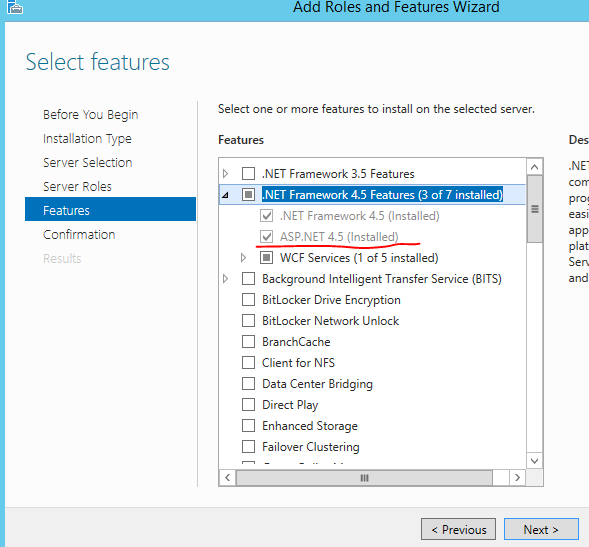
Then click next and Install. At this point, the error went away for me. Good luck!
Method 6
This is because IIS 7 uses http handlers from both <system.web><httpHandlers> and <system.webServer><handlers>. if you need CloudConnectHandler in your application, you should add <httpHandlers> section with this handler to the <system.web>:
<httpHandlers>
    <add verb="*" path="CloudConnect.aspx" type="CloudConnectHandler" />
</httpHandlers>
and also add preCondition attribute to the handler in <system.webServer>:
<handlers>
  <add name="CloudConnectHandler" verb="*" path="CloudConnect.aspx" type="CloudConnectHandler" preCondition="integratedMode" />
</handlers>
Hope it helps
Method 7
I had this issue in Windows 10 when I needed IIS instead of IIS Express. New Web Project failed with OP’s error. Fix was
Control Panel > Turn Windows Features on or off > Internet Information Services > World Wide Web Services > Application Development Features
tick ASP.NET 4.7 (in my case)
Method 8
For me, I was getting this error message when using PUT or DELETE to WebAPI. I also tried re-registering .NET Framework as suggested but to no avail.
I was able to fix this by disabling WebDAV for my individual application pool, this stopped the ‘bad module’ error when using PUT or DELETE.
Disable WebDAV for Individual App Pool:
- Click the affected application pool
- Find
WebDAV Authoring Toolsin the list - Click to open it
- Click
Disable WebDAVin the top right.
This link is where I found the instructions but it’s not very clear.
Method 9
I had this problem every time I deployed a new website or updated an existing one using MSDeploy.
I was able to fix this by unloading the app domain using MSDeploy with the following syntax:
msdeploy.exe -verb:sync -source:recycleApp -dest:recycleApp="Default Web Site/myAppName",recycleMode=UnloadAppDomain
You can also stop, start, or recycle the application pool – more details here: http://technet.microsoft.com/en-us/library/ee522997%28v=ws.10%29.aspx
While Armaan’s solution helped get me unstuck, it did not make the problem go away permanently.
Method 10
if it is IIS 8 go to control panel, turn windows features on/off and enable Bad “Named pipe activation” then restart IIS. Hope the same works with IIS 7
Method 11
I discovered that the order of adding roles and features is important.
On a fresh system I activate the role “application server” and there check explicitly .net, web server support and finally process activation service
Then automatically a dialogue comes up that the role “Web server” needs to be added also.
Method 12
Install .NET framework as below, it will work .NET version 4.5 as well.
%windir%Microsoft.NETFrameworkv4.0.30319aspnet_regiis.exe -ir
Some time only give aspnet_regiis.exe -i don’t work so give aspnet_regiis.exe -ir in above path.
All methods was sourced from stackoverflow.com or stackexchange.com, is licensed under cc by-sa 2.5, cc by-sa 3.0 and cc by-sa 4.0