I created an img file via the following command:
dd if=/dev/zero bs=2M count=200 > binary.img
It’s just a file with zeroes, but I can use it in fdisk and create a partition table:
# fdisk binary.img

Device does not contain a recognized partition table.
Created a new DOS disklabel with disk identifier 0x51707f21.

Command (m for help): p
Disk binary.img: 400 MiB, 419430400 bytes, 819200 sectors
Units: sectors of 1 * 512 = 512 bytes
Sector size (logical/physical): 512 bytes / 512 bytes
I/O size (minimum/optimal): 512 bytes / 512 bytes
Disklabel type: dos
Disk identifier: 0x51707f21
and, let’s say, one partition:
Command (m for help): n
Partition type
   p   primary (0 primary, 0 extended, 4 free)
   e   extended (container for logical partitions)
Select (default p): p
Partition number (1-4, default 1):
First sector (2048-819199, default 2048):
Last sector, +sectors or +size{K,M,G,T,P} (2048-819199, default 819199):

Created a new partition 1 of type 'Linux' and of size 399 MiB.

Command (m for help): w
The partition table has been altered.
Syncing disks.
When I check the partition table, I get the following result:
Command (m for help): p
Disk binary.img: 400 MiB, 419430400 bytes, 819200 sectors
Units: sectors of 1 * 512 = 512 bytes
Sector size (logical/physical): 512 bytes / 512 bytes
I/O size (minimum/optimal): 512 bytes / 512 bytes
Disklabel type: dos
Disk identifier: 0x7f3a8a6a

Device      Boot Start    End Sectors  Size Id Type
binary.img1       2048 819199  817152  399M 83 Linux
So the partition exists. When I try to format this partition via gparted, I get the following error:
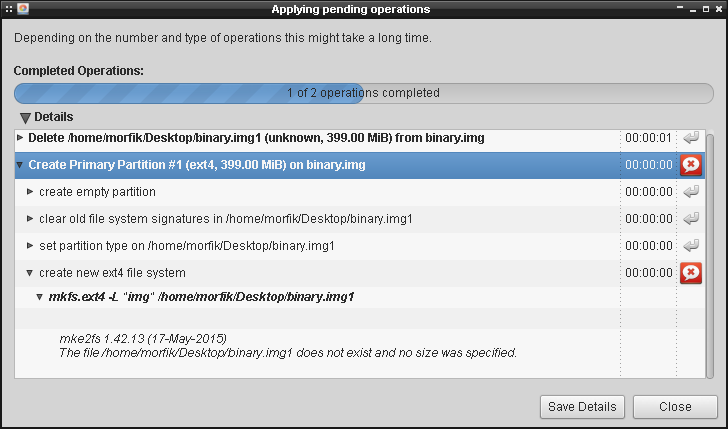
I don’t know why it looks for binary.img1 , and I have no idea how to format the partition from command live.
Does anyone know how to format it using ext4 filesystem?
Answers:
Thank you for visiting the Q&A section on Magenaut. Please note that all the answers may not help you solve the issue immediately. So please treat them as advisements. If you found the post helpful (or not), leave a comment & I’ll get back to you as soon as possible.
Method 1
You can access the disk image and its individual partitions via the loopback feature. You have already discovered that some disk utilities will operate (reasonably) happily on disk images. However, mkfs is not one of them (but strangely mount is).
Here is output from fdisk -lu binary.img:
Disk binary.img: 400 MiB, 419430400 bytes, 819200 sectors
Units: sectors of 1 * 512 = 512 bytes
Sector size (logical/physical): 512 bytes / 512 bytes
...

Device           Boot Start    End Sectors  Size Id Type
binary.img1            2048 819199  817152  399M 83 Linux
To access the partition you’ve created you have a couple of choices
-
The explicit route
losetup --offset $((512*2048)) --sizelimit $((512*817152)) --show --find binary.img
/dev/loop0
The output
/dev/loop0is the name of the loop device that has been allocated. The--offsetparameter is just the partition’s offset (Start) multiplied by the sector size (512). Whereas--sizelimitis the size of the partition, and you can calculate it in the following way: End-Start+1, which is 819199-2048+1=817152 , and that number also has to be multiplied by the sector size.You can then use
/dev/loop0as your reference to the partition:mkfs -t ext4 -L img1 /dev/loop0 mkdir -p /mnt/img1 mount /dev/loop0 /mnt/img1 ... umount /mnt/img1 losetup -d /dev/loop0
-
The implicit route
losetup --partscan --show --find binary.img
/dev/loop0
The output
/dev/loop0is the name of the primary loop device that has been allocated. In addition, the--partscanoption tells the kernel to scan the device for a partition table and assign subsidiary loop devices automatically. In your case with the one partition you also get/dev/loop0p1, which you can then use as your reference to the partition:mkfs -t ext4 -L img1 /dev/loop0p1 mkdir -p /mnt/img1 mount /dev/loop0p1 /mnt/img1 ... umount /mnt/img1 losetup -d /dev/loop0
Method 2
There is another way to do this in general, use kpartx (not kde related)
sudo kpartx -a binary.img
and now you should have all partition devices defined under /dev/mapper as loop0p1, loop0p2, …
and then
sudo mkfs.ext4 /dev/mapper/loop0p1
Optionnaly, when you are done, you can run also
sudo kpartx -d binary.img
to get rid of the loop0p? deivce
Method 3
I don’t know why it looks for
binary.img1
(… and later for binary.img2 buried in the commentary.)
That is because the tools are expecting the filenames to follow a specific pattern. That pattern is the one used by device files for actual discs and disc volumes on your system, namely:
- A device file encompassing the whole disc is named
sda(or something else). This is whatfdiskexpects to make use of. - Device files for individual slices of the disc, described by its partitioning, are named
sda1,sda2,sda3, and so forth. This is what tools such asgpartedexpect to make use of when they tellmkfsto do things on individual disc volumes.
Of course, ordinary files don’t overlap in the manner that disc devices files do. The discussions involving the loopback filesystem that you have seen are all about taking a single whole-disc image file and using loopback to create the 1, 2, 3, and so forth files that reflect the individual slices within it, once the desired partition layout has been written to the partition table.
Method 4
Minimal runnable sfdisk + mke2fs example without sudo
In this example, we will create, without sudo or setsuid, an image file that contains two ext2 partitions, each populated with files from a host directory.
We will then use sudo losetup just to mount the partitions to test that the Linux kernel can actually read them as explained at: https://stackoverflow.com/questions/1419489/how-to-mount-one-partition-from-an-image-file-that-contains-multiple-partitions/39675265#39675265
For more details, see:
sfdisk: deals with the partition table: https://superuser.com/questions/332252/how-to-create-and-format-a-partition-using-a-bash-script/1132834#1132834mke2fs: deals with EXT formatting of partitions: https://superuser.com/questions/605196/how-to-create-ext2-image-without-superuser-rights/1366762#1366762
The example:
#!/usr/bin/env bash

# Input params.
root_dir_1=root1
root_dir_2=root2
partition_file_1=part1.ext2
partition_file_2=part2.ext2
partition_size_1_megs=32
partition_size_2_megs=32
img_file=img.img
block_size=512

# Calculated params.
mega="$(echo '2^20' | bc)"
partition_size_1=$(($partition_size_1_megs * $mega))
partition_size_2=$(($partition_size_2_megs * $mega))

# Create a test directory to convert to ext2.
mkdir -p "$root_dir_1"
echo content-1 > "${root_dir_1}/file-1"
mkdir -p "$root_dir_2"
echo content-2 > "${root_dir_2}/file-2"

# Create the 2 raw ext2 images.
rm -f "$partition_file_1"
mke2fs
  -d "$root_dir_1"
  -r 1
  -N 0
  -m 5
  -L ''
  -O ^64bit
  "$partition_file_1"
  "${partition_size_1_megs}M"
;
rm -f "$partition_file_2"
mke2fs
  -d "$root_dir_2"
  -r 1
  -N 0
  -m 5
  -L ''
  -O ^64bit
  "$partition_file_2"
  "${partition_size_2_megs}M"
;

# Default offset according to
part_table_offset=$((2**20))
cur_offset=0
bs=1024
dd if=/dev/zero of="$img_file" bs="$bs" count=$((($part_table_offset + $partition_size_1 + $partition_size_2)/$bs)) skip="$(($cur_offset/$bs))"
printf "
type=83, size=$(($partition_size_1/$block_size))
type=83, size=$(($partition_size_2/$block_size))
" | sfdisk "$img_file"
cur_offset=$(($cur_offset + $part_table_offset))
# TODO: can we prevent this and use mke2fs directly on the image at an offset?
# Tried -E offset= but could not get it to work.
dd if="$partition_file_1" of="$img_file" bs="$bs" seek="$(($cur_offset/$bs))"
cur_offset=$(($cur_offset + $partition_size_1))
rm "$partition_file_1"
dd if="$partition_file_2" of="$img_file" bs="$bs" seek="$(($cur_offset/$bs))"
cur_offset=$(($cur_offset + $partition_size_2))
rm "$partition_file_2"

# Test the ext2 by mounting it with sudo.
# sudo is only used for testing, the image is completely ready at this point.

# losetup automation functions from:
# https://stackoverflow.com/questions/1419489/how-to-mount-one-partition-from-an-image-file-that-contains-multiple-partitions/39675265#39675265
loop-mount-partitions() (
  set -e
  img="$1"
  dev="$(sudo losetup --show -f -P "$img")"
  echo "$dev" | sed -E 's/.*[^[:digit:]]([[:digit:]]+$)/1/g'
  for part in "${dev}p"*; do
    if [ "$part" = "${dev}p*" ]; then
      # Single partition image.
      part="${dev}"
    fi
    dst="/mnt/$(basename "$part")"
    echo "$dst" 1>&2
    sudo mkdir -p "$dst"
    sudo mount "$part" "$dst"
  done
)
loop-unmount-partitions() (
  set -e
  for loop_id in "<a href="https://getridbug.com/cdn-cgi/l/email-protection" class="__cf_email__" data-cfemail="8aaeca">[email protected]</a>"; do
    dev="/dev/loop${loop_id}"
    for part in "${dev}p"*; do
      if [ "$part" = "${dev}p*" ]; then
        part="${dev}"
      fi
      dst="/mnt/$(basename "$part")"
      sudo umount "$dst"
    done
    sudo losetup -d "$dev"
  done
)

loop_id="$(loop-mount-partitions "$img_file")"
sudo cmp /mnt/loop0p1/file-1 "${root_dir_1}/file-1"
sudo cmp /mnt/loop0p2/file-2 "${root_dir_2}/file-2"
loop-unmount-partitions "$loop_id"
Tested on Ubuntu 18.04. GitHub upstream.
Helper to wrap an existing raw filesystem file into an image
Extracted from the above, the following can be useful:
# Put a raw filesystem file into a disk image with a partition table.
#
# https://unix.stackexchange.com/questions/209566/how-to-format-a-partition-inside-of-an-img-file/527132#527132
#
# Usage:
#
#     sfdisk-fs-to-img root.ext2
#
# Creates a file:
#
#     sfdisk-fs-to-img root.ext2.img
#
sfdisk-fs-to-img() (
  partition_file_1="$1"
  img_file="${partition_file_1}.img"
  block_size=512
  partition_size_1="$(wc -c "$partition_file_1" | awk '{print $1}')"
  part_table_offset=$((2**20))
  cur_offset=0
  bs=1024
  dd if=/dev/zero of="$img_file" bs="$bs" count=$((($part_table_offset + $partition_size_1)/$bs)) skip="$(($cur_offset/$bs))"
  printf "
  type=83, size=$(($partition_size_1/$block_size))
  " | sfdisk "$img_file"
  cur_offset=$(($cur_offset + $part_table_offset))
  dd if="$partition_file_1" of="$img_file" bs="$bs" seek="$(($cur_offset/$bs))"
  cur_offset=$(($cur_offset + $partition_size_1))
)
Method 5
Though this topic is not directly related, it mentions a lot of the same and related information.
Debian wiki | Raspberry Pi and qemu-user-static
If you cannot use apt to install some of the commands mentioned in this post, try using apt-cache search [package_name]. This may not turn up any results if the command comes from a package of a different name.
For instance, losetup could formerly be installed as losetup using apt install losetup, but it is now part of util-linux in Ubuntu’s repository. The way you find out what package acts as a container for another package, you must use the search for the online repository for you Linux distribution. Or, if you must install it from another source, use a Web search engine.
Some packages worth checking out…
util-linux genisoimage dosfstools squashfs-tools fsarchiver xfsprogs reiserfsprogs reiser4progs jfsutils ntfsprogs btrfs-tools
Every Linux distribution also has its own online manpages. Sometimes it is easier to use the manpages than a tutorial. The manual pages will also tell you all the command options and parameters. A tutorial usually will only focus on the ones used.
All methods was sourced from stackoverflow.com or stackexchange.com, is licensed under cc by-sa 2.5, cc by-sa 3.0 and cc by-sa 4.0